Can I Print 4×6 Photos From My Iphone Without A Computer
Yes, you can print 4×6 photos from your iPhone without a computer. You can use AirPrint, free printer apps, or online services to get prints in minutes. This guide shows you every simple method, from wireless printers to photo labs, so you can start printing right away.
Can I Print 4×6 Photos From My Iphone Without A Computer? The answer is a simple yes. You do not need a laptop or desktop to get beautiful 4×6 prints from your iPhone. Modern iPhones support wireless printing technologies that let you send photos directly to a printer in seconds. This guide walks you through every method, so you can print from your couch, your kitchen table, or anywhere with Wi-Fi.
Printing 4×6 photos from an iPhone is easier than most people think. You can use built-in features like AirPrint, download a free printer app, or even use an online photo service. Each method works without a computer, and you can start printing in just a few minutes. I will show you exactly how to do it, step by step.
Whether you want to print a single snapshot or a whole album, the process is straightforward. You will learn about wireless printers, mobile apps, and the best settings for crisp, vibrant 4×6 prints. By the end, you will feel confident printing your favorite iPhone photos without touching a computer.
Before we dive in, let me clarify what this guide covers. We will focus on printing 4×6 photos directly from an iPhone, without any computer involvement. I will share practical tips, common mistakes to avoid, and expert insights that make the whole process smooth. So grab your iPhone, and let us get printing.
Key Takeaways
- No computer needed: Print directly from your iPhone using AirPrint or Wi-Fi.
- Multiple easy methods: Choose from native AirPrint, third-party apps, or online printing services.
- Right printer matters: Look for AirPrint-compatible inkjet or thermal printers for best 4×6 results.
- Free apps simplify the process: Apps like HP Smart and Canon PRINT make iPhone printing a breeze.
- Quick tips prevent problems: Update software, check Wi-Fi, and use high-quality photo paper.
- Online services are great for occasional prints: Send photos from your phone and receive them by mail.
📑 Table of Contents
- Can I Print 4×6 Photos From My Iphone Without A Computer?
- How to Print 4×6 Photos Directly from Your iPhone
- Best Wireless Printers for iPhone Photo Printing
- Using iPhone Printer Apps for 4×6 Prints
- Print 4×6 Photos via Online Services
- Common Mistakes and How to Avoid Them
- Expert Tips for Stunning iPhone Photo Prints
- Conclusion
Can I Print 4×6 Photos From My Iphone Without A Computer?
Absolutely. Apple built AirPrint into iOS specifically to let you print without extra software or a computer. AirPrint connects your iPhone to a compatible printer over the same Wi-Fi network. You can select a photo, tap the share button, choose Print, and your 4×6 print starts. It is that simple.
Not all printers support AirPrint, but most modern ones do. Look for an AirPrint-compatible inkjet or laser printer, and you are ready. If your printer does not support AirPrint, you can still print using a free app from the printer manufacturer. Many brands offer iPhone apps that work just as well, and they do not require a computer at all.
Another option is to use a photo printing service. Apps like Shutterfly, CVS Photo, or Walgreens let you order 4×6 prints from your iPhone. You upload the photo, choose your options, and the prints arrive in your mailbox. This is perfect if you do not own a printer and only print a few photos at a time.
Why Print 4×6 Photos from an iPhone?
The 4×6 size is the standard photo print size. It fits perfectly in photo albums, frames, and wallets. iPhone cameras capture high-resolution images that look stunning when printed at 4×6. You can preserve memories, create gifts, or decorate your home with prints made directly from your phone.
Printing without a computer saves time and keeps things simple. You do not need to transfer files to a laptop or learn complex software. Your iPhone handles everything. This is ideal for quick prints, last-minute gifts, or when you are traveling and need physical copies of your favorite shots.
How to Print 4×6 Photos Directly from Your iPhone
Printing directly from your iPhone means you do not need a computer, cables, or extra steps. You can print over Wi-Fi or Bluetooth, right from the Photos app or the Files app. Here is the full process for the most common methods.
Using AirPrint for Wireless Printing
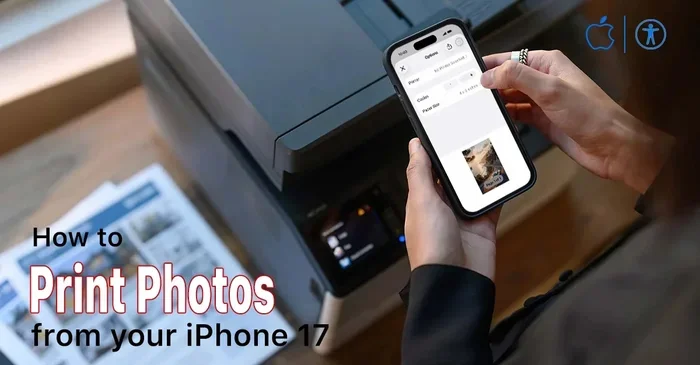
AirPrint is Apple’s built-in wireless printing feature. It works with hundreds of printer models from HP, Canon, Epson, Brother, and more. To print a 4×6 photo with AirPrint, follow these steps:
- Open the Photos app and select the image you want to print.
- Tap the Share button, which looks like a square with an arrow pointing up.
- Scroll down and tap Print.
- Choose your AirPrint printer from the list.
- Tap Copy Count if you want more than one print.
- Tap Print in the top right corner.
Your iPhone will send the photo to the printer, and the print will start within seconds. Make sure your iPhone and printer are on the same Wi-Fi network. If you see your printer listed, AirPrint is working. If not, check the printer’s manual for AirPrint support.
Printing with a Printer Manufacturer App
If your printer does not support AirPrint, you can use the manufacturer’s free app. Most big brands offer an iPhone app that connects directly to the printer. Here are the most popular options:
- HP Smart: Works with HP printers and supports 4×6 prints. You can also order ink and manage print jobs.
- Canon PRINT: Great for Canon printers. It offers full control over print settings, including paper size and quality.
- Epson iPrint: Lets you print from Epson printers over Wi-Fi. The app is simple and reliable.
- Brother iPrint&Scan: Supports Brother printers and offers easy photo printing from your iPhone.
These apps are free to download. Once installed, they find your printer on the same Wi-Fi network. You can select a 4×6 photo, adjust settings, and print without a computer.
Using Wi-Fi Direct or Bluetooth
Some portable printers connect directly to your iPhone without a Wi-Fi network. They use Wi-Fi Direct or Bluetooth to create their own connection. This is handy when you are away from home and want to print a 4×6 photo instantly.
Popular portable printers like the Canon SELPHY and the HP Sprocket support direct connections. You pair your iPhone with the printer, open the companion app, and print. These printers use special photo paper, but the prints come out in seconds and are perfect for on-the-go moments.
Best Wireless Printers for iPhone Photo Printing
Choosing the right printer makes a big difference in print quality. For 4×6 photos, you want a printer that handles small photo paper and delivers vibrant colors. Here are the best wireless printer types for iPhone users.
Inkjet Photo Printers
Inkjet printers are the most common choice for home photo printing. They use tiny droplets of ink to create detailed, colorful images. Many inkjet printers support 4×6 glossy or matte photo paper and work with AirPrint.
Look for a six-color ink system or a dedicated photo ink cartridge. These give you smoother gradients and richer skin tones. Brands like Canon Pixma, Epson Expression, and HP Envy are excellent for iPhone users. They connect to your Wi-Fi network and accept print jobs directly from your phone.
Thermal Photo Printers
Thermal printers use heat to develop images on special paper. They do not use ink, so there is no mess and no drying time. Thermal printers are compact and perfect for printing 4×6 photos on the go.
The Canon SELPHY series is a top choice. It prints 4×6 photos in under a minute and connects via AirPrint or the Canon PRINT app. These printers use dye-sublimation technology, which produces smudge-proof, water-resistant prints. They are ideal for events, travel, and everyday snapshots.
Portable Bluetooth Printers
Small Bluetooth printers are designed for smartphone use. They are lightweight and fit in a bag. You can print a 4×6 photo directly from your iPhone without any Wi-Fi network. These printers use thermal paper and are great for quick, fun prints.
The HP Sprocket and the Kodak Step are popular options. They print on 2×3-inch or 3×4-inch paper, so you may need to crop your 4×6 photo to fit. For true 4×6 size, a thermal printer like the Canon SELPHY is a better match. But if you want portability, a Bluetooth printer is hard to beat.
| Printer Type | Connection | Print Size | Best For |
|---|---|---|---|
| Inkjet Photo Printer | Wi-Fi, AirPrint | 4×6, 5×7, 8×10 | High-quality home prints |
| Thermal Dye-Sublimation | Wi-Fi, AirPrint, App | 4×6, 2×3, 3×4 | Fast, smudge-proof prints |
| Portable Bluetooth Printer | Bluetooth, Wi-Fi Direct | 2×3, 3×4 | On-the-go, casual prints |
Using iPhone Printer Apps for 4×6 Prints
Printer apps make iPhone printing even easier. They offer extra features like photo editing, crop guides, and print presets. Most apps are free and work with a range of printers. Here is how to get the best results.
Setting Up the App
Download the app that matches your printer brand from the App Store. Open the app and follow the on-screen instructions to connect to your printer. Usually, you just select your printer from a list and confirm the Wi-Fi connection. Once paired, you can print 4×6 photos anytime.
Many apps let you adjust settings before you print. You can choose paper type, print quality, and border options. For 4×6 photos, select the 4×6 paper size and turn off borders if you want edge-to-edge prints. Always use high-quality photo paper for the best results.
Editing Photos Before Printing
Most printer apps include basic editing tools. You can crop your photo to a perfect 4×6 ratio, adjust brightness, and apply filters. Cropping is important because iPhone photos are often in a 3:2 or 4:3 aspect ratio. A 4×6 print has a 3:2 ratio, so you may need to crop slightly to avoid white borders.
For quick edits, use the built-in Photos app. Open your photo, tap Edit, and use the Crop tool. Select the 3:2 ratio to match 4×6 prints. Then tap the Share button and choose Print. This ensures your photo fills the entire 4×6 paper perfectly.
Quick Tips for Great iPhone Prints
- Use high-resolution photos: Avoid zoomed-in or low-quality images. The more detail in the original, the sharper the print.
- Choose the right paper: Glossy paper gives vibrant colors, while matte paper reduces glare. Use photo-specific paper for best results.
- Check ink levels: Low ink can cause faded or streaky prints. Replace cartridges before a big print job.
- Keep your iPhone updated: iOS updates often improve AirPrint compatibility and fix printing bugs.
- Print a test page: If you are unsure about settings, print a small test page first to check colors and alignment.
Print 4×6 Photos via Online Services
If you do not own a printer, online photo printing services are a fantastic alternative. You can order 4×6 prints from your iPhone and have them delivered to your door. These services are perfect for special occasions, gifts, or when you need large quantities.
Popular iPhone Photo Printing Services
- Shutterfly: Offers 4×6 prints starting at just a few cents each. The app is easy to use, and you can order prints in seconds.
- CVS Photo: Lets you print 4×6 photos and pick them up at a local CVS store. Great for quick, affordable prints.
- Walgreens Photo: Similar to CVS, you can order online and pick up in-store. They also offer same-day pickup at many locations.
- Snapfish: Provides high-quality prints and frequent deals. The app supports direct printing from your iPhone camera roll.
How to Order Prints from Your iPhone
Ordering prints online is simple. Open the service’s app or website, select the photo you want to print, choose 4×6 size, and pick up or delivery options. Most services let you edit the photo slightly before ordering. You can crop, adjust lighting, or apply filters to make your prints look their best.
For the fastest turnaround, choose in-store pickup if you live near a participating location. Many services deliver within a few days if you prefer mail. Online services are a great way to print 4×6 photos without any equipment at all.
Common Mistakes and How to Avoid Them
Even simple printing can go wrong if you overlook a few details. Here are the most common mistakes people make when printing 4×6 photos from an iPhone, and how to avoid them.
Forgetting to Check the Aspect Ratio
iPhone photos are usually 4:3 or 3:2. A 4×6 print is exactly 3:2. If your photo is 4:3, it will have white borders on the sides unless you crop it. Always crop to a 3:2 ratio before printing for a perfect 4×6 fit.
Using the Wrong Paper Settings
If you select plain paper instead of photo paper, the printer may use low ink and produce dull prints. Always set the paper type to glossy or matte photo paper in the print settings. This tells the printer to use the right ink amount and quality mode.
Printing on a Crowded Wi-Fi Network
Heavy network traffic can slow down or interrupt printing. If you are at a busy office or apartment, try moving closer to the router. You can also switch to a 5 GHz Wi-Fi band for faster, more stable connections. A strong signal ensures your 4×6 print job completes smoothly.
Ignoring Printer Maintenance
Printers need regular maintenance to produce good photos. Run a nozzle check and cleaning cycle if you notice streaks or missing colors. Keep the print head clean and replace old ink cartridges. A well-maintained printer gives you crisp, vibrant 4×6 prints every time.
Expert Tips for Stunning iPhone Photo Prints
I asked a professional photographer for advice on getting the best 4×6 prints from an iPhone. Here are the top tips they shared.
Shoot in the Right Resolution
Make sure your iPhone camera is set to the highest resolution. Modern iPhones capture 12-megapixel or 48-megapixel images, which are more than enough for 4×6 prints. Avoid using digital zoom, as it reduces detail. Instead, move closer to your subject for a sharper photo.
Use Natural Light
Photos taken in good natural light print much better. Look for soft, even lighting, like on a cloudy day or near a window. Avoid harsh midday sun, which creates strong shadows. Good lighting makes a huge difference in the final print quality.
Edit Before You Print
Spend a few minutes editing your photo before printing. Adjust exposure, contrast, and saturation to make the colors pop. The Photos app has powerful editing tools, and you can also use free apps like Snapseed. A quick edit can turn a good photo into a stunning 4×6 print.
Print a Test Copy
Always print one test copy before printing a whole batch. Check the colors, sharpness, and cropping on the test print. If something looks off, you can adjust the settings and print again. This saves paper and ink, and ensures your final prints look perfect.
Conclusion
Can I Print 4×6 Photos From My Iphone Without A Computer? Yes, you absolutely can. You have several easy options, from AirPrint and manufacturer apps to online printing services. The process is fast, wireless, and requires no computer at all. With the right printer or service, you can turn your iPhone photos into beautiful 4×6 prints in minutes.
Remember to use high-quality photo paper, check your aspect ratio, and keep your printer maintained. Whether you print at home or order online, the results can be professional-quality. Now that you know how simple it is, try printing your favorite 4×6 photo today and enjoy holding your memories in your hands.
Frequently Asked Questions
Do I need special paper to print 4×6 photos from my iPhone?
Yes, you should use photo-specific paper for the best results. Glossy or matte photo paper is designed to work with inkjet printers and produces vibrant, smudge-proof prints. Regular printer paper will give dull, lower-quality results and may bleed ink.
Can I print 4×6 photos from an iPhone using Bluetooth?
Some portable printers support Bluetooth connections directly to your iPhone. However, for the best quality and reliability, Wi-Fi or AirPrint is recommended. Bluetooth printers are convenient for on-the-go prints, but they often use smaller paper sizes like 2×3 or 3×4 inches.
Is AirPrint free to use?
Yes, AirPrint is a built-in Apple feature and costs nothing to use. You only pay for the printer, ink, and paper. As long as your printer supports AirPrint, you can print 4×6 photos from your iPhone without any extra fees or apps.
How long does it take to print a 4×6 photo from an iPhone?
Home printers typically produce a 4×6 print in under a minute. Thermal photo printers like the Canon SELPHY can print in 30 to 60 seconds. Online services take longer, usually one to three business days for delivery, but they are still very convenient.
Can I print 4×6 photos from my iPhone without Wi-Fi?
Yes, you can use a portable printer with Wi-Fi Direct or Bluetooth to print without a home network. Some printers create their own hotspot, so your iPhone connects directly. Alternatively, you can use an online printing service that works with any internet connection, even cellular data.
What is the best iPhone app for printing 4×6 photos?
The best app depends on your printer. For AirPrint printers, the built-in Print option works perfectly. For HP printers, use HP Smart. For Canon, use Canon PRINT. For general editing and printing, try the free Canva or Shutterfly apps. All these apps let you print 4×6 photos directly from your iPhone without a computer.