Can I Connect My Phone To Alexa And Get Started Today
Yes, you can absolutely connect your phone to Alexa and unlock a world of hands-free convenience. Whether you want to stream music, control smart home devices, or make calls, linking your phone to Alexa is quick and easy. This guide walks you through every step with clear instructions and practical tips. You will learn about Bluetooth pairing, Wi-Fi setup, and the Alexa app features that make everything seamless. Start your Alexa journey today and enjoy a smarter, connected lifestyle.
Have you ever wondered, “Can I connect my phone to Alexa and make my life easier?” The answer is a resounding yes. Connecting your phone to Alexa opens up a world of possibilities right at your voice command. You can play your favorite songs, check the weather, control your smart lights, and even make hands-free calls. It is one of the simplest ways to bring smart home technology into your daily routine.
Setting up the connection between your phone and Alexa might sound technical, but it is actually very straightforward. You do not need to be a tech expert. With a few taps on your screen and a couple of minutes of your time, your phone and Alexa will be working together like a well-oiled machine. This guide covers everything you need to know, from the initial setup to troubleshooting common issues.
Millions of people around the world already use Alexa with their phones every single day. The process is designed to be simple and user-friendly. Whether you have an iPhone or an Android device, the steps are nearly identical. Let us dive in and get your phone connected to Alexa right away.
Key Takeaways
- Easy Setup: Connecting your phone to Alexa takes just a few minutes using the Alexa app or Bluetooth pairing.
- Multiple Connection Methods: You can use Wi-Fi, Bluetooth, or the Alexa app to sync your phone with Alexa devices.
- Hands-Free Convenience: Once connected, you can make calls, send messages, and control smart home devices using voice commands.
- Troubleshooting Is Simple: Most connection issues can be fixed by restarting devices, checking Wi-Fi, or updating the Alexa app.
- Smart Home Integration: Alexa works with thousands of smart devices, making your phone a powerful remote control hub.
- Privacy Controls: Amazon provides built-in privacy settings to manage what your phone shares with Alexa.
- Free to Use: The core Alexa features are free, and you only need a compatible phone and an Alexa-enabled device.
📑 Table of Contents
- What Is Alexa And How Does It Work With Your Phone?
- How To Connect Your Phone To Alexa Using Wi-Fi
- Connecting Your Phone To Alexa Using Bluetooth
- Setting Up Alexa Hands-Free Calling On Your Phone
- Alexa App Features That Enhance Your Phone Connection
- Troubleshooting Common Connection Issues
- Privacy And Security When Connecting Your Phone To Alexa
- Expert Insights And Pro Tips
- Key Takeaways
- Conclusion
What Is Alexa And How Does It Work With Your Phone?
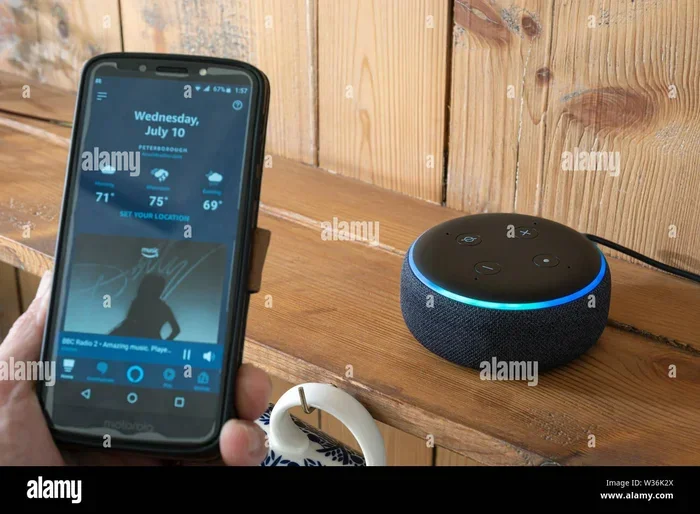
Alexa is Amazon’s voice assistant technology. It lives inside devices like the Amazon Echo, Echo Dot, and Echo Show. But here is the thing — you do not always need a dedicated smart speaker to use Alexa. Your phone can act as an Alexa hub too. The Alexa app turns your mobile device into a powerful voice-controlled tool.
When you connect your phone to Alexa, you are essentially pairing two devices so they can communicate. Your phone sends voice commands to the cloud, where Alexa processes them and sends back responses. This happens in seconds. The whole process relies on a stable Wi-Fi connection or Bluetooth pairing for certain features.
Think of Alexa as your personal digital assistant. It can set reminders, answer questions, add items to your shopping list, and much more. By connecting your phone, you expand Alexa’s capabilities even further. You get access to your phone’s contacts, music libraries, and apps all through simple voice commands.
Why Connect Your Phone To Alexa?
There are so many reasons to link your phone with Alexa. Here are some of the biggest benefits:
- Hands-Free Calling: You can make and receive phone calls without touching your phone. Just ask Alexa to call someone.
- Music Streaming: Stream music from Spotify, Amazon Music, or Apple Music directly through your Alexa device.
- Smart Home Control: Use your phone as a remote to control lights, thermostats, locks, and more.
- Calendar and Reminders: Sync your phone’s calendar with Alexa so you never miss an appointment.
- Notifications: Get text messages, emails, and app alerts read aloud by Alexa.
Each of these features makes your daily life more convenient. Once your phone is connected, you will wonder how you ever managed without it.
How To Connect Your Phone To Alexa Using Wi-Fi
The most common way to connect your phone to Alexa is through Wi-Fi. This method works for all Alexa-enabled devices and gives you the full range of features. Let us walk through the steps together.
Step 1: Download the Alexa App
First, you need the Alexa app on your phone. It is free and available on both the Apple App Store and Google Play Store. Search for “Amazon Alexa” and download the app. Once installed, open it and sign in with your Amazon account. If you do not have one, you will need to create one first.
Step 2: Connect Your Alexa Device To Wi-Fi
Before your phone can talk to Alexa, your Alexa device needs to be online. Plug in your Echo device and wait for the light ring to turn orange or blue. Open the Alexa app and go to “Devices.” Select your Echo device and follow the prompts to connect it to your Wi-Fi network. Make sure your phone is on the same Wi-Fi network for the best results.
Step 3: Link Your Phone Number
To use calling and messaging features, you need to link your phone number. Go to “Communicate” in the Alexa app. Tap the phone icon and follow the steps to verify your number. This allows Alexa to make calls to other Alexa users or to regular phone numbers. Your contacts will sync automatically once this is done.
Step 4: Test The Connection
Now it is time to test everything. Say “Alexa” followed by a command. Try asking for the weather, playing a song, or setting a timer. If Alexa responds correctly, you are all set. If not, do not worry. There are simple fixes for most connection problems, which we will cover later in this article.
Connecting Your Phone To Alexa Using Bluetooth
Bluetooth is another great option for connecting your phone to Alexa. This method is especially useful when you want to stream audio from your phone to an Alexa speaker. It is also handy when you do not want to rely on Wi-Fi.
How To Pair Your Phone Via Bluetooth
Bluetooth pairing is quick and easy. Follow these simple steps:
- Turn on Bluetooth on your phone. You can do this in your phone’s settings or by swiping down from the top of your screen.
- Say “Alexa, pair my device” or go to the Bluetooth settings in the Alexa app.
- Your Echo device will appear in the list of available devices on your phone.
- Tap on your Echo device to pair it.
- Once connected, any audio from your phone will stream through your Alexa speaker.
Bluetooth is perfect for situations where you want to play music stored on your phone or use a specific app that does not work directly with Alexa. The connection range is typically around 30 feet, so you can move around your room freely.
When To Use Bluetooth Vs Wi-Fi
You might be wondering which connection method is better. Here is a quick comparison to help you decide:
- Wi-Fi: Best for full Alexa features, smart home control, and voice commands. Requires a stable internet connection.
- Bluetooth: Best for audio streaming and situations without Wi-Fi. Limited to audio playback and basic functions.
Most users find that using both methods together gives the best experience. Wi-Fi for voice commands and smart home control, Bluetooth for music streaming on the go.
Setting Up Alexa Hands-Free Calling On Your Phone
One of the most popular reasons people connect their phone to Alexa is for hands-free calling. Imagine cooking dinner and needing to call your spouse. Instead of washing your hands and picking up your phone, you simply say, “Alexa, call John.” It is incredibly convenient.
To set up hands-free calling, make sure your phone number is linked in the Alexa app. You also need to ensure that the person you want to call has an Alexa device or the Alexa app installed. Alexa supports calls to other Alexa users, mobile numbers, and landlines in the United States, Canada, and Mexico.
The Alexa Drop In feature is another useful tool. It lets you connect with other Alexa devices in your home instantly, like an intercom system. This is great for families who want to communicate between rooms without picking up a phone.
Tips For Better Call Quality
Call quality depends on your Wi-Fi connection. Here are a few tips to make sure your calls are clear:
- Place your Echo device in a central location away from walls and obstacles.
- Use a strong Wi-Fi signal. Consider a mesh network if your house is large.
- Keep your Alexa app updated to the latest version.
- Avoid using Alexa during heavy internet usage times to reduce lag.
With these tips, your phone-to-Alexa calling experience will be smooth and reliable every time.
Alexa App Features That Enhance Your Phone Connection
The Alexa app is the bridge between your phone and your Alexa device. It is packed with features that make managing your connection easy and fun. Let us explore some of the best features.
Alexa Routines
Alexa Routines let you automate tasks with a single voice command. For example, you can create a routine called “Good Morning” that turns on your lights, reads the news, and starts your coffee maker — all by saying “Alexa, good morning.” You can set these up directly from the Alexa app on your phone.
Alexa Skills
Alexa Skills are like apps for Alexa. There are thousands of skills available, from games to fitness trackers to news updates. You can browse and enable skills right from your phone using the Alexa app. Some popular skills include Fitbit integration, Uber ride booking, and recipe reading.
Voice Profiles
Alexa can recognize different voices in your household. This means it can pull up your personal calendar, playlists, and preferences. Setting up voice profiles is easy through the Alexa app. Just follow the voice training prompts, and Alexa will learn to distinguish between family members.
Alexa Notifications
When your phone is connected to Alexa, you can receive notifications through your Echo device. This includes text messages, calendar reminders, and app alerts. You can customize which notifications you want to hear by going into the app settings. This feature keeps you informed without constantly checking your phone.
Troubleshooting Common Connection Issues
Even though connecting your phone to Alexa is usually smooth, you might run into some hiccups along the way. Do not panic. Most issues have simple solutions. Here is what to do when things do not work as expected.
Alexa Not Responding To Phone Commands
If Alexa is not responding when you speak from your phone, try these steps:
- Check that your phone and Alexa device are on the same Wi-Fi network.
- Restart your Alexa device by unplugging it for 30 seconds.
- Make sure the Alexa app is updated to the latest version.
- Restart your phone to clear any temporary glitches.
These simple steps fix the majority of connection problems. If the issue persists, try uninstalling and reinstalling the Alexa app.
Poor Audio Quality During Calls
If your calls sound muffled or echoey, the problem is usually your Wi-Fi connection. Move your Echo device closer to your router. You can also try changing your Wi-Fi channel to reduce interference from neighboring networks. A strong, stable connection makes all the difference.
Bluetooth Pairing Failures
If your phone will not pair with Alexa via Bluetooth, try this:
- Turn Bluetooth off and back on your phone.
- Make sure your Echo device is in pairing mode.
- Remove old Bluetooth pairings from both devices.
- Restart both your phone and your Echo device.
Bluetooth issues are almost always resolved by a simple restart or by clearing old connections. It is rarely a bigger problem than that.
Alexa App Crashing During Setup
If the Alexa app keeps crashing, make sure your phone has enough storage space. Clear the app cache in your phone settings. Also, check that your phone’s operating system is up to date. Running outdated software can cause compatibility issues with the latest Alexa app version.
Privacy And Security When Connecting Your Phone To Alexa
Privacy is a big concern for many people when using voice assistants. Amazon has built in several features to help you control your data. Understanding these features will give you peace of mind.
You can review your Alexa voice recordings at any time by going to the Alexa app. Tap on “Settings,” then “Alexa Privacy.” From there, you can listen to, delete, or opt out of voice recordings. Amazon also lets you mute the microphone on your Echo device with a physical button. When the light turns red, Alexa is not listening.
When you connect your phone to Alexa, your phone contacts and call history are synced. You can control what information is shared by adjusting the permissions in your phone settings and the Alexa app. It is always a good idea to review these settings regularly.
Quick Privacy Tips:
- Regularly delete your voice history.
- Use the mute button when you do not want Alexa listening.
- Review app permissions on your phone.
- Enable two-factor authentication on your Amazon account.
Taking these small steps ensures that your experience with Alexa remains both convenient and secure.
Expert Insights And Pro Tips
Experienced Alexa users know a few tricks that make the connection even better. Here are some pro tips to get the most out of your phone-to-Alexa setup.
Use a dedicated Wi-Fi network. Many modern routers support creating a separate network for smart home devices. This keeps your Alexa devices running smoothly without competing with your phone or laptop for bandwidth.
Name your devices clearly. When you have multiple Echo devices, give them distinct names. This makes it easier for Alexa to understand which device you are talking to. For example, name them “Kitchen Echo” or “Bedroom Dot.”
Enable the “Follow-up Mode.” This feature lets you ask Alexa multiple questions without saying “Alexa” each time. It is available in the app settings and makes conversations feel much more natural.
Use voice profiles for personalized responses. Each family member can have their own voice profile. This means Alexa can read your personal calendar, play your favorite playlists, and give you tailored news updates.
Keep your devices updated. Amazon regularly releases updates that improve performance and add new features. Check for updates in the Alexa app at least once a month.
Key Takeaways
- Easy Setup: Connecting your phone to Alexa takes just a few minutes using the Alexa app or Bluetooth pairing.
- Multiple Connection Methods: You can use Wi-Fi, Bluetooth, or the Alexa app to sync your phone with Alexa devices.
- Hands-Free Convenience: Once connected, you can make calls, send messages, and control smart home devices using voice commands.
- Troubleshooting Is Simple: Most connection issues can be fixed by restarting devices, checking Wi-Fi, or updating the Alexa app.
- Smart Home Integration: Alexa works with thousands of smart devices, making your phone a powerful remote control hub.
- Privacy Controls: Amazon provides built-in privacy settings to manage what your phone shares with Alexa.
- Free to Use: The core Alexa features are free, and you only need a compatible phone and an Alexa-enabled device.
Conclusion
Connecting your phone to Alexa is one of the easiest and most rewarding things you can do to upgrade your daily routine. The process is simple, the benefits are enormous, and the setup takes less than ten minutes. From hands-free calling to smart home control, the connection between your phone and Alexa makes life more convenient and connected.
Whether you use Wi-Fi or Bluetooth, the Alexa app makes managing your connection a breeze. You have full control over your settings, privacy, and preferences right from your phone. If you ever run into issues, the troubleshooting steps in this guide will help you get back on track quickly.
Now that you know how to connect your phone to Alexa, there is no reason to wait. Open the Alexa app, follow the steps in this guide, and start enjoying all the amazing features Alexa has to offer. Your phone and Alexa are a perfect team, and once they are connected, you will wonder how you ever lived without them.
Go ahead and give it a try today. The future of hands-free living is just a voice command away.
Frequently Asked Questions
Can I connect my phone to Alexa without Wi-Fi?
Yes, you can use Bluetooth to connect your phone to Alexa without Wi-Fi. Bluetooth allows you to stream audio from your phone to your Alexa speaker. However, most Alexa features like voice commands and smart home control require a Wi-Fi connection to work properly.
Is it free to connect my phone to Alexa?
Absolutely. The Alexa app is free to download, and connecting your phone to Alexa costs nothing. You only need a compatible phone, an Alexa-enabled device, and a Wi-Fi connection. Some skills and services may require subscriptions, but the core connection is completely free.
Can I connect multiple phones to one Alexa device?
Yes, you can. Multiple phones can be connected to the same Alexa device. Each user can set up their own voice profile, which allows Alexa to recognize different voices and provide personalized responses. This is great for families sharing one Echo device.
Why is my phone not connecting to Alexa?
The most common reasons are Wi-Fi issues, outdated app versions, or Bluetooth problems. Try restarting both your phone and your Alexa device, make sure they are on the same network, and update the Alexa app. These steps resolve most connection problems quickly.
Can I use Alexa on my phone without an Echo device?
Yes, you can. The Alexa app on your phone gives you access to many Alexa features, including voice commands, reminders, timers, and smart home control. While an Echo device enhances the experience, it is not required to use Alexa on your phone.
How do I disconnect my phone from Alexa?
To disconnect, go to the Alexa app, tap on “Devices,” select your phone, and choose “Remove.” For Bluetooth, simply turn off Bluetooth on your phone or unpair the device from your phone’s Bluetooth settings. You can always reconnect whenever you want.