Can Android Phones Use HDMI Cables to Connect to TV
Can Android Phones Use HDMI cables to connect to a TV? Yes, they can, but it depends on your phone model and the right adapter. Most modern Android devices support HDMI output through USB-C to HDMI adapters or MHL cables. This guide covers every method, adapter type, troubleshooting tip, and wireless alternative you need to know for a smooth connection.
Have you ever wanted to watch your favorite show on a bigger screen? Maybe you are traveling and need to share photos with family on the living room TV. Or perhaps you just want a better viewing experience for movies and games. Whatever the reason, the question Can Android Phones Use HDMI comes up a lot. The short answer is yes. But the full answer depends on your phone model, the type of port it has, and the right adapter or cable you choose.
Connecting your Android phone to a TV through HDMI is simpler than most people think. You do not need to be a tech expert. With the right tools and a few minutes of your time, you can mirror your phone screen onto a much larger display. In this guide, we will walk you through everything you need to know. We will cover the different methods, the adapters you need, step-by-step setup instructions, and even some troubleshooting tips. By the end, you will know exactly how to get your Android phone connected to your TV through HDMI.
The world of mobile connectivity has grown fast over the last few years. Phones now support multiple ways to output video and audio to external displays. Whether your phone has a USB-C port, a micro-USB port, or even a micro-HDMI port, there is a solution for you. Let us dive into the details and explore how Can Android Phones Use HDMI cables to connect to your television.
Key Takeaways
- Direct HDMI is possible: Many Android phones support HDMI output with the correct adapter or cable.
- USB-C to HDMI is the most common method: It works with most newer Android devices and delivers both audio and video.
- MHL adapters are an older but reliable option: They work with phones that have micro-USB or USB-C ports.
- Wireless alternatives exist: Chromecast, Miracast, and screen mirroring offer HDMI-free solutions.
- Not all Android phones support HDMI output: Check your device specs before buying an adapter.
- Troubleshooting is simple: Most HDMI issues stem from cable compatibility or missing adapters.
📑 Table of Contents
- What Is HDMI and Why Does It Matter for Android Phones?
- Methods to Connect Android Phones to a TV
- HDMI Adapters and Cables Explained
- Step-by-Step Guide to Connecting Your Phone to TV
- Troubleshooting Common HDMI Connection Issues
- Wireless Alternatives and Expert Tips
- Which Android Phones Support HDMI Output?
- Comparison Table: HDMI Connection Methods
- Conclusion
What Is HDMI and Why Does It Matter for Android Phones?
Understanding HDMI Technology
HDMI stands for High-Definition Multimedia Interface. It is a standard cable connection that carries both high-quality video and audio through a single cable. Before HDMI, people needed separate cables for video and sound. HDMI changed all of that. One cable handles everything. This makes it incredibly convenient for connecting phones, laptops, tablets, and gaming consoles to TVs and monitors.
HDMI cables support different resolutions. Standard HDMI supports 1080p, which is full HD. HDMI 2.0 supports 4K at 60 frames per second. HDMI 2.1 supports 4K at 120fps and even 8K in some cases. For most phone-to-TV connections, standard HDMI or HDMI 2.0 is more than enough. You get crisp, clear video and surround sound all through one simple cable.
Why HDMI Matters for Mobile Users
Mobile phones have small screens. Even the best phones on the market have screens around 6 to 7 inches. That is fine for quick scrolling and social media. But it is not ideal for watching movies, playing games, or sharing photos with a group of people. HDMI solves this problem by letting you use your TV as an external display for your phone.
When you connect your Android phone to a TV via HDMI, you get a bigger, brighter picture. You also get better sound through your TV speakers. This is especially useful for streaming services like Netflix, YouTube, and Disney Plus. Instead of squinting at a tiny phone screen, you can enjoy your content on a 50-inch or 65-inch display. It makes a huge difference in your viewing experience.
Quick Tips
- Always check your phone’s specifications to confirm HDMI output support.
- Use a high-speed HDMI cable for the best picture quality.
- Keep your phone software updated for the best compatibility.
- Choose an adapter that matches your phone’s port type.
Methods to Connect Android Phones to a TV
There are several ways to connect your Android phone to a TV using HDMI. The method you choose depends on your phone model, the ports available, and your budget. Let us look at each method in detail so you can pick the best one for your setup.
Method 1: Using a USB-C to HDMI Adapter
This is the most popular method today. Most modern Android phones use USB-C ports. A USB-C to HDMI adapter plugs into your phone’s charging port and provides an HDMI output. You then connect an HDMI cable from the adapter to your TV. This method supports both video and audio through a single connection.
USB-C to HDMI adapters are widely available and affordable. You can find them online or at electronics stores for as little as 10 to 20 dollars. They are plug-and-play, which means you do not need to install any software. Just plug in the adapter, connect the HDMI cable, and your TV should detect your phone automatically.
Method 2: Using an MHL Adapter
MHL stands for Mobile High-Definition Link. It is an older technology that was popular before USB-C became standard. MHL adapters work with phones that have micro-USB ports. The adapter connects to your phone’s micro-USB port and provides an HDMI output for your TV.
MHL adapters also support charging through a separate USB port on the adapter. This is handy because screen mirroring can drain your phone battery quickly. You can keep your phone charged while you watch content on your TV. However, MHL is becoming less common as phones move away from micro-USB ports.
Method 3: Using a Phone with a Built-In micro-HDMI Port
Some older Android phones had a micro-HDMI port built right into the device. This was rare but it did exist. If your phone has this port, you can use a standard micro-HDMI to HDMI cable directly. No adapter is needed. You simply plug the micro-HDMI end into your phone and the other end into your TV.
This method is the simplest of all because it requires no extra adapter. However, very few phones on the market today have this feature. If you have an older device, check the sides of your phone for a small HDMI-style port.
Method 4: Using a USB-C to HDMI Cable
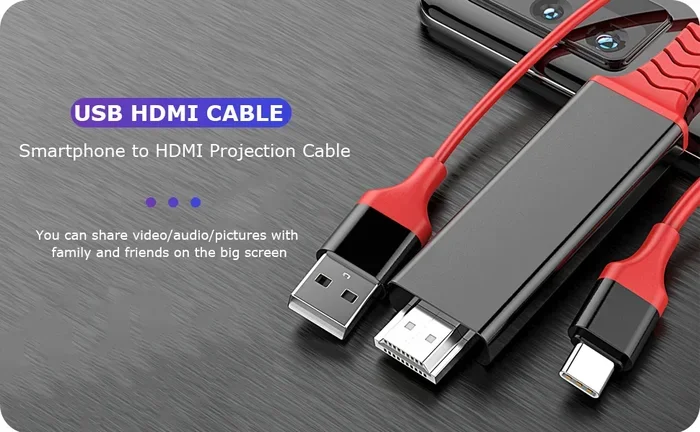
Some manufacturers make a single USB-C to HDMI cable that has the HDMI connector built into one end. This eliminates the need for a separate adapter and cable. You just plug the USB-C end into your phone and the HDMI end into your TV. It is a clean, simple solution that works with many Android devices.
These cables tend to be a bit more expensive than separate adapters and cables. But they are more convenient and take up less space. If you travel often or want a minimalist setup, a USB-C to HDMI cable is a great choice.
Common Mistakes to Avoid
- Buying an adapter that does not match your phone’s port type.
- Using a low-quality HDMI cable that does not support the resolution you need.
- Forgetting to switch your TV to the correct HDMI input channel.
- Not checking if your phone supports HDMI output before purchasing an adapter.
HDMI Adapters and Cables Explained
Not all HDMI adapters are the same. Different phones need different types of adapters based on their port design and chipset support. Understanding the differences helps you make the right purchase and avoid frustration.
MHL Adapters
MHL adapters were the go-to solution for Android phones with micro-USB ports. They convert the micro-USB signal into an HDMI signal that your TV can display. MHL supports 1080p video and surround sound audio. Many Android phones from brands like Samsung, Sony, and LG supported MHL technology in their earlier models.
When shopping for an MHL adapter, make sure it is compatible with your specific phone model. Not all MHL adapters work with all devices. Some phones require specific MHL chipsets to function properly. Check your phone manufacturer’s website for a list of MHL-compatible devices.
SlimPort and DisplayPort Alt Mode
SlimPort is another technology that allows video output from Android phones. It was developed by a company called Synaptics. SlimPort adapters work similarly to MHL but are found on some specific phone models. DisplayPort Alt Mode is a newer standard that allows USB-C ports to carry video signals natively.
DisplayPort Alt Mode is becoming the new standard for USB-C phones. It offers high bandwidth and supports 4K resolution. Many flagship Android phones from Samsung, Google, and OnePlus now support DisplayPort Alt Mode through USB-C to HDMI adapters.
USB-C to HDMI Adapters
USB-C to HDMI adapters are the most versatile option available today. They work with the vast majority of modern Android phones. These adapters are small, portable, and easy to use. You can keep one in your bag or pocket and use it whenever you need to connect to a TV or monitor.
When choosing a USB-C to HDMI adapter, look for ones that support 4K resolution and 60Hz refresh rate. This ensures you get the best picture quality. Cheap adapters may only support 1080p or lower resolutions, which can look blurry on larger TVs.
Expert Insights
Tech experts recommend buying adapters from reputable brands. Cheap, no-name adapters may not work reliably and can damage your phone’s charging port. Look for adapters that are certified by USB-IF or have positive reviews from verified buyers. A quality adapter costs a little more but saves you from headaches down the road.
Step-by-Step Guide to Connecting Your Phone to TV
Now that you know the different methods and adapters, let us walk through the actual setup process. Follow these steps and you will be watching your phone on the big screen in minutes.
- Check your phone’s port type. Look at the bottom of your Android phone. Do you have a USB-C port or a micro-USB port? This determines which adapter you need.
- Purchase the right adapter or cable. For USB-C phones, buy a USB-C to HDMI adapter or cable. For micro-USB phones, buy an MHL adapter.
- Connect the adapter to your phone. Plug the adapter into your phone’s charging port firmly.
- Connect an HDMI cable to the adapter. Take an HDMI cable and plug one end into the adapter and the other end into an available HDMI port on your TV.
- Switch your TV to the correct input. Use your TV remote to change the input source to the HDMI port you connected the cable to. Most TVs have an Input or Source button on the remote.
- Your phone screen should now appear on the TV. If it does not, try unplugging and replugging the adapter. Restart your phone if needed.
That is it. The entire process takes less than two minutes once you have the right adapter. It is quick, easy, and works every time with compatible devices.
Quick Tips
- Keep your phone plugged into a charger during HDMI use to prevent battery drain.
- Use a high-quality HDMI cable rated for 4K if your phone supports it.
- Turn off auto-rotate on your phone to keep the TV display in the correct orientation.
- Adjust your phone’s display settings to match your TV’s resolution for the best picture.
Troubleshooting Common HDMI Connection Issues
Sometimes things do not work the first time you try to connect your phone to a TV via HDMI. This is normal and usually easy to fix. Here are the most common problems and how to solve them.
No Signal on the TV
If your TV shows a “No Signal” message, the first thing to check is the HDMI cable connection. Make sure the cable is firmly plugged into both the adapter and the TV. Try a different HDMI port on your TV if the current one is not working. Also, make sure your TV is set to the correct HDMI input channel.
If the connections are secure and the correct input is selected, the adapter may be faulty. Try a different adapter or cable to rule out a hardware issue. Some adapters only work with specific phone models, so double-check compatibility before purchasing.
Video Works but No Sound
This is a common issue when connecting Android phones to TVs. Usually, the audio is routed through the HDMI cable automatically. But sometimes the TV does not detect the audio stream. To fix this, go to your phone’s Settings, then look for Display or Sound settings, and make sure HDMI audio output is enabled.
You can also check your TV’s audio settings to make sure it is set to receive audio through HDMI. Some TVs have multiple audio input options and you may need to manually select the HDMI source for audio.
Poor Video Quality or Flickering
If the video on your TV looks blurry, pixelated, or flickers, the HDMI cable may be the problem. Low-quality cables cannot carry high-resolution signals reliably. Replace the cable with a high-speed HDMI cable rated for 4K and 60Hz. Also, make sure your adapter supports the resolution your phone is outputting.
Phone Overheats During HDMI Use
Screen mirroring through HDMI uses your phone’s processor heavily. This can cause your phone to heat up. To prevent overheating, keep your phone in a cool, well-ventilated area. Remove any thick phone cases that trap heat. You can also lower your phone’s screen brightness while mirroring to reduce heat output.
Common Mistakes to Avoid
- Using a damaged or worn-out HDMI cable.
- Plugging the adapter into a USB hub instead of directly into the phone.
- Ignoring software updates that may fix HDMI compatibility issues.
- Assuming all adapters work with all phones without checking compatibility.
Wireless Alternatives and Expert Tips
While HDMI cables offer the best quality and reliability, wireless options are also worth considering. If you do not want to deal with cables and adapters, there are several wireless technologies that let you cast your phone screen to your TV.
Chromecast and Google Cast
Google Chromecast is a small device that plugs into your TV’s HDMI port. It connects to your Wi-Fi network and lets you stream content from your Android phone to your TV wirelessly. You do not need any cables between your phone and the TV. Just open a supported app on your phone and tap the Cast icon to send content to your Chromecast.
Chromecast is affordable and easy to set up. It supports most streaming apps including Netflix, YouTube, Spotify, and more. The quality is excellent, especially with Chromecast Ultra or Chromecast with Google TV models. However, Chromecast does not mirror your entire phone screen in the same way HDMI does. It works best for streaming content from supported apps.
Miracast and Screen Mirroring
Miracast is a wireless display standard built into many Android phones and smart TVs. It lets you mirror your phone screen to your TV without any cables or extra devices. To use Miracast, both your phone and your TV must support it. Go to your phone’s Settings, look for Cast or Screen Mirroring, and select your TV from the list of available devices.
Miracast is convenient but the quality is not as good as HDMI. There can be a slight delay or lag, especially when playing fast-moving content like sports or action movies. For casual use like sharing photos or browsing, Miracast works well. For high-quality video, HDMI is still the better choice.
Expert Tips for the Best HDMI Experience
- Always use cables and adapters from trusted brands to ensure reliability.
- Keep your Android phone updated to the latest software version for best compatibility.
- If you use HDMI frequently, consider a docking station that combines HDMI output with charging.
- For gaming on a big screen, HDMI offers the lowest latency compared to wireless options.
- Test your setup before a big movie night to make sure everything works smoothly.
Which Android Phones Support HDMI Output?
Not all Android phones support HDMI output directly. The support depends on the phone’s hardware and chipset. Here is a general guide to help you understand which phones can connect to a TV through HDMI.
Most Samsung flagship phones from the Galaxy S series and Note series support HDMI output through USB-C to HDMI adapters. Google Pixel phones also support HDMI output. OnePlus, LG, and Sony phones from recent years typically support HDMI output as well. Older phones with micro-USB ports may support HDMI through MHL adapters.
The best way to find out if your specific phone supports HDMI output is to check the manufacturer’s website or your phone’s user manual. You can also search online for your phone model combined with the term HDMI output to see if other users have successfully connected it to a TV.
Comparison Table: HDMI Connection Methods
| Method | Port Required | Quality | Price Range |
|---|---|---|---|
| USB-C to HDMI Adapter | USB-C | 4K @ 60Hz | $10 – $30 |
| USB-C to HDMI Cable | USB-C | 4K @ 60Hz | $15 – $35 |
| MHL Adapter | micro-USB | 1080p | $10 – $25 |
| micro-HDMI Cable | micro-HDMI | 1080p | $5 – $15 |
| Chromecast (Wireless) | Wi-Fi | 4K @ 60Hz | $30 – $50 |
| Miracast (Wireless) | Wi-Fi | 1080p | Free (built-in) |
As you can see from the comparison table, USB-C to HDMI adapters offer the best combination of quality and affordability. They are the recommended choice for most Android phone users who want to connect their device to a TV.
Conclusion
So, can Android phones use HDMI cables to connect to a TV? Absolutely. With the right adapter or cable, you can easily mirror your phone screen onto a much larger display. Whether you use a USB-C to HDMI adapter, an MHL cable, or a direct micro-HDMI connection, the process is straightforward and works reliably.
Remember to check your phone’s compatibility before buying any adapter. Choose high-quality cables and adapters from trusted brands. Follow the step-by-step setup guide for a hassle-free connection. And if you run into any issues, the troubleshooting tips in this guide should help you resolve them quickly.
Connecting your Android phone to your TV through HDMI opens up a world of possibilities. You can watch movies, share photos, play games, and present content on a big screen with ease. It is one of the most useful features for anyone who wants to get more out of their mobile device. Now that you know how it all works, go ahead and give it a try. Your TV is waiting.
Frequently Asked Questions
Can any Android phone use HDMI?
Not all Android phones support HDMI output. Most modern phones with USB-C ports can use a USB-C to HDMI adapter. Older phones with micro-USB ports may need an MHL adapter. Some very old or budget phones may not support HDMI output at all. Check your phone’s specifications to confirm before purchasing an adapter.
Do I need a special cable to connect my Android phone to a TV?
Yes, you need either an HDMI adapter or a specialized HDMI cable that matches your phone’s port. For USB-C phones, a USB-C to HDMI adapter or cable works best. For older micro-USB phones, an MHL adapter is needed. Some phones with built-in micro-HDMI ports can use a standard micro-HDMI to HDMI cable directly.
Why is my HDMI connection not working?
There are several reasons an HDMI connection might fail. The cable or adapter could be faulty, your TV might be on the wrong input channel, or your phone might not support HDMI output. Try using a different cable, switching TV inputs, or restarting your phone. If the problem persists, the adapter may not be compatible with your device.
Can I charge my phone while using HDMI?
Yes, many HDMI adapters have a built-in USB port that allows you to charge your phone while it is connected to the TV. This is especially useful because screen mirroring can drain your battery quickly. If your adapter does not have a charging port, you can use a separate USB charging cable alongside the HDMI adapter.
Is screen mirroring better than HDMI?
HDMI provides better quality and lower latency than wireless screen mirroring. HDMI delivers uncompressed video and audio through a cable, resulting in a sharper picture and no delay. Wireless options like Chromecast and Miracast are more convenient but may have slight lag or lower resolution. For the best viewing experience, HDMI is the superior choice.
Which Android phones support HDMI output?
Most flagship Android phones from Samsung, Google, OnePlus, LG, and Sony support HDMI output through USB-C to HDMI adapters. Older phones with micro-USB ports may support HDMI through MHL technology. To confirm if your specific phone supports HDMI output, check the manufacturer’s website or search online for your phone model along with HDMI output compatibility.