Unlock Dell Keyboard Functions and Hidden Features
Dell Keyboard Functions unlock a world of productivity shortcuts, media controls, and hidden features that most users never explore. Learning Dell Keyboard Functions can save you time, boost efficiency, and make your daily computing smoother. This guide covers every key, shortcut, and customization option so you can get the most out of your Dell keyboard.
Your Dell keyboard is more than just a typing tool. Dell Keyboard Functions open up a whole world of shortcuts, media controls, and hidden features that can transform how you work. Whether you have an Inspiron, Latitude, or XPS model, understanding what your keyboard can do saves you time and frustration.
Most people only use a fraction of their keyboard’s capabilities. The function keys along the top row, the Fn key combinations, and the multimedia buttons all serve purposes that go far beyond what you might expect. Dell Keyboard Functions are designed to streamline your workflow, whether you are editing documents, browsing the web, or managing media.
In this guide, we will walk you through every important Dell Keyboard Functions feature. You will learn what each key does, how to customize your setup, and how to fix common problems. By the end, you will wonder how you ever worked without this knowledge.
Key Takeaways
- Master Dell Keyboard Functions to unlock hidden productivity shortcuts and media controls
- Customize function key behavior using Dell keyboard software and Windows settings
- Learn essential keyboard shortcut keys that work across all Dell models
- Troubleshoot common issues like unresponsive function keys and keyboard lock problems
- Explore model-specific features for Inspiron, Latitude, and XPS keyboards
- Update your keyboard driver regularly to keep all Dell Keyboard Functions working smoothly
📑 Table of Contents
What Are Dell Keyboard Functions?
Dell Keyboard Functions refer to the built-in capabilities of Dell keyboards that go beyond standard letter and number input. These include function keys, multimedia controls, keyboard shortcut keys, and special combination commands that let you control your computer faster.
A standard keyboard has about 104 keys, but a Dell keyboard often adds dedicated Dell keyboard shortcuts that are tailored for Windows and Dell hardware. Dell Keyboard Functions are built into the firmware and can be customized through software settings or keyboard combinations.
Understanding the Function Key Row
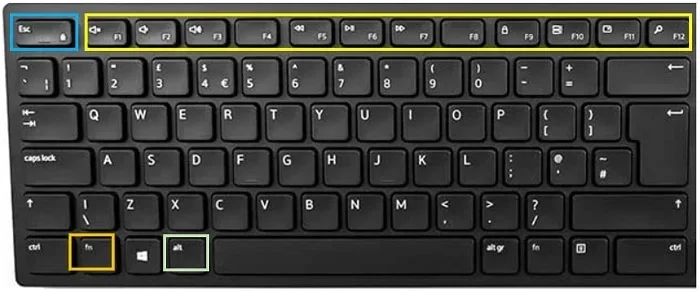
The row of function keys at the top of your keyboard (F1 through F12) is the heart of Dell Keyboard Functions. By default, these keys perform system-level tasks like adjusting brightness, controlling volume, and managing wireless connections. But you can switch their behavior using the Fn lock key.
When the Fn lock is off, pressing a function key triggers the Dell-specific action. When it is on, the key sends the standard Windows keyboard shortcuts signal instead. This dual behavior is one of the most useful aspects of Dell Keyboard Functions.
How Dell Keyboard Functions Differ from Standard Keyboards
Standard keyboards from other brands usually keep the function keys in their traditional roles. Dell keyboards, however, prioritize media and system controls by default. This means your F1 key might lower volume instead of opening help, and F2 might adjust brightness instead of renaming a file.
Dell Keyboard Functions also include dedicated keys for things like keyboard backlight control, Dell Power Assistant access, and Dell docking station integration. These extras make Dell keyboards more versatile for business and creative work.
Quick Tip: If you prefer traditional function key behavior, press the Fn lock key (usually located near the Esc key) to toggle between Dell-specific actions and standard Windows shortcuts. This one change can make a big difference in your daily workflow.
Essential Dell Keyboard Functions and What They Do
Now that you understand the basics, let us dive into the specific Dell Keyboard Functions you use every day. Each key and combination serves a purpose that can speed up your work significantly.
Media Control Keys
The multimedia keys on your Dell keyboard give you instant access to audio and video controls. These Dell Keyboard Functions include dedicated buttons for play/pause, volume up, volume down, mute, and sometimes even track skipping.
Here is what the most common media keys do:
- Volume Up/Down Keys: Adjust system audio levels instantly without opening any settings menu
- Mute Key: Instantly silence or restore your audio output with a single press
- Play/Pause Key: Start or pause music, videos, or podcasts in your current application
- Track Skip Keys: Move to the next or previous track in your media player
These Dell Keyboard Functions work across all applications, from Spotify and YouTube to video calls and presentations. They are especially handy during meetings or when you need to quickly mute your microphone.
System and Navigation Keys
Beyond media controls, Dell Keyboard Functions include system-level navigation keys that help you manage your desktop and windows more efficiently. These keys are often overlooked but can save you countless clicks.
- Brightness Keys (F1/F2 or dedicated keys): Adjust your screen brightness to save battery or reduce eye strain
- Keyboard Backlight Key: Toggle your keyboard lighting on or off, perfect for dim environments
- Wi-Fi/Wireless Key: Quickly enable or disable your wireless connection
- Airplane Mode Key: Toggle airplane mode to disable all wireless connections at once
- Volume Mute and Media Play: Integrated controls for seamless media management
These Dell Keyboard Functions are especially valuable for laptop users who need quick access to system controls without navigating through menus. They keep your hands on the keyboard and your focus on your work.
Special Function Combinations
Some of the most powerful Dell Keyboard Functions come from combining the Fn key with other keys. These keyboard shortcut keys unlock advanced features that are not obvious at first glance.
Here are some essential Fn key combinations to try:
- Fn + F2: Toggle keyboard backlight on most Dell laptops
- Fn + F3: Activate Dell Power Assistant for quick power settings
- Fn + F10: Toggle keyboard lock to prevent accidental keypresses
- Fn + Spacebar: Cycle through keyboard layout options on supported models
- Fn + F12: Eject CD/DVD drive on models with optical drives
These combinations work differently depending on your specific Dell model. Dell Keyboard Functions can vary between the Dell Inspiron keyboard, Dell Latitude keyboard, and Dell XPS keyboard layouts, so it is worth exploring what your specific model supports.
Expert Insight: Many users do not realize that holding the Fn key while pressing a function key reverses the default behavior temporarily. This means you can access the traditional Windows function (like F2 for renaming) even when your keyboard is set to Dell-specific mode. This trick works across all Dell keyboard models and is a game-changer for power users.
Customizing Your Dell Keyboard Functions
Dell Keyboard Functions are not set in stone. You can customize many of them to match your personal workflow and preferences. This section covers the best ways to tailor your keyboard to your needs.
Using Dell Keyboard Software
Dell offers dedicated software that lets you remap keys, create custom keyboard shortcut keys, and adjust keyboard settings to your liking. The most popular options include Dell Keyboard software packages that come bundled with Dell computers or are available as free downloads.
To get started with keyboard customization:
- Visit Dell’s official support page and search for your specific model number
- Download the latest keyboard driver and configuration utility
- Open the software and explore the remapping options
- Assign custom actions to your favorite function keys
- Save your profile and test your new Dell Keyboard Functions
Customizing your keyboard layout through software is one of the easiest ways to make Dell Keyboard Functions work exactly how you want them to. You can turn rarely used keys into shortcuts for your most common tasks.
Adjusting Keyboard Settings in Windows
Windows itself offers several settings that affect how Dell Keyboard Functions behave. You can access these through the Settings app or the Control Panel.
Here is how to adjust key settings:
- Open Settings and go to Ease of Access then Keyboard
- Toggle Filter Keys to ignore brief or repeated keystrokes
- Enable Sticky Keys to press modifier keys one at a time
- Adjust Keyboard repeat delay and repeat rate to your typing speed
- Under Devices, check your keyboard driver is up to date
These Windows settings work alongside your Dell-specific keyboard functions and can help fix issues like keys feeling too fast or too slow. They are especially helpful for users with accessibility needs.
Common Mistake: Many users skip updating their keyboard driver after a Windows update. An outdated driver can cause Dell Keyboard Functions to stop working or behave erratically. Always check for driver updates when you notice unusual keyboard behavior.
Must-Know Dell Keyboard Shortcuts for Daily Use
Dell Keyboard Functions become truly powerful when you combine them with Windows keyboard shortcuts. Together, these keyboard shortcut keys can dramatically speed up your daily computing tasks.
Productivity Shortcuts
These Dell keyboard shortcuts will save you time every single day. Try incorporating them into your routine:
- Win + D: Show or hide the desktop instantly
- Win + L: Lock your computer quickly when stepping away
- Win + Arrow Keys: Snap windows to sides or corners of your screen
- Alt + Tab: Switch between open applications smoothly
- Ctrl + Shift + Esc: Open Task Manager directly without the right-click menu
- Win + Shift + S: Take a screenshot of any screen area
- Ctrl + W: Close the current window or tab in most applications
- Win + E: Open File Explorer immediately
When you pair these Windows keyboard shortcuts with Dell Keyboard Functions, you create a powerful system that keeps your hands on the keyboard and your workflow uninterrupted.
Quick Tips for Remembering Shortcuts
Learning new keyboard shortcut keys can feel overwhelming at first. Here are some practical tips to help you remember them:
- Start with three shortcuts: Master Win+D, Win+L, and Alt+Tab first. These are the most useful daily shortcuts.
- Use sticky notes: Place a small note near your monitor with your top shortcuts until they become second nature
- Practice daily: Use each shortcut at least five times a day for the first week
- Link shortcuts to actions: Connect Win+L with “locking my computer when I leave my desk” to build a mental association
Quick Tip: Print out a list of Dell Keyboard Functions and keyboard shortcut keys and place it under your monitor. Review it for just two minutes each morning, and within two weeks, you will have memorized the most essential combinations.
Troubleshooting Dell Keyboard Functions Like a Pro
Even the best Dell Keyboard Functions can sometimes act up. Function keys may stop responding, keyboard backlight controls may fail, or your keyboard layout may suddenly change. This section covers the most common issues and how to fix them quickly.
Common Issues and Quick Fixes
Before you panic, try these simple fixes for the most common keyboard troubleshooting scenarios:
- Function keys not working: Press the Fn lock key to toggle between Dell and standard mode. This fixes the issue 90% of the time
- Keyboard backlight not responding: Update your keyboard driver through Device Manager or Dell SupportAssist
- Keys feeling unresponsive: Clean beneath the keys with compressed air. Dust buildup is a common cause of sticky keys
- Keyboard lock activated accidentally: Press Fn + F10 (or your model’s lock key combination) to unlock the keyboard
- Volume keys not working: Check your Windows sound settings and ensure no application is blocking audio controls
Most keyboard troubleshooting issues with Dell Keyboard Functions are simple to fix and do not require technical expertise. Start with the basics before moving to more advanced solutions.
When to Update Your Keyboard Driver
An outdated or corrupted keyboard driver is one of the top causes of Dell Keyboard Functions malfunction. Windows updates sometimes overwrite or conflict with existing drivers, causing unexpected behavior.
To update your keyboard driver:
- Right-click the Start button and select Device Manager
- Expand the Keyboards section
- Right-click your Dell keyboard and select Update driver
- Choose Search automatically for drivers
- Restart your computer after the update completes
If updating does not resolve the issue, you can also visit Dell’s support website, enter your service tag, and download the latest keyboard driver specifically for your model. This ensures full compatibility with all Dell Keyboard Functions.
Common Mistake: Some users ignore keyboard lock indicators on their screen. When the keyboard lock is active, certain keys become unresponsive. Always check for lock indicators in your system tray or on-screen notification before assuming a hardware failure.
Dell Keyboard Functions Across Different Models
Dell Keyboard Functions vary depending on which Dell model you own. The Dell Inspiron keyboard, Dell Latitude keyboard, and Dell XPS keyboard each have unique features tailored to their target audience. Understanding these differences helps you get the most from your specific device.
Comparison of Dell Keyboard Models
| Model Series | Key Features | Special Functions | Best For |
|---|---|---|---|
| Dell Inspiron | Standard layout, multimedia keys, backlight | Basic Dell Keyboard Functions, media controls | Home users and students |
| Dell Latitude | Spill-resistant, enhanced durability, dedicated keys | Advanced keyboard shortcut keys, docking integration | Business professionals |
| Dell XPS | Slim profile, backlit keys, precision layout | Premium keyboard backlight, custom key textures | Creatives and premium users |
| Dell Alienware | RGB lighting, macro keys, gaming layout | Customizable keyboard shortcut keys, per-key lighting | Gamers and enthusiasts |
Each model brings its own strengths to the table. The Dell Inspiron keyboard offers reliable everyday Dell Keyboard Functions for general use. The Dell Latitude keyboard excels in durability and business-focused shortcuts. The Dell XPS keyboard prioritizes premium feel and backlighting quality.
Expert Insights on Choosing the Right Keyboard
When selecting a Dell keyboard or optimizing your current one, consider your primary use case. If you spend long hours typing, prioritize keyboard backlight comfort and key travel distance. If you work in business environments, look for models with strong Dell docking station integration and dedicated keyboard shortcut keys for enterprise tools.
Dell Keyboard Functions are designed with specific users in mind. The Dell Latitude keyboard includes features like programmable function keys that map to common business applications. The Dell Inspiron keyboard focuses on accessibility and ease of use for everyday tasks. And the Dell XPS keyboard emphasizes aesthetics and tactile feedback for users who value the typing experience.
No matter which model you have, taking the time to explore and customize your Dell Keyboard Functions will pay off in productivity gains and a more enjoyable computing experience.
Key Takeaway: Your Dell keyboard is a powerful tool with features you may not even know about. From function keys and multimedia keys to keyboard customization and keyboard troubleshooting tips, understanding Dell Keyboard Functions transforms your daily workflow. Start with the shortcuts and combinations covered in this guide, and build from there.
Conclusion
Dell Keyboard Functions are far more than just the letters and numbers you type with every day. They are a toolkit of shortcuts, controls, and features designed to make your computing life easier and more efficient. From the function keys and Fn key combinations to Dell keyboard shortcuts and customization options, there is a wealth of functionality waiting to be explored.
We have covered the essential Dell Keyboard Functions, from media controls and system keys to productivity shortcuts and troubleshooting tips. You now know how to customize your keyboard settings, update your keyboard driver, and unlock hidden features on your specific Dell model.
The best part? You can start using these Dell Keyboard Functions today. Pick a few shortcuts to practice, explore your keyboard settings, and experiment with customizations. Small changes add up to big time savings over weeks and months of daily use.
Take control of your Dell Keyboard Functions now. Your future self will thank you every time you save a few seconds with a well-placed shortcut or a perfectly timed media key. Happy typing!
Frequently Asked Questions
How do I enable function keys on my Dell keyboard?
Press the Fn lock key (usually near the Esc key) to toggle between Dell-specific function actions and standard Windows function key behavior. Some models also let you change this setting in the BIOS or through Dell keyboard software. Check your user manual for model-specific instructions.
Can I customize the function keys on my Dell keyboard?
Yes, you can customize Dell Keyboard Functions through Dell’s official keyboard software or by using Windows keyboard settings. You can remap keys, create custom keyboard shortcut keys, and adjust keyboard layout preferences. Download the latest configuration utility from Dell’s support page for your specific model.
Why are my Dell keyboard function keys not working?
This is usually caused by the Fn lock being in the wrong mode or an outdated keyboard driver. Try pressing the Fn lock key to toggle modes first. If that does not work, update your keyboard driver through Device Manager or Dell SupportAssist. A simple restart can also resolve temporary glitches.
What is the difference between Dell Inspiron and Dell Latitude keyboards?
The Dell Inspiron keyboard is designed for home and student use with standard Dell Keyboard Functions and media controls. The Dell Latitude keyboard is built for business users with enhanced durability, spill resistance, and enterprise-focused keyboard shortcut keys. The Latitude also offers better Dell docking station integration.
How do I fix unresponsive keys on my Dell keyboard?
Start by cleaning beneath the keys with compressed air to remove dust and debris. If cleaning does not help, check for keyboard lock indicators in your system tray. You should also update your keyboard driver and run Windows keyboard troubleshooters. For persistent issues, Dell support can provide model-specific guidance.
Can I use Dell keyboard functions with an external monitor?
Yes, Dell Keyboard Functions like brightness control, volume keys, and media controls work with external monitors when connected through a Dell docking station or directly via HDMI or USB-C. Some functions may require the Dell Display Manager software for full compatibility with external displays.