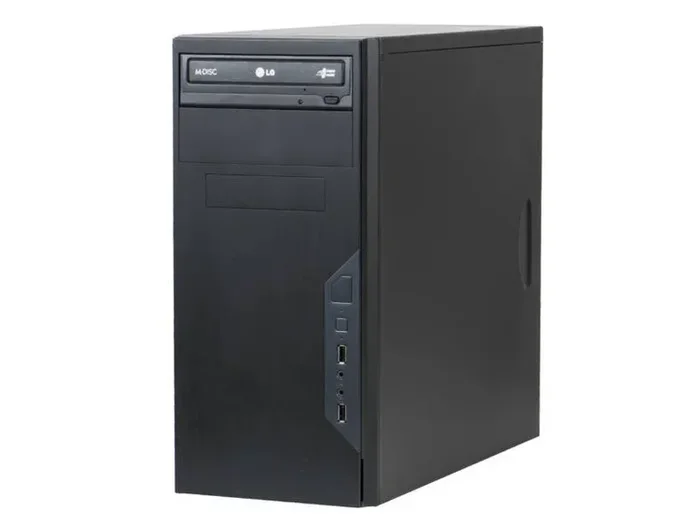
Definition of Computer Tower Everything You Need to Know
The definition of computer tower is a vertical case that houses the main internal components of a desktop computer. It holds the motherboard, power supply, hard drives, and cooling systems in one secure enclosure. Whether you are building or buying a PC, understanding what a computer tower does is essential. This guide breaks down every type, part, and buying tip in simple terms. Read on to become a confident shopper and builder.
So you have heard the term computer tower thrown around, but what does it really mean? The definition of computer tower is simple: it is the tall, box-shaped enclosure that holds all the important parts of a desktop computer. Think of it as the skeleton and shield of your entire system. Without it, your motherboard, hard drive, and power supply would just be loose components sitting on a desk. In this guide, we will walk through everything you need to know about the PC tower in plain, easy-to-understand language.
Whether you are a first-time buyer or someone looking to upgrade, this article has you covered. We will explore the different types of towers, the key parts inside them, and how to pick the right one for your needs. By the end, you will feel confident walking into any store or browsing any online shop. Let us dive right in and break it all down.
Key Takeaways
- What it is: A computer tower is the vertical case that holds all internal PC components.
- Three main types: Full tower, mid tower, and mini tower, each fitting different needs and budgets.
- Key parts inside: Motherboard tray, power supply unit, drive bays, expansion slots, and cooling fans.
- How to choose: Consider form factor, airflow, build quality, and future upgrade room.
- Common mistakes: Ignoring airflow, buying too small a case, and skipping cable management.
- Maintenance matters: Regular cleaning keeps your tower running cool and quiet.
📑 Table of Contents
What Is the Definition of Computer Tower?
A computer tower is the main body or chassis of a desktop computer. It is the tall, upright case that sits on or under your desk. Inside this enclosure, you will find nearly every vital piece of hardware. The desktop computer chassis protects these parts from dust, damage, and accidental spills. It also provides structure so everything stays organized and secure.
The tower enclosure comes in different sizes and shapes. Each design serves a specific purpose. Some towers are built for compact spaces, while others are made to house powerful, high-end systems. The form factor of a tower determines how big it is and what components it can fit. The three most common sizes are full tower, mid tower, and mini tower. Each one has its own strengths and ideal use cases.
Many people use the words “computer tower” and “PC case” interchangeably. That is perfectly fine. Both terms refer to the same thing: the outer shell that holds your computer components. What matters most is that you understand the role this case plays. It is not just a box. It is the home for your entire computing experience.
Why Does the Tower Case Matter?
The computer tower case does more than just look good on your desk. It plays a big role in how well your system performs. A good case allows proper airflow, which keeps hot air flowing out and cool air flowing in. Without enough airflow, your PC can overheat. Overheating leads to slow performance, random shutdowns, and even permanent damage to parts.
The case also affects noise levels. Quality towers include sound-dampening panels and quiet cooling fans. They keep things running smoothly without a loud hum. Additionally, the tower gives you room to expand. You can add more drives, upgrade your graphics card, or install extra memory. A well-designed PC tower makes all of this easy and stress-free.
Types of Computer Towers
Not all towers are the same size. The definition of computer tower covers a range of sizes, and each one fits different needs. Let us look at the three main types you will encounter when shopping for a desktop computer chassis.
Full Tower
A full tower is the biggest option available. It stands tall and offers tons of space inside. You can fit multiple graphics cards, large cooling systems, and several hard drives. Full towers are perfect for high-performance gaming PCs and workstations. They also make cable management much easier because you have so much room to work with.
If you plan to build a powerful system or want plenty of room for future upgrades, a full tower is the way to go. The downside is size. These cases take up a lot of space and can be heavy to move. They also tend to cost more than smaller options.
Mid Tower
The mid tower is the most popular choice for most users. It strikes a great balance between size and functionality. A mid tower fits standard motherboards, a single graphics card, and a decent number of storage drives. It is compact enough to fit on most desks yet spacious enough for solid airflow.
For everyday computing, office work, and casual gaming, a mid tower hits the sweet spot. Most pre-built desktop computers come in this size. It is also the most budget-friendly option for builders who want room to grow without spending a fortune.
Mini Tower
A mini tower is a smaller, more compact option. It is great for people who want a clean, space-saving setup. Mini towers usually fit smaller motherboards, like Micro-ATX or Mini-ITX boards. They can still handle everyday tasks and light gaming, but they have less room for expansion.
These small cases are ideal for office desks, dorm rooms, and living room setups. The trade-off is fewer expansion slots and limited space for large coolers or extra drives. If you prioritize size over upgrade potential, a mini tower works well.
Key Parts Inside a Computer Tower
Now that you understand the different sizes, let us look at what is actually inside the computer housing. Each part plays a role in making your system work. Knowing these components helps you make smarter buying decisions.
Motherboard Tray
The motherboard tray is the large metal plate inside the tower where the main circuit board sits. It has holes that match the screw holes on your motherboard. This tray keeps the board securely in place and provides spacing for cables underneath. Most towers allow you to remove this tray for easier installation and cable management.
Power Supply Unit
The power supply unit, or PSU, is the component that delivers electricity to every part inside the tower. It plugs into a wall outlet and converts AC power into DC power your components need. The PSU usually sits at the top or bottom of the tower, depending on the design. When choosing a tower, make sure it has enough space and the right mounting support for your PSU.
Drive Bays
Drive bays are the slots where you install storage devices. These include hard disk drives, solid-state drives, and optical drives. Most towers offer both 3.5-inch bays for hard drives and 5.25-inch bays for older optical drives. The number of drive bays varies by tower size. Full towers offer the most, while mini towers offer the fewest.
Expansion Slots and Slots
Expansion slots are the openings at the back of the tower where you plug in graphics cards, sound cards, and network cards. These slots connect directly to the motherboard. More slots mean more room for upgrades. A full tower typically has seven or more expansion slots, while a mini tower may have four or five.
Cooling Fans and Airflow
Cooling fans are one of the most important parts of any tower case. They pull cool air in from the front and push hot air out from the back and top. Good airflow prevents overheating and keeps your system running quietly. Many modern towers come with pre-installed fans, while others let you add more based on your needs.
How to Choose the Right Computer Tower
Buying a tower can feel overwhelming with so many options. Here are some practical tips to help you choose the right computer tower for your setup.
Consider Your Motherboard Size
Before buying any tower, check what size motherboard you plan to use. Towers support specific form factors like ATX, Micro-ATX, or Mini-ITX. A full tower fits all sizes, but a mini tower only fits smaller boards. Always double-check the compatibility before you spend money.
Think About Future Upgrades
Even if you do not plan to upgrade today, it helps to think ahead. A mid tower with good expansion slots gives you room to add a better graphics card or more storage later. Buying a tower that is too small now can limit you in the future. Plan for what you might need in one or two years.
Check Airflow and Fan Layout
Look at the fan positions before you buy. Front and bottom intake fans pull cool air in. Rear and top exhaust fans push hot air out. This creates a natural flow of air that keeps temperatures low. Some towers also include dust filters that make cleaning much easier.
Build Quality and Materials
Thicker steel or aluminum panels feel more solid and reduce vibrations. Cheap thin plastic panels may look okay but can warp over time. A well-built tower enclosure lasts longer and protects your components better. Spend a little extra on quality if you can.
Common Mistakes When Buying a Computer Tower
Avoiding mistakes saves you time, money, and frustration. Here are some common errors people make when picking a PC case.
Ignoring Airflow
Many buyers focus only on looks and forget about airflow. A pretty case with poor ventilation can lead to overheating. Always check the fan mounts and mesh panels before you decide. Good airflow is more important than fancy side windows.
Buying a Tower That Is Too Small
A mini tower looks great on a small desk, but it can be a headache if you want to upgrade later. You may find that your new graphics card does not fit or that there is no room for extra fans. Always leave some breathing room in your choice.
Skipping Cable Management
Cable management affects airflow and looks. Towers with dedicated cable routing holes make a big difference. Messy cables block air and make future upgrades a nightmare. Choose a tower with plenty of space behind the motherboard tray.
Maintaining Your Computer Tower
Once you have your computer tower set up, regular maintenance keeps it running smoothly. Dust is the number one enemy of any PC. It builds up on fans, vents, and components over time. This dust blocks airflow and causes parts to run hotter than they should.
Every few months, open the side panel and use compressed air to blow out dust. Focus on the cooling fans, drive bays, and the power supply unit area. If your tower has dust filters, remove and wash them gently. Keeping your tower clean extends the life of your components and improves performance.
You should also check that all cables are securely connected. Loose cables can cause random reboots or power issues. A quick inspection every six months goes a long way. With proper care, your computer housing will serve you well for years.
Quick Tips for Choosing a Computer Tower
- Always match the tower size to your motherboard form factor.
- Choose a case with at least two pre-installed fans for good airflow.
- Look for dust filters on intake fans to reduce cleaning effort.
- Measure your desk space before buying a full tower.
- Check the number of drive bays if you plan to add multiple hard drives.
- Read reviews to learn about real-world build quality and noise levels.
- Consider a tower with a windowed side panel if you want to show off your components.
Conclusion
The definition of computer tower is straightforward: it is the case that holds and protects all the internal parts of your desktop computer. From full towers built for power users to compact mini towers for tight spaces, there is a perfect option for everyone. Understanding the types, parts, and buying tips helps you make confident decisions. Whether you are building your first PC or upgrading an existing one, the right tower makes all the difference. Take your time, consider your needs, and choose a case that will serve you well for years to come.
Now that you know the ins and outs of computer towers, you are ready to shop with confidence. Keep this guide handy and refer back to it whenever you need a reminder. Happy building and happy computing!
Frequently Asked Questions
What is the definition of a computer tower?
A computer tower is the tall, upright case that houses the main internal components of a desktop computer, including the motherboard, power supply, and storage drives. It serves as both a protective enclosure and a structural frame for all your hardware.
What are the three main types of computer towers?
The three main types are full tower, mid tower, and mini tower. Full towers offer the most space for high-end builds, mid towers balance size and functionality for most users, and mini towers are compact options for small spaces and basic setups.
Can I upgrade components inside my computer tower?
Yes, one of the biggest advantages of a tower case is upgradeability. You can swap out the graphics card, add more storage drives, install additional cooling fans, or upgrade your memory as long as the tower has enough space and compatible slots.
How do I know which tower size I need?
Check the size of your motherboard first, since the tower must support that form factor. Then consider how many components you plan to install and whether you want room for future upgrades. A mid tower works well for most standard builds.
Why is airflow important in a computer tower?
Proper airflow keeps hot air flowing out and cool air flowing in, which prevents overheating. Overheating can cause slow performance, system crashes, and long-term damage to sensitive components like the CPU and GPU.
How often should I clean my computer tower?
You should clean your tower every three to six months, depending on your environment. Dusty rooms or pet owners may need to clean more often. Use compressed air to remove dust from fans, vents, and filters for the best results.