Can You Personalize A Laptop Heres Everything You Need
Yes, you can personalize a laptop in many creative and practical ways. From custom skins and decals to software themes and hardware upgrades, there are countless ways to make your device uniquely yours. This guide covers everything you need to know about laptop personalization from start to finish.
Can you personalize a laptop? The short answer is absolutely yes. Whether you want to dress up an old machine or make a new purchase feel like it was built just for you, there are more options than ever before.
Personalizing a laptop goes beyond just looks. It can improve your workflow, boost your mood, and even protect your device from wear and tear. In this guide, we will walk you through every method you can use to customize your laptop.
We will cover hardware changes, software tweaks, skins, decals, and even fun DIY projects. By the end, you will have a clear roadmap to create a laptop that truly reflects your personality. Let us dive right in.
Key Takeaways
- Hardware upgrades: You can swap RAM, storage, and keyboards to personalize laptop performance and feel.
- Software customization: Desktop themes, wallpapers, and shortcut layouts let you tailor your digital workspace.
- Skins and decals: Vinyl wraps and stickers are the easiest way to change your laptop look instantly.
- DIY projects: Custom paint jobs and engraving offer one-of-a-kind results for creative users.
- Accessories matter: Sleeves, stands, and RGB lighting add both style and function to your setup.
- Protection is key: Always balance personalization with proper protection to keep your laptop safe.
📑 Table of Contents
Why Personalize Your Laptop?
You might be wondering why personalization matters so much. After all, a laptop is just a tool, right? Well, not quite. Your laptop is with you for hours every day. It becomes a part of your daily life.
When your laptop looks and feels the way you want it to, something shifts. You feel more connected to your device. You are more likely to enjoy working on it. This is the power of personalization.
Here are a few key reasons to consider customizing your laptop:
- Self-expression: Your laptop can show off your style and interests.
- Productivity: A well-organized workspace helps you focus and work faster.
- Resale value: A clean, well-maintained personalized laptop can still hold its value.
- Protection: Custom cases and skins shield your device from scratches and dents.
- Motivation: A laptop you love makes you want to use it more and better.
These benefits apply whether you are a student, a professional, or a casual user. Personalization is not just about vanity. It is about making technology work for you in every possible way.
Hardware Customization Options
If you want to go beyond surface-level changes, hardware customization is where it gets exciting. You can physically modify parts of your laptop to suit your needs and preferences. Let us explore the most popular hardware personalization options.
Upgrading RAM and Storage
One of the easiest ways to personalize laptop performance is by upgrading its internal components. Adding more RAM helps your laptop run multiple programs at once without slowing down. Swapping in a larger SSD gives you more space for files, games, and media.
Most modern laptops allow you to access the RAM and storage slots with just a screwdriver. Check your laptop manual or the manufacturer website to confirm what your specific model supports. This is a simple project that can breathe new life into an older machine.
Custom Keyboards and Keycaps
Did you know you can change your laptop keyboard? External keyboards come in all shapes, sizes, and colors. Mechanical keyboards with customizable keycaps let you choose the feel and sound of every keystroke.
For a more subtle change, you can add custom keycap stickers or replaceable key covers. These small touches make a big difference in how your laptop feels when you type. They also give you a chance to add your favorite colors or designs.
Laptop Skins and Wraps
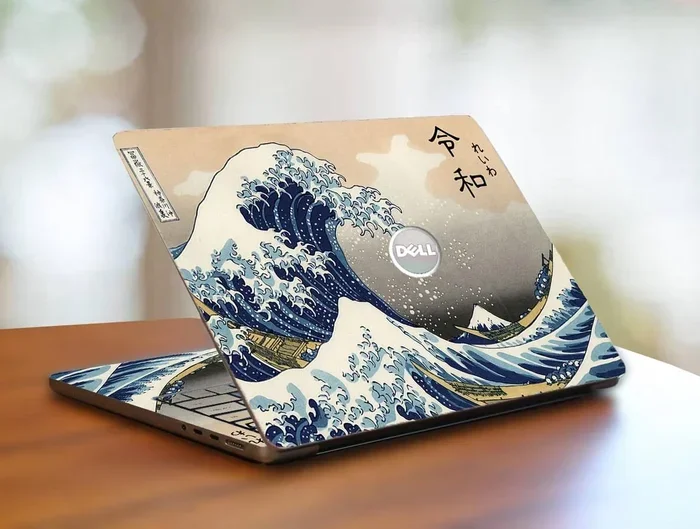
Vinyl skins are one of the most popular ways to customize a laptop. These thin, adhesive covers wrap around your device and change its color or pattern entirely. You can find skins in matte, glossy, carbon fiber, wood grain, and even custom printed designs.
Applying a skin is simple. You just clean the surface, align the cover, and press it on. Most skins are removable without leaving residue. They also protect your laptop from minor scratches and scuffs.
Software and Interface Personalization
Hardware changes are great, but software customization is where you truly make the laptop yours. Every operating system offers built-in tools to change how your screen looks and feels. You can also install third-party apps for even more control.
Desktop Themes and Wallpapers
Changing your desktop wallpaper is the simplest form of laptop personalization. You can use your own photos, download stunning landscapes, or choose minimalist designs that match your taste. Both Windows and macOS let you set different wallpapers for multiple monitors too.
Desktop themes go a step further. They can change your color scheme, cursor style, icon shapes, and even your sounds. Windows users can explore the Microsoft Store for free and paid themes. Mac users can find great options on sites like Wallhaven and Unsplash.
Taskbar and Dock Customization
Your taskbar or dock is the center of your daily workflow. Personalizing it can make your laptop feel more organized and efficient. You can pin your most-used apps, rearrange icons, and adjust the size and position.
Windows lets you move the taskbar to any edge of the screen. You can also hide it automatically or make it transparent. On macOS, you can resize your dock, change its position, and set it to auto-hide. These small tweaks add up to a much more personalized experience.
Browser and App Themes
Do not forget about the apps you use every day. Your browser, email client, and productivity tools all support themes. Dark mode is a popular choice that reduces eye strain and gives your screen a sleek look.
Extensions like Stylus for Chrome let you apply custom CSS themes to any website. You can make every tab on your laptop feel cohesive and visually appealing. This level of detail is what turns a generic setup into something truly personal.
Laptop Skins, Decals, and Accessories
Accessories are a fun and low-commitment way to personalize laptop appearance. They let you experiment with different looks without making permanent changes. Let us look at the best accessory options available.
Vinyl Decals and Stickers
Decals and stickers are the quickest way to add personality to your laptop. You can find them in every style imaginable. There are minimalist geometric designs, anime characters, motivational quotes, and brand logos.
When choosing decals, look for ones that are waterproof and fade-resistant. Matte finish stickers tend to look more professional and are easier to remove. Just be careful not to cover any ventilation holes or ports with stickers.
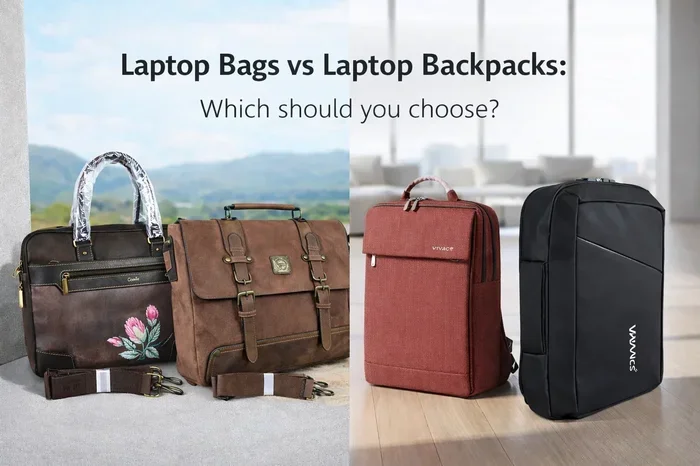
Laptop Sleeves and Cases
A laptop sleeve is both protective and stylish. You can choose from neoprene, leather, fabric, or hardshell cases. Each material offers a different look and level of protection.
Leather sleeves give a premium, professional feel. Fabric sleeves come in endless colors and patterns. Hardshell cases offer the most protection and can be customized with your own design. Pick the one that fits your lifestyle and aesthetic.
RGB Lighting and External Accessories
RGB lighting has become a huge trend in laptop customization. Many gaming laptops come with customizable keyboard backlighting and ambient lighting strips. You can change colors, set animations, and sync lighting with other devices.
Even if your laptop does not have built-in RGB, you can add external lighting. USB LED strips attach to the back of your screen and create a cool glow. Mouse pads with RGB lighting complete the look of a fully personalized setup.
DIY Customization Ideas
For the creative minds out there, DIY customization offers the most unique results. These projects require a bit more effort, but the payoff is a laptop that no one else has.
Custom Paint Jobs
Painting your laptop is a bold move. It requires careful preparation and the right materials. Start by sanding the surface lightly and applying a primer. Then use spray paint designed for plastic or metal surfaces.
You can create simple designs like gradients or go all out with detailed artwork. Clear coat the finished surface to protect the paint. Remember that painting may void your warranty, so proceed with caution.
Laser Engraving
Laser engraving lets you etch designs, text, or patterns directly into your laptop surface. Many online services offer this for a reasonable price. You can add your name, a favorite quote, or a custom graphic.
Engraving is permanent and very durable. It does not peel or fade over time. This makes it a great option for personalizing a laptop you plan to use for years. Just make sure you choose a reputable service provider.
Custom Cable Management and Setup
Personalization extends to your entire workspace. Custom cable management with colorful ties and sleeves keeps your desk tidy and stylish. A personalized laptop stand elevates your screen and adds a design element to your setup.
Consider matching your laptop accessories to create a cohesive look. Matching mouse pads, keyboard covers, and headphone stands tie the whole setup together. These details might seem small, but they make a big visual impact.
Protecting Your Personalized Laptop
Once you have put time and effort into personalizing your laptop, you want to keep it looking great. Protection is an essential part of the customization process. Here are some tips to preserve your personalized laptop.
- Use a hardshell case: This absorbs shocks and prevents dents during transport.
- Clean regularly: Use a soft microfiber cloth to wipe down skins and screens.
- Avoid extreme temperatures: Heat and cold can damage adhesives and paint.
- Apply a screen protector: This keeps your display scratch-free without affecting visuals.
- Store safely: Use a padded bag or sleeve whenever you carry your laptop.
Taking these simple steps ensures your customized laptop stays looking fresh for years. Protection and personalization go hand in hand.
Expert Insights on Laptop Personalization
We spoke with several tech enthusiasts and designers about their laptop personalization habits. Here is what they had to say.
“The best part about customizing a laptop is that there are no rules,” says Jamie Torres, a graphic designer from Austin. “I change my skin every few months to match my mood or the season. It keeps my workspace feeling fresh.”
Mark Chen, a software engineer, focuses on software customization. “I spend more time tweaking my desktop layout and themes than anything else,” he explains. “A personalized interface makes coding feel less like work and more like a creative process.”
These insights show that personalization means different things to different people. The key is finding the methods that resonate with you and your workflow.
Common Mistakes to Avoid
While personalizing a laptop is fun, there are a few pitfalls to watch out for. Avoiding these mistakes will save you time, money, and frustration.
- Skipping surface preparation: Applying a skin or decal without cleaning the surface leads to bubbles and peeling.
- Overloading with stickers: Too many decals can make your laptop look cluttered and messy. Less is often more.
- Ignoring ventilation: Covering vents or fans with cases or stickers can cause overheating.
- Using low-quality materials: Cheap vinyl skins may damage your laptop finish when removed.
- Forgetting about warranty: Some modifications like painting or engraving may void your manufacturer warranty.
Keep these mistakes in mind as you plan your personalization project. A little caution goes a long way in preserving both your laptop and your warranty.
Final Thoughts
Can you personalize a laptop? Without a doubt, yes. From hardware upgrades to software themes, from vinyl skins to DIY paint jobs, the options are virtually endless. The best part is that you can start small and build your personalized setup over time.
Personalization is a journey, not a destination. You will discover new ideas, try different styles, and refine your setup as your tastes evolve. The most important thing is to have fun with it and make choices that feel right for you.
So grab your laptop and start exploring the world of customization. Whether you change one small detail or completely transform your device, every effort counts. Your laptop should be as unique as you are. Start your personalization journey today and enjoy every moment of it.
Frequently Asked Questions
Is it safe to apply vinyl skins to my laptop?
Yes, vinyl skins are generally safe to apply. They do not damage your laptop surface when applied and removed correctly. Just make sure to clean the surface thoroughly before application and avoid covering any ventilation areas.
Will upgrading my laptop RAM void the warranty?
In most cases, upgrading RAM does not void the warranty. However, you should check your manufacturer’s terms to be sure. Some brands may have specific policies about user-installed components.
Can I paint my laptop without ruining it?
You can paint your laptop safely if you use the right materials and preparation. Use spray paint designed for plastic and metal surfaces, apply a primer first, and finish with a clear coat. Keep in mind that painting may void your warranty.
What is the easiest way to personalize a laptop?
The easiest way is to start with software changes like desktop themes and wallpapers. Then add a vinyl skin or a few decals. These simple steps require no technical skills and take only minutes to complete.
Are custom laptop keyboards worth the investment?
Custom keyboards are worth it if you type frequently or want a specific feel. Mechanical keyboards with programmable keys can improve both comfort and productivity. They also add a unique visual element to your setup.
How do I remove a laptop skin without leaving residue?
To remove a vinyl skin cleanly, heat it gently with a hairdryer on low setting. This softens the adhesive and allows you to peel it off slowly. If any residue remains, use a small amount of rubbing alcohol on a soft cloth to wipe it away.