Can You Get External Memory For A Laptop Right Now
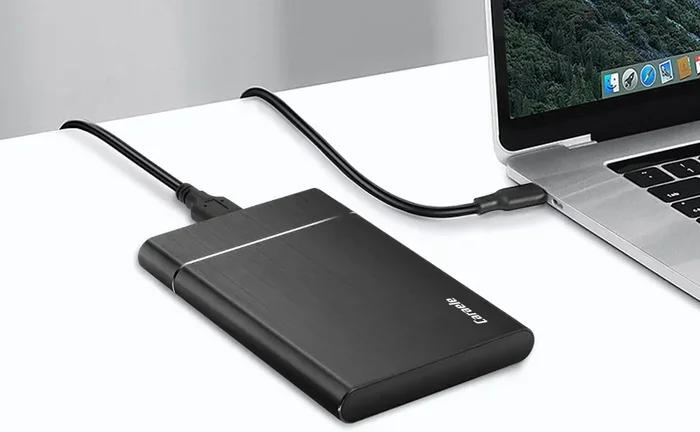
Yes, you absolutely can get external memory for a laptop, and it is one of the easiest ways to expand your storage instantly. Whether you choose an external hard drive, an external SSD, or even a simple USB flash drive, adding extra laptop storage helps you store more files, run faster backups, and improve overall performance. In this guide, we cover every option available so you can choose the best portable storage solution for your needs right now.
Key Takeaways
- External storage is widely compatible: Most laptops support external memory through USB, Thunderbolt, or USB-C ports, making upgrades simple and affordable.
- External SSDs offer the best speed: Solid-state external drives deliver faster data transfer rates than traditional hard drives and are more durable for on-the-go use.
- Cloud storage adds a free backup layer: Pairing external hardware with cloud backup ensures your files stay safe even if your drive fails.
- USB flash drives work for quick transfers: They are ideal for smaller files and everyday tasks but not meant for long-term bulk storage.
- Check your laptop’s ports first: Knowing your connection options saves time and prevents buying the wrong type of external memory.
- Proper setup boosts laptop performance: Moving large files to external storage frees up disk space and helps your laptop run smoother.
📑 Table of Contents
- Can You Get External Memory For A Laptop? The Complete Guide
- Why You Need External Memory For Your Laptop
- Types Of External Memory Available For Laptops
- How To Choose The Right External Memory For Your Laptop
- Setting Up External Memory On Your Laptop
- Common Mistakes To Avoid With External Memory
- Expert Tips To Maximize Your External Memory
- How External Memory Boosts Laptop Performance
- The Future Of Laptop Storage: What To Watch For
- Conclusion
Can You Get External Memory For A Laptop? The Complete Guide
Running out of space on your laptop is frustrating. You try to save a file, and suddenly you get that dreaded “disk full” message. Maybe you have hundreds of photos, videos, or work documents crammed onto your internal disk space, and your laptop performance is starting to suffer. The good news? You can absolutely get external memory for a laptop and solve this problem quickly.
External memory gives you a simple way to add more storage capacity without opening your laptop or replacing internal components. Whether you need backup storage for important files, extra room for media, or a portable solution you can carry anywhere, there is a perfect option waiting for you. This guide walks you through every type of laptop storage upgrade available today, so you can make a smart choice right now.
Why You Need External Memory For Your Laptop
Most modern laptops come with decent internal storage, but technology users tend to fill up that space fast. High-resolution photos, 4K video files, large software installations, and gaming libraries all eat up disk space rapidly. Here is why adding external memory makes sense:
- More room for everything: External drives give you hundreds or thousands of extra gigabytes for files, apps, and media.
- Better laptop performance: Freeing up internal space helps your system run faster and smoother. When disk space gets low, laptops slow down significantly.
- Easy file backup: You can copy important documents to an external drive and protect yourself from data loss.
- Portability: Portable storage devices are small, lightweight, and easy to carry in your bag.
- Shared use across devices: Many external drives work with desktops, tablets, and phones too, giving you flexible data transfer options.
Simply put, external memory for a laptop is one of the most practical upgrades you can make. It costs less than replacing your laptop and delivers immediate relief from storage problems.
Types Of External Memory Available For Laptops
Not all external storage is the same. Different devices serve different purposes, and understanding your options helps you pick the right one. Let us break down the most popular types.
External Hard Drives (HDD)
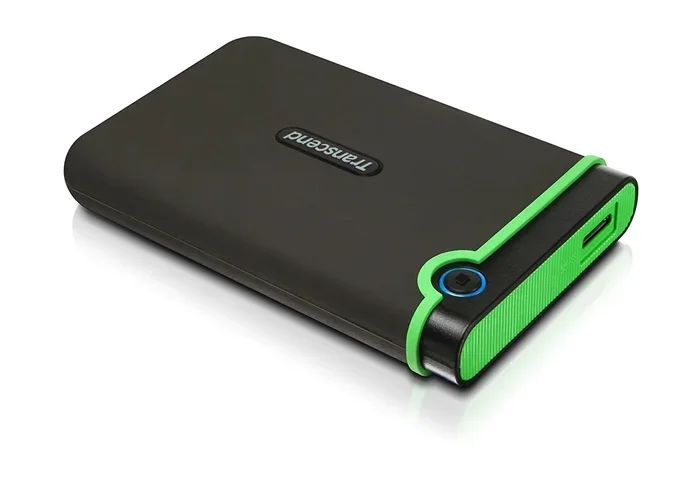
Traditional external hard drives use spinning magnetic disks to read and write data. They offer large storage capacity at low prices, often providing 1TB to 5TB or more for reasonable costs. These drives work great for backing up photos, storing media libraries, and archiving old files.
However, HDDs are bulkier and slower than newer alternatives. They also move parts inside, which makes them more fragile if you carry them around frequently. If you want affordable bulk laptop storage and mostly use the drive at your desk, an HDD is a solid pick.
External SSDs
External SSDs use flash memory with no moving parts. They are smaller, faster, and much more durable. Data transfer speeds on an external SSD can be several times faster than a traditional hard drive, meaning you can move large files in seconds.
These drives are perfect for professionals who work with video, photography, or large design files. They also handle bumps and drops better, making them ideal portable storage for people who travel often. Prices have dropped significantly, so external SSD options fit almost any budget now.
USB Flash Drives
USB flash drives are the smallest and most convenient option. They plug directly into your laptop’s USB-C connectivity or standard USB port and hold anywhere from 16GB to 1TB. These are great for quick data transfer, carrying presentation files, or sharing documents between devices.
Keep in mind that flash drives are not meant for long-term bulk storage. They are best used as a supplement, not a replacement for a dedicated external drive.
Memory Cards And SD Card Readers
If you use cameras, drones, or gaming devices, you likely already have memory cards like SD or microSD. Many laptops have built-in card readers, or you can use a simple adapter. This works well for transferring photos and video clips directly from your camera to your laptop.
Cloud Storage As A Virtual Option
While not physical external memory, cloud storage services like Google Drive, OneDrive, and Dropbox give you online space to save files. They offer free tiers and paid plans, and you can access your files from anywhere with internet. Combining cloud backup with a physical drive gives you the best protection against data loss.
How To Choose The Right External Memory For Your Laptop
Picking the perfect laptop storage upgrade depends on your specific needs. Here are the factors to consider before buying.
Check Your Laptop’s Ports And Connectivity
First, look at what ports your laptop has. Most modern machines feature USB-C connectivity or Thunderbolt ports that support fast data transfer speeds. Older laptops may have standard USB-A ports. Make sure the external drive you choose matches your connection type, or buy an adapter if needed.
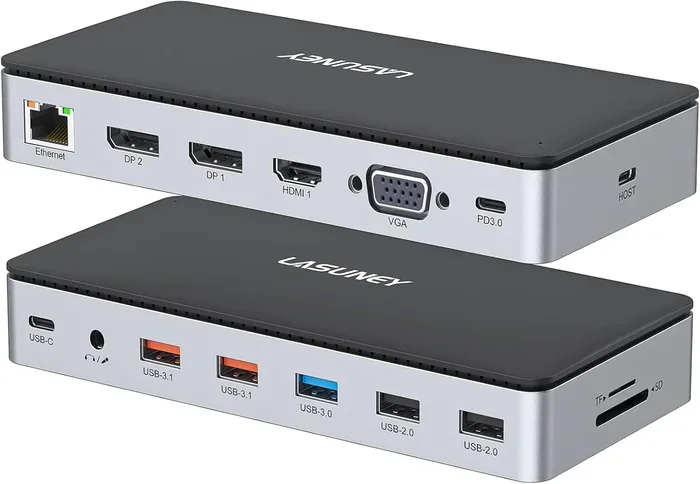
Thunderbolt and USB-C connections support faster speeds, especially with external SSDs. If your laptop only has USB-A, you can still use external drives, but speeds will be slightly lower. A simple USB hub can also help if you need to connect multiple devices.
Consider Storage Capacity
How much extra space do you actually need? Think about what you plan to store:
- Documents and light files: 256GB to 512GB is plenty.
- Photos and music: 1TB handles a large personal library comfortably.
- Video projects and gaming: 2TB or more keeps you covered for heavy workloads.
Going a bit bigger than you think you need is usually a smart move. Storage prices are reasonable today, and running out of space again soon is annoying.
Speed Matters: HDD Versus SSD
Speed can make a big difference, especially when working with large files. Here is a quick comparison:
| Feature | External HDD | External SSD |
|---|---|---|
| Speed | Slower (80-120 MB/s) | Much faster (400-1000 MB/s) |
| Durability | Fragile (moving parts) | Very durable (no moving parts) |
| Price per GB | Cheaper | Slightly more expensive |
| Best for | Backups, media archives | Work files, travel, speed |
| Noise | Some audible noise | Completely silent |
For most users, an external SSD delivers the best overall experience. If you need massive storage capacity on a budget, an HDD still holds value for file backup purposes.
Think About Portability And Size
If you carry your portable storage everywhere, go for compact options. External SSDs often fit in your pocket. Some ultra-small USB flash drives are surprisingly powerful too. Larger HDDs are better suited for desk use where you do not move them often.
Durability And Reliability
Accidents happen. Look for drives with shock resistance, water resistance, or rugged builds if you plan to take your external memory on the road. Premium external SSDs from trusted brands often include strong warranties and data recovery options, giving you peace of mind.
Setting Up External Memory On Your Laptop
Once you have your new external memory for a laptop, getting it running is straightforward. Here is how to set it up properly.
Plug In And Initialize
Connect your drive to the appropriate port. Most modern drives are plug-and-play, meaning your laptop recognizes them instantly. If your drive is brand new, you may need to format it first. On Windows, open File Explorer, right-click the new drive, and select “Format.” On Mac, use Disk Utility to initialize and format the drive. Always choose the right file system: NTFS for Windows-only use, exFAT for cross-platform compatibility, or HFS+ for Mac.
Transfer Your Files
Start by moving your largest files first, like videos, photo libraries, and old projects. This quickly frees up valuable internal disk space and gives your laptop an immediate performance boost. You can drag and drop files or use built-in data transfer tools. Many external drives come with backup software that automates this process for you.
Set Up Automatic Backups
Protect your data by scheduling regular file backup sessions. Windows users can use File History or Backup and Restore. Mac users can rely on Time Machine. Pairing these tools with your external drive means you always have a recent copy of your important files. Adding a cloud backup layer on top gives you double protection.
Common Mistakes To Avoid With External Memory
Even simple setups can go wrong if you are not careful. Here are common mistakes people make with laptop storage upgrades:
- Never pulling out a drive without ejecting: Removing a drive while data is still being written can corrupt files. Always use the “Safely Remove” or “Eject” option first.
- Ignoring drive health: External drives can fail over time. Use built-in tools or third-party apps to check drive health regularly and replace aging drives before data loss occurs.
- Using the wrong file system: Formatting a drive for the wrong operating system means it will not work across devices. exFAT is usually the safest universal choice.
- Relying on one backup method only: External drives can be lost, stolen, or damaged. Always pair physical storage with cloud storage for complete protection.
- Buying the wrong size: Getting a drive that is too small leads to the same storage crunch you had before. A little extra space saves headaches later.
Expert Tips To Maximize Your External Memory
Want to get the most out of your external memory for a laptop? These expert tips help you squeeze every bit of value from your setup.
- Use your external drive as a workspace: Instead of saving files to your laptop, store them directly on the external drive. This keeps your main system lean and fast while giving you easy access to everything.
- Encrypt sensitive data: Many external drives support hardware encryption. Turn it on to protect private files from unauthorized access, especially when traveling.
- Keep your drive cool: Avoid placing external drives in hot or cramped spots. Good airflow extends the lifespan of both HDDs and SSDs.
- Update firmware when available: Manufacturers sometimes release updates that improve laptop performance and compatibility for external drives. Check the brand’s website periodically.
- Combine technologies: Use an external SSD for active projects and an HDD for long-term archives. This balanced approach gives you both speed and storage capacity.
These small habits make a big difference over time. Your external drive becomes a reliable partner that supports your daily workflow and keeps your data safe.
How External Memory Boosts Laptop Performance
One of the biggest benefits of adding external memory for a laptop is the performance boost it provides. When your internal disk space gets crowded, your laptop struggles to find room for temporary files, updates, and system processes. Moving files to an external drive frees up breathing room for your system.
You will notice faster boot times, quicker app launches, and smoother multitasking. Gamers see shorter load times, and creative professionals experience faster rendering when their main drive is not packed full. Think of it like cleaning out a cluttered desk, you work faster when everything has its place.
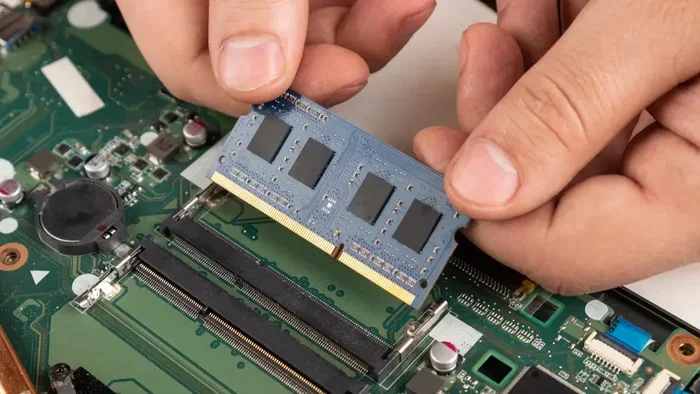
For an even bigger upgrade, consider pairing an external drive with a laptop RAM upgrade. More memory plus more storage creates a powerful combination that keeps your machine feeling brand new without buying a whole new computer.
The Future Of Laptop Storage: What To Watch For
Technology moves fast, and laptop storage upgrade options keep improving. Here are a few trends worth watching:
- Faster connection standards: Thunderbolt 4 and USB4 offer even faster data transfer speeds, making external drives nearly as fast as internal ones.
- Smaller, more powerful SSDs: The next generation of external SSDs will be tinier, faster, and more affordable, putting enterprise-level speed in everyone’s hands.
- Smarter backup software: Expect more intelligent tools that automatically organize and protect your files across both portable storage and cloud storage.
- Integrated cloud and hardware: Some brands are already blending physical drives with cloud sync, giving you seamless file backup without lifting a finger.
Staying informed helps you make smarter purchasing decisions and get the most value from your investment in external memory for a laptop.
Conclusion
So, can you get external memory for a laptop? Absolutely, yes. Whether you choose a traditional external hard drive, a blazing-fast external SSD, a handy USB flash drive, or a mix of physical and cloud storage, you have plenty of powerful options to expand your storage capacity and improve your laptop performance. From checking your ports and choosing the right capacity to setting up backups and avoiding common mistakes, this guide gives you everything you need to make a confident decision. Take action today, free up your laptop, and enjoy the extra room and speed that external memory delivers.
Frequently Asked Questions
Can I use an external drive with any laptop?
Most laptops support external drives through USB, USB-C, or Thunderbolt ports. Very old models may need a simple adapter, but nearly every modern laptop connects easily to external memory. Check your laptop’s available ports before buying to ensure compatibility.
Is an external SSD better than an external hard drive for a laptop?
Yes, an external SSD is generally faster, more durable, and more portable than a traditional external hard drive. SSDs have no moving parts, so they handle bumps better and deliver much quicker data transfer speeds. Hard drives are cheaper per gigabyte and work well for large backups at home.
Will adding external memory make my laptop faster?
It can. When you move large files off your internal drive to external memory, you free up disk space, which helps your laptop boot faster, launch apps quicker, and run more smoothly. It is not the same as a laptop RAM upgrade, but it makes a noticeable difference in everyday use.
How much external storage do I actually need?
It depends on what you store. Light users doing basic document work can manage with 512GB. Photo and video enthusiasts should consider 1TB to 2TB. Gamers and creative professionals often benefit from 2TB or more. Going a little bigger than your current needs saves you from running out of space again soon.
Can I use cloud storage instead of external memory?
Cloud storage is a great supplement but not a full replacement for physical portable storage. Cloud services require internet access and may have monthly costs for larger plans. A physical external drive gives you offline access, faster local transfers, and a reliable file backup option that works without Wi-Fi.
Are external memory drives safe for long-term data storage?
External drives are reliable for medium-term storage, but no drive lasts forever. For important data, use the 3-2-1 backup rule: keep three copies, on two different types of media, with one stored offsite such as in cloud backup. This protects your files even if your external memory for a laptop fails or gets lost.