Can You Completely Factory Reset A Laptop Yourself
Yes, you can completely factory reset a laptop yourself at home — no technician needed. Whether you use a Windows laptop or a MacBook, the process is straightforward once you know the right steps. This guide walks you through every method so you can wipe your device clean, remove all personal data, and start fresh with confidence.
Have you ever stared at a slow, glitchy laptop and thought, “I just want to wipe this thing clean and start over”? You are not alone. A factory reset can breathe new life into an aging machine, clear out stubborn malware, or prepare a laptop for its next owner. The good news is that you absolutely can completely factory reset a laptop yourself — no computer science degree required.
Whether your laptop runs Windows or macOS, the reset process is simpler than most people think. In this guide, we walk you through every step. You will learn what a factory reset actually does, how to do it on different systems, what to do when you do not have a password, and the common mistakes that trip people up. By the end, you will feel confident enough to handle the whole process on your own.
A factory reset removes everything from your laptop — your files, apps, settings, and operating system. It then reinstalls a clean version of the software, returning the device to the state it was in when you first unboxed it. Think of it as giving your laptop a blank slate.
Key Takeaways
- You can do it yourself: A complete factory reset is possible on both Windows and Mac laptops without professional help.
- Back up first: Always save your important files before starting the reset process to avoid permanent data loss.
- Multiple methods work: You can reset through Settings, a recovery partition, or a bootable USB drive depending on your situation.
- No password? No problem: There are ways to factory reset a laptop even if you cannot log in.
- After the reset matters: Reinstalling drivers, updating your operating system, and restoring files properly ensures everything runs smoothly.
- Remove accounts first: Sign out of your Microsoft or Apple account before resetting to avoid activation locks.
📑 Table of Contents
- What Is a Factory Reset and Why Would You Do It?
- How to Completely Factory Reset a Laptop on Windows
- How to Factory Reset a MacBook
- How to Factory Reset a Laptop Without a Password
- Important Things to Do Before You Factory Reset
- What Happens After a Factory Reset?
- Common Mistakes People Make When Factory Resetting
- Expert Tips for a Smooth Factory Reset
What Is a Factory Reset and Why Would You Do It?
A factory reset erases all data on your laptop’s hard drive and reinstalls the original operating system. It goes far beyond just deleting files or emptying the recycle bin. When you reset your laptop this way, the system rebuilds itself from scratch using the recovery tools built into your device.
People choose to factory reset a laptop for many reasons. Here are the most common ones:
- Selling or giving away the laptop: You need to remove all personal data before handing it over.
- Slow performance: A cluttered system with years of accumulated files and software runs poorly.
- Malware or virus removal: Some infections are too deep for regular antivirus tools to fix.
- Operating system errors: Corrupted files or failed updates can make a laptop unusable.
- Preparing for a fresh start: Sometimes people just want a clean system without the digital baggage.
What Happens During a Factory Reset?
When you initiate a factory reset, several things happen behind the scenes. First, the system deletes all partitions on your hard drive. Then it wipes the data clean. Finally, it reinstalls the operating system using the recovery image stored on your device or downloaded from the manufacturer. The entire process can take anywhere from 30 minutes to a few hours, depending on your laptop’s age and speed.
It is important to understand that a factory reset removes personal data at a software level. In most cases, the data is not truly gone forever — it can sometimes be recovered with specialized tools. If you are selling a laptop or handing it to someone else, consider using a data-wiping tool for extra security.
How to Completely Factory Reset a Laptop on Windows
Resetting a Windows laptop is a fairly straightforward process. Microsoft has built recovery tools directly into the operating system, making it easy to restore your laptop to factory settings from the comfort of your desk. Below, we cover the three main methods you can use.
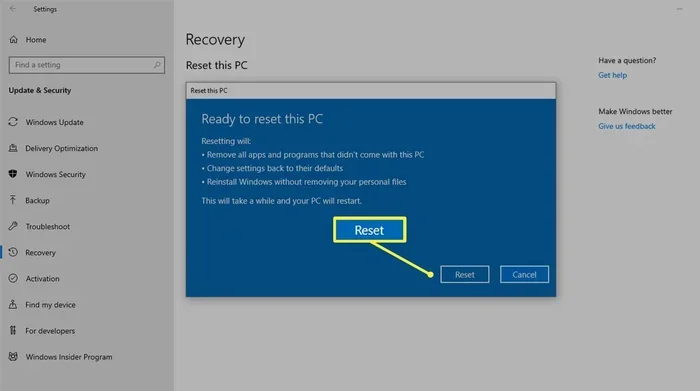
Method 1: Using the Settings Menu
This is the easiest and most common way to reset a Windows laptop. Here is how to do it:
- Click the Start menu and select Settings.
- Go to System and then click on Recovery.
- Under Reset this PC, click the Get Started button.
- Choose between Remove Everything or Keep My Files. For a complete reset, select Remove Everything.
- Follow the on-screen prompts to confirm and begin the process.
The “Remove Everything” option is the one you want if you are asking yourself, “Can I completely factory reset a laptop and remove all my data?” The answer is yes — this option does exactly that. It reinstalls Windows and wipes all personal files, apps, and settings.
Method 2: Using the Recovery Partition
Most Windows laptops come with a hidden recovery partition on the hard drive. This partition contains a backup of the original operating system. To access it:
- Restart your laptop and press the manufacturer-specific key during boot-up. Common keys include F11, F9, or Alt+F10.
- Select the option to restore or factory reset your laptop.
- Follow the prompts to complete the process.
The recovery partition method works well if your laptop is still running, but you cannot access the Settings menu. However, some users have accidentally deleted this partition during disk cleanup, so it is not always available.
Method 3: Using a Windows Installation USB
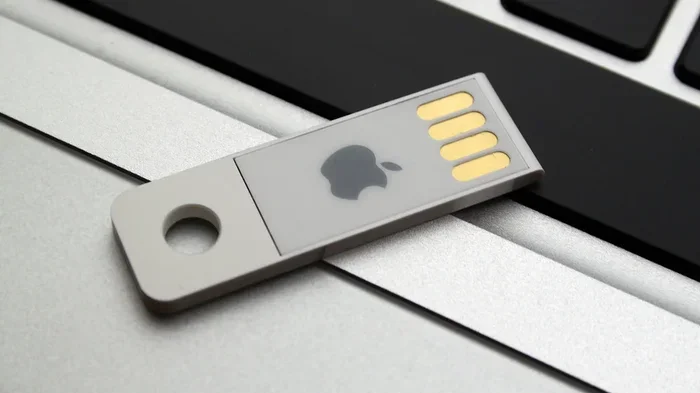
If your laptop is too broken to boot into Windows, you can use a bootable USB drive to perform a clean install. This method gives you the most control over the reset process. You will need:
- A USB flash drive with at least 8GB of storage.
- Another computer to create the bootable USB using the Media Creation Tool from Microsoft’s website.
- A product key for Windows (if prompted).
Boot from the USB, follow the installation prompts, and choose the option to format the drive during setup. This method completely replaces your old operating system with a fresh copy of Windows.
How to Factory Reset a MacBook
Apple’s MacBooks handle the reset process a bit differently than Windows laptops. macOS includes its own recovery tools that let you wipe your MacBook clean and reinstall the operating system. Here is how to do it on modern MacBooks running macOS Ventura or later.
Using macOS Recovery Mode
- Turn off your MacBook completely.
- Press and hold the Power button until you see “Loading startup options.”
- Click Options and then Continue to enter Recovery Mode.
- From the macOS Utilities window, select Disk Utility.
- Choose your main drive (usually named Macintosh HD) and click Erase.
- Format the drive as APFS and confirm the erase.
- Quit Disk Utility and select Reinstall macOS.
- Follow the prompts to download and install a fresh copy of macOS.
This process completely resets your MacBook to its original state. All your files, applications, and settings are removed. You will need an Apple ID and internet connection to complete the reinstallation.
Using Disk Utility for a More Thorough Wipe
If you are selling your MacBook and want to be absolutely sure no one can recover your data, use Disk Utility’s security options. After selecting your drive in Disk Utility, click Security Options and choose the number of overwrite passes. More passes mean the data is harder to recover. For most users, a single pass is sufficient.
How to Factory Reset a Laptop Without a Password
One of the most common questions people ask is, “Can I completely factory reset a laptop if I do not know the password?” The answer is yes. There are workarounds for both Windows and Mac laptops that let you bypass the login screen and start the reset process.
Resetting a Windows Laptop Without a Password
If you cannot log into your Windows laptop, try these approaches:
- Use the login screen reset option: On the sign-in screen, click I forgot my password and follow the prompts to reset using your Microsoft account.
- Boot into Safe Mode: Restart your laptop three times during boot to trigger Windows Recovery Environment. From there, you can access Advanced Options and choose Reset this PC.
- Use a password reset disk or USB: If you created one before forgetting your password, this tool can help you regain access.
- Use a bootable USB: A Windows installation USB lets you bypass the login screen entirely and perform a clean install.
Keep in mind that some methods may require access to another device or a secondary computer to create the necessary tools.
Resetting a MacBook Without a Password
For MacBooks, you can use Recovery Mode to erase and reinstall macOS without needing your Apple ID password in some cases. However, Activation Lock may prevent you from using the laptop after the reset if it is linked to your Apple ID. If you have access to another Apple device, you can remove the laptop from your Apple ID account through iCloud.com before resetting.
Important Things to Do Before You Factory Reset
Jumping into a factory reset without preparation can cause big problems. Taking a few minutes to prepare beforehand saves you from headaches later. Here is what you should do before you wipe your laptop clean.
Back Up Your Files
This is the most important step. Before you reset your laptop, make sure you have saved copies of everything you want to keep. Use an external hard drive, a USB stick, or a cloud storage service like Google Drive or OneDrive. Do not skip this step — once the reset begins, there is no going back.
Here is a quick checklist of what to back up:
- Documents, photos, and videos
- Browser bookmarks and saved passwords
- Application settings and license keys
- Email archives
- Any work projects or school files
Deauthorize Software and Accounts
Many software programs and digital services limit the number of devices you can use them on. Before you factory reset your laptop, deauthorize or sign out of accounts like iTunes, Adobe Creative Cloud, Microsoft Office, and any other subscription services. This ensures you do not lose access to software you paid for.
Gather Your Drivers and Product Keys
After a reset, your laptop will need the latest drivers to function properly. Some laptops also require product keys to reactivate Windows or other software. Use a tool like Belarc Advisor or check your manufacturer’s website to save this information before you reset.
What Happens After a Factory Reset?
The reset itself is only half the battle. What you do afterward determines how well your laptop performs going forward. Here is what to expect and how to set yourself up for success.
Setting Up Your Laptop Fresh
After the factory reset completes, your laptop will boot into the initial setup screen. You will be asked to choose your language, connect to Wi-Fi, and sign in with your Microsoft or Apple account. Take your time during this process. Do not rush through the setup just to get back to work.
When you reach the desktop, the first thing you should do is check for Windows or macOS updates. Run the update tool and install everything available. This ensures your system has the latest security patches and performance improvements.
Reinstalling the Software You Need
Your laptop will now be running a clean operating system with no apps installed. Reinstall only the software you actually need. Avoid the temptation to download everything at once — a lean system runs faster and has fewer potential issues.
Quick Tip: Create a system restore point or Time Machine backup after setting up your laptop. This gives you a safety net if something goes wrong in the future.
Common Mistakes People Make When Factory Resetting
Even with the best intentions, people make mistakes during the reset process. Knowing what to avoid can save you a lot of trouble.
Forgetting to Back Up
This is the number one mistake. People get excited about the fresh start and jump into the reset without saving their files. Once the reset is complete, deleted files are extremely difficult or impossible to recover. Always, always back up first.
Skipping Driver Updates
After a factory reset, your laptop may not have the correct drivers for your hardware. This can cause issues with your Wi-Fi, sound, touchpad, and display. Visit your laptop manufacturer’s support page and download the latest drivers right after the reset.
Not Removing Personal Accounts First
If you are selling or giving away your laptop, make sure you sign out of your Microsoft or Apple account before the reset. Leaving accounts linked can cause activation locks that prevent the new owner from using the device. For Windows, sign out of your Microsoft account. For Mac, remove the device from your Apple ID list at iCloud.com.
Choosing the Wrong Reset Option
Windows offers two reset options: Keep My Files and Remove Everything. If your goal is a complete wipe, do not choose Keep My Files. This option only removes apps and settings but leaves your personal files intact. For a true factory reset, select Remove Everything.
Expert Tips for a Smooth Factory Reset
Want to make your factory reset go as smoothly as possible? Follow these expert-backed tips:
- Plug in your laptop: A reset can take a while, and you do not want your battery dying halfway through.
- Connect to a stable Wi-Fi network: macOS and Windows both need internet access to download the latest operating system during the reset.
- Be patient: The process can take 1 to 3 hours. Do not turn off your laptop while it is working.
- Have your product keys handy: Keep a list of software license keys so you can reactivate programs after the reset.
- Test your laptop after the reset: Check that your Wi-Fi, sound, webcam, and keyboard all work properly before you start reinstalling everything.
A complete factory reset is one of the most effective things you can do to refresh your laptop’s performance and security. Whether you are preparing to sell your device, dealing with a stubborn virus, or just tired of a sluggish system, the steps in this guide give you everything you need. You do not need to visit a repair shop or pay for professional help. With a little preparation and patience, you can reset your laptop yourself and enjoy a clean, fast-running machine.
The key is to take it step by step. Back up your files, choose the right method for your system, follow the instructions carefully, and set up your laptop properly afterward. Once you have done a factory reset once, you will find it is not as scary as it seems. It is a skill that gives you control over your device and your data.
So go ahead. Take that deep breath, follow the steps in this guide, and give your laptop the fresh start it deserves. You will be surprised how much better it feels — like opening a brand-new computer again.
Frequently Asked Questions
Can you completely factory reset a laptop without losing your warranty?
Yes, performing a factory reset does not void your laptop’s warranty. Manufacturers expect users to reset their devices and do not consider it damage. However, if the reset process causes a hardware issue due to improper handling, that could be a different story. Always follow the official steps from your laptop’s manufacturer.
How long does it take to factory reset a laptop?
A complete factory reset typically takes between 30 minutes and 3 hours. The time depends on your laptop’s speed, the amount of data being wiped, and the method you use. Using a Windows installation USB or a macOS recovery drive may take longer than using the built-in Settings menu.
Can you factory reset a laptop that is stuck on the login screen?
Yes, you can. If your laptop is stuck on the login screen, you can boot into Safe Mode or use a bootable USB drive to access the recovery tools. Both Windows and Mac offer recovery modes that bypass the login screen and let you perform a reset without needing a password.
Is a factory reset the same as a clean install?
They are very similar but not exactly the same. A factory reset uses the recovery tools built into your laptop to reinstall the original operating system. A clean install involves using a separate USB or disk to install a fresh copy of the operating system. Both remove your data and apps, but a clean install gives you more control over the version and settings.
Can someone recover my data after a factory reset?
In most cases, a standard factory reset makes data recovery very difficult for the average person. However, specialized forensic tools can sometimes recover traces of deleted data. If you are concerned about data privacy — especially when selling a laptop — use a data-wiping tool or choose the option to securely erase the drive during the reset.
Do I need an internet connection to factory reset my laptop?
For most modern laptops, yes. Windows and macOS both require an internet connection during the reset process to download the latest version of the operating system. If you do not have internet access, you can still perform a reset using the recovery partition, but the result may be an older version of the operating system.
=== CONCLUSION ===
Can you completely factory reset a laptop yourself? Absolutely. Whether you use a Windows laptop or a MacBook, the tools are built right into your device. You do not need expensive software or a trip to the repair shop. With the steps outlined in this guide, you can factory reset your laptop confidently and efficiently.
Remember to back up your files first, choose the right method for your system, and take your time during setup afterward. A factory reset is one of the most powerful tools you have for keeping your laptop running smoothly and securely. Use it wisely, and your laptop will thank you for it.