Can I Increase The Refresh Rate Of My Laptop And Find Out
You can increase the refresh rate of your laptop if your display and GPU support it. A higher refresh rate means smoother motion, less screen tearing, and a better overall viewing experience. Whether you use Windows 10 or Windows 11, the process is simple and free. Most modern laptops support 120Hz or even 144Hz, but you need the right cable and settings. This guide walks you through every step with clear instructions.
Have you ever noticed that some laptop screens look buttery smooth while others feel a bit choppy? The secret is the refresh rate. It is the number of times your screen updates per second, measured in Hertz or Hz. A 60Hz display refreshes 60 times per second. A 144Hz display refreshes 144 times per second. That huge difference makes a real impact, especially when you are gaming or scrolling through content.
So, can I increase the refresh rate of my laptop? The short answer is yes, in most cases. But there are a few things you need to know first. Your laptop model, your graphics card, and even the cable you use all matter. In this guide, we will walk you through everything step by step. You will learn how to check your current settings, how to boost your refresh rate, and what to do if your laptop does not support higher numbers.
Whether you are a casual user or a serious gamer, understanding your laptop refresh rate can completely change how you experience your screen. Let us dive in and get your display running at its best.
Key Takeaways
- Refresh rate matters: A higher Hz value makes everything on your screen feel smoother and more responsive.
- Check your hardware first: Not every laptop screen can handle a high refresh rate. Your GPU and cable also play a role.
- Windows settings make it easy: You can change the refresh rate in just a few clicks through Display Settings.
- GPU software gives more control: NVIDIA and AMD tools let you fine-tune refresh rate and sync settings.
- Older laptops may be limited: Budget and older models often max out at 60Hz, and that is perfectly fine for everyday tasks.
- Cable quality counts: Using the right cable ensures your laptop can output the refresh rate you want.
📑 Table of Contents
- What Is Refresh Rate and Why Does It Matter?
- How to Check Your Current Refresh Rate
- How to Increase Refresh Rate on Windows 10
- How to Increase Refresh Rate on Windows 11
- GPU Software and Advanced Settings
- Common Problems and How to Fix Them
- When Your Laptop Cannot Support Higher Refresh Rates
- Final Thoughts on Increasing Your Laptop Refresh Rate
What Is Refresh Rate and Why Does It Matter?
The laptop refresh rate is simply how many times your screen redraws the image every second. Think of it like flipping through a flipbook. The more pages you flip per second, the smoother the animation looks. A high refresh rate laptop makes everything from mouse movements to fast-paced games feel incredibly fluid.
Here is a quick breakdown of common refresh rates:
- 60Hz: The standard for most budget and office laptops. It works fine for web browsing, word processing, and light tasks.
- 120Hz: A noticeable upgrade. Scrolling feels smoother, and videos look more lifelike.
- 144Hz: Popular among gamers. Fast-moving scenes stay clear and tear-free.
- 240Hz and above: Found on high-end gaming laptops. Built for competitive players who need every millisecond.
When your screen refresh rate is low, you might see screen tearing. That is when the top and bottom of your screen show different frames at the same time. It looks messy and distracting. A higher display refresh rate reduces this problem and makes your overall experience much more enjoyable.
Who Benefits Most from a Higher Refresh Rate?
Not everyone needs a high Hz monitor on their laptop. But certain groups really feel the difference:
- Gamers: Fast-paced games like Fortnite, Valorant, and Call of Duty run much better at high refresh rates.
- Content creators: Video editors and animators benefit from smoother previews and timeline scrolling.
- Everyday users: Even simple tasks like scrolling through social media feel noticeably smoother.
- Professionals: Designers who work with motion graphics appreciate the extra fluidity.
So if you have been wondering whether upgrading your laptop display refresh rate is worth it, the answer depends on how you use your machine. For most people, moving from 60Hz to 120Hz is a big deal. For others, 60Hz is perfectly fine.
How to Check Your Current Refresh Rate
Before you change anything, you need to know what your laptop screen refresh rate currently is. This takes just a minute or two. You can check it right from your operating system.
Check Refresh Rate on Windows 10
Open the Start menu and go to Settings. Click on System and then Display. Scroll down and look for Advanced display settings. There you will see the refresh rate dropdown menu. The number shown there is your current setting. If it says 60Hz, your laptop is running at the standard rate.
Check Refresh Rate on Windows 11
The process is very similar on Windows 11. Right-click on your desktop and choose Display settings. Scroll down and click Advanced display. You will find the choose a refresh rate option there. Click the dropdown to see all the rates your laptop supports.
Check Refresh Rate Through GPU Software
You can also check your display adapter settings through your graphics software. If you have an NVIDIA card, open the NVIDIA Control Panel and look at Display settings. AMD users can check through the AMD Radeon Software. Intel graphics users can access their settings through the Intel Graphics Command Center. These tools often show more detailed information about your monitor specifications.
Once you know your current screen refresh rate, you can decide whether it is worth increasing it. Most people are surprised to find their laptop is running at the lowest possible setting. A quick change can make a huge difference.
How to Increase Refresh Rate on Windows 10
Now for the fun part. Changing your laptop refresh rate on Windows 10 is straightforward. Just follow these steps carefully.
Step-by-Step Guide
- Right-click anywhere on your desktop.
- Select Display settings from the menu that appears.
- Scroll down and click on Advanced display settings.
- Look for the Choose a refresh rate dropdown menu.
- Click the dropdown and select a higher number.
- Click Keep changes when prompted.
That is it. Your laptop screen should now be running at the new refresh rate. If you notice any issues, you can always go back and switch it down.
What If the Dropdown Shows No Higher Options?
This is a common question. If the refresh rate dropdown only shows 60Hz, your laptop display or GPU may not support a higher rate. It could also mean you are using the wrong cable. We will cover this more in the next section. For now, know that not every laptop can be upgraded to a high refresh rate. But many can, and you might be surprised by what is available.
Quick Tip: Sometimes simply updating your display driver unlocks new refresh rate options. Go to your laptop manufacturer’s website or your GPU brand’s site to download the latest driver. This alone fixes the problem for many users.
How to Increase Refresh Rate on Windows 11
Windows 11 makes the process even easier. Microsoft has streamlined the display settings so finding the refresh rate option is more intuitive than ever.
Step-by-Step Guide
- Right-click on an empty area of your desktop.
- Choose Display settings from the context menu.
- Scroll down to the Related settings section.
- Click on Advanced display settings.
- Find the Choose a refresh rate for this display option.
- Select the highest available number from the dropdown.
- Your screen will briefly go black and then return at the new rate.
Windows 11 also gives you a cleaner way to manage multiple displays. If you connect your laptop to an external monitor, you can set different refresh rates for each screen. Just make sure your cable can handle the bandwidth of the higher rate.
Why Does Windows Sometimes Hide Higher Refresh Rates?
Several reasons can cause this. Your GPU driver might be outdated. Your cable might not support the higher bandwidth needed. Or your laptop panel simply might not support rates above 60Hz. Updating your display adapter driver is the first thing you should try. If that does not work, check your cable and your laptop specs.
Quick Tip: If you recently updated Windows and lost access to higher refresh rates, roll back your display driver. Windows updates sometimes reset GPU settings and remove custom configurations.
GPU Software and Advanced Settings
Windows settings get you pretty far, but your graphics card software gives you even more control. Whether you use NVIDIA, AMD, or Intel, there are tools designed to help you get the most out of your display.
NVIDIA Control Panel Settings
If your laptop has an NVIDIA GPU, the Control Panel is a powerful tool. Open it by right-clicking on your desktop and selecting NVIDIA Control Panel. Go to the Change resolution section under Display. You will see a refresh rate dropdown there. Select the highest available option and apply the changes.
NVIDIA users can also enable adaptive sync, which helps reduce screen tearing without hurting performance. Look for Vertical Sync or VSync settings in the Manage 3D Settings section. Setting it to Adaptive or Adaptive-Sync is usually the best choice for gaming laptops.
AMD Radeon Software Settings
For those with an AMD GPU, the Radeon Software offers similar options. Open the app and go to the Display tab. You should see your current refresh rate listed there. You can change it right from that screen. AMD also offers FreeSync technology, which works like NVIDIA’s adaptive sync. It dynamically adjusts the refresh rate to match your frame rate, reducing tearing and stuttering.
Intel Graphics Command Center
Users with Intel integrated graphics can use the Intel Graphics Command Center. Open the app and navigate to Display. Look for the refresh rate option under General settings. Intel GPUs are common in budget and ultrabook laptops. While they may not support the highest refresh rates, they still offer options beyond the default 60Hz on many models.
Using VSync and Adaptive Sync Properly
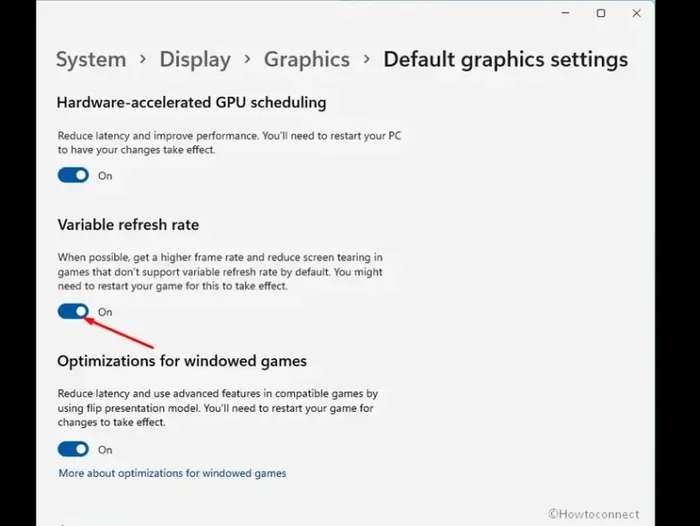
VSync stands for Vertical Synchronization. It matches your frame rate to your screen refresh rate. This prevents tearing but can add input lag. Adaptive sync technologies like FreeSync and G-Sync are better because they only kick in when needed. They give you the smoothness without the performance penalty.
For the best experience, use adaptive sync when available. It is especially helpful when your frame rate fluctuates during gameplay. You get the benefits of a high refresh rate laptop without the downsides of screen tearing.
Common Problems and How to Fix Them
Sometimes increasing your laptop refresh rate does not go smoothly. Here are the most common issues and how to solve them.
The Refresh Rate Option Is Grayed Out
This usually means your display does not support higher rates. It can also happen if you are using a cable that cannot carry the signal. Try switching to a better cable. If your laptop has an HDMI port, make sure it is HDMI 2.0 or higher for rates above 60Hz. DisplayPort or USB-C with DisplayPort Alt Mode works even better.
Screen Looks Blurry After Changing the Rate
This can happen when the native resolution does not match the new refresh rate. Go back to Display settings and make sure your resolution is set to the recommended value. Your laptop display has a native resolution that works best at its designed refresh rate.
Refresh Rate Keeps Resetting After a Restart
Update your GPU driver. Outdated drivers often cause settings to revert. You can also check for Windows updates, as some system updates reset display configurations. If the problem persists, try creating a custom refresh rate through your GPU software.
External Monitor Shows Lower Refresh Rate Than Expected
This is a cable issue more often than not. Cheap HDMI cables may only support 60Hz at higher resolutions. Invest in a high-speed cable that matches your needs. For 144Hz at 1080p, you need at least an HDMI 2.0 cable or a DisplayPort 1.2 cable. For 144Hz at 1440p or higher, you need HDMI 2.1 or DisplayPort 1.4.
Quick Tip: When buying a cable, always check the bandwidth rating. Higher bandwidth means support for higher refresh rates at higher resolutions. Do not cheap out on cables if you want the best screen refresh rate performance.
When Your Laptop Cannot Support Higher Refresh Rates
Not every laptop can run at 120Hz or 144Hz. Some are simply built with 60Hz panels that cannot be upgraded. This is especially common in budget laptops and older models. If your laptop refresh rate is stuck at 60Hz no matter what you try, here is what you should know.
Understanding Laptop Display Limitations
The LCD or OLED panel inside your laptop determines the maximum refresh rate it can support. This is a hardware limitation that no software change can overcome. If your panel is rated for 60Hz, that is the highest you can go through software settings.
Some laptops allow panel replacements, but this is risky and expensive. It is usually not worth the cost unless you are working on a high-end machine with a removable display. For most users, accepting the 60Hz limit is the practical choice.
External Monitors as a Solution
If your laptop’s built-in screen is limited, consider using an external monitor with a higher refresh rate. Many modern monitors support 120Hz, 144Hz, or even 240Hz. You can connect one via HDMI or DisplayPort and enjoy smooth visuals for gaming or creative work.
This is a great workaround for users who want a high refresh rate laptop experience without buying a new machine. Just make sure your GPU can push enough frames to take advantage of the higher rate. A powerful GPU paired with a high-refresh external monitor is a winning combination.
When to Consider Upgrading Your Laptop
If you find that your laptop display specifications are holding you back, it might be time to consider an upgrade. Modern gaming laptops and productivity laptops increasingly come with 120Hz or 144Hz screens as standard. When shopping for a new laptop, always check the monitor specifications before buying.
Look for terms like high refresh rate, 120Hz, 144Hz, or 165Hz in the product description. These numbers tell you exactly what you are getting. A laptop refresh rate of 120Hz or higher makes a noticeable difference in daily use and gaming.
Final Thoughts on Increasing Your Laptop Refresh Rate
Can I increase the refresh rate of my laptop? Yes, you absolutely can, as long as your hardware supports it. The process is simple, free, and takes just a few minutes. Whether you are on Windows 10 or Windows 11, you can adjust your laptop refresh rate through Display Settings or your GPU software.
Start by checking your current settings. Then try increasing the rate to see if your display supports it. If it does, enjoy the smoother visuals and better responsiveness. If it does not, consider updating your drivers, changing your cable, or using an external monitor.
Remember that your screen refresh rate is just one part of the equation. A powerful GPU, a good cable, and proper settings all work together to deliver the best experience. Take the time to optimize each piece, and you will notice the difference immediately.
Do not settle for a choppy screen when a smoother experience is just a few clicks away. Your laptop display is capable of more than you might think. Unlock its full potential today and enjoy every frame.
Frequently Asked Questions
What is a good refresh rate for a laptop?
For most users, 60Hz is perfectly fine for everyday tasks like browsing and office work. Gamers and creative professionals will benefit a lot from 120Hz or 144Hz. The right refresh rate depends on how you use your laptop and what your display adapter can support.
Can I increase my laptop refresh rate beyond what the display supports?
No. The laptop screen has a maximum refresh rate built into its hardware. You cannot exceed this limit through software. Check your monitor specifications to find the highest supported rate for your panel.
Does a higher refresh rate drain laptop battery faster?
Yes, a higher Hz monitor uses slightly more power because the screen refreshes more often. If battery life is important, you can lower the rate when you are not gaming or doing demanding tasks. This is a smart way to balance performance and battery life.
Do I need a special cable to get a higher refresh rate?
Sometimes. Older HDMI cables may limit you to 60Hz. For rates above 60Hz, you usually need HDMI 2.0 or higher, DisplayPort 1.2 or higher, or USB-C with proper support. Check your laptop display specifications to see what cables your ports support.
Can I change the refresh rate on a Mac laptop?
Yes. On MacBooks with ProMotion or high-refresh displays, you can adjust the screen refresh rate through System Settings. Go to Displays and look for the refresh rate option. Not all MacBooks support high refresh rates, so check your specific model first.
Will increasing the refresh rate improve my gaming performance?
It improves visual smoothness, not raw performance. A higher laptop refresh rate makes games look and feel smoother. But you still need a strong GPU to generate enough frames to take advantage of it. Pair a high refresh rate with a capable GPU settings configuration for the best results.
=== CONCLUSION ===
Increasing your laptop refresh rate is one of the easiest ways to improve your daily computing experience. A smoother screen means less eye strain, better gaming, and a more enjoyable time overall. Whether you are scrolling through a browser, editing a video, or playing your favorite game, the difference a higher display refresh rate makes is real and noticeable.
Follow the steps in this guide to check your current rate, adjust your settings, and troubleshoot any issues. If your laptop cannot support a higher rate, consider using an external monitor or planning for an upgrade. Can I increase the refresh rate of my laptop? Yes, and now you know exactly how to do it. Take action today and give your screen the upgrade it deserves.