Can I Connect My Steam Deck To My PC For Better Gaming
Yes, you can connect your Steam Deck to your PC and unlock a whole new level of gaming. Whether you use Steam Remote Play, a Steam Link, or a direct wired connection, the process is simple and works great. This guide shows you exactly how to set it up, what you need, and how to get the best performance for your PC gaming setup.
Key Takeaways
- Easy Setup: Connecting your Steam Deck to your PC takes just a few minutes using Steam Remote Play or Steam Link.
- Two Main Methods: You can go wireless over your local network or use a USB cable for a stable wired connection.
- Better Gaming: Streaming your PC games to your Steam Deck gives you access to your full game library anywhere in your home.
- Low Input Lag: With the right network settings and a strong Wi-Fi connection, the delay is barely noticeable.
- Cross-Platform Play: You can share controllers, game saves, and achievements between your Steam Deck and PC seamlessly.
📑 Table of Contents
- What Happens When You Connect Your Steam Deck to Your PC
- How to Connect Your Steam Deck to Your PC
- Steam Remote Play vs Steam Link: Which Is Better?
- Boosting Your Gaming Performance
- Common Problems and How to Fix Them
- Tips for the Best Experience
- Why Connecting Your Steam Deck to Your PC Makes Sense
- Final Thoughts on Connecting Your Steam Deck to Your PC
What Happens When You Connect Your Steam Deck to Your PC
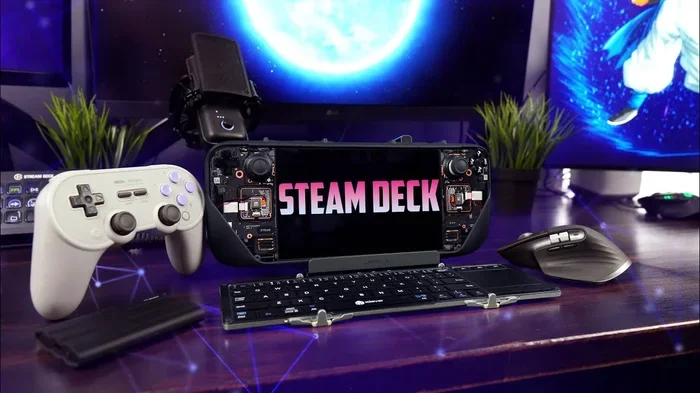
Connecting your Steam Deck to your PC opens up a world of possibilities. You can turn your handheld device into a powerful gaming window. Your PC gaming library becomes available on the go. You can even use your big monitor and keyboard setup from across the room.
The process relies on game streaming technology. Steam has built-in tools that make this easy. You do not need expensive extra hardware. A good local network is all you really need to get started.
When you stream from your PC to your Steam Deck, your PC does all the heavy lifting. It renders the game and sends the video to your handheld. Your inputs travel back to the PC in real time. This means you can play demanding titles that your Steam Deck might not handle on its own.
The experience feels almost like playing directly on your PC. With a strong connection, the difference is hard to notice. Many gamers use this setup to free up their main PC. They can game in another room while still accessing their full library.
What You Need Before You Start
Before you try to connect your Steam Deck to your PC, make sure you have the basics ready. Here is a quick checklist:
- A PC that runs Steam with your games installed
- A Steam Deck updated to the latest SteamOS version
- A Wi-Fi connection or a wired Ethernet setup
- A USB cable if you want a wired connection
- Both devices logged into the same Steam account
That is really it. You do not need a top-of-the-line router or fancy equipment. A standard home network works perfectly for most setups. The key is making sure both devices are on the same network and can see each other.
How to Connect Your Steam Deck to Your PC
Setting up the connection is straightforward. You can choose between a wireless or wired method. Both work well, but each has its own advantages. Let me walk you through both options.
Method 1: Wireless Connection Using Steam Remote Play
Steam Remote Play is the most popular way to stream games. It uses your home Wi-Fi connection to send game data between devices. Here is how to set it up step by step.
- Open Steam on your PC and go to Settings.
- Click on the Remote Play tab.
- Enable the option for remote play.
- On your Steam Deck, open the Steam app.
- Go to your Library and find your PC games.
- Select a game and choose to stream it to your Steam Deck.
That is all there is to it. The game will launch on your PC, and you will see it on your Steam Deck screen. Your controller inputs send back to the PC instantly. It feels like magic the first time you try it.
Method 2: Wired Connection Using a USB Cable
A wired connection gives you the most stable experience. You use a USB cable to link your Steam Deck directly to your PC. This method reduces input lag significantly.
Here is how to do it:
- Connect your Steam Deck to your PC using a USB-C cable.
- Steam should detect the connection automatically.
- Enable Remote Play over USB in Steam settings on your PC.
- On your Steam Deck, start streaming from your library.
The wired method is great if you want the lowest possible delay. It also works even if your network settings are not ideal. You do not have to worry about Wi-Fi interference or bandwidth limits.
Method 3: Using Steam Link App
Another option is to use the Steam Link app on your PC. This is a dedicated streaming tool from Valve. It gives you more control over video quality and resolution settings.
To use Steam Link, download the app on your PC. Then, on your Steam Deck, use the built-in Steam Link feature. Both devices will find each other on the same network. You can adjust the streaming quality to match your connection speed.
Steam Remote Play vs Steam Link: Which Is Better?
Many people wonder which tool works best for connecting their Steam Deck to their PC. Both are official Valve products. Both do the same basic job. But there are some differences worth knowing about.
| Feature | Steam Remote Play | Steam Link | Wired USB |
|---|---|---|---|
| Connection Type | Wireless (Wi-Fi) | Wireless (Wi-Fi) | Wired (USB-C) |
| Setup Difficulty | Very Easy | Easy | Very Easy |
| Input Lag | Low to Medium | Low to Medium | Very Low |
| Video Quality | Good | Great (adjustable) | Great |
| Best For | Casual streaming | Custom quality settings | Competitive gaming |
| Extra Hardware Needed | No | No | USB-C cable |
For most people, Steam Remote Play is the go-to choice. It is built right into Steam and works out of the box. Steam Link gives you more fine-tuning options. The wired USB method is best for players who want zero lag and maximum stability.
If you care about gaming performance during fast-paced games, try the wired method first. For casual single-player games, wireless streaming works perfectly fine. You really cannot go wrong with any of these options.
Boosting Your Gaming Performance
Once you have your connection working, you will want to make sure the experience is smooth. A few simple tweaks can make a big difference in your gaming performance.
Optimize Your Network Settings
Your local network plays a huge role in streaming quality. If your Wi-Fi signal is weak, you will notice stuttering or lag. Here are some quick tips to improve your network:
- Use a 5 GHz Wi-Fi band instead of 2.4 GHz
- Keep your router close to both your PC and Steam Deck
- Reduce the number of devices using your network while gaming
- Enable QoS (Quality of Service) on your router if available
- Consider a wired Ethernet connection for your PC
These small changes can dramatically improve your streaming experience. A strong and stable connection is the foundation of good game streaming.
Adjust Streaming Quality Settings
Steam lets you control the quality of the stream. If you are experiencing lag, lowering the video quality can help. Go to Steam Settings and find the Remote Play section. From there, you can adjust resolution, frame rate, and encoding quality.
For the smoothest experience, try a 1080p stream at 30 frames per second first. If that feels good, you can bump it up to 60 fps. Higher settings look better but need more bandwidth.
Close Background Programs on Your PC
Your PC specs matter for streaming performance. If your PC is running many background programs, it has fewer resources for gaming. Close any apps you do not need before you start streaming.
This includes web browsers, video editors, and anything else using your CPU or GPU. Freeing up these resources gives your games more power. You will notice smoother frame rates and faster load times.
Common Problems and How to Fix Them
Even with a simple setup, you might run into some issues. Here are the most common problems people face when they try to connect their Steam Deck to their PC and how to solve them.
Steam Deck Not Finding the PC
This is the most common issue. Usually, it happens because the devices are not on the same network. Make sure both your Steam Deck and PC are connected to the same Wi-Fi connection. Check your network name and password on both devices.
Sometimes restarting both devices fixes the problem. Turn off your Steam Deck and PC. Wait a few seconds. Turn them back on and try again. This refreshes the network connections and often solves detection issues.
High Input Lag During Gameplay
If you feel a delay between pressing a button and seeing the action, your connection might be the issue. Try moving closer to your router. Switch to a 5 GHz band if you are on 2.4 GHz.
A wired connection using a USB cable is the best fix for input lag. It eliminates wireless delays completely. If you must use Wi-Fi, lower the stream quality settings to reduce the lag.
Poor Video Quality or Stuttering
Stuttering or blurry video usually means your network cannot keep up with the stream. Try reducing the resolution or frame rate in your network settings. Also check if anyone else is using your internet heavily, like downloading a large file.
If the problem continues, consider using the wired USB method. It is much more reliable than wireless for consistent video quality. You will get a smooth, clear picture every time.
Tips for the Best Experience
Once you have everything working, a few extra tips can take your experience to the next level. These are small changes that make a big impact.
Use Your Steam Controller on Both Devices
One of the best parts of connecting your devices is sharing your Steam controller setup. Your controller profile, button mappings, and gyro settings sync across both your PC and Steam Deck. You do not need to reconfigure anything.
This works because Steam saves your controller settings in the cloud. As long as both devices use the same Steam account, your preferences follow you. It makes switching between devices feel seamless and natural.
Share Your Game Library Easily
When you stream from your PC, you access your entire game library. This includes games that your Steam Deck cannot run natively. Heavy strategy games, simulation titles, and graphically demanding AAA games all become playable on your handheld.
You also get access to your saved games, achievements, and Steam Cloud saves. Everything stays in sync automatically. You can start a game on your PC and pick it up on your Steam Deck later without losing progress.
Keep Your Devices Updated
Valve regularly releases updates for SteamOS and Steam. These updates often improve remote play performance and fix bugs. Keeping both your Steam Deck and PC updated ensures the smoothest possible experience.
Check for updates at least once a week. The update process is quick and usually happens in the background. A simple restart after updating can resolve many minor issues.
Why Connecting Your Steam Deck to Your PC Makes Sense
The benefits of this setup go beyond just playing games. It changes how you think about your handheld gaming device. Your Steam Deck becomes a powerful extension of your PC.
You can game anywhere in your home. The couch, the bedroom, even the backyard on a nice day. Your PC stays in one place, doing all the work. Your Steam Deck becomes a lightweight, portable screen and controller.
This setup also saves you money. You do not need to buy a second gaming PC. You do not need to upgrade your handheld to play demanding titles. Your existing PC handles the heavy lifting, and your Steam Deck handles the display.
For families or roommates, this is a game changer too. One powerful PC can serve multiple players. Each person can stream games to their own device. Everyone gets their own gaming experience without buying extra hardware.
The cross-platform nature of Steam makes this even better. Your friends, your community, your achievements, your friends list. It all stays the same whether you are playing on your PC or streaming to your Steam Deck. The experience feels unified and complete.
As PC gaming continues to grow, more and more players are looking for flexible ways to play. Connecting your Steam Deck to your PC is one of the smartest things you can do. It maximizes the value of both devices and gives you the freedom to game on your terms.
Final Thoughts on Connecting Your Steam Deck to Your PC
The short answer to “Can I connect my Steam Deck to my PC” is a resounding yes. The process is simple, free, and incredibly rewarding. Whether you choose Steam Remote Play, the Steam Link app, or a direct USB cable, you will enjoy your full PC library on your handheld.
Start with the wireless method if you want the easiest setup. Switch to a wired connection if you need the lowest possible lag. Tweak your network settings and streaming quality until everything feels smooth and responsive.
Remember, this is not just a workaround. It is a powerful feature that Valve built into Steam with care. Your Steam Deck and PC were designed to work together. Taking advantage of that integration makes your entire gaming setup better.
So go ahead and give it a try. Connect your devices, pick a game, and enjoy your PC gaming library from the comfort of your couch. Once you experience the freedom of streaming, you will wonder how you ever played without it.
Frequently Asked Questions
Can I connect my Steam Deck to my PC without Wi-Fi?
Yes, you can use a USB-C cable to connect your Steam Deck directly to your PC. This wired method works without any Wi-Fi. It provides a stable and low-lag connection for streaming your PC games to your handheld.
Is game streaming from PC to Steam Deck free?
Absolutely. Both Steam Remote Play and Steam Link are completely free features built into Steam. You do not need to pay for any extra software or subscriptions. All you need is a Steam account and a working network connection.
Can I use my Steam Deck to play multiplayer games with my PC friends?
Yes, you can. When you stream your PC games to your Steam Deck, you appear as a PC player in multiplayer games. Your friends on PC will see you in the same lobby. You can chat, team up, and play together just like you would on your computer.
What internet speed do I need for smooth streaming?
For a good experience, aim for at least 15 to 25 Mbps on your local network. If you are using a wired USB connection, you do not need any internet speed at all since the data stays within your devices. A 5 GHz Wi-Fi band works best for wireless streaming.
Can I connect multiple Steam Decks to one PC?
Yes, you can. Multiple Steam Deck devices can stream from the same PC at the same time. Each player needs their own Steam account and controller. This makes it a great option for families or groups who want to share one powerful gaming PC.
Does connecting my Steam Deck to my PC affect my PC performance?
Yes, it does use some of your PC resources. Your PC has to render the game and encode the video stream at the same time. Closing unnecessary background programs helps free up resources. A powerful PC with a good GPU handles this with ease and delivers smooth performance.
=== CONCLUSION ===
Connecting your Steam Deck to your PC is one of the best things you can do for your gaming setup. It gives you access to your full library, reduces the need for extra hardware, and lets you game anywhere in your home. The setup takes just minutes, and the results are well worth the effort.
Whether you go wireless with Steam Remote Play or wired with a simple USB cable, the experience is smooth and rewarding. A strong Wi-Fi connection and good network settings make all the difference. Keep your devices updated and your streaming quality adjusted for the best results.
Now that you know how easy it is, there is no reason not to try it. Fire up Steam, connect your devices, and start enjoying your PC games on your Steam Deck today. Your setup is about to get a whole lot more versatile and fun.