Can I Connect 4 Monitors To My Laptop And How To Do It
Yes, you can connect 4 monitors to your laptop in most cases, but your success depends on your laptop’s ports, graphics card, and the right adapters. This guide walks you through every method, from docking stations to daisy chaining, so you can set up a 4-monitor workspace with confidence.
Have you ever looked at your laptop screen and thought, “I need more space”? You are not alone. Millions of professionals, gamers, and creatives want to expand their workspace by connecting multiple external monitors. The big question is simple: can I connect 4 monitors to my laptop? The short answer is yes. The longer answer depends on a few key factors we will cover in this guide.
Running four external monitors from a single laptop sounds intimidating. It might sound like something only desktop workstations can handle. But modern laptops are far more capable than most people realize. With the right ports, adapters, and setup, you can turn your laptop into a powerful multi-screen workstation. Whether you are a programmer, a financial analyst, a video editor, or someone who just loves having extra screen real estate, this guide has you covered.
We will walk you through every step. You will learn how to check if your laptop supports four displays. You will discover the different connection methods available. You will get practical setup tips and troubleshooting advice. By the end, you will know exactly what you need to do to connect 4 monitors to your laptop and make it all work smoothly.
Key Takeaways
- Multiple Connection Methods: You can connect 4 monitors using USB-C hubs, DisplayPort daisy chaining, docking stations, or a mix of ports depending on your laptop.
- Check Your Graphics Card First: Your laptop’s GPU determines how many external displays it can support simultaneously.
- Docking Stations Simplify Everything: A quality laptop docking station is often the easiest way to run 4 monitors from a single connection.
- DisplayPort Daisy Chaining Saves Ports: This method lets you link monitors in a chain using just one video output.
- Common Issues Are Fixable: Driver updates, correct display settings, and the right cables solve most connection problems.
- Productivity Boost Is Real: A 4-monitor setup dramatically improves multitasking, workflow, and screen space.
📑 Table of Contents
- Understanding Your Laptop’s Capabilities
- The Different Ways To Connect Four Monitors
- Setting Up Your Multi-Monitor Workspace
- Best Monitors for a 4-Monitor Laptop Setup
- Troubleshooting Common Connection Issues
- Who Benefits Most From a 4-Monitor Setup?
- Quick Tips for a Successful 4-Monitor Setup
- Common Mistakes to Avoid
- Conclusion
Understanding Your Laptop’s Capabilities
Before you buy any cables or adapters, you need to understand what your laptop can actually handle. Not every laptop supports four external displays. The capability depends on your hardware, specifically your graphics card and available ports.
Check Your Graphics Card
Your laptop’s graphics card is the brain behind every monitor you connect. Integrated graphics, which are built into the processor, often support fewer external displays than dedicated GPUs. For example, Intel integrated graphics on older chips might only support two or three displays total. Newer Intel and AMD integrated graphics can sometimes handle four. If your laptop has a dedicated NVIDIA or AMD graphics card, you will likely have no problem running four monitors.
Here is how you can check your graphics card on Windows:
- Right-click on your desktop and select “Display Settings.”
- Scroll down to the “Multiple displays” section.
- Look for the number of displays listed or detected.
- You can also open Device Manager, expand “Display adapters,” and see your GPU name.
On a Mac, click the Apple menu, select “System Settings,” then “Displays.” macOS typically supports up to two external displays natively on most MacBooks, but M-series chips with the right docking setup can push further.
Count Your Available Ports
Take a close look at the sides of your laptop. How many video output ports do you see? Common ports include HDMI, DisplayPort, USB-C with Thunderbolt, and VGA (on older models). Each port can typically drive one monitor. If your laptop only has two video ports, you will need a hub or docking station to expand your options.
Here is a quick look at common port types and their capabilities:
- HDMI: Supports most standard monitors up to 4K at 60Hz on newer versions.
- DisplayPort: Excellent for high-resolution and high-refresh-rate displays. Supports daisy chaining.
- USB-C / Thunderbolt: Versatile and compact. Thunderbolt 3 and 4 can drive two 4K displays from a single port.
- VGA: Older analog connection. Limited to 1080p and lower quality. Avoid if possible.
The Different Ways To Connect Four Monitors
Now that you know what your laptop can do, let us explore the actual methods for connecting four external monitors. There is no one-size-fits-all solution. The best method depends on your laptop model, budget, and how much desk space you have.
Method 1: Use a Docking Station
A laptop docking station is arguably the easiest and most popular way to connect 4 monitors to your laptop. A docking station plugs into a single USB-C or Thunderbolt port on your laptop and provides multiple video outputs. You get a clean, cable-managed setup with minimal hassle.
Here are the benefits of using a docking station:
- One cable connects your laptop to the dock. This reduces cable clutter.
- Most docks support charging your laptop while using external displays.
- You get extra USB ports for peripherals like keyboards, mice, and external drives.
- Docks are plug-and-play on most systems. No complex configuration needed.
When shopping for a dock, make sure it explicitly supports four displays. Not all docking stations are created equal. Some budget docks only support two or three monitors. Look for docks with DisplayPort outputs, HDMI outputs, or a mix of both. Brands like CalDigit, Anker, and Belkin make reliable options.
Method 2: Daisy Chain via DisplayPort
DisplayPort daisy chaining is a clever method that lets you connect multiple monitors in a chain using a single video output. You connect your laptop to the first monitor using a DisplayPort cable. Then you connect the first monitor to the second monitor using another DisplayPort cable, and so on. Each monitor passes the signal along to the next one.
This method works well if your monitors have DisplayPort In and DisplayPort Out ports. Here is how it works in practice:
- Connect your laptop to Monitor 1 using a DisplayPort cable.
- Connect Monitor 1 to Monitor 2 using a DisplayPort cable from the Out port.
- Continue the chain to Monitor 3 and Monitor 4.
- Go into your laptop’s display settings and arrange the monitors in the correct order.
Daisy chaining saves you from needing multiple video ports on your laptop. It is especially useful for laptops with limited output options. The downside is that all monitors in the chain need to support DisplayPort. You also need to configure the display order correctly in your operating system settings.
Method 3: Use a USB-C Hub with Multiple Outputs
A USB-C hub is similar to a docking station but usually smaller and more portable. Many USB-C hubs now come with multiple video outputs, including HDMI and DisplayPort. These hubs are great for people who want a portable multi-monitor setup they can take on the go.
When choosing a USB-C hub for four monitors, pay attention to these factors:
- Make sure the hub supports the total resolution you need across all four screens.
- Check if the hub requires external power. Driving four monitors can draw significant power.
- Look for hubs with Thunderbolt 3 or 4 compatibility for the best performance.
Method 4: Mix and Match Ports
If your laptop has a variety of ports, you can use a combination of them directly. For example, you might connect two monitors via HDMI, one via DisplayPort, and one via a USB-C adapter. This method gives you flexibility but requires more cables and adapters.
The mix-and-match approach works well when your laptop has at least two native video outputs. You can use adapters for the remaining connections. Just be aware that using too many adapters can sometimes cause signal degradation or compatibility issues. Stick to high-quality adapters from reputable brands.
Setting Up Your Multi-Monitor Workspace
Once you have connected all four monitors, the next step is configuration. A proper setup makes a huge difference in your daily productivity and comfort.
Configure Display Settings on Windows
On Windows, right-click your desktop and select “Display Settings.” You will see rectangles representing each connected screen. You can drag these rectangles to match the physical arrangement of your monitors on your desk. This ensures your mouse moves naturally between screens.
Here are important settings to adjust:
- Display mode: Choose “Extend these displays” to use all four monitors as one large workspace.
- Resolution: Set each monitor to its native resolution for the sharpest image.
- Scale and layout: Adjust text size if it appears too small or too large on any screen.
- Primary display: Select which monitor will show your taskbar and start menu.
Configure Display Settings on macOS
On macOS, go to System Settings and click “Displays.” macOS makes it easy to arrange monitors by dragging them to match your physical setup. You can also set each monitor to a different resolution and refresh rate. Note that on MacBooks, the number of supported external displays may be limited depending on the model and whether the laptop lid is closed.
Arrange Monitors for Your Workflow
How you arrange your monitors matters more than you might think. Here are some popular setups:
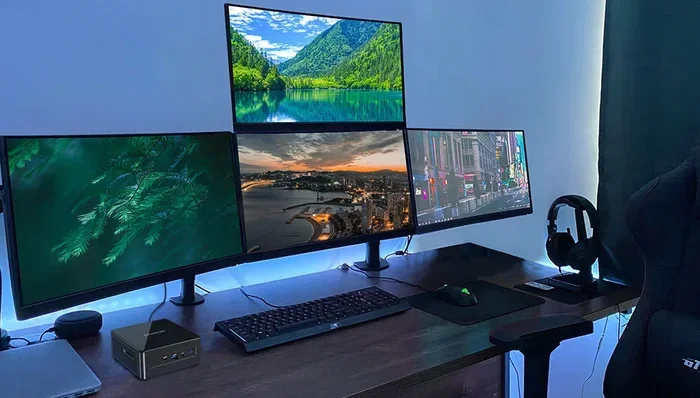
- Single row: All four monitors in a line. Great for coding, writing, and reading across documents.
- Two-by-two grid: Two monitors on top and two on the bottom. Ideal for video editing and data analysis.
- L-shaped setup: Three monitors in a row with one on the side. Perfect for trading desks or multitasking professionals.
Take some time to experiment with different arrangements. Your ideal setup depends on the type of work you do and how you like to organize your windows and applications.
Best Monitors for a 4-Monitor Laptop Setup
Choosing the right monitors matters just as much as choosing the right connection method. Not all monitors are created equal, and some work better in multi-monitor setups than others.
What to Look For in a Multi-Monitor Setup
When buying monitors for a four-screen setup, keep these factors in mind:
- Matching sizes: Using four monitors of the same size and model creates a seamless visual experience. Different sizes can create bezels and gaps that disrupt your workflow.
- Thin bezels: Monitors with thin or zero bezels minimize the visual gap between screens. This makes the overall setup feel more unified.
- Resolution consistency: Matching resolutions across all four monitors prevents scaling issues and keeps text and images looking consistent.
- Adjustable stands: Monitors with adjustable height, tilt, and swivel make it easy to position them ergonomically.
Popular Monitor Options
Here are some popular monitor choices that work well in four-monitor setups:
- Dell UltraSharp series: Known for excellent color accuracy and thin bezels. Great for creative professionals.
- LG UltraFine monitors: Sleek design with great build quality. Works especially well with MacBooks.
- Samsung Odyssey: Curved monitors that provide an immersive experience. Good for gaming and multimedia work.
- Budget IPS monitors: Affordable options from brands like AOC and ASUS that still deliver solid image quality.
You do not need to spend a fortune on monitors. Many budget-friendly options deliver excellent performance for everyday productivity tasks. Focus on consistency across all four screens for the best experience.
Troubleshooting Common Connection Issues
Even with the best setup, you might run into problems when connecting four monitors. Here are the most common issues and how to fix them.
Monitor Not Detected
If one or more monitors are not showing up in your display settings, try these steps:
- Check all cable connections. Loose cables are the most common cause of this issue.
- Try a different cable or adapter. Faulty cables can prevent a monitor from being detected.
- Update your graphics drivers. Outdated drivers are a frequent source of display problems.
- Restart your laptop with all monitors connected and powered on. Some systems need all displays active during startup.
Flickering or Poor Image Quality
Flickering screens or blurry images can be frustrating. These issues often come from:
- Using low-quality or incompatible cables. Always use cables rated for the resolution you need.
- Incorrect refresh rate settings. Match the refresh rate in your display settings to your monitor’s native capability.
- Adapter limitations. Some adapters cannot handle high resolutions or refresh rates. Invest in quality adapters.
Performance Lag
Running four monitors can be demanding on your laptop’s GPU. If you experience lag or slow performance, try these solutions:
- Lower the resolution on one or more monitors to reduce the workload on your graphics card.
- Close unnecessary applications running in the background.
- Make sure your laptop is plugged in and not running on battery power, which can throttle performance.
- Consider a laptop with a dedicated GPU if you regularly use four high-resolution monitors.
Expert Insight
According to tech experts at major review sites, the single most common mistake people make when setting up a multi-monitor laptop workspace is not updating their graphics drivers before connecting all displays. A simple driver update can resolve detection and performance issues in many cases.
Who Benefits Most From a 4-Monitor Setup?
A four-monitor setup is not for everyone. But for the right user, it can be a game-changer. Let us look at who benefits the most from connecting 4 monitors to their laptop.
Professionals and Productivity Users
Financial traders, programmers, data analysts, and writers all benefit enormously from extra screen space. Having multiple monitors means you can keep reference materials, communication tools, and your main workspace visible at the same time. This reduces the need to constantly switch between windows and tabs.
Content Creators and Designers
Video editors, graphic designers, and photographers need every inch of screen they can get. A four-monitor setup allows them to have their editing timeline on one screen, preview windows on another, and reference images on the remaining screens. This workflow dramatically improves efficiency.
Gamers and Streamers
Gamers who also stream benefit from having their game on one monitor, their streaming software on another, and chat or social media on the remaining screens. It keeps everything organized without cluttering the main gaming display.
Students and Researchers
Students writing papers or conducting research can keep their source materials, notes, and writing document open simultaneously across four screens. This setup reduces the time spent switching between windows and improves focus.
Quick Tips for a Successful 4-Monitor Setup
Here are some quick tips to make your multi-monitor experience as smooth as possible:
- Use cable management solutions: Keep cables organized with clips, ties, or a cable tray. A clean desk reduces stress and improves focus.
- Invest in a monitor arm: A monitor stand or arm gives you flexibility to position each screen at the perfect height and angle.
- Match your refresh rates: If possible, use monitors with the same refresh rate for a consistent viewing experience.
- Label your monitors: In display settings, label each monitor (Monitor 1, Monitor 2, etc.) so you always know which is which.
- Use a surge protector: Protect all your equipment with a quality surge protector, especially if you have expensive monitors.
- Take breaks: More screens mean more visual stimulation. Follow the 20-20-20 rule: every 20 minutes, look at something 20 feet away for 20 seconds.
Common Mistakes to Avoid
Setting up four monitors is straightforward, but there are some common pitfalls to watch out for:
- Buying the wrong docking station: Not all docks support four displays. Always check the specifications before purchasing.
- Ignoring laptop limitations: Your laptop’s GPU has a maximum number of supported displays. Exceeding this limit will not work, no matter how many ports you have.
- Using cheap adapters: Budget adapters can cause signal loss, flickering, and poor image quality. Spend a little more on quality adapters.
- Skipping driver updates: Outdated graphics drivers are the root cause of many multi-monitor issues. Always update before setting up.
- Overlooking power requirements: Driving four monitors requires significant power. Make sure your docking station or hub is powered if needed.
Conclusion
So, can you connect 4 monitors to your laptop? Absolutely. The key is understanding your laptop’s capabilities, choosing the right connection method, and setting everything up correctly. Whether you use a docking station, DisplayPort daisy chaining, a USB-C hub, or a mix of ports, a four-monitor setup is well within reach for most modern laptops.
Start by checking your graphics card and available ports. Choose a connection method that fits your workflow and budget. Configure your display settings carefully. And do not forget to troubleshoot any issues that come up along the way. With the right setup, you will wonder how you ever worked with just one screen.
A four-monitor laptop setup is more than a luxury. It is a productivity tool that can transform how you work, create, and play. Take the time to set it up right, and you will enjoy the benefits every single day.
Frequently Asked Questions
Can any laptop connect 4 monitors?
Not every laptop can connect 4 monitors. Your laptop’s graphics card and available ports determine the maximum number of external displays it can support. Check your laptop specifications and GPU capabilities before attempting a four-monitor setup.
Do I need a docking station to connect 4 monitors?
A docking station is the easiest way to connect 4 monitors, but it is not the only way. You can also use DisplayPort daisy chaining, USB-C hubs, or a mix of direct connections using adapters. The method you choose depends on your laptop’s ports and your budget.
Does connecting 4 monitors slow down my laptop?
Running four monitors can put extra demand on your laptop’s graphics card. If your GPU is powerful enough, you should not experience any noticeable slowdown. However, if your laptop has integrated graphics or an older dedicated GPU, you might see some performance impact, especially at high resolutions.
What is DisplayPort daisy chaining?
DisplayPort daisy chaining is a method where you connect multiple monitors in a sequence using a single video output. Each monitor passes the signal to the next one through its DisplayPort Out port. This saves you from needing multiple video outputs on your laptop.
Can I use different brands and sizes of monitors in a 4-monitor setup?
Yes, you can mix different monitor brands and sizes. However, using matching monitors of the same size and resolution creates a more seamless and consistent experience. Different sizes may require manual adjustment in your display settings to align properly.
Do I need special cables to connect 4 monitors?
You do not necessarily need special cables, but you do need the right cables for each connection type. Make sure your cables support the resolution and refresh rate you need. High-quality cables from reputable brands reduce the risk of signal issues and display problems.