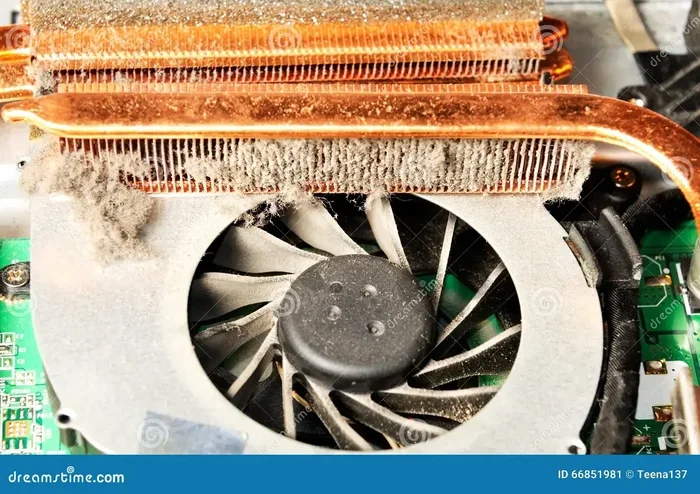
Can Dust Damage Your Laptop Fan And Ruin Its Performance
Can dust damage your laptop fan? Yes, absolutely. Dust buildup inside your laptop blocks airflow, forces the fan to work harder, and can cause overheating that leads to permanent hardware damage. This guide shows you exactly how dust harms your cooling system, how to spot the warning signs early, and what you can do to keep your laptop running cool and fast.
You probably do not think about what is happening inside your laptop every day. But there is a quiet battle going on inside that thin metal shell. Dust particles are constantly sneaking in through the air vents and settling on your laptop fan, heatsink, and other internal components. Over time, this invisible buildup can cause serious problems. The question is not really whether dust can damage your laptop fan. The real question is how bad the damage has already become.
Most people do not think about laptop maintenance until something goes wrong. The fan gets loud. The laptop gets hot. The performance drops. And by that point, the dust accumulation has usually been building up for weeks or even months. Understanding how dust affects your laptop cooling system is the first step toward keeping your device healthy and fast.
This article breaks down everything you need to know. We will look at how dust gets inside, how it damages your fan, the warning signs to watch for, and exactly how to clean and prevent the problem. Whether you use your laptop for work, gaming, or casual browsing, this guide will help you protect your investment.
Key Takeaways
- Dust clogs air vents and restricts airflow: This forces your laptop fan to spin faster and work harder, leading to premature wear.
- Overheating is the biggest risk: When dust blocks heat dissipation, your CPU and GPU temperatures spike, causing slowdowns and shutdowns.
- Regular cleaning extends your laptop lifespan: A simple cleaning routine every few months can prevent costly repairs and keep performance strong.
- Compressed air is the best DIY cleaning tool: It safely blows dust out without risking damage to internal components.
- Know when to seek professional help: If cleaning doesn’t fix the problem, your fan may need replacement or your thermal paste may need refreshing.
- Prevention is easier than repair: Using a laptop stand, keeping your device on hard surfaces, and avoiding dusty environments all help reduce dust buildup.
📑 Table of Contents
How Dust Gets Inside Your Laptop
Your laptop is not a sealed box. It has openings everywhere. Air vents on the sides, bottom, and back let cool air in and hot air out. But those same openings are also how dust enters your device. Every time you use your laptop, air flows through those vents. And with that air comes tiny particles of dust, lint, pet dander, and even fibers from your clothing or furniture.
The Ingress Points
Most laptops have two main air intake vents. These are usually located on the bottom or sides of the device. Some models also have exhaust vents on the back or near the hinge. The laptop fan pulls air in through the intake vents, passes it over the CPU and GPU heatsinks, and pushes the heated air out through the exhaust.
Here are the most common ways dust enters your laptop:
- Floor-level air: If you use your laptop on a bed, couch, or floor, it pulls in dust from those surfaces directly.
- Pet hair and dander: Homes with pets see much faster dust buildup inside laptops.
- Carpeted rooms: Carpets shed tiny fibers and dust that get pulled into the fan intake.
- Open windows: Using your laptop near an open window lets in pollen, dust, and other airborne particles.
- Carrying your laptop around: Moving your laptop from place to place can shake loose dust that was already inside and push it deeper into the fan area.
Once inside, dust settles on the fan blades, the heatsink fins, and the airflow channels. Because the fan creates constant airflow, it actually pulls more dust toward these surfaces. It is a cycle that repeats every time you turn on your laptop.
Why Laptops Are Especially Vulnerable
Desktops have much more space inside their cases. Air can flow freely around large components. Laptops, on the other hand, are designed to be thin and compact. Every millimeter matters. The cooling system in a laptop is tightly packed, which means even a thin layer of dust can significantly restrict airflow.
This is why laptop overheating from dust is so common. The small gaps between the heatsink fins become blocked quickly. The fan has to spin faster to push the same amount of air through the blockage. And faster spinning means more wear on the fan motor.
How Dust Affects Your Laptop Fan
Now that you understand how dust gets inside, let us look at exactly how it damages your laptop fan and overall cooling performance. The effects are not immediate, but they build up over time.
Reduced Airflow and Increased Fan Speed
The most direct impact of dust buildup is reduced airflow. When dust coats the fan blades, it changes their shape and weight. This makes them less efficient at moving air. When dust blocks the heatsink fins, it creates a barrier that prevents heat from escaping. Your laptop’s thermal management system responds by spinning the fan faster.
You might notice this first as a louder fan. Your laptop sounds like a small airplane taking off, even when you are doing simple tasks like browsing the web or watching a video. This constant high-speed operation puts extra stress on the fan motor and shortens its lifespan.
Heat Buildup and Thermal Throttling
When your laptop cooling system cannot move heat away from the CPU and GPU efficiently, temperatures rise. Modern processors have a safety feature called thermal throttling. When the temperature gets too high, the processor slows itself down to prevent damage.
This is why your laptop might feel sluggish when it is dusty. You are not imagining it. The CPU temperature is climbing, and your processor is deliberately reducing its speed to stay safe. The result is slower performance, longer load times, and stuttering in games or video editing.
Over time, repeated heating and cooling cycles can also degrade the thermal paste between the processor and the heatsink. This paste is what transfers heat from the CPU to the cooling system. When it dries out, the cooling system becomes even less effective, creating a vicious cycle of overheating.
Physical Damage to Fan Components
Heavy dust buildup can cause physical damage to the fan itself. Here is how:
- Bearing wear: Dust particles get into the fan bearing, causing friction. This wears out the bearing faster and can create a grinding or clicking noise.
- Blade imbalance: Dust coating one side of a fan blade makes it heavier on that side. This causes vibrations that stress the motor.
- Motor overload: When the fan has to work much harder to move air through a dusty heatsink, the motor draws more current. Over months and years, this can burn out the motor.
- Complete fan failure: In extreme cases, a fan can stop spinning entirely. Without a working fan, your laptop will overheat within minutes and likely shut down.
The good news is that this level of damage takes time. It does not happen overnight. This is exactly why regular laptop maintenance is so important.
Signs That Dust Is Damaging Your Fan
How do you know if dust has already started affecting your laptop? There are several clear warning signs. The earlier you catch them, the easier and cheaper the fix will be.
Loud or Unusual Fan Noise
This is the most obvious sign. If your laptop fan is suddenly much louder than usual, or if it makes grinding, clicking, or whining sounds, dust is likely the culprit. A healthy fan should be nearly silent during light tasks.
Frequent Overheating and Shutdowns
If your laptop shuts down unexpectedly, especially during demanding tasks like gaming or video editing, overheating is the likely cause. Your laptop is protecting itself by turning off before critical components get damaged. Dust-induced overheating is one of the most common reasons this happens.
Sluggish Performance
As we mentioned, thermal throttling causes your processor to slow down. If your laptop feels slow even when you are not running heavy programs, check the temperature. You can use free tools like HWMonitor or Core Temp to see what your CPU temperature is doing.
Hot Airflow from Vents
Normally, the air coming out of your laptop vents should be warm but not painfully hot. If the air feels like a hair dryer, your cooling system is struggling. Dust is probably blocking the heat from escaping properly.
Visible Dust Around Vents
Sometimes you can actually see dust or lint coming out of the vents or accumulating around the air intake areas. This is a clear visual sign that dust accumulation is happening inside your device.
How to Clean Dust From Your Laptop Fan
Cleaning your laptop fan is easier than most people think. You do not need to be a tech expert. With the right tools and a little patience, you can remove most of the dust yourself.
What You Will Need
- A can of compressed air (the most important tool)
- A small soft brush (a clean paintbrush works great)
- A microfiber cloth
- Isopropyl alcohol (for cleaning thermal paste, if needed)
- A flat, hard work surface
>A screwdriver set (for opening the back panel, if needed)
Method 1: Using Compressed Air (Easiest)
This method works well for light to moderate dust buildup and does not require opening your laptop.
- Turn off your laptop and unplug it from the power source.
- Find the air intake vents on the bottom or sides of your laptop.
- Hold the can of compressed air upright (never tilt it sideways or upside down).
- Spray short bursts of air into the vents at a slight angle.
- You should see dust and debris blowing out of the exhaust vents.
- Repeat for each vent, spending about 10 to 15 seconds per vent.
- Use the soft brush to gently loosen any stubborn dust around the vent edges.
Quick Tip: Do this outdoors or over a trash can. The dust will go everywhere, and you do not want it settling back onto your laptop or your furniture.
Method 2: Opening the Back Panel (More Thorough)
For heavy dust accumulation, you may want to open the back panel of your laptop. This gives you direct access to the fan and heatsink.
- Look up a disassembly guide for your specific laptop model online.
- Use the right screwdriver to remove the back panel screws.
- Carefully lift off the panel and set the screws aside.
- Use compressed air to blow dust away from the fan and heatsink.
- Hold the fan blades steady with your finger while blowing air. This prevents the fan from spinning too fast, which can generate a damaging voltage back into the motherboard.
- Use a soft brush to gently sweep away any remaining dust.
- If the thermal paste looks dry or crusty, consider replacing it with fresh paste.
- Reassemble the laptop carefully, making sure all screws are snug but not over-tightened.
Common Mistakes to Avoid
- Using a vacuum cleaner: Vacuum cleaners create static electricity that can damage sensitive electronics. Stick with compressed air.
- Blowing air with your mouth: This introduces moisture into your laptop. Do not do it.
- Using excessive force: Be gentle with the fan blades and internal components. They are fragile.
- Forgetting to unplug: Always disconnect power and remove the battery (if possible) before opening your laptop.
- Ignoring thermal paste: If you open your laptop and the paste looks old or dried out, replacing it makes a huge difference in cooling performance.
Preventing Dust Buildup for Long-Term Protection
Cleaning is important, but prevention is even better. A few simple habits can dramatically reduce how much dust enters your laptop and slow down the buildup inside.
Use Your Laptop on Hard, Flat Surfaces
This is the single most effective thing you can do. Using your laptop on a bed, sofa, or carpet blocks the air intake vents and pulls in fibers and dust. A hard desk or table allows air to flow freely underneath the laptop.
If you like using your laptop on the couch, get a laptop cooling pad or a simple lap desk. These create a gap between the bottom of your laptop and the soft surface, allowing air to circulate properly.
Keep Your Environment Clean
Dust in your room means dust in your laptop. Regularly vacuum and dust your workspace. If you have pets, consider keeping your laptop on a desk away from pet-heavy areas like the floor or furniture where fur collects.
Use a Laptop Stand or Elevation
A simple laptop stand elevates the back of your laptop, improving airflow from underneath. Some stands even have built-in fans that add extra cooling. This is a great way to reduce dust intake and keep temperatures lower.
Clean Your Vents Regularly
Make it a habit to clean your laptop vents with compressed air every two to three months. If you use your laptop in a dusty environment or have pets, you may need to clean more frequently. This takes only five to ten minutes and can save you from expensive repairs later.
Monitor Your Temperatures
Using a free temperature monitoring tool helps you catch problems early. If you notice your CPU temperature creeping up during normal use, it might be time for a cleaning. Keeping an eye on temperatures is one of the best laptop maintenance habits you can build.
When to Replace Your Laptop Fan
Sometimes cleaning is not enough. If your fan is physically damaged or has worn out from years of heavy use, no amount of dust removal will fix the problem. Here is how to know when replacement is needed.
Warning Signs Your Fan Needs Replacement
- The fan makes a loud grinding or rattling noise even after cleaning.
- The fan does not spin at all, and your laptop overheats quickly.
- The fan spins irregularly or stops and starts randomly.
- Your laptop shuts down frequently due to overheating despite regular cleaning.
- The fan connector or cable is damaged.
Replacement Options
Replacing a laptop fan is usually straightforward. You can buy replacement fans online for most laptop models. The cost typically ranges from $15 to $50 for the fan itself. If you are comfortable opening your laptop, you can do the replacement yourself by following a video guide for your specific model.
If you are not comfortable doing it yourself, take your laptop to a professional repair shop. The labor cost for a fan replacement is usually reasonable, often between $50 and $100 depending on your laptop model and location.
Replacing a fan is much cheaper than replacing an entire laptop. A damaged fan that causes chronic overheating can eventually harm your CPU, GPU, and motherboard. Those repairs cost far more than a simple fan swap.
Final Thoughts
Can dust damage your laptop fan and ruin its performance? Without a doubt, yes. Dust is one of the most common and most overlooked threats to your laptop’s health. It restricts airflow, forces your fan to work harder, causes overheating, and can lead to permanent damage to your internal components.
The good news is that prevention and treatment are both simple and affordable. Regular cleaning with compressed air, smart usage habits, and a little attention to your laptop’s temperature can keep your cooling system running smoothly for years. You do not need to be a technician to take care of your laptop. You just need to be consistent.
Start today. Grab a can of compressed air, find your air vents, and give your laptop a quick cleaning. Your fan and your processor will thank you. And the next time your laptop runs cool and quiet, you will know exactly why.
Frequently Asked Questions
Can dust completely kill a laptop fan?
Yes, in severe cases. When dust builds up enough to block all airflow, the fan motor overheats and can burn out completely. A dead fan means your laptop cannot cool itself, which leads to rapid overheating and potential damage to the CPU and other components.
How often should I clean dust from my laptop fan?
Every two to three months is a good general rule. However, if you use your laptop in a dusty environment, have pets, or use it on soft surfaces like beds, you should clean it more frequently. A quick visual check of your vents once a month can help you stay on top of dust buildup.
Does dust affect laptop performance?
Yes, it absolutely does. Dust blocks heat from escaping, which causes your processor to thermal throttle. This means your CPU slows down to protect itself from overheating, resulting in slower performance, lag, and longer task completion times.
Can I use a vacuum cleaner to remove dust from my laptop?
No, you should avoid using a vacuum cleaner. Vacuums generate static electricity, which can damage sensitive electronic components inside your laptop. Compressed air is the safest and most effective tool for removing dust from your laptop fan and vents.
Is it safe to open my laptop to clean the fan?
Yes, it is generally safe as long as you take proper precautions. Make sure your laptop is powered off and unplugged. Remove the battery if possible. Use gentle pressure and avoid touching sensitive components. If you follow a disassembly guide for your specific model, opening your laptop is a straightforward process.
Does dust damage other laptop components besides the fan?
Yes, it can. Dust affects the entire cooling system, including the heatsink and thermal paste. Over time, trapped heat can degrade the CPU, GPU, and even the motherboard. Dust can also cause short circuits if it becomes moist or accumulates near electrical contacts.