Do Printers Have Built In Wi Fi And How It Works Today
Do printers have built in Wi Fi? The answer is a clear yes. Modern printers come with wireless connectivity built right in, letting you print from phones, tablets, and laptops without cables. Built in Wi Fi printers connect to your home network, support mobile printing apps, and even handle cloud printing tasks with ease.
Key Takeaways
- Built in Wi Fi is now standard: Most new printers include wireless connectivity right out of the box.
- Multiple connection types exist: Wi-Fi Direct, dual-band, and Bluetooth give you flexible printing options.
- Setup is simple: You can connect most Wi-Fi printers through a touchscreen, app, or WPS button.
- Mobile printing is a game changer: Apps like AirPrint, Google Cloud Print, and manufacturer apps let you print from anywhere.
- Security matters: Always update firmware and use strong passwords to keep your wireless printer safe.
- Range and signal strength matter: Place your printer within good range of your router for best performance.
📑 Table of Contents
- Do Printers Have Built In Wi Fi And What It Really Means
- How Built In Wi-Fi Works in Modern Printers
- Types of Wireless Connectivity in Printers
- Setting Up Wi-Fi on Your Printer
- Benefits of Having Built In Wi-Fi on Your Printer
- Common Problems with Built In Wi-Fi Printers and How to Fix Them
- What to Look for When Buying a Wi-Fi Printer
- Expert Insights on Wireless Printer Technology
- Key Takeaways
- Conclusion
Do Printers Have Built In Wi Fi And What It Really Means
If you have been shopping for a printer lately, you have probably seen the words “built in Wi-Fi” on the box. So, do printers have built in Wi-Fi? The short answer is yes. Most printers sold today come with wireless connectivity already installed. You do not need to buy extra adapters or dongles anymore.
Built in Wi-Fi means the printer has a wireless network card inside it. This card lets the printer talk to your home router. Once connected, any device on the same network can send print jobs wirelessly. This is a huge step forward from the old days when you needed a USB cable just to print one page.
The technology has been around for a while now. But it has gotten much better. Early wireless printers were slow and dropped connections often. Today’s models are fast, stable, and easy to set up. Whether you are at home or in a small office, a Wi-Fi enabled printer makes your life a lot simpler.
But here is the thing. Not all wireless printers are the same. Some use standard Wi-Fi. Others use Wi-Fi Direct, which lets you connect directly to the printer without a router. Understanding the differences helps you pick the right one for your needs.
Why Built In Wi-Fi Matters for Everyday Users
Think about how many devices you use every day. You have your phone. Maybe a tablet. A laptop. Even a smart TV or two. A wireless printer works with all of them. You can print a photo from your phone in the kitchen. You can print a work document from your laptop in the living room. No cables. No hassle.
For families, this is a big deal. Kids can print homework. Parents can print recipes or boarding passes. Everyone shares one printer without fighting over who has the cable. Printer connectivity like this saves time and reduces frustration around the house.
Small businesses benefit too. A network printer with built in Wi-Fi lets multiple employees print from their own devices. No need to connect each computer with a cable. Just add the printer to the network, and everyone can print.
How Built In Wi-Fi Works in Modern Printers
So how does a printer with built in Wi-Fi actually work? Let us break it down in simple terms. When you set up your wireless printer, it connects to your home router using the same Wi-Fi network your phone and laptop use. The router acts as a middleman. It sends print jobs from your device to the printer.
Here is what happens step by step when you hit the print button:
- Your device sends the print job to the router.
- The router forwards the job to the printer using the wireless network.
- The printer receives the job and starts printing.
All of this happens in seconds. You do not see the middle steps, but they are happening behind the scenes. The printer and your device communicate using wireless signals just like your phone connects to the internet.
The Role of the Printer Driver
Every wireless printer needs a driver. The driver is a small piece of software that tells your computer how to talk to the printer. Without the right driver, your device cannot send print jobs properly. Most modern printers come with a setup CD, but you can also download the latest printer driver from the manufacturer’s website.
Some printers use Wi-Fi Direct. This is a special mode where the printer creates its own small network. Your device connects directly to the printer, just like connecting to a Wi-Fi hotspot. This is handy when you do not have access to a router or when you want to print from a device that does not support your regular Wi-Fi network.
Dual-Band and Single-Band Wireless Printers
Not all wireless signals are the same. Many modern Wi-Fi enabled printers support dual-band connectivity. This means they can use both the 2.4 GHz and 5 GHz frequency bands. The 2.4 GHz band has a longer range but slower speeds. The 5 GHz band is faster but has a shorter range.
For most home users, the 2.4 GHz band works just fine. But if you are printing large files or high-resolution photos, the 5 GHz band gives you a smoother experience. Look for a dual-band printer if speed matters to you.
Types of Wireless Connectivity in Printers
Not every wireless printer connects the same way. There are a few different technologies at play. Understanding them helps you choose the right printer for your setup.
Standard Wi-Fi (802.11 b/g/n/ac)
This is the most common type of printer connectivity. Standard Wi-Fi connects your printer to your home router. Any device on the same network can print to it. This is the go-to option for most households and offices.
Most modern printers support Wi-Fi 5 (802.11ac) or even Wi-Fi 6. These standards offer faster speeds and better performance. If you buy a new printer today, it will almost certainly have standard Wi-Fi built in.
Wi-Fi Direct
Wi-Fi Direct is a neat feature. It lets your device connect straight to the printer without a router. Think of it like a Bluetooth connection but much faster. You can print from your phone even when you are not connected to your home network.
This is perfect for quick prints on the go. You can also use Wi-Fi Direct when your router is down or when you are at a friend’s house and need to print something fast.
Bluetooth and Bluetooth Low Energy
Some wireless printers also include Bluetooth. Bluetooth is great for short-range connections. It works well for printing from a phone or tablet that is nearby. The range is shorter than Wi-Fi, usually around 30 feet. But for quick prints in the same room, it works well.
Bluetooth Low Energy (BLE) uses even less power. This is useful for portable printers that run on batteries. If you travel a lot, a Bluetooth printer might be a good option for you.
Cloud Printing
Cloud printing is another layer of wireless printing technology. Services like Google Cloud Print and manufacturer-specific apps let you send print jobs over the internet. You can print from anywhere in the world, as long as your printer is connected to the internet.
This is incredibly useful for remote workers. You can send a document to your home printer while you are at a coffee shop. The cloud printing technology handles the rest.
Setting Up Wi-Fi on Your Printer
Setting up a built in Wi-Fi printer is easier than most people think. You do not need to be a tech expert. Most printers guide you through the process step by step.
Method 1: Using the Printer’s Touchscreen
Many modern printers have a color touchscreen. You can use it to walk through the Wi-Fi setup. Here is what to do:
- Turn on the printer and go to the Settings menu.
- Select Network Settings or Wireless Setup.
- Choose your home Wi-Fi network from the list.
- Enter your Wi-Fi password.
- Wait for the printer to connect.
That is it. Your wireless printer is now ready to go. Most printers confirm the connection with a message or a light on the front panel.
Method 2: Using the WPS Button
If your router has a WPS button, setup is even faster. Just press the WPS button on your router, then press the WPS button on the printer. The two devices will connect automatically within a few seconds. This is the easiest way to set up printer connectivity if your router supports it.
Method 3: Using the Manufacturer’s App
Most printer brands offer a free mobile app. HP has Smart. Epson has iPrint. Canon has PRINT. These apps walk you through the setup process using your phone. You can also use the app to print, scan, and manage your Wi-Fi enabled printer from anywhere.
Quick Tips for a Smooth Setup
- Place your printer close to your router during setup for a strong signal.
- Make sure you know your Wi-Fi password before you start.
- Update your printer firmware right after setup for the best performance.
- Restart both your router and printer if you run into connection issues.
Benefits of Having Built In Wi-Fi on Your Printer
Why should you care about built in Wi-Fi on your printer? There are many real-world benefits that make this feature worth it.
Print from Anywhere in Your Home
With a wireless printer, you are not tied to one spot. You can send a print job from your bedroom, the kitchen, or even the backyard. As long as your device is connected to the same network, you can print. This freedom is something cable-connected printers simply cannot offer.
Multiple Users Can Share One Printer
In a household with several people, sharing a printer is a breeze. Everyone connects to the same network printer wirelessly. No need to switch cables or use a print server. Each person prints from their own device, and the jobs queue up automatically.
Fewer Cables, Less Clutter
Let us be honest. Cables are annoying. They take up space and create clutter. A Wi-Fi enabled printer eliminates most of the cables you need. Just plug in the power cord and you are good to go. Your desk or office stays clean and organized.
Mobile Printing Made Easy
Need to print a photo from your phone? With mobile printing apps, you can do it in seconds. Apple AirPrint and Google Cloud Print are built into most smartphones. Just select the print option in any app, choose your wireless printer, and hit print.
Easy to Add New Devices
Want to let a guest print something from their laptop? With a built in Wi-Fi printer, they just need to connect to your network. No extra setup required. The printer is already there, waiting to accept print jobs from any authorized device.
Common Problems with Built In Wi-Fi Printers and How to Fix Them
Wireless printers are great, but they are not perfect. Sometimes things go wrong. Here are the most common issues and how to solve them.
Printer Not Showing Up on the Network
This is the most common complaint. Your device cannot find the wireless printer on the network. Try these steps:
- Make sure the printer is turned on and connected to Wi-Fi.
- Restart both the printer and your router.
- Check that your device and the printer are on the same network.
- Update the printer driver on your computer.
Slow Print Speeds
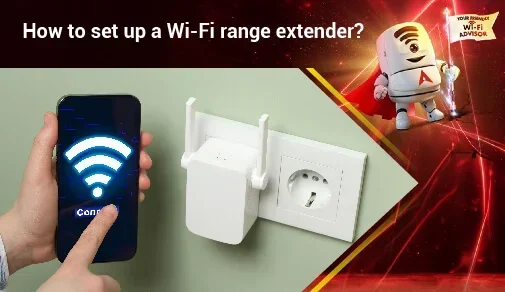
Slow printing can be frustrating. If your built in Wi-Fi printer is printing slowly, the signal strength might be the issue. Move the printer closer to your router. You can also switch to the 5 GHz band for faster speeds. A wireless range extender can help if your printer is far from the router.
Connection Drops Frequently
If your printer keeps losing its Wi-Fi connection, try updating the firmware. Manufacturers often release updates that fix connectivity bugs. You can usually update the firmware through the printer’s menu or the manufacturer’s app.
Security Concerns
Any wireless device on your network can be a security risk. Make sure you use a strong Wi-Fi password. Change the default printer admin password if possible. Keep your firmware updated to patch any security vulnerabilities. A secure wireless printer setup protects your home network.
What to Look for When Buying a Wi-Fi Printer
If you are in the market for a new wireless printer, here are the key features to consider.
- Wi-Fi standard: Look for Wi-Fi 5 or Wi-Fi 6 for the best speeds.
- Dual-band support: This gives you flexibility with frequency bands.
- Wi-Fi Direct: Useful for direct connections without a router.
- Mobile app support: Check if the manufacturer has a good mobile app.
- AirPrint and Google Cloud Print compatibility: These make mobile printing seamless.
- Ethernet port: A wired backup option is always helpful.
- Print speed and quality: Do not let wireless features distract you from print quality.
The best Wi-Fi enabled printer is one that balances all of these features. Price matters too. You can find great wireless printers at every price point, from budget models to high-end office machines.
Expert Insights on Wireless Printer Technology
Printer technology has evolved fast over the last five years. Built in Wi-Fi used to be a premium feature. Now it is standard on almost every new model. Experts agree that wireless connectivity is no longer a nice-to-have. It is a must-have.
“The shift to wireless has been one of the biggest changes in printer design,” says tech reviewer Mark Dawson. “Consumers expect to print from their phones without thinking about it. Any printer that requires a cable now feels outdated.”
Wi-Fi Direct has also changed the game. It gives users more flexibility in how they connect. You do not always need a router. The printer can act as its own access point. This is especially useful in situations where you need a quick print and no network is available.
Security is another area that has improved. Modern wireless printers support WPA3 encryption, the latest in Wi-Fi security. This keeps your print jobs and network safe from unauthorized access. Always make sure your printer uses the latest security protocols.
Key Takeaways
- Built in Wi-Fi is now standard: Most new printers include wireless connectivity right out of the box.
- Multiple connection types exist: Wi-Fi Direct, dual-band, and Bluetooth give you flexible printing options.
- Setup is simple: You can connect most Wi-Fi printers through a touchscreen, app, or WPS button.
- Mobile printing is a game changer: Apps like AirPrint and manufacturer apps let you print from anywhere.
- Security matters: Always update firmware and use strong passwords to keep your wireless printer safe.
- Range and signal strength matter: Place your printer within good range of your router for best performance.
Conclusion
So, do printers have built in Wi-Fi? Absolutely. Built in Wi-Fi printers are everywhere now, and for good reason. They make printing simpler, faster, and more convenient than ever before. Whether you are at home, in the office, or on the go, a wireless printer keeps you connected to your documents and photos.
The technology continues to improve. New standards like Wi-Fi 6 make connections faster and more reliable. Mobile printing apps get better every year. And security features keep your data safe. If you are buying a new printer, there is really no reason to go without built in Wi-Fi anymore.
Take a few minutes to set up your printer properly. Choose the right connection type for your needs. Keep your firmware updated. A little effort goes a long way in making sure your wireless printer works flawlessly for years to come. Embrace the wireless future of printing, and you will never go back to cables.
Frequently Asked Questions
Do all new printers come with built in Wi-Fi?
Most new printers do come with built in Wi-Fi. It has become a standard feature across all major brands. However, some basic or budget models may still lack wireless connectivity. Always check the product specs before you buy. Look for “Wi-Fi” or “wireless” in the feature list.
Can I use a built in Wi-Fi printer without a router?
Yes, you can. Many printers support Wi-Fi Direct, which lets you connect directly to your device without a router. You can also use Bluetooth on some models. This is great for quick prints when you are away from your home network. Just keep in mind that Wi-Fi Direct has a shorter range than a standard router connection.
Is wireless printing slower than wired printing?
In most cases, wireless printing is just as fast. The speed depends on your Wi-Fi signal strength and the printer’s capabilities. A strong signal on the 5 GHz band gives you excellent print speeds. If your signal is weak, you might notice slower performance. Moving the printer closer to the router usually fixes this.
How secure is a printer with built in Wi-Fi?
Modern wireless printers are quite secure. They support WPA3 encryption and regular firmware updates. You should still use a strong Wi-Fi password and change the printer’s default admin password. Keeping your firmware updated patches any security vulnerabilities. Treat your printer like any other device on your network.
Can I print from my phone if I am not on the same Wi-Fi network?
It depends on your printer’s features. Wi-Fi Direct lets you connect directly without a shared network. Some manufacturer apps also support cloud printing, which works over the internet. Check your printer’s manual or app for details. AirPrint and Google Cloud Print also offer some flexibility for remote printing.
What is the difference between Wi-Fi and Wi-Fi Direct on a printer?
Standard Wi-Fi connects your printer to your home router and network. Wi-Fi Direct creates a direct connection between your device and the printer without a router. Wi-Fi Direct is handy for quick prints or when no router is available. Both are useful, and many printers support both features at the same time.