Do Hp Laptops Have A Wifi Button Here Is The Answer
Do hp laptops have a wifi button? Yes, they do, and it is usually a function key or a physical switch on the side. Knowing where to find this wireless toggle saves you time when your internet drops. Check your specific HP model to locate the exact control for your network adapter.
Do hp laptops have a wifi button? It is a question many new users ask when they first open their box. You might be sitting at your desk. You are ready to browse the web. But the internet does not connect. You look at the keyboard. You look at the sides of the machine. Where is the switch? HP laptops are built in many shapes and sizes. Because of this, the wireless button location changes from one model to another.
Some machines have a physical slider on the left side. Others use a combination of keys on the keyboard. A few older models even had a switch right next to the power cord. This guide will walk you through every possible wireless button location. We will also cover how to fix problems when your internet connection just will not turn on. You will be a pro in no time.
Key Takeaways
- Physical Switches Exist: Many HP laptops have a sliding switch on the side or front edge to control wireless signals.
- Function Keys Are Common: Pressing Fn plus a specific F-key is the most common way to toggle Wi-Fi on modern devices.
- Check Airplane Mode: Sometimes the issue is not a missing button but an enabled airplane mode in Windows settings.
- Driver Problems Happen: A missing or outdated wireless network driver can make your Wi-Fi button seem non-functional.
- Location Varies by Model: Not all HP notebooks place the wireless control in the same spot, so always check your manual.
📑 Table of Contents
- Understanding Wireless Connectivity on HP Laptops
- Locating the Physical Wireless Switch on HP Laptops
- Using Function Keys for Wi-Fi Control
- Checking Windows Settings and Airplane Mode
- Troubleshooting When Your Wi-Fi Button Does Not Work
- Quick Tips and Common Mistakes
- Expert Insights on HP Wireless Controls
- Conclusion
Understanding Wireless Connectivity on HP Laptops
Before you look for the button, you need to understand how wireless connectivity works on your device. Every HP notebook has a small chip inside called a Wi-Fi adapter. This chip sends and receives router signals. When you turn on Wi-Fi, you are telling this chip to connect to a nearby network. The wireless toggle simply cuts the power to this chip or turns it back on.
How the Wi-Fi Adapter Works
The network adapter is a tiny piece of hardware. It does not need much power to run. When you use a keyboard shortcut or a physical toggle switch, you are completing or breaking an electrical circuit. This sends a message to the Windows operating system. The system then shows or hides the Wi-Fi icon in your taskbar. If the circuit is broken, your laptop settings will show a disconnected message. The wireless radio inside the adapter talks to the router. The router talks to the internet. This creates your internet connection. Without the adapter, your laptop is offline.
Why Wireless Buttons Matter
Having a dedicated wireless switch is very useful. It gives you quick control over your internet connection. You do not need to dig through deep Windows menus just to turn your Wi-Fi on. This is especially helpful when you are trying to save battery life. Turning off the wireless network when you do not need it can make your laptop battery last much longer. You also avoid unwanted connections. Public Wi-Fi spots can be risky. A physical toggle switch helps you stay safe by turning off the radio fast.
Locating the Physical Wireless Switch on HP Laptops
Finding the physical switch is the first step to solving your connection problem. HP laptop models vary greatly in design. Newer slim laptops often hide these controls. Older bulkier machines make them very obvious. You must know what to look for.
Side Panel Switches
Look at the left and right sides of your laptop screen when it is closed. Many HP laptops have a small sliding switch near the front edge. This wireless button often has a symbol that looks like a tower with a curved line on top. When you slide it toward the symbol, your wireless connectivity turns on. When you slide it away, the wireless toggle turns off. The switch feels smooth under your finger. It is easy to move. Sometimes a small LED light next to the switch will glow blue. This blue light means your wireless network is active.
Front Edge Buttons
Some HP notebook designs place the switch on the front edge. This is right below the screen hinge. This is common on larger HP laptop models designed for home use. The switch feels like a small tab you can push left or right. It is a very satisfying physical click when you find it. The wireless button location on the front edge is easy to reach. You do not have to feel around the back of the laptop. Just run your hand along the bottom front edge. You will feel a small ridge or bump.
Using Function Keys for Wi-Fi Control
If you do not see a sliding switch on the side, do not worry. Most modern HP laptops use keyboard shortcuts instead. This is the most common wireless button location on today’s thin and light machines. The keys are right under your fingers.
The Fn Key Combination
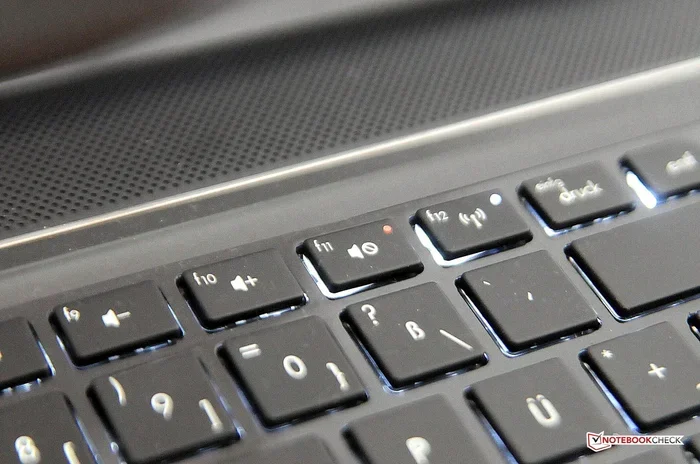
Look at your keyboard row at the top. Find the F-keys, from F1 to F12. One of these keys will have a small picture of a wireless signal or an airplane on it. To use this function key, you must press and hold the Fn key at the bottom left of your keyboard. Then press the key with the wireless symbol. This acts as a toggle switch for your internet connection. The screen might flash a little. You might see a message pop up. This tells you the wireless connectivity is now on or off.
Common Fn Key Locations
On many HP laptops, the wireless key is F12. On others, it might be F8 or F2. The exact key depends on the year and model of your machine. Look closely at your F-keys. The symbol is usually printed in a faint blue or white color. You must hold the Fn key to activate it. This keyboard shortcut is a fast way to turn your wireless network on or off. Some laptops also have an Fn lock key. This key lets you use the F-keys without holding the Fn key down. Check your manual if you are unsure.
Checking Windows Settings and Airplane Mode
Sometimes the physical button is fine, but the software is the problem. Windows has built-in controls that can block your wireless connectivity. Two common culprits are airplane mode and hidden network adapter settings. You should always check these first.
What is Airplane Mode?
Airplane mode turns off all wireless radios on your laptop. This includes your Wi-Fi adapter and Bluetooth. If you accidentally turned this on, your internet connection will not work. No matter where the physical wireless switch is, it will not help. You can check for this by clicking the network icon in the bottom right corner of your screen. If the airplane icon is lit up, click it to turn airplane mode off. This is a quick fix for many connectivity issues.
Network Adapter Settings in Windows
You can also check your laptop settings inside Windows. Right-click the Wi-Fi icon and select Open Network and Internet settings. From there, go to the network adapter section. You will see your wireless device listed. If it is disabled, click on it and choose Enable. This software toggle works just like a physical wireless button. It sends the same signal to the Wi-Fi adapter. You can also use the Windows troubleshooter. It can find and fix common connectivity issues all by itself.
Troubleshooting When Your Wi-Fi Button Does Not Work
What if you have found the wireless button, but your internet connection still fails? This is a common connectivity issue with HP laptops. Often, the problem is not the switch itself. It is the software or the driver behind it. Do not panic. There are easy steps you can take.
Updating Your Wireless Network Driver
The Wi-Fi adapter needs a driver to talk to Windows. If this driver is old or damaged, your wireless toggle will not work. You can update the driver by going to Device Manager in your Windows menus. Right-click the Start button to open Device Manager. Look for Network adapters and expand the list. Right-click your wireless network device. Choose Update driver and let Windows search for new software. This often fixes strange connectivity issues that pop up for no reason.
Signal Strength and Router Placement
Sometimes the problem is not your HP laptop at all. It is the router signal. If you are too far from your router, the signal strength drops to zero. Move closer to the router and see if your wireless connectivity returns. Walls and metal objects block Wi-Fi signals. Make sure your laptop has a clear path to the router. You can also restart your router. Unplug it for ten seconds. Plug it back in. Wait for the lights to steady. This simple step fixes many router signal problems.
Quick Tips and Common Mistakes
Here are some fast tips to remember when dealing with your HP laptop Wi-Fi controls. These tips save you time and frustration.
Quick Tips
- Always check airplane mode first when Wi-Fi drops.
- Restart your router if the signal strength is weak.
- Look for the wireless symbol on your F-keys if you do not see a side switch.
- Keep your wireless network drivers updated to avoid connectivity issues.
- Use the Fn lock key to make keyboard shortcuts easier.
Common Mistakes to Avoid
Many users make simple mistakes when trying to fix Wi-Fi. One common error is ignoring airplane mode. Another is forgetting to check the physical switch on the side. Some users also try to fix the problem by restarting the laptop instead of the router. Restarting the router often fixes router signal problems much faster. You should also avoid downloading fake driver update tools. These tools can cause more connectivity issues. Stick to Windows Update for your network adapter drivers.
Expert Insights on HP Wireless Controls
According to tech experts, the best way to manage your wireless connectivity is to know your specific HP laptop models. Each model has a slightly different layout. Reading the quick start guide that came with your machine is a great habit. It tells you exactly where the wireless button location is. Experts also recommend keeping your network adapter drivers set to automatic updates. This prevents most connectivity issues before they start.
Another expert tip is to use the Windows mobility center. You can search for it in the start menu. This center gives you a quick view of your wireless toggle and brightness settings. It is a great alternative to finding the physical wireless switch on your machine. Experts also suggest checking the BIOS. The BIOS is a very old system. It runs before Windows even starts. It controls the basic hardware of your laptop. Sometimes a setting in the BIOS turns off the wireless radio. You might need to enter the BIOS to turn it back on. This is rare but it does happen.
Conclusion
So, do hp laptops have a wifi button? Yes, they absolutely do. Whether it is a physical sliding switch on the side or an Fn key on your keyboard, you have control over your wireless connectivity. Always check the side edges and the top function keys first. If those do not work, check airplane mode and your network adapter settings in Windows. By understanding where your wireless button is and how it works, you can fix most connectivity issues in seconds. Keep this guide handy for your next HP notebook troubleshooting session. You now have all the knowledge you need to stay connected.
Frequently Asked Questions
Where is the Wi-Fi button on my HP laptop?
The Wi-Fi button on an HP laptop is usually a physical slider on the left side or a function key on the top row. Look for a wireless signal icon on the keyboard or a small switch near the front edge of the device.
Why does my HP laptop not have a physical Wi-Fi switch?
Many newer HP laptop models are very thin and do not have room for a physical switch. Instead, they rely on function key shortcuts or software controls inside Windows to manage your wireless connectivity.
How do I turn on Wi-Fi on my HP laptop using the keyboard?
Press and hold the Fn key at the bottom left of your keyboard. Then press the F-key that has a wireless signal or airplane icon on it. This keyboard shortcut will toggle your internet connection on or off.
What does the wireless icon on my HP laptop look like?
The wireless icon looks like a small tower with a curved line radiating from the top. You can find this icon on the side of a physical switch or printed on one of the F-keys at the top of your keyboard.
Can a broken Wi-Fi button be fixed?
Yes, a broken button can often be fixed. You can use the Windows mobility center or go into the network adapter settings to turn your wireless network back on. If the hardware is truly broken, a technician can replace the small switch inside the laptop.
Does airplane mode turn off the physical Wi-Fi button on HP laptops?
Airplane mode will turn off your Wi-Fi connection, but it does not change the physical switch. The physical button controls the hardware radio, while airplane mode is a software setting in Windows that overrides the hardware. You can have the physical switch on but airplane mode enabled, which will still block your connection.