Can You Speed Up Slow Wi Fi With These Simple Tricks
Yes, you can absolutely speed up slow Wi-Fi with a few easy steps. From router placement to firmware updates, these simple tricks can transform your wireless network. Whether your internet connection is sluggish at home or in the office, this guide covers every fix you need. You will learn quick solutions and long-term strategies to boost your wifi signal and enjoy faster browsing.
There is nothing more frustrating than a slow wifi connection. You are trying to watch a movie, join a video call, or finish work, and everything crawls. The good news is that you can speed up slow Wi-Fi with simple tricks that anyone can try today. You do not need to be a tech expert to fix your wireless network and get things running smoothly again.
Many people deal with slow internet every single day. They think they just have to live with it. But that is not true. Most wifi problems come from easy-to-fix causes like router placement, outdated equipment, or network congestion. Once you understand what is slowing things down, you can take action and see real results.
This guide walks you through every step to boost wifi speed at home or in the office. You will learn quick fixes you can do right now. You will also discover longer-term strategies that keep your internet connection fast and reliable. By the end, you will know exactly what to do when your wireless network starts acting up.
Key Takeaways
- Router placement matters: Moving your wireless router to a central location can dramatically improve your wifi signal strength.
- Small changes make a big difference: Simple fixes like restarting your router and switching wifi channels can speed up slow Wi-Fi fast.
- Upgrade when needed: Older routers and network adapters often limit your internet speed and cause slow wifi problems.
- Advanced tweaks help too: Adjusting dns settings and updating firmware can unlock better performance from your wireless network.
- Know when to call for help: If all else fails, your internet provider may need to address network congestion or infrastructure issues.
- Test before and after: Running a wifi speed test helps you measure real improvements and find the root cause of slow internet.
- Bandwidth management is key: Limiting devices and background apps prevents network congestion that slows down your connection.
📑 Table of Contents
Why Does Your Wi-Fi Slow Down?
Before you fix a problem, you need to understand what causes it. Slow wifi happens for many reasons, and most of them are easier to solve than you think. Let us look at the most common culprits behind a sluggish wireless network.
Distance and Obstacles
Your wifi signal travels through the air, but walls, floors, and furniture block it. The farther you are from your wireless router, the weaker the signal becomes. A router in the basement will struggle to reach a bedroom on the second floor. Large metal objects, mirrors, and even fish tanks can weaken your wifi signal strength significantly.
Think of your wifi signal like light from a lamp. If you put a pillow over the lamp, the room gets darker. Walls and obstacles do the same thing to your wireless signal. The closer you are to the router, the stronger and faster your connection will be.
Too Many Devices on the Network
Every device connected to your wireless network shares the available bandwidth. If you have a phone, laptop, smart TV, tablet, and smart home devices all online at the same time, they are all competing for the same data. This causes network congestion, which is one of the biggest reasons for slow wifi.
Streaming videos, online gaming, and video calls use the most bandwidth. If several people in your household are doing these things at once, your internet speed will drop. Understanding how many devices you have helps you figure out if your router can handle the load.
Outdated Equipment
Technology moves fast, and routers get outdated quickly. An older wireless router may not support the latest wifi standards. If your router is more than five years old, it probably cannot keep up with modern demands. Older devices also have network adapters that limit how fast your connection can go.
Even if your internet plan offers fast speeds, old equipment can act as a bottleneck. Your internet speed is only as good as the weakest device in your setup. Upgrading your router or adapter can make a huge difference in how fast your wireless network performs.
Wifi Interference from Other Networks
Your neighbors have wifi routers too. When multiple networks operate on the same wifi channel, they interfere with each other. This is called channel congestion. It is like trying to have a conversation in a crowded room where everyone is talking at once. Nobody gets heard clearly.
Most routers default to the same channels, which means interference is common in apartments and neighborhoods. Switching to a less crowded channel can immediately improve your wifi signal and help you speed up slow Wi-Fi without any extra cost.
Quick Fixes to Speed Up Slow Wi-Fi Today
Some fixes take just a few minutes and require no technical skills. Try these simple tricks first to see if they solve your slow wifi problem right away.
Restart Your Router
This is the oldest trick in the book, and it still works. Unplug your router, wait 30 seconds, and plug it back in. This clears your router’s memory and refreshes its connection. Many people find that a simple restart boosts wifi speed instantly.
Set a reminder to restart your router once a week. This keeps your wireless network running smoothly and prevents buildup of connection issues. Think of it like restarting your phone when it starts acting slow.
Run a Wifi Speed Test
Before you make any changes, run a wifi speed test. This tells you your current download and upload speeds. You can use free tools like Speedtest.net or Fast.com. Write down your results so you can compare them after trying fixes.
A speed test helps you understand whether the problem is with your internet connection or just your wifi signal. If your wired speed is slow, the issue might be with your internet provider. If wired speed is fine but wifi is slow, the problem is with your router or signal strength.
Move Closer to the Router
This sounds obvious, but it works. If you are in another room or on a different floor, move closer to your wireless router and see if your speed improves. If it does, the problem is signal strength, not your internet plan.
This quick test helps you decide whether you need better router placement, a wifi extender, or a more powerful router. It is the fastest way to diagnose slow wifi issues at home.
Switch Between 2.4GHz and 5GHz Bands
Most modern routers broadcast on two frequencies: 2.4GHz and 5GHz. The 2.4GHz band reaches farther but is slower and more crowded. The 5GHz band is faster but has a shorter range. If you are close to your router, switch to 5GHz for a faster wireless network experience.
If you are far from the router, 2.4GHz might give you a more stable connection. Try both and see which works better for your situation. This simple switch can make a noticeable difference in how fast your wifi feels.
Optimize Your Router Placement for Better Signal
Where you put your router has a huge impact on your wifi signal strength. A little repositioning can speed up slow Wi-Fi more than you might expect.
Place the Router in a Central Location
Your router should be in the middle of your home, not tucked away in a corner. A central location sends the wifi signal evenly to all rooms. If your router is in the back of a closet or behind furniture, the signal has to work harder to reach you.
Try to place your wireless router at a higher elevation, like on a shelf or mounted on a wall. Signals travel downward better than upward. Keeping it off the floor and away from walls helps your internet connection reach every part of your home.
Keep the Router Away from Interference Sources
Other electronics can interfere with your wifi signal. Microwaves, baby monitors, cordless phones, and Bluetooth devices all operate on similar frequencies. Placing your router near these devices can weaken your connection and cause slow wifi.
Keep your router at least a few feet away from large metal objects, mirrors, and appliances. A clear space around your router lets the signal travel freely. Think of it as giving your wireless network room to breathe.
Elevate and Orient the Antennas Properly
If your router has external antennas, their position matters. Point one antenna vertically and one horizontally. This helps the signal spread in multiple directions. Vertical antennas send signals side to side, while horizontal ones send signals up and down.
For multi-story homes, this trick becomes even more important. A mix of antenna orientations helps your wifi signal reach different floors more effectively. Small adjustments like this can noticeably boost wifi speed without spending a dime.
Upgrade Your Equipment to Boost Wi-Fi Speed
Sometimes quick fixes are not enough. If your equipment is outdated, upgrading can transform your wireless network and help you speed up slow Wi-Fi for good.
Buy a Newer Wireless Router
New routers support the latest wifi standards, like Wi-Fi 6 and Wi-Fi 6E. These standards offer faster speeds, better range, and improved handling of multiple devices. If your router is more than a few years old, a new one can make a dramatic difference.
Look for routers that support dual-band or tri-band frequencies. These handle network congestion better by creating separate paths for different devices. A quality router is one of the best investments you can make for your home internet connection.
Use a Wifi Extender or Mesh System
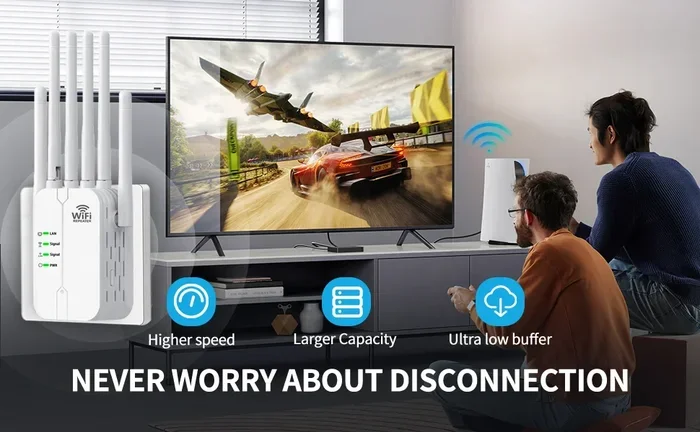
If your home is large or has thick walls, a single router may not cover every room. A wifi extender boosts your existing signal to reach farther areas. Mesh systems go a step further by creating a seamless network with multiple nodes placed around your home.
Mesh systems are more expensive but offer the best coverage and performance. They eliminate dead zones where your wifi signal is weak or nonexistent. For homes with many rooms or multiple floors, a mesh network is often the best solution to slow wifi problems.
Update Your Network Adapter
Your device’s network adapter determines how fast it can connect to wifi. Older laptops and desktops may have adapters that only support older wifi standards. Updating your adapter or using a usb wifi dongle can improve your connection speed.
Check your device specifications to see what wifi standard your adapter supports. If it only supports Wi-Fi 4 or 5, upgrading to a Wi-Fi 6 adapter can significantly boost wifi speed. This is especially helpful for laptops and desktop computers that rely on wireless connections.
Advanced Tweaks for a Faster Wireless Network
If the basics are not enough, these advanced tweaks can push your internet connection to the next level. They require a little more effort but deliver impressive results.
Change Your Wifi Channel
Your router broadcasts on a specific channel, and if your neighbors are using the same one, interference happens. You can change your channel through your router’s settings page. Look for a channel that has less congestion for better wifi signal strength.
Apps like Wifi Analyzer can scan nearby networks and show you which channels are least crowded. Switching to a less busy channel reduces interference and helps you speed up slow Wi-Fi. This is one of the most effective free fixes available.
Update Your Router Firmware
Router manufacturers release firmware updates that fix bugs and improve performance. Outdated firmware can cause slow wifi and security vulnerabilities. Check your router’s settings or manufacturer’s website for the latest firmware version.
Most modern routers have an auto-update feature. Turn it on if available. If not, make it a habit to check for updates every few months. A simple firmware update can improve stability and boost wifi speed without any extra cost.
Adjust Your DNS Settings
Your DNS settings control how your device finds websites. By default, your internet provider assigns DNS servers, but they are often slow. Switching to a faster DNS service like Google DNS or Cloudflare DNS can make websites load noticeably faster.
Changing DNS settings is free and takes just a few minutes. Go to your router’s settings and enter the new DNS addresses. This tweak improves browsing speed and helps you get the most out of your internet connection. It is one of the easiest ways to enhance your online experience.
Limit Background Apps and Devices
Many apps and devices use bandwidth in the background without you knowing. Updates, backups, and cloud syncing can eat up your bandwidth and slow down your wireless network. Check your devices for apps that are running when you are not using them.
Pause automatic updates on your phone, laptop, and smart devices when you need fast internet. Disconnect devices that are not in use. Managing your network this way reduces network congestion and keeps your wifi signal strong for the tasks that matter most.
When to Call Your Internet Provider
Sometimes the problem is not your equipment or setup. Your internet provider may be the cause of your slow wifi issues. Here is when it is time to reach out for help.
Persistent Slow Speeds After All Fixes
If you have tried every trick in this guide and your internet speed is still slow, contact your provider. There may be an issue with your plan, your account, or the infrastructure in your area. Running a wifi speed test with a wired connection can help you prove the problem is not with your router.
Ask your provider to run a line test. They can check for signal degradation or other technical issues. Sometimes a simple account adjustment or equipment replacement from the provider solves the problem completely.
Frequent Outages or Dropping Connections
If your internet connection drops frequently or you experience regular outages, your provider needs to know. These issues could indicate a problem with the wiring, the node, or the service in your area. Persistent problems should always be reported to your internet company.
Keep a log of when outages happen and how long they last. This information helps your provider diagnose and fix the issue faster. Being a proactive customer often leads to quicker resolutions and better service.
Final Thoughts
You can speed up slow Wi-Fi with the right approach and a bit of patience. Start with the quick fixes like restarting your router and improving placement. Move on to equipment upgrades and advanced tweaks if needed. Every step you take brings you closer to a faster, more reliable wireless network.
Do not settle for slow internet when so many solutions are available. Your wifi signal is only as strong as the steps you take to improve it. Try the tips in this guide, measure your progress with speed tests, and enjoy a faster online experience every day. Your internet connection deserves better, and now you know exactly how to give it the boost it needs.
Frequently Asked Questions
Why is my Wi-Fi so slow even with a good internet plan?
Your internet plan might be fast, but your wifi signal could be weak due to router placement, interference, or outdated equipment. A wifi speed test helps you find out if the problem is with your connection or your wireless network. Fixing router placement and reducing network congestion often solves this issue quickly.
How can I boost my Wi-Fi signal without buying new equipment?
You can speed up slow Wi-Fi for free by moving your router to a central location, switching wifi channels, and reducing the number of connected devices. Restarting your router weekly and updating its firmware also boost wifi speed without any extra cost.
Does a wifi extender really work to improve speed?
Yes, a wifi extender can help reach areas with weak signal, but it may reduce speed slightly because it repeats the existing signal. For the best results, place the extender halfway between your router and the dead zone. Mesh systems offer a more seamless alternative for larger homes.
What is the difference between 2.4GHz and 5GHz wifi bands?
The 2.4GHz band travels farther but is slower and more prone to interference. The 5GHz band is faster and less crowded but has a shorter range. Switching to 5GHz when you are close to your router helps you get the best internet speed from your wireless network.
How often should I restart my router?
Restarting your router once a week keeps your wireless network running smoothly. It clears memory, refreshes connections, and helps prevent slow wifi issues. Many people find that regular restarts significantly improve their wifi signal strength over time.
When should I upgrade my wireless router?
If your router is more than five years old, it is time to consider an upgrade. Newer models support Wi-Fi 6 and offer better speed, range, and device handling. Upgrading is especially important if you have many devices or experience frequent network congestion at home.