Can You Set Up A Wifi Router Yourself Without Any Help
Yes, you absolutely can set up a wifi router yourself without any help. With a few basic tools and this easy guide, you will have your home network running in under 30 minutes. You will learn how to connect your modem, configure settings, and optimize your wireless signal like a pro.
Setting up a wifi router yourself might sound intimidating. But here is the truth. You do not need a technician or an IT expert to get your home network running. The process is simpler than most people think. With the right guidance, anyone can handle a wifi router setup in under an hour.
Whether you just moved into a new place or upgraded your equipment, this guide covers everything. You will learn what tools you need, how to connect your devices, and how to optimize your home network for the best performance. No fluff. No jargon. Just clear, practical steps that actually work.
By the end of this article, you will feel confident enough to handle the entire process on your own. Let us get started.
Key Takeaways
- Self-setup is simple: Most routers are designed for easy DIY installation with no technical skills needed.
- Basic equipment is all you need: A modem, ethernet cable, and your router are enough to get started.
- Placement matters: Where you put your router directly affects your wifi signal strength and coverage.
- Security is essential: Setting a strong wifi password and enabling encryption protects your home network.
- Troubleshooting is manageable: Most common setup issues can be fixed with simple steps at home.
- Optimization boosts performance: A few small tweaks after setup can significantly improve your internet speed.
📑 Table of Contents
- Why Setting Up Your Own Router Is Easier Than You Think
- What You Need Before You Start
- Step-by-Step Router Setup Guide
- Optimizing Your Home Network After Setup
- Common Mistakes to Avoid During Router Setup
- When to Call a Professional for Help
- The Benefits of DIY Router Setup
- Frequently Asked Questions
- Final Thoughts
Why Setting Up Your Own Router Is Easier Than You Think
Many people avoid setting up their own wifi router because they fear it will be complicated. Modern routers are built with the user in mind. Manufacturers have made the process incredibly straightforward. Most routers now come with guided setup apps that walk you through every step.
Think about it. Your smartphone can set up a smart TV. Your laptop can connect to a printer wirelessly. Setting up a wireless router is not that different. It is a task designed for everyday people, not just tech experts.
The entire process involves three main steps. You connect your modem to the router. You configure your network settings. And you secure your connection with a strong password. That is it. Nothing more. Once you understand these basics, you will wonder why you ever thought you needed help.
What Has Changed in Router Setup
Just a few years ago, router setup required technical knowledge. You had to access the default gateway, navigate complex admin panels, and tweak settings manually. Today, things are vastly different.
Most modern routers now offer:
- Setup apps for smartphones that guide you step by step
- WPS push buttons that connect devices instantly
- Automatic firmware updates that keep your router secure
- Pre-configured settings that work right out of the box
- Voice setup options with smart home integrations
These features make wifi router setup something anyone can do. You do not need to know what an SSID is or how to find your IP address. The router handles most of the heavy lifting for you.
What You Need Before You Start
Before you begin your router setup, gather everything you need. Having the right tools ready saves time and prevents frustration. Here is your checklist.
Essential Equipment
- A wireless router compatible with your internet plan
- A modem provided by your internet service provider
- An ethernet cable (usually included with your router)
- A smartphone, tablet, or computer for configuration
- Your internet account details from your ISP
That is all you need. You do not need any special tools or technical equipment. If you have these five items, you are ready to go.
Where to Place Your Router
Router placement is one of the most overlooked parts of setup. Where you put your router affects your entire home network. A poorly placed router leads to weak signals, dead zones, and slow internet speeds.
Follow these placement tips for the best results:
- Place the router in a central location in your home
- Keep it elevated on a shelf or table
- Avoid placing it near walls or metal objects
- Keep it away from microwaves and cordless phones
- Do not hide it inside a cabinet or closed space
Good router placement ensures strong wifi signal strength throughout your home. This one simple step makes a huge difference in performance.
Step-by-Step Router Setup Guide
Now for the part you have been waiting for. Here is exactly how to set up your wifi router yourself. Follow these steps in order and you will have a working home network in no time.
Step 1: Connect Your Modem to the Router
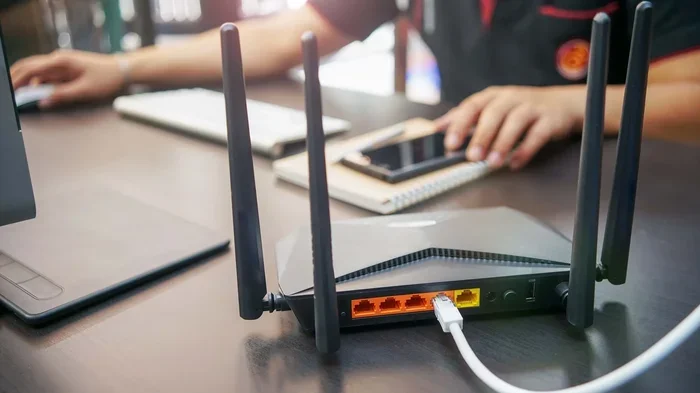
Start by unplugging your modem from power. Take your ethernet cable and plug one end into the modem. Plug the other end into the router. Look for the port labeled “WAN” or “Internet” on the back of your router. This is the port you need.
Once connected, plug your modem back in and wait for it to fully power on. You will see steady lights on the modem. This usually takes about one to two minutes.
Step 2: Power On Your Router
Plug in your wireless router and turn it on. Wait for the lights to stabilize. Most routers take about two minutes to fully boot up. The power light should be solid, and the wifi indicator should be blinking.
If your router came with a setup app, now is a good time to download it on your phone. Check the router box or manual for the app name. Popular brands like Netgear, TP-Link, and ASUS all have their own free apps.
Step 3: Connect to the Router
On your phone or computer, look for available wifi networks. You should see your router name in the list. This is your default network name, also called the SSID. It is usually printed on a sticker on the bottom of your router.
Connect to it using the default password found on the same sticker. Once connected, open your browser and type in the default gateway address. This is usually 192.168.1.1 or 192.168.0.1. You will be taken to the router admin panel.
Step 4: Configure Your Network Settings
Inside the admin panel, you will see several configuration options. Here is what you should focus on:
- Network name (SSID): Change it to something unique and recognizable
- Wifi password: Create a strong password with at least 12 characters
- Security type: Choose WPA3 or WPA2 for the best protection
- Frequency band: Select between 2.4GHz and 5GHz based on your needs
Take your time here. These settings define how your home network performs and how secure it is. A strong wifi password is your first line of defense against unauthorized access.
Step 5: Save and Test Your Connection
After configuring your settings, save everything. Your router may restart briefly. Once it is back on, connect your devices using the new network name and password you just created.
Open a browser and visit any website to test your internet connection. If the page loads, you are all set. If not, do not worry. We will cover troubleshooting in a moment.
Optimizing Your Home Network After Setup
Your router is up and running. But you are not quite done yet. A few small adjustments can dramatically improve your network performance. Think of this as tuning up a car after purchase. It runs, but a little tweaking makes it so much better.
Update Your Router Firmware
Router firmware is the software that runs your device. Manufacturers release updates to fix bugs, improve security, and boost performance. Check your admin panel for a firmware update option and install any available updates.
Most modern routers also notify you when an update is available through their setup app. Enable automatic updates if the option exists. This keeps your network secure without any effort.
Adjust Channel Settings for Better Signal
Wifi channels can overlap with your neighbors networks, causing interference. This slows down your internet speed. In your router settings, look for the channel selection option.
Set your 2.4GHz channel to 1, 6, or 11 for the least overlap. For the 5GHz band, auto channel selection usually works best. This simple change can improve your signal strength significantly.
Enable Quality of Service (QoS)
QoS is a feature that prioritizes certain types of traffic on your home network. For example, you can set video calls and streaming to take priority over downloads. This ensures smooth performance for the things that matter most to you.
Find the QoS setting in your router admin panel. Enable it and assign priority levels to your devices or activities. It is a small change that makes a big difference.
Common Mistakes to Avoid During Router Setup
Even with a simple process, people make mistakes. Avoiding these common errors saves time and prevents headaches. Here is what to watch out for.
Skipping the Security Settings
The biggest mistake people make is leaving their router with default settings. Default passwords are easy to guess. An open or unprotected network invites strangers to use your internet and potentially access your devices.
Always change your default admin password and wifi password. Use WPA3 or WPA2 encryption. These steps protect your home network from intruders.
Placing the Router in a Poor Location
We mentioned this earlier, but it deserves emphasis again. Putting your router in a corner, behind furniture, or in a basement kills your signal. The center of your home, elevated and unobstructed, is always the best spot.
Ignoring the Manual
It is tempting to skip the manual and figure things out on your own. But the manual contains specific instructions for your model. It tells you the default gateway address, the reset button location, and the optimal settings for your device.
Spend five minutes reading it. It will save you from confusion later.
When to Call a Professional for Help
Setting up a wifi router yourself works for most people. But there are situations where professional help makes sense. Knowing when to call an expert saves you time and prevents potential damage to your equipment.
Consider calling a professional if:
- Your ISP requires a specific configuration that you cannot access
- You have a complex network with multiple routers and access points
- Your internet connection drops frequently despite proper setup
- You are setting up a mesh wifi system with advanced features
- You feel uncomfortable accessing the admin panel or changing network settings
There is no shame in asking for help. But for the vast majority of people, setting up a wireless router is a straightforward task. You can absolutely do it yourself.
Quick Tips for a Smooth Setup
Here are a few extra tips that make the process even easier:
- Write down your settings after configuring them
- Restart your modem and router if you experience issues
- Keep your router in a cool, dry place to extend its lifespan
- Restart your router monthly to maintain optimal performance
- Label your cables so you always know which is which
These small habits keep your home network running smoothly for years. They take almost no time but pay off big time.
The Benefits of DIY Router Setup
Setting up your own wifi router comes with several advantages beyond just saving money on installation fees.
You learn how your network works. Understanding your home network gives you confidence when troubleshooting issues. You will know exactly what to check when your internet slows down or drops.
You save time. Scheduling a technician visit often means waiting days. With a DIY setup, you are online in minutes. No appointments, no waiting rooms, no scheduling conflicts.
You gain full control. When you set up your own router, you own every configuration decision. You choose your network name, your security settings, and your performance preferences. No one else makes those choices for you.
It builds your tech confidence. Completing a router setup on your own proves that you can handle more tech tasks than you thought possible. This confidence carries over into other areas of your digital life.
Frequently Asked Questions
Do I need any special skills to set up a wifi router myself?
No special skills are required at all. Modern routers are designed for everyday users. If you can connect a phone to a wifi network, you can set up a router. The setup apps guide you through every step with clear instructions. Most people complete the entire process in 15 to 30 minutes.
How long does it take to set up a router by yourself?
A basic setup takes about 15 to 30 minutes. This includes connecting the modem, powering on the router, and configuring your network settings. If you also update firmware and optimize channel settings, it may take closer to an hour. But the core setup is very fast.
What should I do if my router setup fails?
Start by restarting both your modem and router. Unplug them, wait 30 seconds, and plug them back in. Check all cable connections to make sure they are secure. If the issue persists, reset your router to factory settings using the reset button on the back. Then try the setup again from scratch.
Can I set up a router without a computer?
Yes, absolutely. Most modern routers support smartphone setup through their companion apps. You can configure your entire network using just your phone. All you need is the default wifi credentials printed on the router itself.
Is it safe to set up a router by myself?
Yes, it is completely safe. As long as you follow the manufacturer instructions and secure your network with a strong password and WPA2 or WPA3 encryption, you are in good shape. The process does not involve any risky operations. Your personal information stays safe on your device.
What is the difference between a modem and a router?
A modem connects your home to the internet through your ISP. A router distributes that internet connection to your devices wirelessly. Many ISPs provide a combined modem-router device. But if you have separate equipment, you connect the modem to the router using an ethernet cable during setup.
Final Thoughts
The answer to the question “Can You Set Up A Wifi Router Yourself” is a resounding yes. You do not need technical expertise, expensive equipment, or professional help. With a modem, a router, an ethernet cable, and this guide, you can have your home network running in under an hour.
Setting up your own router gives you control, saves money, and builds your confidence with technology. The process is simpler today than it has ever been. Router manufacturers have made tremendous progress in making setup accessible to everyone.
Take the leap. Follow the steps in this guide, optimize your network settings, and enjoy a fast, secure home network. You will be glad you did it yourself. And the next time someone asks if you can set up a wifi router without help, you will have the perfect answer.