Can You Convert Vga To Hdmi With These Simple Steps
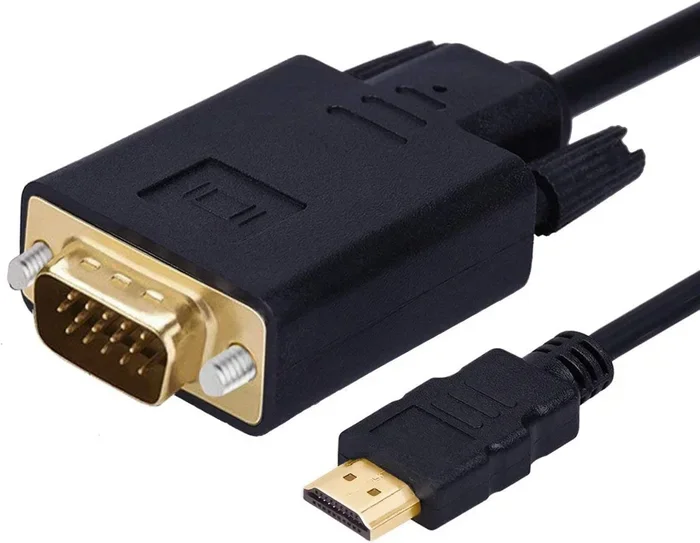
Yes, you can convert VGA to HDMI using a simple VGA-to-HDMI converter or adapter. This guide walks you through every step, from choosing the right equipment to troubleshooting common issues. You will learn how to connect older devices to modern HDTVs and monitors without any hassle.
Have you ever stared at an older computer or laptop with a VGA port and wished you could plug it straight into a modern TV or monitor with HDMI? You are not alone. Many people still have devices with VGA outputs sitting in drawers or offices, and they want to use them with today’s HDTVs and displays. The good news is that converting VGA to HDMI is very doable. You just need the right VGA to HDMI converter and a few simple steps. In this guide, we will walk you through everything you need to know.
Whether you are setting up a presentation in a conference room, connecting a retro gaming console, or just trying to use an old desktop with a new TV, this article has you covered. We will explain the differences between VGA and HDMI, show you the best conversion options, and help you avoid common mistakes. By the end, you will feel confident making the switch. Let us dive right in.
Key Takeaways
- VGA to HDMI conversion is possible with the right adapter or active converter box.
- Active converters are recommended because they boost the analog signal to digital HDMI output.
- Check your device ports before buying any adapter to ensure compatibility.
- Audio may need a separate connection since VGA carries video only.
- Resolution quality depends on your converter — look for 1080p support for the best results.
- Common issues like no signal or flickering can usually be fixed with simple troubleshooting steps.
📑 Table of Contents
- Understanding VGA and HDMI Connections
- Types of VGA to HDMI Converters
- What You Will Need to Get Started
- Step-by-Step Guide to Converting VGA to HDMI
- Troubleshooting Common Issues
- Best Practices for VGA to HDMI Conversion
- Comparing VGA to HDMI: A Quick Overview
- Expert Tips for Better Display Quality
- Frequently Asked Questions
- Final Thoughts
Understanding VGA and HDMI Connections
Before you buy any adapter, it helps to understand what each connection does. VGA and HDMI are both ways to send video from one device to another. But they work very differently under the hood.
What Is VGA?
VGA stands for Video Graphics Array. It has been around since the late 1980s. The VGA connector is the classic blue-colored port with 15 pins. It carries an analog video signal only. That means it does not transmit any audio. VGA was the standard for desktop computers and projectors for many years. You will still find it on older laptops, monitors, and some projectors today.
The biggest limitation of VGA is its analog nature. Analog signals degrade over distance and are more prone to interference. This can lead to fuzzy images, ghosting, or color distortion. Also, VGA maxes out at lower resolutions compared to modern digital standards. Most VGA connections top out around 2048 x 1536, which is fine for many uses but not ideal for sharp HD displays.
What Is HDMI?
HDMI stands for High-Definition Multimedia Interface. It is the modern standard for connecting devices to TVs, monitors, and projectors. HDMI carries both high-definition video and audio through a single cable. It uses a digital signal, which means clearer picture quality and no signal degradation over short distances.
HDMI supports much higher resolutions than VGA. Most modern HDMI cables handle 1080p or even 4K content with ease. The connector is small and compact compared to the bulky VGA port. Nearly every TV, streaming device, gaming console, and modern laptop made in the last decade uses HDMI.
Why Convert VGA to HDMI?
The short answer is compatibility. Many newer displays and TVs only have HDMI inputs. If your device only has a VGA output, you need a converter to bridge the gap. This is common in offices, classrooms, and home setups where older equipment still works perfectly but needs to connect to a modern screen. A VGA to HDMI adapter solves this problem quickly and affordably.
Types of VGA to HDMI Converters
Not all converters are the same. Understanding the different types will help you choose the right one for your setup. Here is what you need to know.
Active VGA to HDMI Converters
An active converter does the heavy lifting. It takes the analog VGA signal and converts it to a digital HDMI signal using built-in processing chips. This is the most reliable option for most users. Active converters usually require their own power source, often through a USB cable plugged into your computer or a wall adapter.
These converters typically support resolutions up to 1080p or even higher. They also handle the audio separation needed since VGA does not carry sound. You will need a separate audio cable from your device to the converter for sound. Brands like Cable Matters, Rankie, and Techole make popular active VGA to HDMI converters that work well for everyday use.
Passive VGA to HDMI Adapters
Passive adapters are simpler and cheaper. They do not have any processing chips inside. Instead, they just re-route the pins from the VGA connector to an HDMI connector. The problem is that VGA outputs an analog signal and HDMI expects a digital signal. A passive adapter cannot convert the signal type. It only works in rare cases where the source device has a dual-mode port that can output digital signals through VGA.
For most users, a passive adapter will not work. You should only consider one if you are certain your device supports digital output through its VGA port. In most real-world situations, an active converter is the way to go.
USB-Based HDMI Capture Devices
Another option is a USB capture card. These devices plug into a USB port on your computer and output HDMI to a display. Some capture cards accept VGA input through an included adapter. These are popular with streamers and content creators but can also work for basic display extension or mirroring.
However, USB capture devices add extra latency and are more expensive than a simple VGA-to-HDMI converter. They are best suited for specific use cases like streaming rather than everyday display connectivity.
What You Will Need to Get Started
Setting up a VGA to HDMI connection is straightforward. Here is a list of everything you need before you begin.
- A VGA cable — to connect your source device to the converter.
- A VGA to HDMI active converter — this is the centerpiece of your setup.
- An HDMI cable — to connect the converter to your TV or monitor.
- A 3.5mm audio cable — to carry sound from your device to the converter.
- A USB cable or power adapter — to power the active converter.
- The device you want to connect — a desktop computer, laptop, or older media player with a VGA output.
Once you have these items, you are ready to start the conversion process. Make sure your HDMI cable and VGA cable are in good condition. Damaged cables can cause signal issues and make troubleshooting harder later on.
Step-by-Step Guide to Converting VGA to HDMI
Follow these steps to connect your VGA device to an HDMI display. The process takes about five minutes once you have your equipment ready.
Step 1: Turn Off All Devices
Before making any connections, power off your computer, TV, and monitor. Working with powered-off devices prevents electrical issues and protects your ports. It also ensures a clean connection when you power everything back on.
Step 2: Connect the VGA Cable
Plug one end of your VGA cable into the VGA port on your computer or source device. Twist the screws on the connector clockwise to secure it firmly. A loose connection is one of the most common causes of display problems.
Step 3: Connect the VGA Cable to the Converter
Plug the other end of the VGA cable into the VGA input on your active converter. Make sure it clicks into place. Most converters have a labeled input port, so double-check that you are using the correct one.
Step 4: Connect the HDMI Cable
Take your HDMI cable and plug one end into the HDMI output on the converter. Plug the other end into an available HDMI port on your TV or monitor. Use a port that supports HDMI 1.4 or higher for the best resolution and compatibility.
Step 5: Connect the Audio Cable
Since VGA does not carry audio, you need a separate audio connection. Plug a 3.5mm audio cable from the audio output on your computer into the audio input on the converter. Some converters also let you connect audio directly to your TV’s HDMI ARC port for simpler audio routing.
Step 6: Power the Converter
Connect the USB power cable to the converter. You can plug it into a USB port on your computer or use the wall adapter that usually comes with the converter. The converter’s indicator light should turn on, showing that it is receiving power.
Step 7: Turn On and Select the Input
Power on your computer, TV, and monitor. Use your TV remote to switch to the correct HDMI input. You should now see your computer’s display on the TV screen. If you do not see anything, move on to the troubleshooting section below.
Troubleshooting Common Issues
Even with the right equipment, you might run into some hiccups. Here are the most common problems and how to fix them.
No Display on the TV or Monitor
If your screen stays blank, check a few things first. Make sure all cables are firmly connected. Verify that the TV is set to the correct HDMI input. Try a different HDMI port on your TV. Also confirm that the converter is powered on and the indicator light is glowing. Sometimes simply unplugging and replugging the USB power cable resets the connection.
Flickering or Distorted Image
A flickering picture usually means a loose cable connection or signal interference. Tighten the VGA screws on both ends. Try a shorter VGA cable, since longer analog cables are more prone to signal loss. Move the VGA cable away from power cords and other electronic devices that might cause interference.
No Sound
If you have video but no audio, check your audio cable connection. Make sure it is plugged into the correct ports on both ends. On your computer, go to the sound settings and make sure the output is set to the HDMI or converter audio output, not the built-in speakers. Some converters also have a volume knob — make sure it is turned up.
Low Resolution or Blurry Image
If your display looks blurry or the resolution is too low, go to your computer’s display settings. In Windows, right-click the desktop and select Display Settings. Under Display Resolution, choose the highest option available, ideally 1920 x 1080 for full HD. On a Mac, go to System Preferences and select Displays to adjust the resolution.
Best Practices for VGA to HDMI Conversion
Follow these tips to get the best results from your setup every time.
- Buy a quality converter. Cheap no-name converters often produce poor image quality or fail to work altogether. Spend a little more on a reputable brand for reliable performance.
- Keep cables short. Shorter VGA cables maintain better signal quality. Try to keep your VGA cable under 6 feet for the clearest picture.
- Update your graphics drivers. Outdated drivers can cause compatibility issues with external displays. Visit your GPU manufacturer’s website and download the latest drivers before setting up.
- Test with a known working setup. If possible, test your converter with a different device first to rule out problems with your source equipment.
- Consider your entertainment setup holistically. If you are upgrading your display connections, you might also want to explore alternatives to Dish Network and DirectTV to streamline your entire home entertainment system with modern streaming solutions.
Comparing VGA to HDMI: A Quick Overview
Understanding the key differences between VGA and HDMI helps you appreciate why conversion is necessary and what you gain from making the switch.
| Feature | VGA | HDMI |
|---|---|---|
| Signal Type | Analog | Digital |
| Carries Audio | No | Yes |
| Max Resolution | ~2048 x 1536 | 4K and beyond |
| Cable Length Impact | Signal degrades over distance | Minimal loss up to 50 feet |
| Connector Color | Blue | Black (or white on older devices) |
| Common Use Today | Older computers, projectors | TVs, monitors, gaming consoles |
As you can see, HDMI is clearly the superior standard for modern displays. Converting VGA to HDMI lets you enjoy the benefits of digital connectivity even with older equipment. The process is simple and affordable, and the improvement in picture and sound quality is noticeable right away.
Expert Tips for Better Display Quality
Want to squeeze every bit of quality out of your VGA to HDMI setup? Here are some expert insights that make a real difference.
Use a converter with built-in upscaling. Some converters automatically upscale lower resolutions to match your display’s native resolution. This feature is especially helpful when connecting older devices that only output 720p or lower to a 1080p or 4K TV.
Check your converter’s supported refresh rate. A 60Hz refresh rate is standard for most setups. But if you are using the setup for gaming or fast-moving content, look for a converter that supports higher refresh rates to reduce motion blur.
Consider your entire setup. If you are connecting multiple devices to one TV, an HDMI switch can save you from constantly unplugging and replugging cables. Some VGA-to-HDMI converters come with built-in HDMI switches, which adds extra convenience to your setup.
Keep your firmware updated. Some smart TVs and converters receive firmware updates that improve compatibility with various input sources. Check the manufacturer’s website periodically for updates that might improve your VGA to HDMI experience.
Frequently Asked Questions
Can I convert VGA to HDMI without a converter box?
Not reliably. A passive adapter will not convert the analog signal to digital. You need an active converter with built-in processing chips to make the signal compatible with HDMI inputs. Passive adapters only work in very rare cases with dual-mode ports.
Do I lose quality when converting VGA to HDMI?
Some quality loss is inevitable because VGA is an analog signal and HDMI is digital. However, a good quality active converter minimizes this loss and can produce a sharp, clear image at 1080p resolution. The difference is usually barely noticeable for everyday use.
Can I connect VGA to HDMI and get audio?
Yes, but not through the VGA cable itself. VGA carries video only. You need a separate 3.5mm audio cable or an audio extraction method to get sound to your display. Most active converters include an audio input port for this purpose.
What resolution can I expect from a VGA to HDMI conversion?
Most active converters support up to 1080p (Full HD). Some higher-end models support even greater resolutions. Your actual output depends on both your converter’s capabilities and your source device’s output settings.
Is a USB-powered converter better than one with a wall adapter?
USB-powered converters are more convenient because they draw power directly from your computer. However, wall adapters provide more stable power and are less likely to cause issues with low-power USB ports. For the most reliable setup, use a wall adapter if you have one available.
Can I use a VGA to HDMI converter with a streaming stick like Roku or Chromecast?
Streaming sticks like Roku and Chromecast use HDMI outputs, not VGA inputs. You would not need a converter in that scenario. But if you have an older device with VGA output that you want to connect to a modern streaming setup, the converter works perfectly. It is a great way to breathe new life into older equipment in your home entertainment center.
Final Thoughts
Converting VGA to HDMI is easier than most people think. With the right active VGA to HDMI converter, a few cables, and about five minutes of your time, you can connect almost any older device to a modern HDTV or monitor. The process is affordable, straightforward, and makes a noticeable difference in display quality.
Remember to choose a quality converter, keep your cables short and secure, and handle audio separately since VGA does not carry sound. Follow the troubleshooting tips if you run into any issues, and do not hesitate to update your device drivers for the best compatibility.
Whether you are in a classroom, a boardroom, or your living room, knowing how to bridge old and new technology is a valuable skill. The world of display connections is always evolving, but with the right adapter, your older devices can still keep up. Now that you know how to convert VGA to HDMI, you are ready to set up your display and enjoy a crisp, clear picture with sound. Happy connecting!