Can You Connect Aux To Usb Here Is What You Need To Know
Connecting an AUX cable to a USB port is possible with the right adapter or cable. You can turn analog audio into digital signals for cleaner sound on modern devices. This guide walks you through every method, adapter type, and common issue you might face.
Key Takeaways
- AUX to USB connections require an adapter: You cannot plug an AUX cable directly into a USB port without the right converter.
- Multiple adapter types exist: USB-to-AUX cables, USB audio adapters, and USB-C to AUX adapters all serve different needs.
- Audio quality improves with wired connections: A direct AUX-to-USB setup often sounds better than Bluetooth.
- Device compatibility matters: Check if your device supports USB audio input before buying an adapter.
- Common issues are easy to fix: Driver updates, cable replacements, and port checks solve most problems.
- USB connections offer digital sound: Digital audio through USB reduces interference and noise.
📑 Table of Contents
- Can You Connect Aux To USB Here Is What You Need to Know
- How to Connect Aux to USB Step by Step
- Types of Adapters for Aux to USB Connections
- Benefits of Connecting Aux to USB
- Common Problems and How to Fix Them
- USB Audio vs Bluetooth: Which Is Better?
- Expert Tips for the Best Audio Experience
- Final Thoughts
Can You Connect Aux To USB Here Is What You Need to Know
So you want to know can you connect aux to USB? The short answer is yes. But the full answer is a little more involved. You need the right adapter, the right cable, and a basic understanding of how audio signals work. This guide breaks it all down in simple terms. Whether you are trying to connect a phone to a car stereo, a laptop to speakers, or a tablet to an audio interface, you are in the right place.
Many people run into this problem every day. They have an AUX cable in hand and a USB port on their device. The two do not match. So what do you do? You grab an adapter. But not just any adapter. The wrong one can cause poor sound quality, no sound at all, or even damage your equipment. That is why we put together this complete guide. We will show you exactly how to make this connection work the right way.
Audio technology has come a long way. But the AUX jack and the USB port remain two of the most common audio connection types. Understanding how they work together opens up a world of possibilities. You get better sound, fewer cables, and more flexibility. Let us dive in and explore everything you need to know about connecting AUX to USB.
What Is an AUX Connection?
An AUX connection, short for auxiliary, uses a 3.5mm jack to carry an analog audio signal. You have probably seen this jack on headphones, speakers, and car stereos. It is the standard round plug you plug into the side of your phone or laptop. The AUX cable sends an uninterrupted analog signal from one device to another.
Analog signals are continuous electrical waves. They carry the actual sound waveform from the source to the speaker. This is why AUX connections have been around for decades. They are simple, reliable, and widely compatible. Almost every audio device made in the last 30 years has an AUX input.
The downside of analog signals is that they can pick up interference. Nearby electronics, long cable runs, and cheap cables can all introduce noise. But with a short, quality AUX cable, the sound is clean and clear. For most everyday uses, AUX works great.
What Is a USB Connection for Audio?
USB stands for Universal Serial Bus. It is a digital connection standard used for charging, data transfer, and audio. When used for audio, a USB connection sends digital audio signals directly from the source to the receiving device. This means the sound stays in digital form until it reaches a digital-to-analog converter, or DAC.
USB audio offers several advantages over analog connections. First, digital signals do not pick up electromagnetic interference. Second, USB connections can carry higher-quality audio formats. Third, USB audio devices often have their own built-in DACs, which means better sound without needing external equipment.
Many modern devices use USB-C ports now. These small, reversible connectors support audio, charging, and data all at once. If you have a newer laptop or phone, you might find that the 3.5mm AUX jack is gone entirely. That is where USB audio comes in handy.
How to Connect Aux to USB Step by Step
Now that you understand the basics, let us get into the practical steps. Connecting an AUX cable to a USB port requires an adapter or a special cable. Here is how to do it the right way.
Step 1: Check Your Devices
Before you buy anything, check what ports your devices have. Look at the source device, like your phone or music player. Does it have a USB port? Now look at the receiving device, like a speaker or car stereo. Does it have an AUX input?
Make sure you know the type of USB port too. Is it a standard USB-A? A USB-C? Or a mini-USB? Each type requires a different adapter. Taking a minute to check now saves you from buying the wrong accessory later.
Step 2: Choose the Right Adapter
There are several types of adapters that bridge the gap between USB and AUX. The most common ones include:
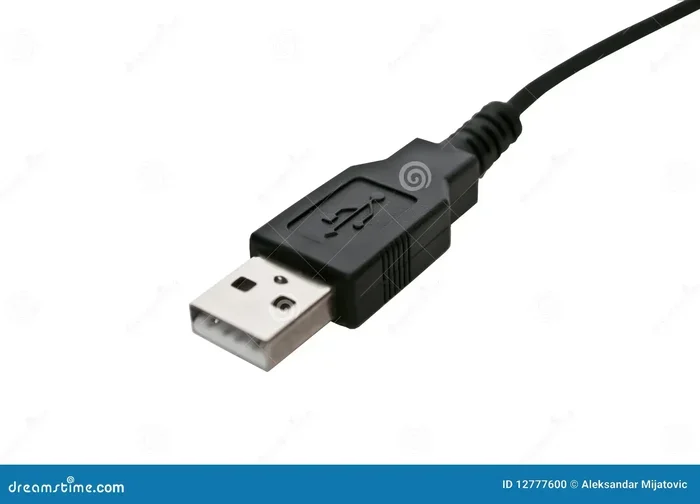
- USB-to-AUX cables: These have a USB plug on one end and a 3.5mm AUX plug on the other. They are simple and easy to use.
- USB audio adapters: These are small dongles that plug into a USB port and provide an AUX output. They often offer better sound quality than basic cables.
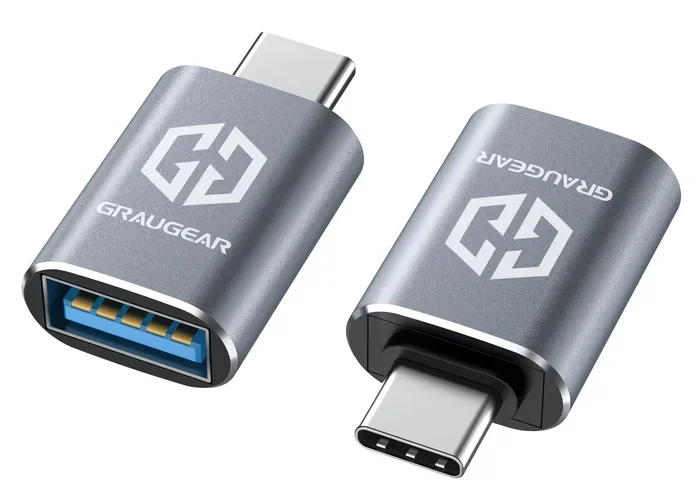
- USB-C to AUX adapters: These are designed for devices with USB-C ports. They are essential for newer phones and laptops.
- USB audio interfaces: These are professional-grade devices used for recording and high-quality audio production.
Choose the adapter that matches your devices. A USB-C to AUX adapter is the most popular choice today since many phones have dropped the AUX jack entirely.
Step 3: Plug Everything In
Once you have the right adapter, the process is simple. Plug the USB end into your source device. Then plug the AUX end into the receiving device. Make sure both connections are firm and secure.
On most devices, the system will recognize the USB audio adapter automatically. You may see a notification that a new audio device is connected. If not, you might need to go into your sound settings and select the USB device as the audio output.
Step 4: Test the Connection
Play some music or audio and listen carefully. Does the sound come through clearly? Is there any buzzing or static? If the sound is clean, you are all set. If you hear noise, try a different cable or adapter. Sometimes the issue is a cheap or damaged adapter.
Also check the volume levels on both devices. Make sure neither device is muted. Start with the source device volume at about 75% and adjust the receiving device volume to your liking.
Types of Adapters for Aux to USB Connections
Not all adapters are created equal. The type you choose affects sound quality, ease of use, and compatibility. Here is a closer look at the most common options.
USB-to-AUX Cables
These are the simplest option. One end plugs into a USB port, and the other end has a 3.5mm AUX plug. They are inexpensive and widely available. You can find them online or at most electronics stores for under fifteen dollars.
The downside is that these cables have a built-in DAC that is often very basic. The sound quality is decent for casual listening but may not satisfy audiophiles. If you just need a quick and easy connection, a USB-to-AUX cable works fine.
USB Audio Adapters
USB audio adapters are small dongles that convert USB signals to AUX output. They usually have better built-in DACs than basic cables. This means cleaner sound and less noise. Some models also include a microphone input, making them useful for calls and recording.
These adapters are great for laptops and desktops that lack an AUX input. They plug into any standard USB port and provide a reliable audio output. Look for adapters from reputable brands to ensure good performance.
USB-C to AUX Adapters
If you have a modern phone or tablet with a USB-C port, this is the adapter you need. These small dongles plug into your device and provide a standard 3.5mm AUX output. They are compact, portable, and affordable.
Make sure you buy an adapter that supports audio output. Some USB-C adapters are designed only for charging or data transfer. Check the product description carefully before purchasing. A good USB-C to AUX adapter should cost between ten and twenty-five dollars.
USB Audio Interfaces
For serious audio work, a USB audio interface is the best choice. These devices are used by musicians, podcasters, and producers. They offer high-quality DACs, multiple input options, and professional-grade sound processing.
USB audio interfaces connect to a computer via USB and provide AUX or other audio outputs. They are more expensive than simple adapters but deliver far superior sound quality. If you are recording music or doing podcast editing, this is the way to go.
Benefits of Connecting Aux to USB
Why bother connecting AUX to USB at all? There are several real benefits that make this connection worthwhile.
Better Audio Quality
A wired USB connection delivers digital audio with minimal loss. Unlike Bluetooth, which compresses audio data, a USB connection preserves the original quality. This is especially noticeable with high-resolution audio files and lossless formats.
The digital signal also does not suffer from the interference that analog AUX cables can pick up. You get cleaner vocals, tighter bass, and clearer highs. For music lovers who care about sound quality, this is a big win.
Device Compatibility
Many modern devices no longer include AUX ports. Phones, tablets, and ultrabooks have moved to USB-C or wireless-only designs. By using a USB-to-AUX adapter, you can still connect older speakers, car stereos, and headphones that only have AUX inputs.
This compatibility bridge is incredibly useful. It lets you use your existing equipment even as technology evolves. Instead of replacing all your audio gear, a simple adapter keeps everything working.
No Pairing Required
Bluetooth connections require pairing, which can be annoying. Sometimes devices refuse to connect, or the connection drops unexpectedly. A USB-to-AUX connection is plug and play. There is no pairing, no delays, and no dropped signals.
This reliability makes USB connections ideal for car stereos, presentation setups, and home theater systems. You plug it in and it just works every time.
Power and Data Transfer
USB connections can do more than just carry audio. They can also charge your device while you listen to music. This is especially handy on long road trips when your phone battery is running low.
Some USB audio adapters also support data transfer. This means you can update firmware or transfer audio files while using the same connection. It adds convenience and reduces cable clutter.
Common Problems and How to Fix Them
Even with the right adapter, you might run into issues. Here are the most common problems and how to solve them.
No Sound at All
If you plug everything in and hear nothing, do not panic. First, check that both ends of the cable are firmly connected. A loose connection is the most common cause of no sound.
Next, check your device sound settings. On most computers and phones, you need to select the USB device as the active audio output. Go to your sound settings and look for a USB audio device or external speaker option.
If the sound settings are correct, try a different USB port. Some ports may not support audio output. Also, try a different cable or adapter to rule out a defective accessory.
Buzzing or Static Noise
Noise in the audio signal is frustrating but common. It usually happens because of electrical interference. USB ports on computers can sometimes introduce ground loop noise, especially if the computer is not grounded properly.
Try using a USB hub with isolation to reduce noise. You can also try plugging the USB adapter into a different port, preferably a rear port on a desktop computer. Avoid using USB extensions if possible, as they can degrade the signal.
If the noise persists, the adapter itself might be low quality. Investing in a better adapter or audio interface often solves this problem completely.
Device Not Recognized
Sometimes your computer or phone does not recognize the USB audio adapter. This can happen if the device needs a driver update. On Windows, go to Device Manager and look for audio devices. Right-click and select Update Driver.
On Mac, the system usually handles USB audio devices automatically. On Android, you may need to enable USB audio routing in the developer options. Check your device manual for specific instructions.
Also make sure your adapter is compatible with your operating system. Most modern adapters work with Windows, Mac, and ChromeOS out of the box. But older or niche adapters might have limited support.
Poor Sound Quality
If the sound is distorted or muffled, the adapter might be the culprit. Cheap adapters often have low-quality DACs that cannot handle high-resolution audio. Upgrading to a better adapter or audio interface usually fixes this.
Also check the source audio file. Low-quality MP3 files will sound bad no matter what equipment you use. Use high-quality audio files or streaming services that offer lossless audio for the best results.
USB Audio vs Bluetooth: Which Is Better?
Many people wonder whether they should use a USB-to-AUX connection or just go wireless with Bluetooth. Both have their strengths, but for pure audio quality, USB wins.
Bluetooth compresses audio to transmit it wirelessly. This compression removes some audio data, which can affect sound quality. USB connections send the full, uncompressed digital signal. The difference is especially noticeable with high-quality headphones and speakers.
However, Bluetooth has its own advantages. It offers freedom of movement and no cables to manage. For casual listening in the car or at home, Bluetooth is perfectly fine. But for critical listening, recording, or presentations, a wired USB connection is the better choice.
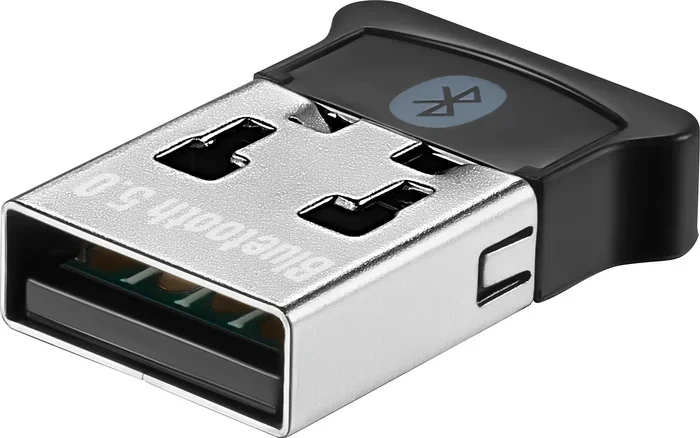
If you want the best of both worlds, consider a USB audio adapter that also supports Bluetooth. These devices let you switch between wired and wireless connections as needed.
Expert Tips for the Best Audio Experience
Here are some quick tips to get the most out of your AUX-to-USB setup:
- Use short cables: Keep AUX cables under six feet to reduce signal loss and interference.
- Invest in quality adapters: A ten-dollar adapter might save you money upfront but cost you in sound quality. Spend a little more for better performance.
- Keep drivers updated: On computers, outdated audio drivers can cause all sorts of problems. Check for updates regularly.
- Avoid cheap USB hubs: Cheap hubs can introduce noise and power issues. Use a powered hub if you need to connect multiple USB devices.
- Test with different devices: If you are troubleshooting, try the adapter on a different device to isolate the problem.
These small steps make a big difference in your overall audio experience. A little attention to detail goes a long way.
And if you are looking to upgrade your entire entertainment setup, remember that cutting the cord on cable TV can free up budget for better audio gear. Check out our guide on alternatives to Dish Network and DirectTV if you want to explore other ways to save on entertainment costs while investing in better equipment.
Final Thoughts
So, can you connect aux to USB? Absolutely. With the right adapter, a little patience, and basic knowledge, anyone can make this connection work. Whether you are setting up a car stereo, connecting speakers to a laptop, or building a home recording studio, the AUX-to-USB bridge gives you flexibility and better sound quality.
The key is choosing the right adapter for your devices. USB-C to AUX adapters are the most popular choice today, but USB audio adapters and simple USB-to-AUX cables all have their place. Pick the one that fits your needs and budget.
Remember to troubleshoot common issues before assuming the worst. Most problems are easy to fix with a cable swap, driver update, or setting adjustment. And always prioritize quality over price when it comes to audio adapters. A good adapter pays for itself in better sound and fewer headaches.
Now that you know how to connect AUX to USB, you are ready to set up your audio equipment with confidence. Enjoy your music, podcasts, and audio content the way they were meant to sound. Happy listening.
Frequently Asked Questions
Can I plug an AUX cable directly into a USB port?
No, you cannot plug an AUX cable directly into a USB port. The connectors are different. You need an adapter or a USB-to-AUX cable to bridge the gap between the two connection types.
Does connecting AUX to USB improve sound quality?
Yes, a USB connection can improve sound quality because it sends a digital audio signal with less interference. The built-in DAC in a good USB adapter produces cleaner sound than a standard analog connection.
What adapter do I need to connect AUX to USB on my phone?
If your phone has a USB-C port, you need a USB-C to AUX adapter. If your phone has a standard USB-A port, a USB-to-AUX cable or adapter will work. Make sure the adapter supports audio output.
Can I use a USB-to-AUX adapter for recording audio?
Yes, but for professional recording, a dedicated USB audio interface is a better choice. Basic adapters work for casual recording, but they may introduce noise or limit audio resolution compared to a proper interface.
Why is there no sound when I connect AUX to USB?
No sound usually means the device is not being recognized as an audio output. Check your sound settings and make sure the USB audio device is selected. Also try a different USB port or cable to rule out hardware issues.
Are USB audio adapters compatible with all devices?
Most modern USB audio adapters work with Windows, Mac, and ChromeOS. On Android devices, you may need to enable USB audio routing in developer settings. Always check compatibility before purchasing.