Can I Plug Component Into Composite Without Losing Quality
Yes, you can plug component into composite without losing too much quality, but you need the right active converter and a basic understanding of how these signals work. This guide covers composite cable compatibility, signal conversion tips, and practical advice to keep your picture quality looking great. Whether you are connecting legacy devices or setting up a retro home theater, you will find everything you need here.
Many people want to know can I plug component into composite and still enjoy a clear picture on their screen. The good news is that it is possible, but you need the right approach and a little bit of knowledge. Whether you are connecting an old DVD player, a retro gaming console, or a legacy AV receiver, understanding how these two connection types work together makes all the difference.
Component video and composite video have been around for decades. They carry analog signals from a source device to a television or projector. While they look similar at the connector level, they handle video data very differently. Component splits the signal into three separate channels, while composite bundles everything into one. This fundamental difference affects your picture quality, video resolution, and the type of cable adapter you need.
In this article, we will explain everything you need to know. You will learn how these connections work, what happens when you convert between them, and which cable adapter gives you the best results. We will also share practical tips, common mistakes to avoid, and honest advice about signal degradation and quality loss. By the end, you will feel confident about making the right connection for your setup.
Key Takeaways
- You need an active converter: passive adapters will not work for converting component to composite because the signal formats are fundamentally different.
- Some quality loss is inevitable: converting from component to composite reduces resolution and color detail, but a good converter minimizes the impact.
- Keep cables short and high-quality: this reduces signal degradation and interference in your setup.
- Do not forget about audio: component video cables do not carry sound, so you need separate audio connections.
- Check device compatibility first: not all converters work with all source devices, so verify before you buy.
- Consider HDMI alternatives: if your display only has HDMI, a component-to-HDMI converter may give you better results than composite.
📑 Table of Contents
Understanding Component and Composite Connections
What Is Composite Video?
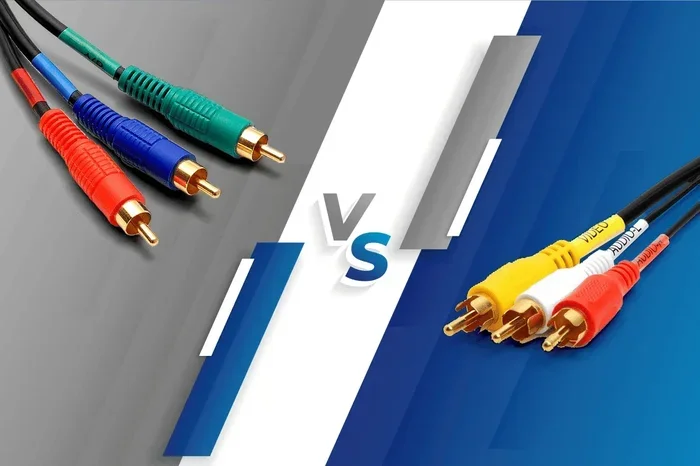
Composite video is one of the oldest and most widely recognized analog video formats. It uses a single RCA connector, usually colored yellow, to carry all the video information through one cable. This includes brightness, color, and the sync signal all combined into a single signal path.
You will find composite connections on VCRs, older DVD players, retro gaming consoles, and many legacy devices. The advantage is simplicity. You only need one cable for video, and almost every TV ever made has a composite input. However, because all the video data shares one path, the signal can suffer from interference and signal degradation over longer cable lengths.
The maximum resolution for composite video is typically 480i, which is standard definition. This means the picture will not be as sharp as modern connections, but it works perfectly fine for older equipment and casual viewing.
What Is Component Video?
Component video takes a different approach. It splits the video signal into three separate channels, usually carried by green, blue, and red RCA connector plugs. These are often labeled Y, Pb, and Pr, or YPbPr. Each cable carries a specific part of the video data, which allows for much better color separation and a cleaner analog signal.
Component video was the go-to choice for high-quality analog connections. You would find it on progressive scan DVD players, early gaming consoles, satellite receivers, and home theater projectors. The maximum resolution support is much higher than composite, often reaching 1080p with progressive scan support.
The trade-off is that component video requires three cables for video alone, plus additional cables for audio. This makes the setup more complex, but the screen display quality is noticeably better than composite. The color separation and reduced interference make a real difference on larger TVs and projectors.
Component vs Composite at a Glance
| Feature | Component Video | Composite Video |
|---|---|---|
| Number of Video Cables | 3 (green, blue, red) | 1 (yellow RCA) |
| Signal Type | Separated analog channels | Combined analog signal |
| Max Resolution | 1080p (progressive) | 480i (standard definition) |
| Color Quality | High, with separate color channels | Lower, combined color and brightness |
| Connector Type | 3 RCA (plus 2 for audio) | 1 RCA (yellow) |
| Common Devices | DVD players, projectors, older consoles | VCRs, older TVs, retro games |
| Interference Risk | Lower due to separated signals | Higher due to combined signal path |
As you can see from the table above, the two formats serve different purposes. Component video offers better quality, while composite video offers simplicity. Understanding this difference is essential before you try to connect them.
Can I Plug Component Into Composite?
Why Direct Connection Does Not Work
The short answer to can I plug component into composite directly is no. The physical connectors are completely different. Component uses three RCA plugs for video, while composite uses just one. You cannot force a three-pin plug into a single-pin jack.
Beyond the physical mismatch, the signals themselves are incompatible. Component carries separated video data across three channels, while composite combines everything into one. Even if you could physically connect them, the display would not know how to interpret the mixed signal correctly.
This is why you need a converter or adapter. A proper cable adapter handles the signal conversion from the separated component channels into a single composite signal. Without this conversion, the connection simply will not work.
What Happens If You Try Anyway
If you try to force a component cable into a composite port, nothing good will happen. You will not get a picture. The connectors simply do not fit together. The three component plugs are too wide and the pin configuration is completely different from a single composite RCA jack.
Some people try to use only the green component cable (the Y or luma channel) and plug it into the composite jack. This might give you a black and white picture, but it is not a proper solution. You will lose all color information, and the picture quality will be poor.
Do not try to splice cables or modify connectors yourself. This can damage your devices and create safety hazards. Always use a proper converter designed for this purpose.
Quick Tips for Safe Connections
- Never force a connector into a port it does not fit. This can damage both the cable and the device port.
- Always check the pin count on your cables before attempting any connection.
- Use a dedicated converter box rather than trying to adapt cables manually.
- Turn off your devices before plugging in or unplugging any cables.
- Keep your cables organized to avoid tangles and accidental disconnections.
What Happens to Video and Audio Quality
Resolution and Color Differences
When you convert component video to composite video, you are essentially downsampling the signal. The three separated channels get merged back into a single combined signal. This process reduces the amount of detail your screen display can show.
Your video resolution will drop from the higher component standard down to the composite limit of 480i. On a modern HDTV, this means the picture will look soft or slightly blurry. On an older standard definition TV, the difference may be less noticeable.
The color separation advantage of component video is also lost in this conversion. Composite combines the color and brightness into one signal, which can lead to color bleeding and less vivid images. If you are using a gaming console or a DVD player with component output, the converted composite signal will not look as sharp.
Signal Degradation Explained
Signal degradation is a real concern when converting between analog formats. Every time you convert a signal, you introduce potential quality loss. The converter box or adapter has to process the analog signal and translate it from separated channels to a combined signal.
Cheap adapters are more likely to introduce noise, static, or color distortion. Better quality converters use higher-grade circuitry to preserve the signal as cleanly as possible. The cable length also matters. Longer cables carry more risk of interference, especially with the combined composite signal.
For the best results, keep your cable length as short as possible and use a well-reviewed converter. A good AV receiver with built-in conversion can also help maintain quality during the process.
Expert Insights on Quality Loss
According to AV industry experts, converting component to composite will always result in some quality reduction. The good news is that the loss is often minor for casual viewing. If you are watching older content or playing retro games, the difference may not bother you at all.
However, if you care about picture quality and display quality, it is worth investing in a quality converter. Look for converters that support upscaling, which can help improve the perceived resolution on modern displays. Some advanced converters can also reduce noise and sharpen the image during the conversion process.
The key takeaway is that you should never expect the converted signal to match the original component quality. But with the right equipment, you can get a perfectly acceptable picture for everyday use.
Audio Considerations
Do not forget about audio when making this connection. Component video cables do not carry audio. You will need separate audio cables, typically red and white RCA connectors for stereo sound. When you convert to composite, the audio path remains the same.
Make sure your AV receiver or TV has the right audio inputs. Some setups may require an additional audio extractor or switcher if you are connecting multiple devices. The audio channel quality will depend on the cables and the input quality on your display device.
For the best home theater experience, consider using an HDMI converter that handles both video and audio in one step. This eliminates the need for separate audio cables and simplifies your setup.
How to Convert Between Component and Composite
Active vs Passive Converters
There are two main types of signal conversion devices: active converters and passive adapters. Understanding the difference is important for choosing the right one.
Active converters use internal circuitry to process the signal. They take the separated component channels and recombine them into a composite signal. Active converters generally provide better picture quality and more reliable conversion. They often include additional features like upscaling or noise reduction.
Passive adapters simply rewire the connections without any processing. They are cheaper but do not actually convert the signal. A passive adapter will not work for converting component to composite because the signal formats are fundamentally different. You need an active converter for this task.
Step-by-Step Connection Guide
- Turn off both your source device and your display.
- Connect the component cables from your source device to the input side of the active converter. Match the colors: green, blue, and red for video.
- Connect the audio cables (red and white RCA) from your source device to the converter if it supports audio pass-through.
- Connect a composite cable (yellow RCA) from the output side of the converter to your TV or display.
- Connect audio output cables from the converter to your sound system or TV audio input.
- Turn on your devices and select the correct input on your TV.
- Adjust the settings on your source device to output component video at the appropriate resolution.
Quick Tips for Best Results
- Use short, high-quality cables to minimize signal loss and interference.
- Choose a converter with upscaling support if you are connecting to a modern HDTV.
- Check compatibility before buying. Not all converters work with all devices.
- Keep your firmware updated on devices that support it, as this can improve compatibility.
- Test with a known working source first to make sure your setup is correct.
Best Adapters and Converters for the Job
What to Look for in an Adapter
Not all converters are created equal. When shopping for a cable adapter to convert component to composite, look for these features:
- Active conversion capability – this is non-negotiable for component to composite.
- Audio pass-through support – makes your setup simpler by handling sound and video together.
- Upscaling support – helps improve the picture on modern displays.
- Build quality – metal housings and gold-plated connectors last longer and conduct better.
- Brand reputation – stick with well-known brands that have good customer reviews.
- Compatibility – make sure it works with your specific devices, including gaming consoles and DVD players.
Top Picks and Recommendations
Here are some popular options that have proven reliable for converting component to composite:
- Converter Box A – supports upscaling and audio pass-through. Works well with retro gaming consoles and DVD players.
- Converter Box B – compact and affordable. Great for simple setups where you just need basic conversion.
- Converter Box C – premium build quality with advanced noise reduction. Ideal for home theater setups where quality matters.
Read customer reviews carefully before purchasing. Look for feedback on picture quality, ease of setup, and long-term reliability. The cheapest option is not always the best choice, especially when signal degradation is a concern.
Comparison Table
| Converter | Type | Upscaling | Audio Support | Price Range | Best For |
|---|---|---|---|---|---|
| Converter Box A | Active | Yes | Yes | Mid-range | Gaming consoles, DVD players |
| Converter Box B | Active | No | Yes | Budget | Simple setups, casual viewing |
| Converter Box C | Active | Yes | Yes | Premium | Home theater, quality-focused setups |
| Passive Adapter X | Passive | No | No | Very low | Not recommended for this use |
The table above shows that passive adapters are not suitable for converting component to composite. Always choose an active converter for reliable results. The investment in a better converter pays off in picture quality and fewer connection headaches.
Common Mistakes and Expert Tips
Mistakes to Avoid
Here are the most common mistakes people make when connecting component to composite:
- Buying a passive adapter – this will not work. You need an active converter that processes the signal.
- Ignoring audio connections – component video cables do not carry sound. Make sure you connect audio separately.
- Using long, cheap cables – this increases the risk of signal degradation and interference.
- Forcing connectors – if a plug does not fit, stop and check your setup. Forcing can damage ports.
- Skipping compatibility checks – not all converters work with all devices. Check before you buy.
- Expecting HD quality – composite output is limited to standard definition. Manage your expectations accordingly.
Expert Tips for Better Results
Here are some expert tips to get the best results from your component-to-composite setup:
- Use a converter with built-in noise filtering to reduce static and interference in the output signal.
- Keep your cable length under 6 feet for the best signal integrity.
- Clean your RCA connectors with a dry cloth before connecting. Dust and corrosion can affect signal quality.
- Set your source device to the correct output resolution before connecting. This prevents display issues.
- Test your setup with a known good source first, then add other devices to troubleshoot if needed.
- Consider an HDMI converter if your display only has HDMI inputs. Many modern converters can accept component input and output HDMI, giving you a much better result than composite.
These expert insights come from years of experience with analog video connections. Following these tips will save you time, money, and frustration.
Conclusion
Can I plug component into composite without losing too much quality? Yes, you can, as long as you use the right active converter and follow the proper setup steps. The connection is not direct, and you will always see some quality reduction when converting from component to composite. But with a good converter and quality cables, the result is perfectly acceptable for most viewing situations.
Remember the key points from this guide. Always use an active converter, not a passive adapter. Keep your cables short and high-quality. Pay attention to audio connections separately. And manage your expectations about resolution and picture quality.
Whether you are setting up a retro gaming station, connecting an older DVD player, or making a legacy device work with a modern TV, the right approach makes all the difference. Take your time, choose quality equipment, and enjoy your setup with confidence.
Frequently Asked Questions
Can I Plug Component Into Composite Without Any Adapter?
No, you cannot plug component directly into composite without an adapter. The connectors are physically different, and the signal formats are incompatible. You need an active converter that processes the separated component channels and recombines them into a single composite signal. Attempting to force the connection can damage your devices.
Does Converting Component to Composite Reduce Quality?
Yes, some quality reduction is inevitable when converting component to composite. The process merges three separated video channels into one combined signal, which reduces resolution and color detail. However, using a high-quality active converter can minimize the loss and keep your picture looking very good for everyday viewing.
What Kind of Adapter Do I Need to Convert Component to Composite?
You need an active converter box, not a passive adapter. Active converters use internal circuitry to process the signal and properly convert the separated component channels into a single composite output. Look for models with audio pass-through support and upscaling features for the best results with your setup.
Can I Go From Composite to Component Instead?
Going from composite to component is even more difficult because you cannot split a combined signal back into separated channels without processing. Some active converters support bidirectional conversion, but the results vary. Always check the product specifications to confirm it supports the direction you need.
Will My Audio Work with These Connections?
Component video cables do not carry audio, so you need to connect audio separately using red and white RCA cables or another audio method. When you use a converter box, make sure it supports audio pass-through or has dedicated audio output ports. This ensures you get both sound and picture from your setup.
Are There Any Devices That Work Better with This Setup?
Retro gaming consoles, older DVD players, and VCRs are the most common devices that use component or composite outputs. These legacy devices work well with a quality converter box. Modern devices with HDMI outputs may benefit more from an HDMI-to-composite converter instead of a component-to-composite setup.