Can You Disable the Light on Your Logitech Quickcam
Yes, you can disable the light on your Logitech Quickcam, but the method depends on your specific model and software. Whether you want better sleep, more privacy, or a cleaner look on video calls, this guide covers every way to turn off that webcam indicator LED. We will walk you through software settings, registry tweaks, and physical alternatives so you can control your Logitech webcam light with confidence.
Have you ever wondered, can you disable the light on a Logitech Quickcam? Maybe the little LED bothers you during late-night video calls. Or perhaps you care deeply about privacy and do not want anyone wondering if your camera is on. Whatever your reason is, you are not alone in asking this question.
The truth is that many Logitech Quickcam models come with a built-in light that stays on whenever the camera is active. This small LED serves an important purpose, but it can also feel intrusive. In this guide, we will explore every method you can use to turn off that light. We will cover software options, hardware tricks, and model-specific tips. By the end, you will know exactly what works and what does not.
Let us dive right in and help you take control of your Logitech Quickcam light once and for all.
Key Takeaways
- You can disable the light: Multiple methods exist to turn off the LED on your Logitech Quickcam, from software settings to physical covers.
- It depends on your model: Not all Logitech webcams allow light disabling, and the method varies by model and driver version.
- Privacy is the main reason: Most people want to disable the light to prevent others from knowing when the camera is active.
- Software is the easiest route: Logitech G Hub and Logitech Options offer the simplest way to manage your webcam light settings.
- Physical covers work too: Privacy shutters and stickers are reliable alternatives if software methods fail.
- Avoid registry mistakes: Editing the Windows registry can help but carries risks if done incorrectly.
- Check your warranty: Some methods may void your warranty, so always proceed with caution.
📑 Table of Contents
- Why Would You Want to Disable the Light on Your Logitech Quickcam?
- How the Webcam Light Works on Logitech Quickcam Models
- Methods to Disable the Light on Your Logitech Quickcam
- Model-Specific Tips for Popular Logitech Quickcam Versions
- Common Mistakes People Make When Disabling the Webcam Light
- Expert Tips for Better Webcam Privacy and Lighting Control
- Conclusion
Why Would You Want to Disable the Light on Your Logitech Quickcam?
Before we get into the how, let us talk about the why. Understanding your motivation helps you choose the right method. People want to turn off their webcam light for several different reasons.
Privacy Concerns
The most common reason is privacy. When your webcam light is on, anyone in the room can see that the camera is active. This gives you a visual cue that someone might be watching or recording. But what if you want to use the camera without that signal? Some people prefer to keep their webcam indicator LED off for personal comfort and peace of mind.
Sleep and Ambiance
If you use your Logitech Quickcam for late-night streaming or video calls, that little green or white light can be very distracting. It can keep you awake or ruin the mood in a dark room. Disabling the webcam light can make your setup feel much more comfortable and less intrusive.
Professional Appearance
During important meetings or recordings, a glowing webcam light can look unprofessional on camera. It draws attention away from your face and can be distracting for viewers. Turning it off helps you maintain a clean, polished appearance during video conferencing sessions.
Battery and Heat
On some older Logitech models, the LED light draws a small amount of power. While the difference is minimal, every bit counts if you are using a laptop on battery. Disabling unnecessary lights can also slightly reduce heat output over long sessions.
How the Webcam Light Works on Logitech Quickcam Models
To understand how to disable the light, you first need to understand why it is there in the first place. The LED indicator on your Logitech Quickcam serves a specific purpose, and it is not just for show.
The Purpose of the Webcam Indicator Light
The light on your Logitech Quickcam acts as a privacy indicator. It is designed to tell you, and anyone else in the room, that the camera is currently active and capturing video. This is a safety feature built into most modern webcams, including Logitech webcam models from the Quickcam series. When the camera sends a signal to your computer, the LED powers on simultaneously.
Different Models, Different Lights
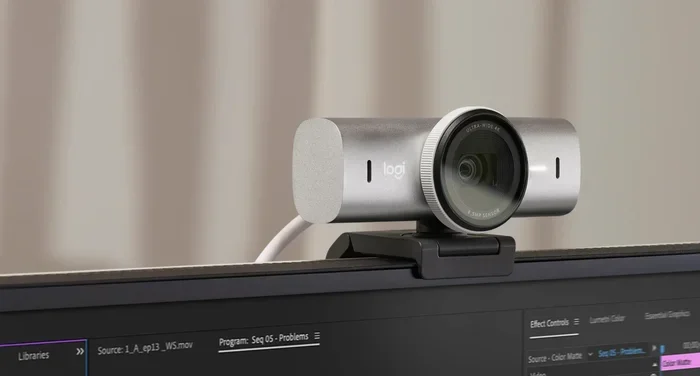
Not all Logitech Quickcam models are the same. Some have a small green LED, while others use a white or blue light. The location of the light also varies. On older models, the LED sits right next to the lens. On newer models, it might be embedded into the camera housing. The type of light and its connection to the camera circuit determines whether you can disable it through software or not.
Here are some common Logitech Quickcam models and their light characteristics:
- Logitech Quickcam Pro: Usually has a solid green LED near the lens. Often allows software control.
- Logitech Quickcam Communicate: Features a small indicator light that can sometimes be toggled off.
- Logitech Quickcam C270: Has a basic LED that is harder to disable through software alone.
- Logitech Quickcam Pro 9000: Older model with a light that may respond to driver-level settings.
- Logitech Quickcam Orbit: Features a light that is often tied to the camera motor and harder to separate.
Why Some Lights Cannot Be Disabled
Some Logitech webcams are designed so that the LED is hardwired directly to the camera sensor. This means there is no software command that can turn it off. The light stays on whenever the camera receives power. In these cases, you will need to explore physical alternatives, which we will cover later in this article.
Methods to Disable the Light on Your Logitech Quickcam
Now let us get to the part you have been waiting for. Here are the most effective methods to disable the webcam light on your Logitech Quickcam. We will start with the easiest and work our way to more advanced options.
Method 1: Use Logitech G Hub Software
Logitech G Hub is the official software suite for Logitech devices. It allows you to customize settings for your keyboard, mouse, and webcam. Here is how to use it to control your webcam light:
- Download and install Logitech G Hub from the official Logitech website.
- Open the app and sign in with your Logitech account.
- Select your Logitech Quickcam from the device list.
- Look for the webcam settings or lighting controls section.
- Toggle the LED indicator off if the option is available.
Not all models support this feature in G Hub. If you do not see a light control option, move on to the next method.
Method 2: Use Logitech Options Software
Logitech Options is an older but still widely used software for Logitech peripherals. Some Quickcam models work better with this app than with G Hub.
- Download Logitech Options from the Logitech support page.
- Install the software and connect your Quickcam.
- Navigate to the device settings panel.
- Look for camera or LED settings.
- Disable the indicator light if the option appears.
This software is especially useful for older Logitech Quickcam models that are no longer supported by G Hub.
Method 3: Edit the Windows Registry
If software methods do not work, you can try editing the Windows registry. This method is more advanced and should be done carefully. Always back up your registry before making changes.
- Press Windows Key + R to open the Run dialog.
- Type regedit and press Enter.
- Navigate to HKEY_LOCAL_MACHINE\SYSTEM\CurrentControlSet\Enum\USB.
- Look for your Logitech Quickcam device entry.
- Search for any LED or power-related settings within that key.
- Modify the value to disable the light if such an option exists.
Warning: Editing the registry can affect your system stability. Only proceed if you are comfortable with advanced Windows settings.
Method 4: Use Device Manager to Disable the Camera
This method does not turn off just the light, but it disables the entire camera. This effectively stops both the video feed and the LED.
- Right-click the Start button and select Device Manager.
- Expand the Imaging Devices or Cameras section.
- Right-click your Logitech Quickcam.
- Select Disable device.
- Confirm the action when prompted.
This is a simple and effective way to ensure your webcam privacy light is off, but it also means you cannot use the camera until you re-enable it.
Method 5: Use Physical Covers and Privacy Shutters
If software methods do not work for your model, physical covers are your best bet. Many modern webcams come with built-in privacy shutters. For older Logitech Quickcam models that lack this feature, you can add your own.
- Privacy shutter sliders: Small sliding covers that attach over the lens and light. They block both the camera and the LED.
- Black tape or stickers: A simple piece of black electrical tape over the light can effectively hide it. Just make sure it does not block the lens.
- 3D-printed covers: If you have access to a 3D printer, you can design a custom cover that fits your specific Quickcam model perfectly.
- Webcam cover strips: Adhesive-backed cover strips are widely available online and are easy to apply and remove.
Physical covers are the most reliable way to ensure your webcam indicator LED is completely hidden, regardless of what the camera is doing.
Model-Specific Tips for Popular Logitech Quickcam Versions
Different Logitech Quickcam models respond differently to light-disabling methods. Here are some specific tips for the most popular versions.
Logitech Quickcam Pro for Notebooks
This model is one of the more popular Logitech webcam options for laptop users. The LED on this model can often be controlled through the Logitech Quickcam software that comes bundled with the driver. Try updating to the latest driver from the Logitech website, as newer drivers sometimes add light control options that were not available before.
Logitech Quickcam Communicate
The Communicate model was designed specifically for video calling. Its light is relatively simple and can sometimes be disabled through the Logitech Video Effects settings. If that does not work, the physical cover method works great for this model since the light is easily accessible.
Logitech Quickcam C270
The C270 is one of the most widely used webcams in the world. Unfortunately, it has a basic LED that is not easily controlled through software. Most users who want to disable the light on Logitech Quickcam C270 end up using a physical cover or sticker. This is a perfectly valid and effective solution.
Logitech Quickcam Pro 9000
This is an older model that still has a loyal user base. The Pro 9000 responds better to driver-level tweaks. Try using the Logitech Quickcam software in compatibility mode for Windows 7 or 8 if you are running an older operating system. The light control option may appear in the advanced settings menu.
Common Mistakes People Make When Disabling the Webcam Light
When trying to turn off your webcam light, many people make avoidable mistakes. Here are the most common ones and how to prevent them.
Using Unreliable Third-Party Software
The internet is full of free tools that claim to disable your webcam light. Many of these are unnecessary or even harmful. Some may contain malware or unwanted bloatware. Stick to official Logitech software and trusted methods like registry editing or physical covers. Your computer security is more important than a simple light setting.
Ignoring Privacy Risks
Some people disable the light and forget that the camera is still active. If your webcam indicator LED is off, you might assume the camera is off too. This is not always true. Always make sure you are not running any video software in the background when your light is disabled. Regularly check that no unauthorized apps are accessing your camera.
Applying Physical Covers Incorrectly
It might seem simple, but placing a cover over the wrong part of the camera can block your view or ruin video quality. Make sure any cover you apply only blocks the LED and does not overlap with the lens. Use thin materials that do not put pressure on the camera housing.
Skipping Driver Updates
Outdated drivers are the reason many people think their Logitech Quickcam light cannot be disabled. Always check for the latest drivers on the Logitech support website. New driver updates often add features and settings that were missing in older versions.
Not Checking Warranty Terms
Opening up your webcam or making hardware modifications can void your warranty. If your Logitech Quickcam is still under warranty, stick to software methods or external covers. Do not open the camera housing or attempt to disconnect the LED internally unless you are prepared to lose your warranty coverage.
Expert Tips for Better Webcam Privacy and Lighting Control
Beyond just disabling the light, there are several steps you can take to improve your overall webcam privacy and experience. Here are some expert-backed tips that make a real difference.
Use a Dedicated Privacy Shutter
The best way to ensure complete privacy is to use a physical privacy shutter. These small sliding covers attach directly to your webcam and can be closed whenever the camera is not in use. They are inexpensive, easy to install, and work with virtually every Logitech Quickcam model. Many newer webcams even come with built-in shutters, so check your product specifications before purchasing.
Set Up a Camera Usage Schedule
If you use your webcam for work but want peace of mind during off-hours, set a usage schedule. Turn off your computer completely at the end of the day rather than just closing the lid. This ensures no background apps can access your camera without your knowledge. It also helps your webcam indicator LED stay off naturally.
Monitor Background Apps
Regularly check which applications have access to your webcam. On Windows, go to Settings > Privacy > Camera to see which apps are allowed to use your camera. On macOS, check System Settings > Privacy & Security > Camera. Revoking access for apps you do not use regularly adds an extra layer of protection.
Consider a USB Camera Blocker
For the highest level of security, consider using a USB camera blocker. This is a small hardware device that physically blocks the USB connection to your webcam when it is not in use. It is a simple plug-and-play solution that guarantees no one can access your camera, light or no light.
Keep Your Software Updated
Regular updates to Logitech G Hub, Logitech Options, and your webcam drivers ensure you have access to the latest features and security patches. Updated software often includes better control over your webcam settings, including light management and privacy options.
Use Soft Lighting for Better Video Quality
If you are disabling your webcam light because it looks bad on camera, consider investing in soft, diffused lighting instead. A simple ring light or desk lamp positioned behind your monitor can dramatically improve your video call appearance. This way, you do not need the built-in webcam light at all, and you get better results.
Conclusion
Can you disable the light on your Logitech Quickcam? The answer is yes, in most cases. Whether you choose to use software like Logitech G Hub or Logitech Options, tweak the Windows registry, or simply apply a physical cover, you have options. The method that works best depends on your specific model and your comfort level with different approaches.
Always prioritize your privacy and security when making changes to your webcam settings. If a software method does not work, a physical cover is a simple, effective, and risk-free alternative. Keep your drivers updated, monitor which apps access your camera, and stay informed about the latest webcam privacy tools and features.
Taking control of your Logitech Quickcam light gives you more comfort, better privacy, and a cleaner look during video calls. Start with the easiest method and work your way down the list until you find what works for your setup. Your webcam, your rules.
Frequently Asked Questions
Can I disable the webcam light on any Logitech Quickcam model?
Not all models support software-based light disabling. Newer models with advanced drivers may offer this feature through Logitech G Hub or Logitech Options. Older models often require physical covers or registry edits. Check your specific model’s support page for details.
Will disabling the webcam light affect video quality?
No, disabling the indicator LED has no effect on video quality whatsoever. The light is purely a status indicator and does not contribute to image capture or lighting for your video feed.
Is it safe to edit the Windows registry to disable the Logitech Quickcam light?
Editing the registry is generally safe as long as you follow trusted instructions and back up your registry first. However, incorrect changes can cause system issues. Only proceed if you are comfortable with advanced Windows troubleshooting.
Do all Logitech webcams have a privacy shutter?
No, not all models include a built-in privacy shutter. Older and budget models often lack this feature. You can purchase universal privacy shutters or adhesive covers that work with any webcam model.
Can I use tape to cover the webcam light?
Yes, a small piece of black tape or a sticker can effectively cover the LED. Just make sure the tape does not block the camera lens or put pressure on the webcam housing. Use thin, non-adhesive-strength materials to avoid residue buildup.
Why does my Logitech Quickcam light stay on even when the camera is not in use?
This can happen if a background application is accessing the camera or if the driver is not functioning correctly. Check your privacy settings in Windows or macOS to see which apps have camera access. Updating your Logitech webcam driver often resolves this issue as well.