Can The Glowforge Aura Engrave on Many Different Surfaces
The Glowforge Aura is a powerful desktop laser engraver that can work on many different surfaces, from wood and leather to acrylic and glass. Whether you are a hobbyist or a small business owner, this machine opens up a world of custom engraving possibilities. In this guide, we will explore what surfaces the Glowforge Aura can engrave, how it works, and tips for getting the best results every time.
The world of custom crafting has changed a lot in recent years. One machine that has caught a lot of attention is the Glowforge Aura. Many people want to know: can the Glowforge Aura engrave on all kinds of surfaces? The short answer is yes. But the full story is much more interesting.
This machine is a desktop laser engraver that lets you create detailed designs on many different materials. From personalized gifts to custom business items, the possibilities are huge. In this article, we will look at every surface the Glowforge Aura can handle. We will also share tips, warnings, and practical advice to help you get the best results.
Whether you are a hobbyist just starting out or a maker looking to grow your business, understanding what this machine can do is important. The Glowforge Aura is not just another laser cutter. It is designed to make engraving simple, fast, and fun. Let us dive into the details and see what makes this machine stand out.
Key Takeaways
- Versatile Material Support: The Glowforge Aura can engrave on wood, leather, acrylic, glass, anodized metal, and more, making it one of the most flexible desktop laser engravers available.
- Easy to Use: With the Glowforge app and built-in camera, setting up engraving jobs is simple even for beginners.
- Adjustable Laser Power: The machine offers variable laser settings that let you fine-tune engraving depth and speed for each material.
- Not for All Metals: The Glowforge Aura cannot engrave bare or polished metals safely. It works best on anodized or coated surfaces.
- Great for Custom Projects: From personalized gifts to small business products, the Glowforge Aura handles a wide range of custom engraving projects.
- Safety Matters: Always follow laser safety guidelines, use proper ventilation, and wear protective eyewear when operating the machine.
- Strong Value: Compared to other models in the Glowforge lineup, the Aura offers a great balance of features and affordability.
📑 Table of Contents
- What Is the Glowforge Aura and Why Does Engraving Matter?
- Can the Glowforge Aura Engrave on Different Surfaces?
- How the Glowforge Aura Laser Engraving Process Works
- Tips for Getting the Best Engraving Results
- Glowforge Aura vs Other Laser Engravers: A Comparison
- Common Mistakes to Avoid When Engraving
- Final Thoughts on the Glowforge Aura Engrave Capabilities
What Is the Glowforge Aura and Why Does Engraving Matter?
The Glowforge Aura is a compact laser engraving machine built for home and small workshop use. It uses a focused laser beam to etch designs into surfaces with precision. Unlike traditional carving tools, a laser engraver does not touch the material. This means cleaner lines, finer details, and less waste.
Engraving has become hugely popular in recent years. People love adding personal touches to gifts, creating branded items for businesses, and crafting unique home decor. A laser engraver makes all of this possible at the push of a button. The Glowforge Aura brings this technology into an affordable, user-friendly package.
The machine connects to your computer or phone through the Glowforge app. You upload a design, place your material on the bed, and let the machine do the work. It is that simple. The built-in camera helps you position your design perfectly every time.
Why People Are Choosing Desktop Laser Engravers
More and more people are buying desktop laser engravers like the Glowforge Aura. Here are a few reasons why:
- Affordability: You do not need a huge budget to start. The Aura is priced to be accessible for hobbyists and small businesses.
- Speed: Engraving a design takes minutes, not hours. You can complete projects fast and take on more work.
- Precision: The laser follows your design exactly, even for the finest details. This level of accuracy is hard to achieve by hand.
- Versatility: One machine can handle many different materials. You are not locked into just one type of project.
- No Mess: There is no dust, no chemicals, and no messy tools. The laser does all the work cleanly.
These benefits explain why so many people are excited about laser engraving as a hobby or side business. The Glowforge Aura makes it easy to get started.
Can the Glowforge Aura Engrave on Different Surfaces?
Now let us get to the heart of the question. Can the Glowforge Aura engrave on many different surfaces? Absolutely. This machine is designed to work with a wide variety of materials. Below, we break down each surface type and what you can expect.
Engrave Wood Easily and Beautifully
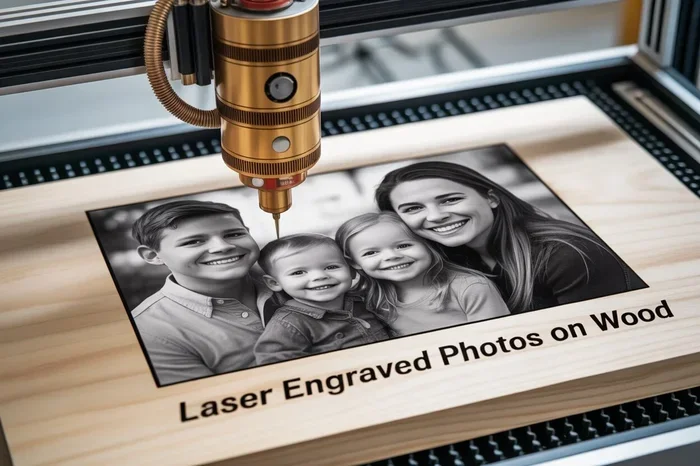
Wood is one of the most popular materials for laser engraving. The Glowforge Aura handles wood beautifully. You can engrave on plywood, hardwood, balsa, cork, and even reclaimed wood. The laser burns the surface gently, creating a contrast that makes your design stand out.
For best results on wood, use laser settings with moderate power and speed. Softer woods like balsa engrave quickly and deeply. Harder woods like oak or maple may need slower speeds or multiple passes. Always test on a scrap piece first.
Practical Tip: If you want a darker engraving on light wood, try applying a thin layer of paste wax after engraving. It brings out the contrast nicely.
Engrave Leather for Custom Accessories
Engrave leather is another fantastic use for the Glowforge Aura. Natural leather, vegan leather, and suede all work well. You can create custom wallets, belts, phone cases, keychains, and dog collars with ease.
Leather engraving produces a warm, burnt look that many people love. The laser removes the top layer of the material, revealing a lighter color underneath. This creates a beautiful contrast that is both durable and elegant.
Quick Tip: Use lower power settings on leather to avoid burning through. A test run on a scrap piece helps you find the sweet spot for depth and detail.
Engrave Acrylic for Stunning Visual Effects
Engrave acrylic is where the Glowforge Aura really shines. Acrylic comes in many colors and finishes. When you engrave on clear or frosted acrylic, the laser creates a frosted white mark that looks professional and clean.
You can make custom signs, awards, display stands, and decorative pieces with acrylic. The material is durable and looks great in any setting. Engraving depth on acrylic is usually shallow, which is perfect for surface designs.
Common Mistake: Do not use too much power on acrylic. High settings can melt the edges of your engraving and ruin the clean look. Keep the power moderate and the speed up.
Engrave Glass for Elegant Gifts
Glass engraving with a laser engraver might sound tricky, but the Glowforge Aura handles it well. You can engrave on glass cups, mirrors, windows, and glass tiles. The result is a frosted, etched look that looks high-end and professional.
Glass requires a specific approach. You should use lower power and slower speed. Some users also apply a thin layer of masking tape or use a special engraving spray to help the laser grip the surface.
Quick Tip: For glass, try using a damp paper towel over the surface before engraving. This helps with heat dissipation and can improve the clarity of your design.
Engrave Anodized Metal and Coated Surfaces
Can you engrave metal with the Glowforge Aura? Yes, but with an important caveat. The machine works on anodized aluminum and other coated metals. The laser removes the colored coating to reveal the raw metal underneath. This creates a permanent, high-contrast mark.
You cannot engrave bare or polished metals directly. The laser would bounce off or cause unsafe conditions. Always make sure the metal surface has a coating or anodized layer before engraving.
Common coated metals that work well include:
- Anodized aluminum tags and plates
- Coated steel signs
- Anodized metal phone cases
- Powder-coated metal pieces
Other Surfaces Worth Trying
The Glowforge Aura can also work on several other laser engraving surfaces. Here are a few worth mentioning:
- Cardboard and Paper: Great for custom cards, invitations, and packaging. Engraves quickly and cleanly.
- Felt and Fabric: You can engrave on certain fabrics for custom patches and textile art.
- Stone and Tile: With the right settings, you can engrave on slate, granite, and ceramic tiles for coasters and decorative pieces.
- Rubber Stamps: The Aura can carve out custom rubber stamps for crafting and office use.
- Submerge Engraving: Some users experiment with submerge engraving on certain materials for a 3D effect.
The key takeaway is that the range of materials for engraving is very broad. This machine is one of the most flexible options in the desktop laser engraver market.
How the Glowforge Aura Laser Engraving Process Works
Understanding how the machine works helps you get better results. The process is straightforward, but knowing the details gives you more control over your projects.
Laser Power and Engraving Speed
The Glowforge Aura uses a laser power system that you can adjust. Higher power means deeper engraving. Faster speed means less time per job. Finding the right balance is key to great results.
Every material has its own ideal settings. The Glowforge community has shared thousands of laser settings profiles online. You can search for your specific material and find recommended power, speed, and pass settings. This makes it easy to get started even as a complete beginner.
Design Software and the Glowforge App
You do not need to be a graphic designer to use the Glowforge Aura. The engraving software is built right into the Glowforge app. You can upload images, type text, or choose from a library of pre-made engraving designs.
The app also lets you position your design on the material using the built-in camera. You can resize, rotate, and arrange multiple designs at once. Once you are happy with the layout, you hit start and the machine takes over.
Expert Insight: Many users recommend designing in external software like Adobe Illustrator or Inkscape for more complex projects. You can export your designs as SVG files and import them into the Glowforge app for precise results.
The Role of Focus and Alignment
Before every job, the Glowforge Aura needs to know the height of your material. This is called focusing. The machine uses a built-in focus tool to measure the distance between the laser head and the surface. Proper focus ensures clean, consistent engraving depth across your entire design.
Misalignment is one of the most common issues beginners face. Always make sure your material is flat and snug against the bed. Use the camera preview to double-check your design placement before starting the job.
Tips for Getting the Best Engraving Results
Getting great results every time comes down to a few simple practices. Here are some tips that experienced Glowforge users swear by.
Always Do Test Runs
Before you engrave your final piece, always run a test on a scrap piece of the same material. This lets you check the power, speed, and depth without risking your project. Test runs save material, time, and frustration.
Keep Your Machine Clean
Laser machines collect debris over time. Smoke residue, dust, and small particles can affect engraving quality. Wipe down the bed and clean the lens regularly. A clean machine gives you cleaner engraving every time.
Use the Right Settings for Each Material
Every material responds differently to the laser. What works for wood will not work the same way for leather or glass. Keep a notebook or spreadsheet of your best laser settings for each material. This reference will save you a lot of trial and error.
Ventilation Is Essential
Laser engraving produces fumes and smoke. Always use the Glowforge Aura in a well-ventilated area or connect it to an exhaust system. Good ventilation keeps your workspace safe and prevents smoke marks on your materials.
Follow Laser Safety Guidelines
Laser safety should always be a top priority. Never look directly at the laser beam. Keep the machine enclosed while it is running. Make sure children and pets stay away from the operating area. Wearing laser safety glasses is also a smart precaution.
Experiment with Multiple Passes
For deeper engraving depth, try running multiple lighter passes instead of one heavy pass. This technique often produces cleaner results and reduces the risk of burning or warping your material.
Explore the Glowforge Community
The Glowforge community is one of the best resources for learning. Join forums, watch tutorials, and share your projects. Other users are always happy to share their favorite laser settings, design ideas, and troubleshooting tips.
Glowforge Aura vs Other Laser Engravers: A Comparison
How does the Glowforge Aura compare to other machines on the market? Let us look at how it stacks up against other Glowforge models and some popular alternatives.
| Feature | Glowforge Aura | Glowforge Pro | Glowforge Basic |
|---|---|---|---|
| Engraving Power | 45W | 45W | 45W |
| Cutting Capacity | Limited | Full | Limited |
| Engraving Area | 11 x 11 inches | 11 x 20 inches | 11 x 11 inches |
| Camera | Yes | Yes | Yes |
| Price Range | $$ | $$$ | $ |
| Best For | Engraving-focused projects | Full cutting and engraving | Budget-friendly engraving |
| Engrave Wood | Excellent | Excellent | Excellent |
| Engrave Leather | Excellent | Excellent | Good |
| Engrave Acrylic | Excellent | Excellent | Excellent |
| Engrave Glass | Good | Good | Good |
| Engrave Metal | Anodized only | Anodized only | Anodized only |
As you can see, the Glowforge Aura is a strong choice if your main focus is engraving. It has the same powerful laser as the Pro model but a smaller working area and fewer cutting capabilities. For many users, this is the perfect balance of power and price.
Expert Insight: If you need to cut thick materials or work with very large pieces, the Glowforge Pro might be a better fit. But if engraving is your primary goal, the Aura delivers excellent results at a more accessible price point.
Common Mistakes to Avoid When Engraving
Even experienced users make mistakes. Knowing what to avoid saves time, material, and frustration. Here are some common errors to watch out for.
Skipping Test Runs
The biggest mistake beginners make is jumping straight into a final project without testing. Always run a small test first. This one habit will save you from wasted materials and disappointing results.
Using the Wrong Settings
Every material needs its own laser settings. Using wood settings on leather will give you poor results. Take the time to find the right settings for each material you work with.
Ignoring Ventilation
Laser engraving produces smoke and fumes. Working in a closed room without ventilation is unhealthy and can leave residue on your materials. Always ensure proper airflow.
Overloading the Machine
Trying to engrave too many pieces at once or using settings that are too aggressive can strain the machine. Let the Aura work at its own pace for the best results and longest machine life.
Forgetting to Focus
Skipping the focus step leads to uneven engraving depth and blurry designs. Always focus the machine before every job, even if you are using the same material as before.
Final Thoughts on the Glowforge Aura Engrave Capabilities
So, can the Glowforge Aura engrave on many different surfaces? The answer is a clear and confident yes. This desktop laser engraver handles wood, leather, acrylic, glass, anodized metal, and more with impressive quality and ease.
Whether you want to create custom engraving projects for fun, gifts, or profit, the Glowforge Aura gives you the tools to succeed. Its user-friendly app, precise laser, and flexible material support make it one of the best choices in the laser engraver market today.
The machine is not perfect for every situation. It cannot cut through thick materials easily, and it does not work on bare metals. But for engraving specifically, it is hard to beat at its price point.
If you are new to laser engraving, the Glowforge Aura is a fantastic place to start. If you are an experienced maker looking for a reliable second machine, it is also a great choice. The wide range of supported surfaces means you will never run out of projects to try.
Start with simple projects, practice your laser settings, and gradually take on more complex work. The Glowforge Aura is a machine that grows with you. Invest the time to learn it, and you will be amazed at what you can create.
Now that you know what surfaces the Glowforge Aura can handle, it is time to start your first project. Pick a material, design something you love, and let the machine do the magic. Happy engraving!
Frequently Asked Questions
What surfaces can the Glowforge Aura engrave?
The Glowforge Aura can engrave on a wide range of surfaces including wood, leather, acrylic, glass, anodized aluminum, cardboard, felt, rubber, stone, and coated metals. It is one of the most versatile laser engraving machines for desktop use. Always check that the material is safe for laser engraving before starting your project.
Can the Glowforge Aura engrave metal?
Yes, but only coated or anodized metals. The Glowforge Aura cannot engrave bare or polished metals safely. It works by removing the surface coating to reveal the metal underneath. Common materials include anodized aluminum tags, coated steel signs, and powder-coated metal pieces.
How deep can the Glowforge Aura engrave?
The engraving depth depends on the material and your laser settings. For most materials, the engraving is shallow and surface-level. On softer materials like balsa wood or leather, you can achieve deeper marks by using higher power and slower speed or by running multiple passes.
Is the Glowforge Aura easy to use for beginners?
Absolutely. The Glowforge Aura is designed with beginners in mind. The Glowforge app guides you through every step, from uploading your design to positioning it on the material. The built-in camera and focus tool make setup simple. Many users report creating their first successful engraving within minutes of unboxing the machine.
What software do I need for the Glowforge Aura?
The Glowforge app comes with the machine and includes built-in design tools, a library of templates, and camera positioning features. For more advanced projects, you can use external software like Adobe Illustrator or Inkscape to create SVG files, which the Glowforge app can import directly.
How fast is the engraving process on the Glowforge Aura?
Engraving speed varies depending on the material, design complexity, and laser settings. Simple text designs on thin materials can be completed in under a minute. More detailed images on harder materials may take several minutes. The machine is fast enough for small batches and efficient enough for ongoing projects.