Can I Use My Smartphone As A Dash Cam Instead Of Buying One
Yes, you absolutely can use your smartphone as a dash cam instead of buying a dedicated device. With the right app, a sturdy phone mount, and a reliable power source, your phone becomes a fully functional car dash camera that records your every drive. This guide walks you through everything you need to know, from choosing the best dash cam app to setting up parking mode and avoiding common pitfalls.
Have you ever wondered if your phone can do more than just take selfies and scroll through social media? What if I told you that your smartphone can become a powerful dash cam that protects you on the road? It sounds like something out of a tech magazine, but it is totally real and surprisingly easy to set up.
Every day, drivers face unexpected situations on the road. Fender benders, hit-and-runs, and aggressive drivers can happen to anyone. Having video evidence can make a huge difference when filing an insurance claim or proving your innocence. But dedicated dash cams can be expensive. That is where your smartphone dash cam setup comes in handy.
Using your phone as a dash cam means you get high-quality video recording without spending extra money. You already carry a powerful camera in your pocket. Why not put it to work? In this article, we will walk you through everything you need to know. From the best apps to mount options and storage tips, you will find all the answers right here.
Key Takeaways
- Smartphone dash cams save money: You can skip buying a dedicated dash cam and use your existing phone with a free or low-cost app.
- The right app makes all the difference: Apps like Nexar, DailyRoads Voyager, and CamOnPro offer features like loop recording and GPS tracking.
- A quality phone mount is essential: Your phone must stay secure and properly positioned on the windshield to capture clear footage.
- Watch for battery drain and storage limits: Continuous recording can drain your battery and fill up your phone storage quickly.
- Smartphone dash cams work surprisingly well at night: Modern phones have excellent low-light cameras, but a mount with a wide angle lens helps.
- Parking mode is possible with the right setup: Using a hardwire adapter or USB power, your phone can record even when the car is off.
📑 Table of Contents
- Why You Should Consider Using Your Smartphone As A Dash Cam
- How To Set Up Your Phone As A Dash Cam
- Best Apps For Turning Your Phone Into A Dash Cam
- Smartphone Dash Cam vs Dedicated Dash Cam: Which Is Better?
- Common Mistakes People Make When Using Their Phone As A Dash Cam
- Expert Tips For Getting The Best Dash Cam Footage From Your Phone
- Conclusion
Why You Should Consider Using Your Smartphone As A Dash Cam
There are many reasons why drivers are switching to a phone dash cam setup. Let us look at the biggest benefits that make this option worth your time.
It Saves You Money
A dedicated dash cam can cost anywhere from 30 to 200 dollars or more. Some models with advanced features like 4K recording and GPS tracking can cost even more. When you use your smartphone, you skip that expense entirely. You already own the device. All you need is a free or cheap app and a simple mount. Over time, that adds up to serious savings.
Your Phone Has an Amazing Camera
Modern smartphones come with cameras that rival or even beat entry-level dash cams. Many phones now shoot 4K video, have excellent low-light performance, and offer wide-angle lenses. When you mount your phone on the windshield, you get surprisingly clear footage of the road ahead and behind you. The image quality from a flagship phone can put dedicated cameras to shame.
It Is Easy to Update
With a dedicated dash cam, you are stuck with the hardware you bought. But with a smartphone dash cam, you get regular software updates, improved camera quality, and new features every time you upgrade your phone. Your dash cam gets better as your phone gets better. You never have to buy a new device just to get better performance.
You Get More Than Just Video
Many dash cam apps offer features that expensive dedicated cameras do not have. These include GPS tracking, real-time alerts, and cloud backup. Some apps can even detect collisions and automatically save the footage. This makes your phone a full-featured car dash camera system. You get smart driving tools built right into your device.
It Supports Driving Safety
Knowing that your drives are being recorded encourages safer driving habits. When you have a dash cam running, you are less likely to engage in risky behavior behind the wheel. This is especially helpful for new drivers or anyone who spends a lot of time on the road. The presence of continuous recording can keep you calm and focused.
How To Set Up Your Phone As A Dash Cam
Setting up your phone as a dash cam is simpler than you might think. Follow these steps and you will be recording your drives in no time.
Step 1: Choose the Right App
The first thing you need is a reliable dash cam app. There are many options available for both Android and iPhone. These apps turn your phone into a continuous recording device. They handle things like loop recording, motion detection, and automatic saving when a collision is detected.
Look for an app that offers free basic features. You can always upgrade to a paid version if you need more storage or advanced settings. Some popular choices include Nexar, DailyRoads Voyager, and CamOnPro. Each app has its own strengths, so try a few and see which one works best for you.
Step 2: Get a Quality Phone Mount
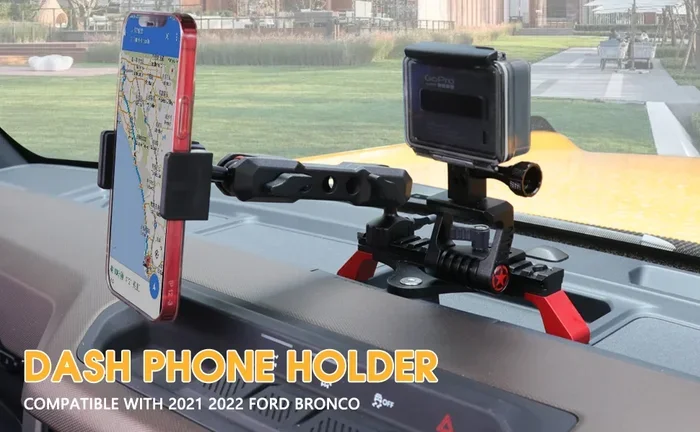
This is the most important piece of hardware you will buy. A good phone mount keeps your device secure and properly positioned. You want your phone to stay put even on bumpy roads and during sudden stops.
There are two main types of mounts to consider:
- Windshield mounts: These attach to your windshield with suction cups. They are easy to install and remove. They work well for most drivers and keep your view clear.
- Dashboard mounts: These sit flat on your dashboard. They use adhesive or friction to stay in place. They are a good option if you prefer not to stick anything on your windshield.
Make sure the mount holds your phone at the right angle. You want the camera to capture as much of the road as possible. A mount with a wide angle adjustment is ideal for getting the full picture of your driving environment.
Step 3: Connect a Power Source
Continuous video recording drains your battery fast. You must keep your phone charged while driving. The best way to do this is by plugging your phone into your car’s USB port or a cigarette lighter adapter.
Use a long, high-quality charging cable so the cable does not interfere with your camera view. Some drivers use a cable management clip to keep the cord neat and out of the way. This small detail can make a big difference in how clean your setup looks and how well it works.
Step 4: Configure Your Recording Settings
Before you start driving, take a few minutes to set up your app correctly. Here are the key settings to adjust:
- Resolution: Set your video quality to at least 1080p. Higher resolution gives you clearer footage, especially when reviewing it later for accident evidence.
- Loop recording: Turn this on so your phone automatically overwrites old footage when storage runs low. This ensures you always have the most recent recording available.
- GPS tracking: Enable GPS if your app supports it. This adds location data to your videos, which can be very helpful during insurance claims.
- Motion detection: Turn on parking mode with motion detection. This lets your phone start recording when it detects movement around your car.
- Audio recording: Decide whether you want sound captured with your video. Audio can provide useful context but may also capture private conversations.
Best Apps For Turning Your Phone Into A Dash Cam
Not all dash cam apps are created equal. Some are free and basic, while others offer premium features worth the price. Here are some of the best options available right now for your smartphone dash cam setup.
Nexar
Nexar is one of the most popular dash cam apps on the market. It offers automatic collision detection, GPS tracking, and cloud backup. The app also creates a dash cam diary, so you can easily review your drives. The free version is solid, and the paid version adds more storage and advanced features. Nexar works on both Android and iPhone, making it a versatile choice for any driver.
DailyRoads Voyager
This is a great option for Android users. DailyRoads Voyager offers continuous recording with loop functionality. It automatically saves footage when it detects a sudden stop or impact. The app is lightweight and does not drain your battery as quickly as some competitors. It also supports rear camera input if you want to add a second device for full coverage.
CamOnPro
CamOnPro is known for its clean interface and reliable performance. It supports both front and rear recording if you use a second phone or camera. The app offers a wide angle lens view and has a built-in speed monitor. It is a solid choice for drivers who want a simple, no-fuss setup. The app runs smoothly in the background without hogging your phone’s resources.
LiveDashboard
LiveDashboard is a great free option that combines a dash cam with a speedometer and compass. It is perfect for drivers who want multiple tools in one app. The video quality is good, and the app runs smoothly in the background. It is an excellent starting point for anyone who wants to try a smartphone dash cam without spending a dime.
Reincubate Camo
Camo is a unique option that turns your old phone into a dedicated security and dash cam device. It supports multiple camera inputs and offers excellent video quality. The app is designed for reliability and runs continuously without interruption. It is a great choice if you have an older phone lying around that you want to repurpose.
Smartphone Dash Cam vs Dedicated Dash Cam: Which Is Better?
Both options have their strengths. Let us compare them side by side so you can make an informed decision about what works best for your driving needs.
| Feature | Smartphone Dash Cam | Dedicated Dash Cam |
|---|---|---|
| Cost | Free or low cost (app plus mount) | 30 to 200+ dollars |
| Video Quality | Excellent (4K on modern phones) | Good to excellent (varies by model) |
| Ease of Setup | Very easy with the right app | Plug and play, minimal setup |
| Battery Usage | High (needs constant charging) | Low (built-in battery or hardwired) |
| Parking Mode | Possible with hardwire or USB power | Built-in parking mode on most models |
| Durability | Phone may overheat in hot cars | Built for extreme temperatures |
| Storage | Uses your phone storage | Dedicated microSD card storage |
| Updates | Regular app updates | Firmware updates only |
As you can see from the comparison, a smartphone dash cam is a fantastic budget-friendly option. However, if you live in a very hot climate or drive long distances daily, a dedicated dash cam might be more reliable. Dedicated units are built to handle heat and continuous use without overheating.
That said, for most casual drivers, a phone setup works perfectly. You get excellent video quality, smart features, and you do not have to buy another device. The convenience of using something you already own is hard to beat.
When a Dedicated Dash Cam Makes More Sense
There are situations where a dedicated unit is the better choice. If you drive a taxi or rideshare, you need a device that can run for hours without overheating. Commercial drivers who log thousands of miles will appreciate the built-in reliability of a purpose-built dash cam. These devices are also more discreet and harder for thieves to spot and steal.
When a Smartphone Dash Cam Is the Clear Winner
For everyday commuters, weekend road trippers, and casual drivers, a phone setup is hard to beat. The cost is minimal, the video quality is outstanding, and you get access to smart features like cloud backup and collision detection. If you only need dash cam coverage for a few hours a day, your phone is more than up to the task.
Common Mistakes People Make When Using Their Phone As A Dash Cam
Even with the best setup, there are some pitfalls you should avoid. Here are the most common mistakes drivers make with their phone dash cam setups.
Forgetting to Clear Storage
Video files take up a lot of space. If your phone storage is full, the app will stop recording. Before each trip, make sure you have enough free space. Aim for at least 5 to 10 gigabytes of free storage for a full day of driving. Regularly delete old footage that you no longer need to keep your storage optimized.
Using a Cheap or Unstable Mount
A flimsy mount can cause your phone to shift or fall while driving. This means your footage will be shaky or completely blocked. Invest in a good quality mount that holds your phone firmly in place. Look for mounts with strong suction cups or heavy-duty adhesive bases. A stable phone holder is the foundation of any good smartphone dash cam setup.
Ignoring Battery Overheating
Phones can overheat when they record video for hours in direct sunlight. This is one of the biggest drawbacks of using a phone as a dash cam. To prevent overheating, place your phone in a shaded spot on the dashboard. You can also use a mount with a built-in cooling fan. Taking breaks and not running the app when the car is parked for long periods also helps.
Not Testing Your Setup Before a Trip
Do not wait until you are in an accident to discover your app is not working. Test your entire setup before every long trip. Check that the camera is recording, the audio is clear, and the storage is sufficient. A quick 30-second test can save you a lot of trouble later and give you confidence that your accident evidence is being captured properly.
Leaving Your Phone Unlocked
Some phones lock the screen or go to sleep during long recordings. This can stop the app from working. Go into your phone settings and disable auto-lock while the dash cam app is running. Also, turn off notifications that might pop up and block the camera view. You want your video recording to run smoothly and uninterrupted throughout your drive.
Ignoring Night Vision Limitations
While modern phones have decent low-light cameras, they are not true night vision devices. If you drive frequently at night, be aware that your footage may be grainy in poorly lit areas. To improve night recording, keep your windshield clean on the inside and position your phone where it gets some ambient light from the dashboard.
Expert Tips For Getting The Best Dash Cam Footage From Your Phone
Want to get the most out of your smartphone dash cam? Here are some pro tips that experienced drivers swear by.
Clean Your Camera Lens Before Every Drive
It sounds simple, but a dirty lens can make your footage blurry and unusable. Keep a microfiber cloth in your car and give your phone lens a quick wipe before you start driving. Dust, fingerprints, and smudges can seriously affect video quality. A clean lens ensures your front camera and any rear camera capture crisp, clear footage.
Position Your Phone at the Right Height
The best position for your dash cam phone is near the top of your windshield, behind the rearview mirror. This gives you the widest view of the road without obstructing your sight. Make sure the camera is angled slightly downward to capture the road clearly. Proper positioning is key to getting reliable driving safety footage.
Use a High-Speed Memory Card (If Possible)
If your phone supports a memory card, use a high-speed one for video recording. A Class 10 or UHS-I card ensures smooth playback and fast write speeds. This prevents dropped frames and lag during recording. With enough storage, you can keep days of continuous recording without worrying about running out of space.
Enable Cloud Backup When Available
Accidents happen, and your phone could be damaged or stolen along with the footage. Many dash cam apps offer cloud backup, which saves your videos to the cloud automatically. This means your evidence is safe even if your phone is gone. Cloud backup is especially valuable for protecting accident evidence that you may need weeks or months later.
Consider a Second Phone for Rear Coverage
If you want front and rear coverage, you can use a second phone as a rear dash cam. Mount it on your rear window facing backward. This gives you full coverage of what is happening behind you as well. Some apps even support dual-channel recording if you have the right equipment. Rear camera coverage is especially useful for parking situations and hit-and-run incidents.
Keep Your Phone Plugged In and Updated
Always use a power source while recording. A reliable charging cable ensures your phone does not die mid-drive. And make sure your dash cam app is up to date. Developers regularly fix bugs and improve performance. An updated app means fewer crashes and better reliability. This small habit can make a big difference in the quality of your video recording experience.
Use Motion Detection for Parking Mode
One of the most valuable features of a smartphone dash cam is parking mode. When enabled, your phone stays in a low-power state and only starts recording when it detects motion or a sudden impact. This is incredibly useful if someone hits your car in a parking lot while you are away. Make sure you have your phone plugged in and your mount is secure for parking mode to work reliably.
Conclusion
Using your smartphone as a dash cam is one of the smartest and most cost-effective decisions a driver can make. You already have a powerful camera in your pocket. With the right app, a reliable mount, and a power source, you can turn it into a fully functional car dash camera that keeps you protected on every drive.
The setup is simple, the cost is minimal, and the benefits are real. You get high-quality video, GPS tracking, and smart features that rival expensive dedicated units. Whether you are a daily commuter or an occasional road tripper, a smartphone dash cam setup gives you peace of mind without breaking the bank.
Give it a try on your next drive. Set up your phone with a dash cam app, mount it securely, and hit the road with confidence. You might just be glad you have that footage when you need it most. Your phone is already one of the most powerful tools you own. Now it can also be your guardian on the road.
Frequently Asked Questions
Is It Legal to Use My Phone As a Dash Cam?
In most places, yes. Using a smartphone as a dash cam is generally legal as long as the mount does not obstruct your view of the road. However, laws vary by country and state, so it is always a good idea to check your local regulations before setting up your phone dash cam. Keep the device small and positioned behind the rearview mirror for the safest and most legal setup.
Will Using My Phone As a Dash Cam Drain the Battery Quickly?
Continuous video recording does use a lot of battery power. To prevent excessive battery drain, always keep your phone plugged into a power source while recording. Using a high-quality charging cable and a car adapter will keep your phone powered throughout your drive. Most modern phones also have battery optimization settings that help manage power during long recording sessions.
Can I Use My Old Phone As a Dash Cam?
Absolutely. An older phone works perfectly fine as a dash cam as long as it has a working camera and enough storage. You do not need the latest flagship device. In fact, using an old phone as a dash cam is a great way to repurpose a device that might otherwise sit unused. Just make sure the phone has enough battery life and gets adequate ventilation while mounted in your car.
Do Dash Cam Apps Work in the Background?
Yes, most quality dash cam apps are designed to run in the background while you use other apps. However, some phones have aggressive battery management that can close background apps. To prevent this, go into your phone settings and grant the dash cam app permission to run in the background. You may also need to disable battery optimization for the app specifically.
How Much Storage Do I Need for Dash Cam Video Recording?
Video files can be large, especially at higher resolutions. A 1080p video uses about 1 to 2 gigabytes per hour of recording. For a full day of driving, you should have at least 10 to 15 gigabytes of free space. If you use a phone with limited storage, consider using an app that supports automatic deletion of old footage through loop recording. This keeps your storage managed without any manual effort.
Can My Smartphone Dash Cam Record at Night?
Yes, modern smartphones have surprisingly good low-light cameras. While they are not true night vision devices, they can capture usable footage in dim conditions. To improve night recording, keep your windshield clean, position your phone where it gets some ambient light, and use an app that adjusts exposure automatically. For the best results, avoid mounting your phone where it faces direct glare from oncoming headlights.