Can I Use A USB Controller On My Switch For Gaming
Yes, you can use a USB controller on your Nintendo Switch for gaming. The Switch supports both wired and wireless USB controllers through its USB ports, giving you more options than just Joy-Cons. Whether you prefer a Pro Controller, a third-party USB controller, or a wired gamepad, this guide walks you through everything you need to know about setup, compatibility, and getting the best gaming experience.
You have a Nintendo Switch. You love gaming on it. But those Joy-Cons just aren’t cutting it for your favorite games. Maybe your hands cramp during long sessions. Maybe you want more precise controls. Maybe you just prefer a traditional gamepad feel.
So you start searching for answers. Can I use a USB controller on my Switch? The short answer is yes. The longer answer involves a few details you should know. This guide covers everything from compatibility to setup to the best USB controllers you can plug into your Nintendo console.
Whether you game in handheld mode or docked mode, a USB controller can transform your experience. Let us walk through how this works and what you need to get started.
Key Takeaways
- The Switch supports USB controllers: You can connect wired and wireless USB controllers to your Nintendo Switch for a better gaming experience.
- Nintendo Pro Controller works via USB: The official Pro Controller connects through USB-C and offers excellent comfort and battery life.
- Third-party controllers need compatibility checks: Not all USB controllers work seamlessly with the Switch, so verify before buying.
- You need the right adapter for wireless controllers: A USB wireless adapter or Bluetooth connection is required for non-Nintendo wireless pads.
- Input lag matters for competitive gaming: Wired USB controllers generally offer lower input lag than wireless options.
- Setup is straightforward: Connecting a USB controller takes only a few minutes with the right cable or adapter.
📑 Table of Contents
- Understanding USB Controller Compatibility With the Nintendo Switch
- Step-by-Step Guide to Connecting a USB Controller
- Best USB Controllers for the Nintendo Switch
- Using USB Controllers in Different Switch Modes
- Common Problems and How to Fix Them
- Why Use a USB Controller Instead of Joy-Cons?
- Final Thoughts on Using USB Controllers With Your Switch
Understanding USB Controller Compatibility With the Nintendo Switch
The Nintendo Switch is a versatile console. It plays games in handheld mode, tabletop mode, and docked mode. But when it comes to USB controllers, not all options are created equal. Your Switch has specific requirements for what it will recognize and support.
The console features USB ports on the dock and on the underside of the unit. These ports accept USB-A and USB-C connections depending on the model. The Switch uses standard USB protocols for controller input. This means most controllers that follow these protocols will work.
However, the Switch does have some limitations. It does not support every USB controller out of the box. Some controllers need driver support that the Switch simply does not offer. This is where compatibility becomes your best friend. Always check if a controller is Switch-compatible before purchasing.
How the Switch Recognizes USB Controllers
When you plug in a USB controller, the Switch checks its device profile. If the profile matches a supported input standard, the console accepts it. The Switch supports standard HID (Human Interface Device) protocol controllers. This is the same protocol used by most keyboards and mice on PCs.
Some controllers require additional software or drivers. The Switch does not run third-party driver software. This means controllers that depend on proprietary drivers will not work. Stick to controllers that use standard input protocols for the best results.
Wired vs Wireless USB Controllers on the Switch
Wired USB controllers connect directly through a cable. They offer instant plug-and-play functionality. There is no pairing process. No waiting for connections. You plug in the cable and start playing.
Wireless USB controllers need a USB wireless adapter or Bluetooth connection. The Switch supports Bluetooth for wireless controllers. However, not all Bluetooth gamepairs work with the Switch. The console has a limited Bluetooth profile for controller input. This means some wireless PC controllers will not connect.
| Feature | Wired USB Controller | Wireless USB Controller |
|---|---|---|
| Setup Speed | Instant plug-and-play | Requires pairing or adapter |
| Input Lag | Very low | Slightly higher |
| Cable Management | Present | None |
| Compatibility | Broad | Depends on Bluetooth support |
| Battery Required | No | Yes |
| Best For | Competitive gaming | Casual and comfort gaming |
Step-by-Step Guide to Connecting a USB Controller
Connecting a USB controller to your Switch is simple. But the exact steps depend on whether you use a wired or wireless controller. Here is how to do it for both methods.
Connecting a Wired USB Controller
Follow these steps to connect a wired USB controller to your Nintendo Switch:
- Plug the USB cable into your controller.
- Connect the other end of the cable to the USB port on the Switch dock.
- If you are in handheld mode, use the USB-C port on the bottom of the console.
- The Switch will recognize the controller automatically.
- Go to Controller Settings to confirm the connection.
- Start playing your game.
That is it. No software installation. No complex setup. The wired connection works immediately in most cases. This makes wired USB controllers the easiest option for Switch users.
Connecting a Wireless USB Controller
Wireless controllers need a different approach. Here is how to connect one:
- Check if your wireless controller uses a USB wireless adapter.
- If it does, plug the adapter into the Switch dock.
- Put the controller in pairing mode.
- The Switch should detect the controller.
- Select the controller from the input devices list.
- Test the controls in a game or the controller settings menu.
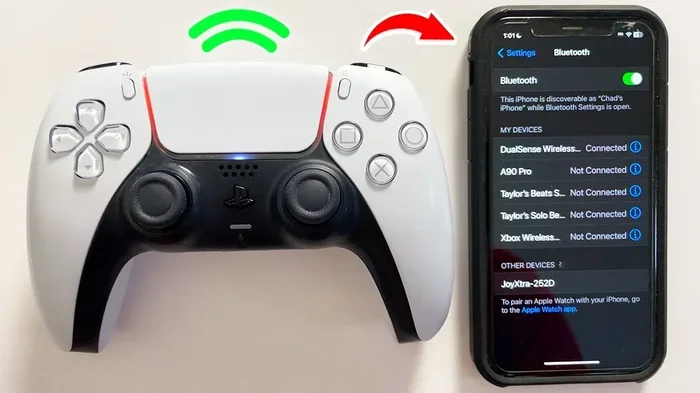
For Bluetooth wireless controllers, go to the Switch home menu. Select Controller Settings. Choose Change Grip/Order. Press the pairing button on your controller. The Switch should find it and connect.
Quick Tips for Smooth Connection
- Use high-quality USB cables to avoid connection drops.
- Keep wireless controllers close to the Switch during pairing.
- Restart the Switch if the console does not recognize a controller.
- Update your Switch firmware to the latest version for best compatibility.
- Remove other Bluetooth devices temporarily during pairing to avoid interference.
Best USB Controllers for the Nintendo Switch
Not all USB controllers are equal. Some work perfectly with the Switch. Others give you trouble. Here are the best options available right now.
Nintendo Switch Pro Controller
The official Nintendo Switch Pro Controller is the gold standard. It connects via USB-C cable for wired use. It also connects wirelessly through Bluetooth. The design fits comfortably in your hands. The battery lasts up to 40 hours on a single charge. The buttons feel responsive and precise. This controller supports all Switch games that accept standard controller input.
The Pro Controller is fully compatible with the Switch out of the box. You do not need any adapters or extra software. It is the safest choice for most Switch gamers.
Third-Party USB Controllers That Work
Several third-party controllers work well with the Switch. Here are some popular options:
- 8BitDo Ultimate Controller: This controller supports multiple platforms including the Switch. It connects via USB-C and Bluetooth. The build quality is excellent for the price.
- 8BitDo SN30 Pro Plus: A compact controller that works with the Switch via USB or Bluetooth. Great for smaller hands or portable gaming.
- PowerA Enhanced Wireless Controller: This licensed controller works with the Switch both wired and wirelessly. It features customizable buttons and a comfortable grip.
- Xbox Wireless Controller (with adapter): The Xbox controller can work with the Switch using a specific USB wireless adapter. However, it requires some setup steps.
Controllers to Avoid on the Switch
Some controllers simply do not work with the Nintendo Switch. Avoid these unless you have confirmed compatibility:
- Most PC-only controllers that rely on proprietary drivers.
- Controllers that require Windows-specific software.
- Older Bluetooth gamepads that do not use the Switch-compatible Bluetooth profile.
- Generic budget controllers without Switch compatibility listed.
Using USB Controllers in Different Switch Modes
The Nintendo Switch offers three main modes. Each mode handles USB controllers a bit differently. Understanding these differences helps you get the most from your setup.
Docked Mode USB Controller Use
In docked mode, the Switch connects to your TV. The USB ports on the dock are fully accessible. This is the best mode for using wired USB controllers. You plug the controller into the dock and play on your big screen. The connection is stable. The input is responsive. There is no battery drain from the Switch itself affecting the controller.
Docked mode also supports multiple USB devices at once. You can connect a USB controller and a USB storage drive simultaneously. This makes docked mode ideal for a home console setup.
Handheld Mode USB Controller Use
Using a USB controller in handheld mode is trickier. The Switch has a USB-C port on the bottom. You can plug a controller directly into this port. However, this means the controller cable runs across the screen. It can feel awkward during handheld play.
Some players use a USB-C hub to solve this problem. The hub connects to the Switch and provides extra ports. You plug the controller into the hub and keep the Switch screen clear. This setup works well but adds extra cost and bulk.
Tabletop Mode USB Controller Use
In tabletop mode, the Switch sits on a flat surface with the screen facing up. USB controllers work well in this mode. The dock is not required. You plug the controller directly into the Switch or use a wireless connection. This mode is great for parties and local multiplayer sessions.
Expert Insight
For the best USB controller experience on the Switch, docked mode is the clear winner. The connection is stable, the setup is clean, and you get the full benefits of a big screen. If you prefer handheld play, consider a wireless Bluetooth controller to avoid cable clutter.
Common Problems and How to Fix Them
Even with the best USB controllers, you might run into issues. Here are the most common problems and their solutions.
Controller Not Recognized by the Switch
If the Switch does not recognize your USB controller, try these steps:
- Unplug the controller and plug it back in.
- Try a different USB cable.
- Use a different USB port on the dock.
- Restart the Nintendo Switch completely.
- Check if the controller works on another device to rule out hardware failure.
Input Lag or Delayed Response
Input lag can ruin your gaming experience. Wired USB controllers should have almost zero lag. If you notice delays, try these fixes:
- Use a shorter USB cable to reduce signal degradation.
- Avoid USB hubs that might add latency.
- For wireless controllers, stay within range of the Switch.
- Close background apps on the Switch that might use processing power.
Controller Works But Buttons Are Misaligned
Sometimes a controller connects but the buttons do not map correctly. This happens with some third-party controllers. To fix this:
- Check the controller settings in the Switch system menu.
- Recalibrate the controller if the option is available.
- Check the game’s control settings to remap buttons.
- Update the controller firmware if the manufacturer provides updates.
Wireless Controller Keeps Disconnecting
Wireless USB controllers can disconnect unexpectedly. This is frustrating but fixable:
- Make sure the controller battery is charged.
- Reduce the distance between the controller and the Switch.
- Remove other Bluetooth devices that might cause interference.
- For USB wireless adapters, try a different port on the dock.
Why Use a USB Controller Instead of Joy-Cons?
The Nintendo Switch comes with Joy-Cons included. So why would you need a USB controller? There are several strong reasons.
First, comfort. Joy-Cons are small. They are designed for the Switch’s compact form factor. But during long gaming sessions, they can cause hand fatigue. A full-size USB controller feels much more comfortable. Your hands rest naturally on the grips. The buttons are easier to reach.
Second, precision. Joy-Cons have small analog sticks. They can be imprecise for certain games. A dedicated USB controller offers larger sticks and better tactile feedback. This matters for racing games, platformers, and fighting games.
Third, durability. Joy-Cons are prone to drift issues over time. A quality USB controller often lasts longer and feels more solid. You invest in a peripheral that holds up to regular use.
Fourth, multiplayer ease. When friends come over, passing around two Joy-Cons is awkward. A USB controller is easy to hand off. Each player gets their own comfortable controller. This makes local multiplayer more enjoyable for everyone.
Common Mistakes to Avoid
- Buying any controller without checking Switch compatibility: Always verify that the controller works with the Switch before you buy it.
- Using cheap USB cables: Poor quality cables cause connection issues and input lag. Invest in good cables.
- Ignoring firmware updates: Controller firmware updates can fix bugs and improve compatibility. Always keep your controller updated.
- Assuming all wireless controllers work: The Switch has specific Bluetooth requirements. Not all wireless PC controllers will connect.
- Forgetting to charge wireless controllers: A dead controller ruins the gaming experience. Keep your wireless USB controller charged.
Final Thoughts on Using USB Controllers With Your Switch
The Nintendo Switch is a fantastic console. But the stock Joy-Cons are not the only option. You can absolutely use a USB controller on your Switch for gaming. The console supports wired and wireless USB controllers through its dock and built-in ports.
The key is choosing the right controller. The Nintendo Pro Controller remains the top choice for most players. But third-party options from brands like 8BitDo and PowerA offer excellent alternatives. These controllers give you comfort, precision, and durability that Joy-Cons sometimes lack.
Setup is simple. Plug in a wired controller and start playing. Connect a wireless controller through Bluetooth or a USB adapter. The Switch makes the process easy. You do not need technical skills or special software.
Whether you dock your Switch for TV gaming or play in handheld mode, a USB controller enhances the experience. You get better comfort, lower input lag, and more precise controls. It is one of the simplest upgrades you can make to your Nintendo Switch setup.
So go ahead. Plug in that USB controller. Explore your game library with better controls. Your hands will thank you after those long gaming sessions. The Switch is a versatile console, and a USB controller helps you unlock even more of its potential.
Frequently Asked Questions
Can I use any USB controller on my Nintendo Switch?
Not all USB controllers work with the Switch. The console supports controllers that use standard HID protocols. Controllers that require proprietary drivers or Windows-specific software will not work. Always check compatibility before purchasing a USB controller for your Switch.
Do I need an adapter to connect a USB controller to the Switch?
Wired USB controllers plug directly into the Switch dock or USB-C port without any adapter. Wireless USB controllers may need a USB wireless adapter or Bluetooth pairing. The Nintendo Pro Controller connects wirelessly without any extra accessories.
Can I use an Xbox or PlayStation USB controller on the Switch?
The Xbox Wireless Controller can work with the Switch using a specific USB wireless adapter. However, PlayStation controllers do not work natively with the Switch. Always verify compatibility before trying to use a console-specific controller on your Nintendo Switch.
Does using a USB controller affect battery life on the Switch?
Using a wired USB controller does not drain the Switch battery faster. In fact, you can charge your Switch while playing with a wired controller connected. Wireless controllers have their own batteries and do not affect the Switch battery at all.
Can I use multiple USB controllers at the same time on the Switch?
Yes, the Switch supports multiple controllers connected simultaneously. You can mix wired and wireless controllers. This is great for local multiplayer games where each player needs their own controller. Just make sure all controllers are compatible with the Switch.
Is there input lag when using a USB controller on the Switch?
Wired USB controllers have virtually no input lag. They provide the most responsive experience for fast-paced games. Wireless controllers have slightly more input lag due to Bluetooth transmission. For competitive gaming, a wired USB controller is the best choice.
=== CONCLUSION ===
Using a USB controller on your Nintendo Switch opens up a world of gaming possibilities. The Switch supports a wide range of USB controllers, from the official Pro Controller to third-party options that deliver comfort and precision. You can connect wired controllers instantly and enjoy zero input lag. You can pair wireless controllers for a cleaner setup and more freedom of movement.
The process is simple. The compatibility is broad. The benefits are real. Better comfort. Better precision. Better multiplayer experiences. Whether you are a casual player or a competitive gamer, a USB controller elevates your Switch sessions.
Choose the right controller for your needs. Follow the setup steps outlined in this guide. Avoid common mistakes. And enjoy your Nintendo Switch like never before. The answer to can I use a USB controller on my Switch is a resounding yes. Now go plug in and start playing.