How Do I Connect My Apple TV to Another Device Easily
Connecting your Apple TV to another device is simpler than you think. Whether you want to mirror your screen, stream content, or pair accessories, this guide covers every method. You will learn AirPlay setup, HDMI connections, Bluetooth pairing, and troubleshooting tips. Follow our easy steps to get your Apple TV working with any device in minutes.
This is a comprehensive guide about How Do I Connect My Apple Tv To Another Device.
Key Takeaways
- AirPlay is the easiest way: Wirelessly mirror or stream content from your iPhone, iPad, or Mac to your Apple TV.
- HDMI cables offer a reliable backup: A simple wired connection ensures stable audio and video without lag.
- Bluetooth pairing expands your options: Connect headphones, speakers, and other audio devices directly to your Apple TV.
- Wi-Fi is essential for most connections: Both devices need to be on the same network for smooth streaming.
- Troubleshooting is straightforward: Most connection issues can be fixed with a quick restart or settings check.
- You do not need extra hardware: Your existing devices and cables are usually enough to get started.
[FEATURED_IMAGE_PLACEHOLDER]
How Do I Connect My Apple TV to Another Device Easily
Have you ever wanted to show something from your phone on a bigger screen? Or maybe you want to listen to your Apple TV audio through a pair of wireless headphones. Connecting your Apple TV to another device opens up a world of possibilities. It is easier than most people think, and you do not need to be a tech expert to make it work.
In this guide, we will walk you through every method step by step. You will learn how to use AirPlay for wireless streaming, how to set up a wired HDMI connection, and how to pair Bluetooth accessories. We also share quick fixes for common problems. By the end, you will feel confident connecting your Apple TV to any device in your home.
Whether you want to mirror your iPhone screen, cast Netflix from your iPad, or connect your Apple TV to a soundbar, this article has you covered. Let us dive in and make your setup as smooth as possible.
Why Connect Your Apple TV to Other Devices
Apple TV is a powerful streaming box, but it becomes even more useful when you connect it to other devices. Think about all the content you already have on your phone or laptop. Why keep it locked in one place when you can enjoy it on your TV?
Here are some of the main reasons people connect their Apple TV to other devices:
- Bigger screen viewing: Watch photos, videos, and presentations on a larger display.
- Shared listening: Stream music or podcast audio through your TV speakers or a Bluetooth sound system.
- Screen mirroring: Show your iPhone or iPad screen on the TV for gaming, demos, or sharing memories.
- Better audio quality: Connect your Apple TV to external speakers or headphones for improved sound.
- Content casting: Send videos from apps like YouTube or Netflix directly from your device to the TV.
Each method has its own strengths. Some people prefer the convenience of wireless streaming, while others want the reliability of a cable connection. We will cover both so you can choose what works best for you.
Connect Using AirPlay (Wireless Method)
AirPlay is Apple’s built-in wireless streaming technology. It lets you send audio, video, and your entire screen from one Apple device to your Apple TV. This is the most popular way to connect because it requires no cables and works almost instantly.
What You Need for AirPlay
Before you start, make sure you have the following in place:
- An Apple TV that supports AirPlay (all models from 2010 and later do).
- An iPhone, iPad, or Mac signed in with the same Apple ID.
- Both devices connected to the same Wi-Fi network.
- AirPlay enabled on your Apple TV (it is on by default).
How to Mirror Your iPhone or iPad to Apple TV
Follow these simple steps to mirror your iOS device screen:
- Open the Control Center on your iPhone or iPad. Swipe down from the top-right corner of your screen.
- Tap the Screen Mirroring button. It looks like two overlapping rectangles.
- Select your Apple TV from the list of available devices.
- Enter the on-screen code if prompted. This keeps your connection secure.
- Your screen is now mirrored. Anything you do on your device shows on the TV.
That is it. You can now watch videos, browse photos, or present slides on the big screen. When you are done, open the Control Center again and tap Stop Mirroring.
How to Use AirPlay from a Mac
Mac users can also take advantage of AirPlay. Here is how:
- Click the AirPlay icon in the menu bar at the top of your screen. It looks like a rectangle with a triangle underneath.
- Select your Apple TV from the dropdown menu.
- Choose whether you want to mirror your entire screen or use the TV as a separate display.
This is incredibly useful for presentations or when you want to work on your laptop while casting content to the TV. If you have ever wondered how to mirror your Mac to your TV without Apple TV, the answer is that AirPlay makes it possible with an Apple TV in hand.
Quick AirPlay Tips
- Keep both devices close to your Wi-Fi router for the best performance.
- If mirroring lags, restart both devices and your router.
- Use a 5 GHz Wi-Fi network for smoother streaming with less interference.
- AirPlay works best when you are on the same network. If you are having trouble, check that both devices show the same network name.
Connect Using an HDMI Cable (Wired Method)
While AirPlay is convenient, a wired connection offers more stability. If you have experienced wireless lag or interruptions, an HDMI cable might be your best bet. This method works great for gaming, presentations, and situations where you need a rock-solid connection.
What You Need
- An Apple TV with an HDMI port (all modern Apple TVs have one).
- A standard HDMI cable.
- The device you want to connect. This could be a laptop, gaming console, or another streaming device.
Step-by-Step HDMI Connection
Setting up a wired connection is straightforward:
- Plug one end of the HDMI cable into your Apple TV.
- Plug the other end into the HDMI port on your laptop, console, or another device.
- Switch your TV input to the correct HDMI port using your remote.
- Your device should automatically display on the TV.
If nothing appears on screen, try pressing the Input or Source button on your TV remote. You may need to select the right HDMI port manually.
Can You Use a 4K HDMI Cable on a Non-4K TV
Yes! A 4K HDMI cable works perfectly fine on a regular HDTV. The cable simply supports higher resolutions when available. If your TV is not 4K, the connection will still work at whatever resolution your TV supports. You do not need to buy a special cable for older TVs.
When to Choose HDMI Over AirPlay
Here is a quick comparison to help you decide:
- Choose HDMI when: You need zero lag, you are gaming, or your Wi-Fi signal is weak.
- Choose AirPlay when: You want convenience, you do not have a spare HDMI cable, or you are sharing content casually.
Both methods are excellent. Many people use both depending on the situation. For example, you might use AirPlay for everyday streaming and HDMI when you are playing a game that needs instant response.
Connect Bluetooth Devices to Apple TV
Did you know you can pair Bluetooth headphones and speakers directly to your Apple TV? This is perfect for late-night watching when you do not want to disturb anyone. It is also great if you want better audio quality than your TV speakers provide.
How to Pair Bluetooth Headphones
Follow these steps to connect wireless headphones:
- Go to Settings on your Apple TV.
- Select Remotes and Devices.
- Tap Bluetooth and make sure it is turned on.
- Put your headphones in pairing mode.
- Your Apple TV will detect them. Select your headphones from the list.
Once paired, all audio from your Apple TV routes to your headphones. This includes movies, music, and game audio. You can adjust the volume using your headphones or the Apple TV remote.
Can You Use Bluetooth on Your Hearing Aid with Apple TV
If you use Bluetooth-enabled hearing aids, you can connect them to your Apple TV the same way. This makes TV watching much more accessible and enjoyable. The audio streams directly to your hearing aids without any extra equipment.
Bluetooth Limitations to Keep in Mind
- Apple TV supports Bluetooth audio devices but not all Bluetooth accessories.
- Some older Bluetooth devices may not pair successfully.
- Bluetooth range is about 30 feet. Stay within range for a stable connection.
- You can connect multiple Bluetooth devices but only one audio output at a time.
If you have ever asked yourself how to make my TV have Bluetooth, the answer is that modern Apple TVs and similar smart TVs have built-in Bluetooth. If your TV does not, you can add a Bluetooth transmitter to get the same result.
Connect Using Wi-Fi and Network Settings
Wi-Fi is the backbone of most Apple TV connections. Without a solid wireless network, even the best setup will struggle. Let us look at how to optimize your Wi-Fi for the best experience.
Setting Up Wi-Fi on Apple TV
Here is how to connect your Apple TV to your wireless network:
- Go to Settings on your Apple TV.
- Select Network.
- Choose your Wi-Fi network from the list.
- Enter your password and wait for the connection to complete.
Once connected, your Apple TV will automatically reconnect whenever it is in range. This makes the whole experience seamless.
Extending Your Wi-Fi for Better Coverage
If your Apple TV is far from your router, you might experience buffering or connection drops. Here are some ways to improve your signal:
- Move your router closer to your Apple TV.
- Use a Wi-Fi extender to boost the signal in distant rooms.
- Switch to a 5 GHz band if your router supports it. It offers faster speeds and less interference.
- Reduce the number of devices competing for bandwidth.
Some people also use a wired Ethernet connection for their Apple TV. This provides the most stable and fastest connection possible. You can plug an Ethernet cable directly from your router into the Apple TV using a USB-C to Ethernet adapter on newer models.
Troubleshooting Wi-Fi Connection Issues
Not sure why your Apple TV keeps disconnecting? Try these fixes:
- Restart your router and Apple TV.
- Check if other devices are causing network congestion.
- Update your Apple TV software to the latest version.
- Forget the Wi-Fi network and reconnect from scratch.
- Move the router closer to the Apple TV.
Most Wi-Fi issues resolve with a simple restart. If problems persist, check your internet speed. A slow connection affects streaming quality more than anything else.
Troubleshooting Common Connection Problems
Even with the best setup, you might run into issues from time to time. Do not worry. Most problems have simple solutions. Here are the most common issues and how to fix them.
Apple TV Does Not Appear in AirPlay
This is the most common complaint. If your Apple TV does not show up when you try to mirror, try these steps:
- Make sure both devices are on the same Wi-Fi network.
- Restart your Apple TV and the device you are trying to connect from.
- Check that AirPlay is enabled in your Apple TV settings.
- Update both devices to the latest software version.
Audio or Video Lag During Mirroring
Lag can be frustrating. Here is how to reduce it:
- Switch to a 5 GHz Wi-Fi network for less interference.
- Close other apps that might be using bandwidth.
- Restart your router to clear the network cache.
- Move closer to your Wi-Fi router.
HDMI Connection Not Working
If your wired connection fails, check the following:
- Try a different HDMI cable. Cables can wear out over time.
- Switch to a different HDMI port on your TV.
- Restart both the Apple TV and the connected device.
- Check that your TV input is set to the correct HDMI port.
Bluetooth Devices Will Not Pair
If your Bluetooth headphones or speakers refuse to connect:
- Make sure your Bluetooth device is in pairing mode.
- Restart Bluetooth on your Apple TV.
- Remove the device from your Bluetooth list and try again.
- Check that the device is fully charged.
Most connection problems come down to simple fixes. A quick restart solves the majority of issues. If you have tried everything, resetting your Apple TV to factory settings is a last resort that almost always works.
Expert Tips for the Best Connection Experience
Here are some pro tips that make a real difference in your daily use:
- Keep your software updated: Apple releases updates that fix bugs and improve compatibility. Check for updates regularly in Settings.
- Use a dedicated network: If your router supports it, create a separate network for streaming devices. This reduces congestion.
- Label your HDMI ports: Use tape or labels to mark which port your Apple TV uses. This saves time when switching inputs.
- Invest in a good HDMI cable: A high-quality cable makes a noticeable difference in picture and sound quality.
- Restart regularly: Just like any tech device, your Apple TV benefits from occasional restarts. Unplug it for 30 seconds once a week.
These small habits add up over time. They keep your setup running smoothly and help you avoid frustrating connection problems.
Frequently Asked Questions
Can I connect my Apple TV to a non-Apple device?
Yes, you can. While AirPlay works best with Apple devices, you can connect your Apple TV to non-Apple devices using an HDMI cable. Many smart TVs and streaming devices also support screen mirroring through third-party apps. The wired connection method works with any device that has an HDMI output.
Do I need Wi-Fi to connect my Apple TV to another device?
For AirPlay and wireless streaming, yes, both devices need to be on the same Wi-Fi network. However, if you use an HDMI cable to connect devices directly, you do not need Wi-Fi for the connection itself. Wi-Fi is still needed for streaming online content on the Apple TV.
Can I connect multiple devices to my Apple TV at once?
You can connect multiple devices, but only one can be actively mirrored or streaming at a time through AirPlay. Other devices can connect via HDMI or Bluetooth separately. This means you can have your phone on AirPlay while a friend connects their laptop via HDMI for a different source.
Why does my Apple TV keep disconnecting from Wi-Fi?
Wi-Fi disconnections usually happen because of signal strength, router issues, or network congestion. Try moving closer to your router, restarting your network equipment, or switching to the 5 GHz band. If the problem continues, updating your Apple TV software often resolves the issue.
Is AirPlay the same as screen mirroring?
AirPlay is the technology that enables screen mirroring, but it also does much more. You can use AirPlay to stream individual apps, mirror your entire screen, or cast audio separately. Screen mirroring is just one feature of AirPlay. You can also use AirPlay to send video from a single app without mirroring your whole screen.
Can I use my Apple TV with a projector instead of a TV?
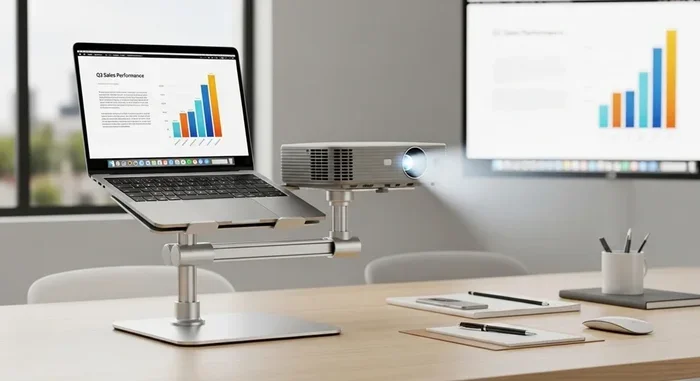
Yes, you can connect your Apple TV to a projector using an HDMI cable. Make sure your projector has an HDMI input. This setup works great for movie nights or presentations. Just like with a TV, you may need to adjust the input source on your projector to see the Apple TV output.
Conclusion
Connecting your Apple TV to another device does not have to be complicated. Whether you choose AirPlay for wireless convenience, HDMI for rock-solid reliability, or Bluetooth for private listening, the process is straightforward. Each method has its place, and now you know exactly when to use each one.
Start with the method that fits your needs best. If you want quick and easy, go with AirPlay. If you need stability, grab an HDMI cable. If you want to watch late-night movies without waking the household, pair your Bluetooth headphones. The choice is yours.
Remember to keep your devices updated, maintain a strong Wi-Fi connection, and restart when things go wrong. These simple habits will keep your setup running smoothly for years to come. Now that you know how to connect your Apple TV to another device with confidence, go ahead and try it out. You will wonder why you did not set it up sooner.
Frequently Asked Questions
What is How Do I Connect My Apple Tv To Another Device?
How Do I Connect My Apple Tv To Another Device is an important topic with many practical applications.