Can I Enable Bluetooth on My PC Learn How to Do It Fast
Can I enable Bluetooth on my PC? Yes, you can! Whether you use Windows 10 or Windows 11, turning on Bluetooth is quick and straightforward. This guide walks you through every step to connect Bluetooth devices like headphones, speakers, keyboards, and mice in minutes. You will also learn how to fix common Bluetooth problems and keep your wireless connection running smoothly.
Have you ever wanted to connect Bluetooth headphones to your computer and thought, “Can I enable Bluetooth on my PC?” The answer is a resounding yes! Whether you want to listen to music, take calls, or use a wireless mouse, Bluetooth connectivity opens up a world of convenience. You do not need to be a tech expert to get this working. In fact, most people can set it up in under five minutes.
Bluetooth technology has been around for over two decades now. It lets your PC talk wirelessly to all kinds of devices. From Bluetooth speakers to wireless keyboards, the possibilities are huge. But sometimes, finding the right setting on your computer can feel confusing. That is exactly why I wrote this guide. I will show you every step, from turning on Bluetooth to fixing problems when things go wrong.
Whether you have a laptop or a desktop computer, this guide covers everything. I will walk you through Windows 10 and Windows 11 instructions. You will also learn about Bluetooth adapters, driver updates, and Bluetooth troubleshooting tips. By the end, you will feel confident connecting any Bluetooth device to your computer. Let us dive right in!
Key Takeaways
- Quick Bluetooth Activation: You can enable Bluetooth on any PC in just a few clicks through Settings or the Quick Settings panel.
- Driver Updates Matter: Outdated Bluetooth drivers are the #1 reason Bluetooth fails to work on Windows PCs.
- Multiple Device Pairing: You can pair several Bluetooth devices at once, including headphones, speakers, keyboards, and mice.
- Troubleshooting Is Easy: Most Bluetooth issues resolve with simple fixes like toggling Bluetooth off and on or restarting the Bluetooth service.
- Bluetooth Not Built In: Some older PCs lack Bluetooth support and need a USB Bluetooth adapter to get wireless connectivity.
- Security Best Practices: Always keep your Bluetooth discoverable mode off when not pairing to protect your PC.
📑 Table of Contents
- Can I Enable Bluetooth on My PC? Yes, Here Is How
- How to Pair Bluetooth Devices with Your PC
- What If My PC Does Not Have Built-In Bluetooth?
- Common Bluetooth Problems and How to Fix Them
- Quick Tips for Better Bluetooth Performance
- Expert Insights on Bluetooth Connectivity
- Comparison: Built-In Bluetooth vs. USB Bluetooth Adapter
- Is It Safe to Use Bluetooth on Your PC?
- Final Thoughts on Enabling Bluetooth on Your PC
Can I Enable Bluetooth on My PC? Yes, Here Is How
The first thing you need to know is that most modern PCs come with Bluetooth support built right in. Laptops almost always have it. Many desktop computers do too. But some older machines might not. Do not worry if your PC does not have it built in. You can add it easily with a USB Bluetooth adapter. More on that later.
Before you start, make sure your PC is running a recent version of Windows. Windows 10 and Windows 11 both have excellent Bluetooth features. If your PC is running something older, you might want to update first. Updating Windows ensures you get the latest Bluetooth drivers and security patches.
Method 1: Enable Bluetooth Through Quick Settings (Fastest Way)
This is the quickest method. It works on both Windows 10 and Windows 11. You can turn on Bluetooth in seconds using the Quick Settings panel.
- Click on the network, sound, or battery icon in your taskbar (bottom-right corner of your screen).
- A small menu will pop up. Look for the Bluetooth icon.
- Click the Bluetooth icon to turn it on. It will glow or highlight when it is active.
- Now your PC is ready to pair Bluetooth devices.
That is it! Super fast and simple. If you do not see the Bluetooth icon in Quick Settings, do not panic. There is another way. Just keep reading.
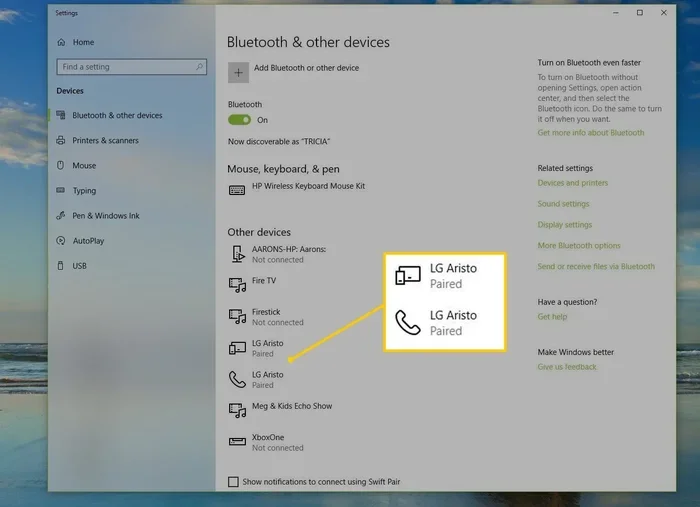
Method 2: Enable Bluetooth Through Settings
If the Quick Settings method does not work for you, the Settings app gives you more options. This method also lets you manage your Bluetooth connections more carefully.
- Press the Windows key + I on your keyboard to open Settings.
- Click on “Bluetooth & devices” in the left sidebar.
- Toggle the Bluetooth switch to “On.”
- You should now see a message saying “Bluetooth is on.”
- Click “Add device” to start pairing a new Bluetooth device.
This method gives you access to more settings. You can see already paired devices, remove old connections, and adjust device-specific options. It is the go-to method when you want more control over your wireless connection.
How to Pair Bluetooth Devices with Your PC
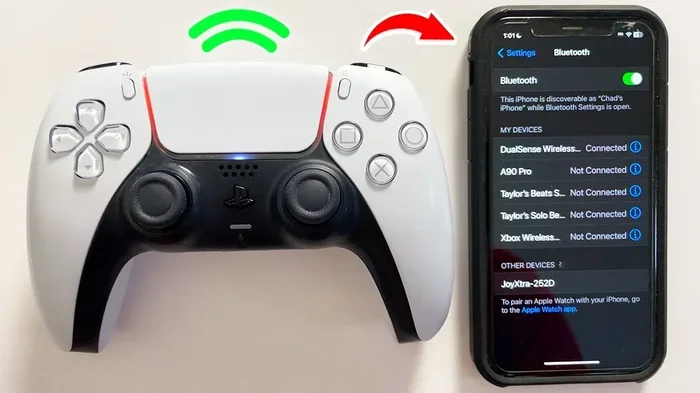
Once Bluetooth is turned on, you need to pair your device. Pairing is the process of connecting two devices together for the first time. Every Bluetooth device goes through this process. It only takes a moment once you know the steps.
Pairing Bluetooth Headphones
Wireless headphones are the most popular Bluetooth device for PCs. Here is how to pair them:
- Turn on your Bluetooth headphones and put them in pairing mode. Usually, you hold down a button until a light flashes.
- On your PC, go to Settings > Bluetooth & devices.
- Click “Add device.”
- Select “Bluetooth” from the list.
- Your headphones should appear in the list. Click on them.
- Wait a few seconds. You should see a “Connected” message.
Now you can listen to music, watch videos, or take calls through your headphones. The wireless audio quality is usually excellent. If you experience any delay or static, try moving closer to your PC.
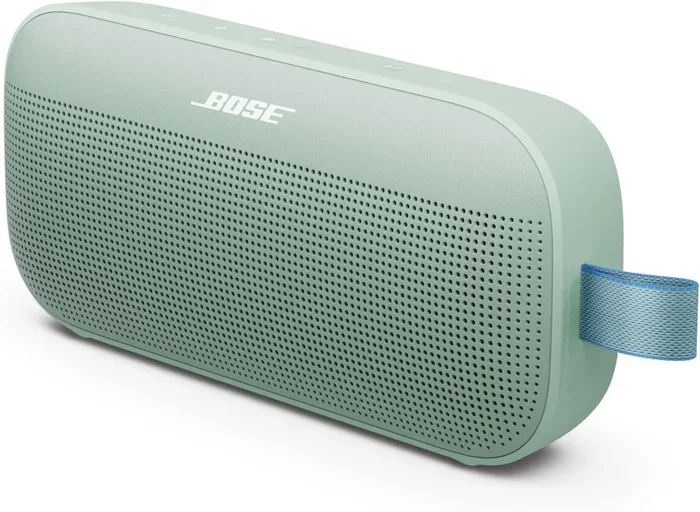
Pairing a Bluetooth Speaker
Want to fill your room with music? Bluetooth speakers are fantastic for entertainment. The pairing process is almost identical to headphones:
- Put your speaker in pairing mode.
- Open Settings on your PC and go to Bluetooth & devices.
- Click “Add device” and choose Bluetooth.
- Select your speaker from the list.
Once connected, you can play any audio through the speaker. This is perfect for gaming, watching movies, or hosting a small party. The Bluetooth connectivity range is typically about 30 feet, so you can move around freely.
Pairing a Bluetooth Keyboard or Mouse
Using a Bluetooth keyboard or Bluetooth mouse gives you a clean, clutter-free desk. These input devices are great for laptops and can also work beautifully with desktops. The pairing process is the same:
- Enable pairing mode on your keyboard or mouse.
- Go to Settings > Bluetooth & devices on your PC.
- Click “Add device” and select Bluetooth.
- Choose your device from the list.
Some keyboards and mice may need you to install a small software package first. Check the manufacturer’s website if you run into any issues. Most modern devices work plug-and-play with Windows.
What If My PC Does Not Have Built-In Bluetooth?
Not every computer comes with Bluetooth support out of the box. Older desktop PCs especially might lack a Bluetooth adapter. But you are not stuck. You have a great solution.
Buy a USB Bluetooth Adapter
A USB Bluetooth adapter is a small, affordable device that plugs into your PC’s USB port. It gives your computer Bluetooth capability instantly. These adapters are also called Bluetooth dongles. They are tiny and easy to use.
Here is what to look for when buying one:
- Bluetooth Version: Look for Bluetooth 5.0 or higher for the best speed and range.
- Compatibility: Make sure it works with your version of Windows.
- Brand Reputation: Stick with trusted brands like TP-Link, ASUS, or Dell.
- Price: Good adapters cost between $10 and $25.
Once you plug in the adapter, Windows usually installs the Bluetooth driver automatically. If it does not, you can download the driver from the manufacturer’s website. After installation, your PC will have full Bluetooth functionality.
Common Bluetooth Problems and How to Fix Them
Even with the best setup, you might run into issues. Bluetooth troubleshooting is a normal part of using wireless devices. Let me walk you through the most common problems and their solutions.
Bluetooth Is Not Showing Up in Settings
If you cannot find Bluetooth in your Settings, the most likely cause is a missing or outdated Bluetooth driver. Here is what to do:
- Right-click the Start button and select “Device Manager.”
- Look for “Bluetooth” in the list and expand it.
- Right-click your Bluetooth adapter and select “Update driver.”
- Choose “Search automatically for drivers.”
- Follow the on-screen instructions to complete the update.
If updating does not work, try uninstalling the driver and restarting your PC. Windows will reinstall the driver automatically. This simple fix solves most Bluetooth not working issues.
Bluetooth Devices Keep Disconnecting
Is your wireless connection dropping frequently? This can be frustrating. Here are some quick fixes:
- Move Closer: Bluetooth range is limited. Stay within 30 feet of your PC.
- Remove Interference: Wi-Fi routers and USB 3.0 devices can cause Bluetooth interference. Move your Bluetooth device away from these.
- Check Battery: Low battery on your Bluetooth device can cause disconnections. Charge it fully.
- Restart Bluetooth: Toggle Bluetooth off and on in Settings.
- Remove and Re-Pair: Delete the device from your Bluetooth list and pair it again.
Bluetooth Works but There Is No Sound
This is a common issue with Bluetooth headphones and speakers. Your device is connected, but audio does not play through it. Try these steps:
- Right-click the sound icon in your taskbar.
- Select “Open Sound settings.”
- Under “Output,” choose your Bluetooth device from the dropdown.
- Make sure the volume is turned up.
Sometimes Windows sends audio to the wrong output device. This simple setting change fixes the problem instantly.
Quick Tips for Better Bluetooth Performance
Want your Bluetooth connectivity to work flawlessly every time? Follow these practical tips:
Keep Your Drivers Updated
Regular driver updates improve Bluetooth performance and fix bugs. Set a reminder to check for updates once a month. You can use Windows Update or visit your PC manufacturer’s website.
Turn Off Bluetooth When Not in Use
This might seem obvious, but it matters. Turning off Bluetooth when you are not using it saves battery life. It also reduces the chance of someone connecting to your PC without permission. On laptops, this helps preserve battery charge significantly.
Limit the Number of Connected Devices
While you can connect multiple devices, too many at once can slow things down. Keep your most-used devices paired and remove old ones you no longer use. A clean Bluetooth device list means better performance.
Restart Your PC Regularly
A simple restart can work wonders for Bluetooth troubleshooting. It clears temporary glitches and refreshes all system services. If Bluetooth acts up, restart your PC before trying anything else.
Expert Insights on Bluetooth Connectivity
Bluetooth technology has improved dramatically over the years. The latest versions offer faster data transfer, longer range, and lower power consumption. Bluetooth 5.0 and 5.3 are the current standards for most devices.
One thing many people do not realize is that Bluetooth security matters. Always make sure your PC is not in “discoverable” mode when you are not actively pairing a device. This prevents unauthorized devices from connecting to your PC. Keep your Windows system updated to benefit from the latest security improvements.
Another expert tip: if you use a desktop PC and want wireless audio, consider a Bluetooth USB adapter with a dedicated antenna. These adapters have stronger signals and more stable connections than cheap, generic ones. The small investment pays off in a much better experience.
Comparison: Built-In Bluetooth vs. USB Bluetooth Adapter
| Feature | Built-In Bluetooth | USB Bluetooth Adapter |
|---|---|---|
| Cost | Free (included with PC) | $10 – $25 |
| Setup | Instant, no extra hardware | Plug and play, driver may be needed |
| Bluetooth Version | Depends on PC model | Choose version 5.0 or higher |
| Range | Standard (30 feet) | Standard (30 feet), some better |
| Portability | Always available | Can be removed or moved between PCs |
| Best For | Laptops and modern desktops | Older PCs without Bluetooth support |
Is It Safe to Use Bluetooth on Your PC?
Yes, using Bluetooth on your PC is generally safe. Modern Bluetooth versions include strong encryption and security features. However, you should still follow basic safety practices:
- Only pair devices you trust.
- Turn off discoverable mode after pairing.
- Keep your Windows system and Bluetooth drivers updated.
- Do not accept pairing requests from unknown devices.
Following these simple rules keeps your wireless connection secure and your PC protected. Bluetooth security has come a long way, and using it is no riskier than using Wi-Fi.
Final Thoughts on Enabling Bluetooth on Your PC
So, can you enable Bluetooth on your PC easily? Absolutely! Whether you use the Quick Settings panel or the Settings app, the process is simple and fast. You can connect headphones, speakers, keyboards, mice, and many other devices in just a few minutes.
If your PC does not have built-in Bluetooth support, a USB adapter solves the problem instantly. And if you run into issues, the troubleshooting tips in this guide will help you get back on track quickly. Bluetooth connectivity makes your PC more versatile and convenient. You can go wireless with audio, input devices, file transfers, and more.
Take a few minutes today to explore your Bluetooth settings. Once you experience the freedom of wireless devices, you will wonder how you ever lived without it. Happy connecting!
Frequently Asked Questions
How do I know if my PC has Bluetooth?
Open Settings and look for “Bluetooth & devices.” If you see this option, your PC has Bluetooth support. You can also check Device Manager for a Bluetooth adapter. If neither shows Bluetooth, you need a USB Bluetooth adapter.
Why is my Bluetooth not working on Windows 11?
The most common reason is an outdated or corrupted Bluetooth driver. Try updating your driver through Device Manager. You can also toggle Bluetooth off and on, or restart the Bluetooth Support Service in the Services app. Restarting your PC often fixes temporary glitches.
Can I connect multiple Bluetooth devices at the same time?
Yes, you can pair and connect multiple Bluetooth devices simultaneously. Most PCs support several connections at once. However, keep in mind that too many connected devices can affect performance. Stick to the devices you use most for the best experience.
How do I update my Bluetooth driver?
Open Device Manager, expand the Bluetooth section, right-click your adapter, and select “Update driver.” Choose “Search automatically for drivers.” Windows will find and install the latest driver. You can also visit your PC manufacturer’s website for manual driver downloads.
Is Bluetooth safe to use on a PC?
Yes, Bluetooth on your PC is safe when used properly. Modern Bluetooth versions have strong encryption. Always turn off discoverable mode when not pairing, only connect trusted devices, and keep your system updated for the best security.
What is the difference between Bluetooth and Wi-Fi?
Bluetooth connects devices directly over short distances for tasks like audio streaming and input devices. Wi-Fi connects your PC to the internet and local networks over longer distances. Both are wireless technologies, but they serve different purposes. You can use both at the same time on your PC.
=== CONCLUSION ===
Can I enable Bluetooth on my PC? Yes, and now you know exactly how to do it. From turning on Bluetooth in Settings to pairing your favorite devices, you have all the tools you need. Remember to keep your drivers updated, troubleshoot common issues quickly, and enjoy the freedom of wireless connectivity. Your PC is ready to go wireless. Get out there and connect!