Does Echo Dot Have Bluetooth Everything You Need To Know
Yes, the Echo Dot has Bluetooth and it is one of its most useful features for wireless audio streaming. This guide covers everything from pairing steps to troubleshooting common Bluetooth issues on all Echo Dot models. You will learn how to connect Bluetooth devices, optimize audio quality, and use your Echo Dot as a wireless speaker for any room in your home.
If you own an Echo Dot or are thinking about buying one, you have probably wondered whether it supports Bluetooth. The short answer is yes. But there is a lot more to know about how Bluetooth works on this popular smart speaker, how to get the best performance, and what you can do when things do not go as planned.
This guide walks you through everything you need to know about Echo Dot Bluetooth functionality. We cover every major model, the pairing process, how to use the Echo Dot as a Bluetooth speaker, and practical tips to improve your wireless audio experience. Whether you are new to the Echo Dot or have owned one for years, you will find useful information here.
Smart speakers have changed the way we listen to music, make calls, and control our homes. Bluetooth is at the heart of that experience. It lets you connect your phone, laptop, or any Bluetooth enabled device to your Echo Dot without wires. This freedom is what makes the Echo Dot so versatile. You can move it from room to room and still enjoy your favorite audio content.
Key Takeaways
- All Echo Dot models support Bluetooth: Every generation from the first to the latest Echo Dot includes built-in Bluetooth connectivity for wireless audio streaming.
- Pairing is simple and fast: You can connect your phone, tablet, or laptop to an Echo Dot in just a few steps using the Alexa app or voice commands.
- Bluetooth range matters: Understanding the typical 30-foot range and factors that affect signal strength helps you avoid dropouts and audio interruptions.
- Use your Echo Dot as a Bluetooth speaker: You can pair external devices to the Echo Dot and stream music, podcasts, and more wirelessly through its built-in speaker.
- Troubleshooting is straightforward: Most Bluetooth issues can be resolved with simple steps like restarting the device, checking the Bluetooth version, or resetting network settings.
- Multiple devices can connect: You can manage paired Bluetooth devices and switch between them easily using the Alexa app or voice commands.
📑 Table of Contents
- Does Echo Dot Have Bluetooth
- How To Pair Bluetooth Devices With Echo Dot
- Bluetooth Range and Signal Strength
- Common Bluetooth Problems and How To Fix Them
- Advanced Bluetooth Features on Echo Dot
- Echo Dot Bluetooth vs Wi Fi Streaming
- Best Practices for Echo Dot Bluetooth
- Final Thoughts on Echo Dot Bluetooth
Does Echo Dot Have Bluetooth
The answer is a clear yes. Every Echo Dot model ever made includes built-in Bluetooth support. Amazon has included this feature since the very first generation. It is one of the core capabilities that makes the Echo Dot a true wireless speaker, not just a voice assistant with a tiny built-in speaker.
When you connect Bluetooth devices to your Echo Dot, you unlock a world of possibilities. You can stream music from your phone, play audio from your laptop, or even use the Echo Dot as a speaker for your TV. The Bluetooth connection handles all of this wirelessly, which is one of the biggest reasons people love the Echo Dot.
Here is a quick look at Bluetooth support across the main Echo Dot generations:
- Echo Dot 1st Generation: Supports Bluetooth 3.0 for basic wireless streaming.
- Echo Dot 2nd Generation: Improved Bluetooth stability and range compared to the first gen.
- Echo Dot 3rd Generation: Better audio quality with Bluetooth audio streaming support.
- Echo Dot 4th Generation: Enhanced Bluetooth 5.0 for stronger connections and better range.
- Echo Dot 5th Generation: Latest Bluetooth improvements with optimized wireless performance.
Each new generation brings better Bluetooth performance. If you have an older Echo Dot, you can still connect Bluetooth devices. The experience might just not be as smooth as with the newer models. Upgrading to a newer Echo Dot can make a real difference if Bluetooth is important to you.
What Bluetooth Version Does Each Model Use
The Bluetooth version matters more than most people realize. A newer Bluetooth version means a stronger signal, better range, and higher audio quality. Here is a quick comparison of what to expect from each generation:
- Bluetooth 3.0 (1st Gen): Works well for basic streaming but has a shorter range and lower audio quality compared to newer versions.
- Bluetooth 4.0 (2nd and 3rd Gen): A solid middle ground with improved range and better audio transmission.
- Bluetooth 5.0 (4th and 5th Gen): The best option available. It offers the longest range, strongest signal, and highest audio quality.
If you care about Bluetooth audio quality, the 4th or 5th generation Echo Dot is the way to go. The difference is noticeable, especially in larger rooms or when you are farther from the speaker.
How To Pair Bluetooth Devices With Echo Dot
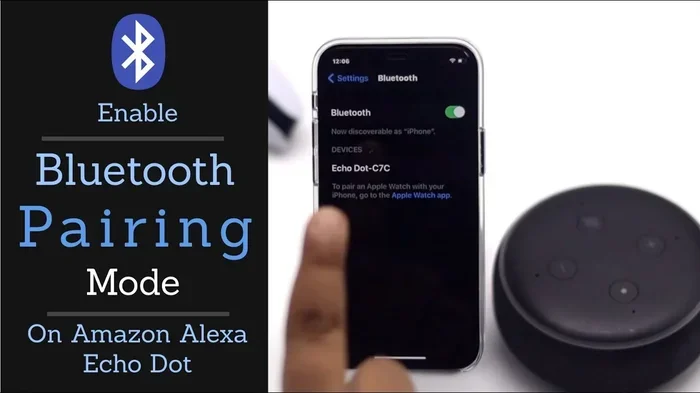
Pairing a Bluetooth device with your Echo Dot is straightforward. You can do it using the Alexa app on your phone or through voice commands. Both methods are simple and take less than a minute. Here is how to do it step by step.
Method 1: Using the Alexa App
The Alexa app gives you the most control over your Bluetooth connections. Follow these steps to pair a new device:
- Open the Alexa app on your phone or tablet.
- Tap the Devices icon at the bottom of the screen.
- Select Echo and Alexa from the list.
- Choose your Echo Dot from the device list.
- Tap Bluetooth Devices and then select Pair a New Device.
- Put your phone or other device into Bluetooth pairing mode.
- Select your device from the list that appears on the Echo Dot screen.
- Wait for the connection to complete. You will hear a confirmation sound.
Once paired, your device will automatically connect to the Echo Dot when it is in range. This makes it very convenient for daily use. You do not need to repeat the pairing process every time.
Method 2: Using Voice Commands
You can also pair Bluetooth devices using voice commands. This is the fastest method if your hands are busy. Simply say, “Alexa, pair my Bluetooth device.” The Echo Dot will enter pairing mode and you can connect from your phone’s Bluetooth settings.
This hands free approach is one of the best features of the Echo Dot. You do not need to open the app or fiddle with settings. Just speak a command and the Echo Dot handles the rest. It is a great example of how Alexa makes technology simple.
Using the Echo Dot as a Bluetooth Speaker
One of the most popular uses for the Echo Dot is as a Bluetooth speaker. You can pair your phone to the Echo Dot and stream music, podcasts, or any audio content through its built-in speaker. This works great for parties, cooking, or just enjoying music in another room.
If you want to use your Echo Dot as a speaker for your TV, you can also check out how Alexa works as a Bluetooth speaker for TV. The process is very similar and opens up even more possibilities for your smart speaker setup.
Bluetooth Range and Signal Strength
Understanding Bluetooth range helps you get the most out of your Echo Dot. The typical Bluetooth range for an Echo Dot is about 30 feet in open space. However, walls, furniture, and other obstacles can reduce this distance significantly.
Here are some factors that affect Bluetooth signal strength:
- Walls and obstacles: Thick walls, metal objects, and large furniture can block or weaken the Bluetooth signal.
- Distance: The farther you are from the Echo Dot, the weaker the signal becomes.
- Interference: Other wireless devices like microwaves, cordless phones, and Wi-Fi routers can interfere with Bluetooth signals.
- Bluetooth version: Newer Bluetooth versions handle interference better and maintain stronger connections over longer distances.
To get the best Bluetooth performance, place your Echo Dot in a central location. Keep it away from thick walls and other electronic devices. If you notice connection drops, moving the Echo Dot closer to your source device usually fixes the problem.
Tips for Improving Bluetooth Range
Want to extend your Bluetooth range with the Echo Dot? Try these practical tips:
- Place the Echo Dot in a central, open area of your home.
- Keep the Echo Dot away from thick walls and large metal objects.
- Reduce the number of wireless devices competing for the same space.
- Use the Echo Dot on the same floor as your source device when possible.
- Restart both devices if you experience frequent disconnections.
These small adjustments can make a big difference. Many users report a much better Bluetooth experience after simply moving their Echo Dot to a better location.
Common Bluetooth Problems and How To Fix Them
Even though Bluetooth technology is reliable, you may run into issues from time to time. Here are the most common problems and how to solve them.
Echo Dot Will Not Connect to Bluetooth
If your Echo Dot refuses to connect, the first thing to do is check the Bluetooth settings on your source device. Make sure Bluetooth is turned on and your device is visible for pairing. Sometimes simply turning Bluetooth off and back on resolves the issue.
Next, try restarting your Echo Dot. Unplug it, wait 30 seconds, and plug it back in. This clears temporary glitches and often fixes connection problems. If that does not work, you can try removing the Echo Dot from your paired devices list and pairing it again from scratch.
Audio Keeps Cutting Out
Intermittent audio is a common Bluetooth frustration. It usually happens when the signal is weak or when there is interference from other devices. Moving closer to the Echo Dot often fixes this issue immediately.
Also check if other wireless devices are causing interference. Wi-Fi routers and microwaves are common culprits. Moving the Echo Dot away from these devices can restore a stable connection. If the problem persists, restarting both the Echo Dot and your source device can help reset the Bluetooth connection.
Poor Audio Quality Over Bluetooth
If the sound quality is not as good as you expect, the Bluetooth version might be the issue. Older Echo Dot models use older Bluetooth versions that do not support high quality audio codecs. Upgrading to a newer Echo Dot can improve audio quality significantly.
You can also try reducing the distance between the source device and the Echo Dot. A stronger signal generally means better audio quality. Finally, make sure no other devices are hogging the Bluetooth bandwidth, which can degrade the audio stream.
Echo Dot Connects to the Wrong Device
Sometimes the Echo Dot connects to a previously paired device instead of the one you want. This happens because the Echo Dot remembers past connections. To fix this, go to the Bluetooth settings in the Alexa app and disconnect the unwanted device. Then pair the correct device.
You can also use voice commands to switch connections. Just say “Alexa, disconnect Bluetooth” and then pair the device you want. This gives you quick control over which device is connected at any time.
Advanced Bluetooth Features on Echo Dot
The Echo Dot offers more than basic Bluetooth connectivity. These advanced features give you greater control over your wireless audio experience.
Connecting Multiple Bluetooth Devices
You can pair multiple devices with your Echo Dot and switch between them easily. This is useful in households where different family members want to play their own audio on the same speaker. The Alexa app lets you manage all paired devices in one place.
To switch between devices, simply disconnect one and connect another through the app or use voice commands. This flexibility makes the Echo Dot a great shared speaker for families and groups.
Bluetooth and Hands Free Calling
The Echo Dot supports hands free calling through Bluetooth. You can make and receive calls using the Echo Dot as a speakerphone. This feature works with your phone connected via Bluetooth and is a great convenience for busy households.
If you want to learn more about using Bluetooth with other devices, check out how Bluetooth headphones handle hands free audio. The principles are similar and can help you get the most from your wireless connections.
Using Echo Dot Bluetooth With Other Smart Devices
The Echo Dot Bluetooth feature works well with other smart devices in your home. You can connect Bluetooth speakers, headphones, and even printers to your Echo Dot for a seamless smart home setup. The versatility of Bluetooth on the Echo Dot is one of its strongest selling points.
For those using Roku devices, you might be interested in how Bluetooth headphones work with Roku as it shares similar Bluetooth connectivity principles that apply to the Echo Dot ecosystem as well.
Echo Dot Bluetooth vs Wi Fi Streaming
It is worth comparing Bluetooth streaming to Wi Fi streaming on the Echo Dot. Both methods have their advantages and knowing the difference helps you choose the right option for your needs.
Bluetooth streaming is simple and does not require a Wi Fi connection. You can connect any Bluetooth device directly to the Echo Dot. This makes it ideal for situations where Wi Fi is not available or when you want a quick, direct connection.
Wi Fi streaming offers better audio quality and can support multiple speakers throughout your home. It also allows you to use voice commands to control playback. However, it requires a stable Wi Fi connection and works best with streaming services like Amazon Music, Spotify, and Apple Music.
For most users, Bluetooth is the go to option for casual listening and quick connections. Wi Fi streaming is better for multi room audio setups and higher quality audio. Many Echo Dot owners use both methods depending on the situation.
Best Practices for Echo Dot Bluetooth
To get the best Bluetooth experience with your Echo Dot, follow these proven practices:
- Keep your Echo Dot firmware updated: Amazon regularly releases updates that improve Bluetooth performance and fix bugs.
- Restart your Echo Dot regularly: A simple restart clears temporary glitches and keeps Bluetooth running smoothly.
- Limit the number of paired devices: Too many paired devices can cause confusion and connection issues.
- Place the Echo Dot on a stable surface: Vibrations can affect audio quality and Bluetooth stability.
- Use the Alexa app for management: The app gives you the most control over Bluetooth settings and paired devices.
- Check for interference: Keep the Echo Dot away from other wireless devices that might cause signal problems.
Following these best practices ensures a smooth and reliable Bluetooth experience every time you use your Echo Dot. These small habits make a big difference over time.
Final Thoughts on Echo Dot Bluetooth
The Echo Dot is a fantastic smart speaker and its Bluetooth capabilities are a big part of why it is so popular. Whether you want to stream music from your phone, use the Echo Dot as a speaker for your TV, or connect it to other wireless devices, Bluetooth makes it all possible. The feature works reliably across all Echo Dot generations, with newer models offering better range, stronger signals, and improved audio quality.
If you ever run into connection issues, the troubleshooting steps in this guide should help you resolve most problems quickly. And with the tips and best practices shared here, you can get the most out of your Echo Dot Bluetooth experience every single day.
Bluetooth on the Echo Dot is not just a feature. It is a gateway to a more connected, wireless, and convenient audio experience. Take advantage of it and enjoy the freedom that comes with wireless streaming.
Frequently Asked Questions
Can I connect any Bluetooth device to my Echo Dot?
Yes, you can connect most Bluetooth devices to your Echo Dot. This includes phones, tablets, laptops, Bluetooth speakers, and headphones. The Echo Dot acts as a Bluetooth receiver, so any device that supports Bluetooth output can connect to it. Just make sure the device is in pairing mode and follow the standard connection steps.
Can I use my Echo Dot as a Bluetooth speaker for my TV?
Yes, you can use your Echo Dot as a Bluetooth speaker for your TV. Simply pair your TV’s Bluetooth output with the Echo Dot and stream the audio wirelessly. This works with most smart TVs and any TV with Bluetooth capability. It is a great way to improve your TV audio without buying additional equipment.
Why does my Echo Dot Bluetooth keep disconnecting?
Bluetooth disconnections usually happen due to signal interference, distance, or outdated firmware. Try moving closer to the Echo Dot, reducing wireless interference from other devices, and restarting both the Echo Dot and your source device. Keeping the Echo Dot firmware updated through the Alexa app can also resolve frequent disconnection issues.
How many Bluetooth devices can I pair with my Echo Dot?
The Echo Dot can store multiple paired Bluetooth devices, but it can only actively connect to one at a time. You can switch between paired devices easily using the Alexa app or voice commands. This makes it convenient for households where different people want to use the same Echo Dot throughout the day.
Does using Bluetooth on the Echo Dot affect its Wi Fi connection?
No, Bluetooth and Wi Fi operate on different frequencies and do not interfere with each other on the Echo Dot. You can use Bluetooth streaming while connected to Wi Fi for smart home control and voice commands. This dual connectivity is one of the strengths of the Echo Dot as a smart speaker.
Is Bluetooth audio quality on the Echo Dot good?
The audio quality over Bluetooth depends on the Echo Dot generation and the Bluetooth version it supports. Newer Echo Dot models with Bluetooth 5.0 deliver noticeably better audio quality than older models. For the best experience, place the source device within 15 to 20 feet of the Echo Dot and minimize obstacles between them.