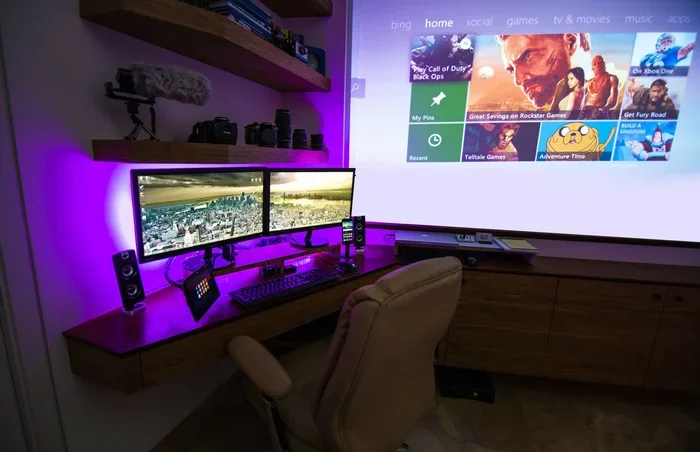
Do You Need A Computer For Projector For Better Viewing
Many people wonder if a computer is necessary to use a projector. The short answer is no — you can connect a laptop, phone, or even a streaming stick directly to a projector. A projector setup does not always require a full desktop computer. This guide covers every option so you can choose the best projector display method for your needs.
Do you need a computer for projector setups? This is one of the most common questions people ask when setting up a home theater or office display. The good news is that you have more options than you might think. You do not always need a bulky desktop or even a laptop to get a great picture on your screen.
Whether you want to watch movies, give a presentation, or play games on a big screen, there are many ways to make it happen. Some methods use a laptop projector connection. Others rely on wireless projector technology or simple streaming devices. This guide walks you through every choice so you can pick what works best for you.
We will cover everything from basic cables to smart projectors that need no extra device at all. By the end, you will know exactly what you need and what you can skip. Let us dive in and make your projector setup easier than ever.
Key Takeaways
- You do not need a computer: Many devices can connect to a projector without a traditional PC.
- Laptop projector connection is the most common and easiest method for most users.
- Wireless projector options let you cast content from your phone or tablet without cables.
- Streaming devices like Roku or Fire Stick can replace a computer entirely in many setups.
- Smart projectors have built-in apps and do not need any external device at all.
- Phone-to-projector pairing is a great option for quick presentations or movie nights.
📑 Table of Contents
- What Does a Projector Actually Need to Work?
- Laptop as a Projector Source
- Can You Use a Projector Without Any Computer?
- Wireless Projector Setup Options
- Using a Projector on a Wall Without a Computer
- Types of Projectors and Their Device Requirements
- Common Mistakes People Make with Projector Setups
- Quick Tips for the Best Projector Viewing Experience
- Expert Insights: What Professionals Recommend
- Conclusion
What Does a Projector Actually Need to Work?
A projector is really just a fancy screen. It takes a signal and shows it on a big surface. That signal can come from many sources. You do not always need a full computer to power it.
Here are the basic things any projector needs:
- A power source: Plug the projector into an outlet.
- An input signal: This comes from a device sending video and audio.
- A projection surface: A wall, screen, or even a white sheet works.
- Source content: Movies, slides, games, or anything you want to display.
The input signal is the key part. This is where many people get confused. They think a computer is the only way to create that signal. But that is far from true. Many devices send the same signal without needing a full PC.
Types of Projector Inputs
Most modern projectors come with several input options. Here are the most common ones you will find:
- HDMI: The most popular and reliable connection. Works with laptops, phones, and streaming sticks.
- USB: Some projectors can read files directly from a USB drive.
- VGA: An older analog connection. Still found on some older projectors.
- Wireless/Wi-Fi: Newer projectors support wireless casting and screen mirroring.
- USB-C: A newer all-in-one connection that handles video and power.
Each input type opens up different possibilities. The more options your projector has, the more projector alternatives you can use without a computer.
Laptop as a Projector Source
A laptop projector connection is the most popular way to use a projector. It is simple, reliable, and works with almost any setup. But does this mean you need a laptop? Not exactly. A laptop is just one option among many.
Here is how a typical laptop-to-projector setup works:
- Plug an HDMI cable from your laptop to the projector.
- Turn on both devices.
- Set the projector to the correct input source.
- Adjust your laptop display settings to mirror or extend the screen.
That is it. You can now show anything on your laptop — slides, movies, websites, or documents — on the big screen. This works great for office presentations and home movie nights alike.
Do You Need a Powerful Laptop?
No. You do not need a high-end laptop to use a projector. Even an older or budget laptop works fine for most tasks. The projector does not care how powerful your computer is. It just displays whatever signal it receives.
If you are only watching videos or showing slides, even a basic laptop handles the job easily. The projector resolution matters more than your laptop specs. A 1080p projector will look great with any modern laptop.
However, if you plan to play demanding games on the big screen, a stronger laptop helps. The laptop needs to keep up with the graphics. But for everyday use, almost any laptop works perfectly with a projector display.
Can You Use a Projector Without Any Computer?
Yes! This surprises many people. You can absolutely use a projector without a computer at all. There are several ways to do this. Each one removes the need for a PC or laptop entirely.
Option 1: Streaming Devices
Devices like Roku, Amazon Fire Stick, or Google Chromecast can connect directly to a projector. Most projectors with an HDMI port accept these streaming sticks. You get access to Netflix, YouTube, Hulu, and more — all without a computer.
Just plug the streaming device into the projector’s HDMI port. Connect it to your Wi-Fi network. Then use the remote or app to browse and play content. It is as easy as using a smart TV.
If you are wondering about using Netflix specifically, Can I Project Netflix From My Laptop To Projector — the same principles apply to any streaming device connected to the projector.
Option 2: Smart Projectors
Smart projectors are built-in with apps and Wi-Fi. They do not need any external device. You can open Netflix, YouTube, or other apps right on the projector. Some even have voice control built in.
These projectors are becoming more popular. They are great for people who want a simple setup. No cables, no extra devices, no computer needed. Just plug in and watch.
Option 3: USB Playback
Many projectors can read video files from a USB flash drive or hard drive. You just load your movies or photos onto the drive, plug it into the projector, and browse the files on-screen. This is a very low-tech but effective way to use a projector without any computer.
Keep in mind that not all projectors support every video format. Check your projector manual for the supported file types. Common formats like MP4 and AVI usually work without any issues.
Option 4: Phone or Tablet Connection
You can also cast content from your phone or tablet to a projector. Many projectors support wireless screen mirroring. You can also use adapters to connect your phone directly with a cable.
If you want to learn more about connecting your phone, check out Can I Pair My Phone To A Projector for detailed steps and tips.
Wireless Projector Setup Options
Wireless technology has changed the way we set up projectors. You no longer need to run long cables across the room. A wireless projector setup keeps things clean and simple.
Here are the most common wireless options:
- Wi-Fi Direct: Some projectors create their own Wi-Fi network. You connect your device directly to the projector.
- Bluetooth: A few projectors support Bluetooth for audio and screen sharing.
- Wireless Display Adapters: Devices like Miracast or Airtight plug into the projector and receive a wireless signal from your laptop or phone.
- Built-in Smart Apps: Many newer projectors have Wi-Fi and apps already installed.
Wireless vs. Wired: Which Is Better?
Both options have pros and cons. Here is a quick comparison:
| Feature | Wireless | Wired (HDMI) |
|---|---|---|
| Ease of Setup | Very Easy | Easy |
| Connection Stability | Good (can lag) | Excellent |
| Cable Clutter | None | One cable needed |
| Latency | Slight delay possible | Near zero delay |
| Cost | May need extra adapter | HDMI cable only |
| Best For | Casual viewing | Gaming, presentations |
For most home movie nights, wireless works great. For gaming or fast-action videos, a wired HDMI connection gives you the best experience with no lag or delay.
Using a Projector on a Wall Without a Computer
One of the great things about modern projectors is their flexibility. You can project onto a wall, a ceiling, or a portable screen. You do not need a fancy setup or a computer to make it work.
For example, you can set up a projector on a table or shelf and point it at a clean white wall. Many people do this in bedrooms or small apartments where hanging a screen is not practical. If you want to learn more about projecting onto walls, check out Can I Use A Projector On My Wall for helpful tips and ideas.
The key things to keep in mind when projecting on a wall:
- Use a smooth, light-colored wall for the best image.
- Avoid walls with dark colors or heavy texture.
- Dim the room lights for a clearer picture.
- Make sure the projector is level to avoid a tilted image.
With these simple tips, you can get a great picture without spending extra money on screens or computers.
Types of Projectors and Their Device Requirements
Not all projectors are the same. Different types have different needs. Here is a breakdown of common projector types and whether they require a computer.
Home Theater Projectors
These projectors are designed for movie watching and TV shows. Most of them work great with streaming devices or smart features. You do not need a computer unless you want to use it as a media server.
Presentation Projectors
Office and classroom projectors usually work best with a laptop. They often have VGA and HDMI ports. But you can also connect a phone or USB drive for simpler setups.
Portable Projectors
Portable projectors are small and lightweight. Many of them are smart projectors with built-in apps. They work perfectly without any computer. Just charge them up and stream directly.
Gaming Projectors
These projectors need low input lag for smooth gameplay. You can connect a gaming console, laptop, or PC directly. A computer is optional here too — a console or even a phone can work.
Understanding your projector type helps you choose the right setup. It also saves you money by avoiding unnecessary purchases.
Common Mistakes People Make with Projector Setups
Many people make avoidable mistakes when setting up a projector. Here are the most common ones and how to fix them.
- Using the wrong cable: Always check which ports your projector has before buying cables. An HDMI cable works for most modern setups.
- Ignoring room lighting: A projector works best in a dim room. Bright sunlight washes out the image and makes it hard to see.
- Placing the projector too close or too far: Check your projector’s throw ratio. It determines the best distance for a clear image.
- Forgetting about audio: Projectors have small built-in speakers. For better sound, connect external speakers or a soundbar.
- Assuming a computer is required: This is the biggest mistake. Most projectors work with many devices, not just computers.
Avoiding these simple mistakes saves time and frustration. It also helps you get the best picture quality from your projector right away.
Quick Tips for the Best Projector Viewing Experience
Want to get the most out of your projector? Here are some quick tips that make a big difference:
- Clean the lens regularly. Dust on the lens causes blurry spots in the picture.
- Use the right resolution. Match your source device output to your projector’s native resolution for the sharpest image.
- Replace the projector lamp on time. A worn-out lamp dims the image and changes the colors.
- Use a high-quality HDMI cable. Cheap cables can cause signal drops or poor picture quality.
- Position the projector correctly. Center it on the screen for the best alignment and focus.
- Update your projector firmware. New updates often improve performance and add new features.
These small steps go a long way. They keep your projector running smoothly and your viewing experience top-notch.
Expert Insights: What Professionals Recommend
AV professionals and tech experts agree on a few key points about projector setups. First, the source device matters less than people think. A projector just displays what it receives. It does not matter if the signal comes from a $2,000 computer or a $30 streaming stick.
Second, the quality of the cable and connection matters more than the device itself. A good HDMI cable ensures a clean, stable signal. This is especially important for high-resolution content like 4K video.
Finally, experts recommend matching your projector to its intended use. A home theater projector has different needs than a portable office projector. Choose the right setup for your situation, and you will not need a computer unless you specifically want one.
Conclusion
So, do you need a computer for projector use? The answer is a clear no. You have many options that work just as well or better. A laptop projector connection is convenient, but a streaming stick, smart projector, or even a phone can do the job just as well.
The best setup depends on what you want to do. Watch movies? A streaming stick or smart projector works great. Give presentations? A simple laptop connection is all you need. Play games? A console or PC connected via HDMI is the way to go.
Remember, a projector is just a display tool. It works with whatever sends it a signal. You are not locked into using a computer. Explore your options, pick what fits your needs and budget, and enjoy your big-screen experience.
With the right setup, your projector can deliver an amazing viewing experience — no computer required. Start experimenting with the options in this guide, and you will find the perfect setup for your home or office.
Frequently Asked Questions
Can I use a projector with just a phone?
Yes, you can use a projector with just a phone. Many projectors support wireless screen mirroring or Bluetooth. You can also use a simple adapter cable to connect your phone directly to the projector. This works great for watching videos or sharing photos on a big screen.
Do smart projectors need Wi-Fi to work?
Smart projectors need Wi-Fi to access streaming apps and online content. However, they can still display content from a USB drive or a wired device without Wi-Fi. The smart features work best when connected to a wireless network.
Can I connect a projector directly to a TV antenna?
Some projectors have a coaxial input that accepts a TV antenna signal. Most projectors do not, but you can use a tuner box to convert the antenna signal to HDMI. This lets you watch live TV on your projector without a computer.
Is a laptop better than a streaming stick for projector use?
A laptop offers more flexibility since you can run any app or file. A streaming stick is simpler and cheaper. For most people watching movies and shows, a streaming stick works just as well. A laptop is better if you need to run specific software or presentations.
What is the cheapest way to use a projector without a computer?
The cheapest way is to use a USB drive with video files. Most projectors support USB playback. You load your movies onto a flash drive, plug it in, and watch. No computer, no streaming subscription, and no extra cables needed.
Can I use a projector outdoors without a computer?
Yes, you can use a projector outdoors without a computer. A portable projector with a built-in battery and a USB drive loaded with movies works perfectly for outdoor viewing. Some people also use streaming sticks with a portable hotspot for outdoor Wi-Fi access.