Can I Connect My Phone To Tv Via Wi Fi Without Cable
Yes, you can absolutely connect your phone to your TV using Wi-Fi without any cables. This guide covers everything you need to know about wireless screen mirroring, including methods like Chromecast, AirPlay, Smart TV built-in features, and third-party apps. Whether you have an Android or iPhone, you will find a simple solution that works for your setup.
Have you ever wanted to show photos, watch videos, or play games on a bigger screen? Maybe you have been sitting on the couch with your phone and thought, “Wouldn’t it be nice to see this on the TV?” The good news is that you totally can. Connecting your phone to your TV via Wi-Fi is simpler than most people think. You do not need expensive cables, fancy equipment, or a computer science degree.
In this guide, we will walk you through every method available today. You will learn about wireless display technology, built-in TV features, and handy apps that make phone to TV streaming a breeze. Whether you use an Android device or an iPhone, there is a solution that fits your needs. Let us dive in and get your phone connected to your big screen.
Key Takeaways
- Wireless Connection Is Easy: You can mirror your phone screen to your TV using Wi-Fi without buying extra cables or hardware.
- Works for Both Android and iPhone: Multiple methods like Chromecast, AirPlay, and built-in Smart TV features support both platforms.
- No Internet Required for Some Methods: Technologies like Wi-Fi Direct and screen mirroring apps let you connect even without a router.
- Free Apps Are Available: Many reliable TV mirroring apps cost nothing and deliver great results.
- Quality Depends on Your Wi-Fi: A strong, stable Wi-Fi signal ensures smooth video casting and lag-free screen sharing.
- Common Mistakes Slow Things Down: Avoid outdated firmware, weak signals, and incompatible apps for the best experience.
📑 Table of Contents
- Why Connect Your Phone to TV Wirelessly?
- Method 1: Use Chromecast for Easy Phone to TV Streaming
- Method 2: Use AirPlay If You Have an iPhone and Apple TV
- Method 3: Use Your Smart TV’s Built-In Features
- Method 4: Use Streaming Devices Like Roku or Fire TV Stick
- Method 5: Use a Third-Party Mirroring App
- Troubleshooting Common Wireless Connection Problems
- Quick Tips for the Best Wireless Streaming Experience
- Common Mistakes to Avoid When Connecting Phone to TV Wirelessly
- Expert Insights on Wireless Phone to TV Technology
- Is Wi-Fi or Bluetooth Better for Connecting Phone to TV?
- Final Thoughts on Connecting Your Phone to TV Without Cables
Why Connect Your Phone to TV Wirelessly?
There are so many reasons to go wireless. First, cables are annoying. They tangle, they limit how far you can sit, and they wear out over time. A wireless connection frees you from all of that. You can sit anywhere in the room and still enjoy content on the TV.
Second, wireless media streaming looks cleaner. No cords running across the floor or dangling from the wall. Your living room stays tidy and organized. Third, casting content from your phone gives you more control. You can pause, rewind, and adjust volume right from your device.
Many people also use wireless streaming for family movie nights. Instead of passing around a single phone, everyone sees the same big picture. It is a much better experience for gatherings and parties. Screen sharing over Wi-Fi makes all of this possible without any hassle.
How Wireless Screen Mirroring Works
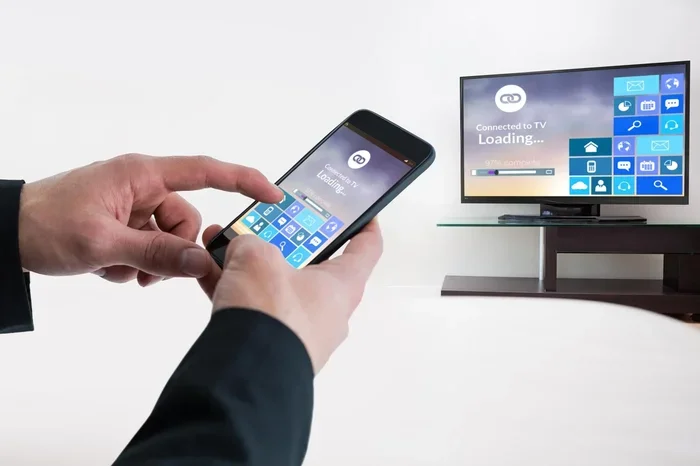
Wireless screen mirroring sends your phone’s display to your TV through your home network. Your phone and TV communicate over the same Wi-Fi connection. The TV receives the video signal and displays it on the larger screen. Some methods use a dedicated streaming device, while others rely on built-in TV technology.
The process is similar to how you stream music through a speaker. Your phone acts as the remote control and content source. The TV acts as the display. Everything happens in real time, so what you see on your phone appears on the TV almost instantly.
Method 1: Use Chromecast for Easy Phone to TV Streaming
Google Chromecast is one of the most popular ways to cast content from your phone to your TV. It is a small device that plugs into your TV’s HDMI port. Once set up, it lets you send videos, photos, and apps from your phone straight to the big screen.
How to Set Up Chromecast
Setting up Chromecast is straightforward. Plug the device into an available HDMI port on your TV. Connect the Chromecast to power using the USB cable. Download the Google Home app on your phone. Follow the on-screen instructions to connect the Chromecast to your Wi-Fi network.
Once the setup is complete, you are ready to cast. Open any app that supports casting, like YouTube, Netflix, or Spotify. Tap the cast icon (it looks like a small rectangle with Wi-Fi waves in the corner). Select your Chromecast device from the list. Your content will start playing on the TV immediately.
Tips for the Best Chromecast Experience
- Keep your phone and Chromecast on the same Wi-Fi network.
- Use a 5GHz Wi-Fi band for faster and more stable streaming.
- Restart your router if you experience buffering or lag.
- Update the Google Home app regularly for the latest features.
Chromecast works great with both Android phones and iPhones. You do not need any special cable or adapter. It is one of the easiest wireless streaming solutions available today.
Method 2: Use AirPlay If You Have an iPhone and Apple TV
If you use an iPhone and have an Apple TV, AirPlay is your best friend. AirPlay lets you mirror your entire iPhone screen or stream specific content directly to your TV. It works seamlessly within the Apple ecosystem, so the setup is incredibly smooth.
How to Use AirPlay to Mirror Your Screen
Make sure your iPhone and Apple TV are connected to the same Wi-Fi network. Open the Control Center on your iPhone by swiping down from the top right corner. Tap the Screen Mirroring button. A list of available devices will appear. Select your Apple TV from the list.
Your iPhone screen will now appear on your TV. You can open any app, scroll through photos, or play games, and everything will show up on the big screen. To stop mirroring, go back to the Control Center and tap “Stop Mirroring.”
AirPlay vs. Chromecast: What Is the Difference?
AirPlay is exclusive to Apple devices, while Chromecast works with both Android and iPhone. AirPlay offers full screen mirroring, which means everything on your phone screen shows on the TV. Chromecast often uses app-specific casting, where you send content from individual apps rather than mirroring the entire screen.
Both methods deliver excellent quality. Your choice depends on your devices and personal preference. If you are deep in the Apple world, AirPlay feels natural. If you use a mix of devices, Chromecast offers more flexibility.
Method 3: Use Your Smart TV’s Built-In Features
Most modern Smart TVs come with built-in wireless mirroring options. You do not need any extra devices. Your TV can connect directly to your phone over Wi-Fi. This method works with both Android and iPhone in most cases.
How to Find Your TV’s Screen Mirroring Feature
Open your TV’s settings menu and look for options like “Screen Mirroring,” “Wireless Display,” “Cast Screen,” or “Mirroring.” The exact name varies by brand. Samsung TVs call it “Smart View.” LG TVs use “Screen Share.” Sony TVs may label it as “Screen Mirroring.”
Once you find the feature, turn it on. On your phone, open the wireless display settings or pull down your notification shade and look for a “Cast” or “Mirror” option. Your TV should appear in the list of available devices. Tap on it to connect.
Popular Smart TV Brands and Their Mirroring Options
- Samsung: Smart View — supports Android and some streaming apps on iPhone.
- LG: Screen Share — works well with Android devices and supports DLNA.
- Sony: Screen Mirroring — compatible with Android phones and iPhones.
- Vizio: Cast — supports both platforms with good streaming quality.
- TCL: Roku built-in — uses Roku’s casting feature for wireless connection.
Built-in features are convenient because you do not need to buy anything extra. However, the quality can vary depending on your TV model and Wi-Fi strength. Always make sure your TV firmware is up to date for the best wireless connection performance.
Method 4: Use Streaming Devices Like Roku or Fire TV Stick
If your TV is not a Smart TV or if its built-in features are slow, you can use a dedicated streaming device. Devices like Roku and Amazon Fire TV Stick plug into your TV’s HDMI port and add smart capabilities. They also support wireless casting from your phone.
Setting Up Roku for Phone Casting
Connect your Roku device to your TV and Wi-Fi network. Download the Roku app on your phone. Open the app and tap the “Cast” icon. Your Roku device will appear as an option. Select it, and you can stream content directly from your phone to the TV.
Roku also has a feature called “Screen Mirroring” that lets you display your entire phone screen. Go to Settings > System > Screen Mirroring on your Roku and enable it. Then use your phone’s built-in casting feature to connect.
Setting Up Fire TV Stick for Phone Casting
Plug the Fire TV Stick into your HDMI port and connect it to Wi-Fi. Download the Amazon Fire TV app on your phone. Open the app and select your Fire TV device. You can now cast videos, photos, and apps from your phone to the TV.
The Fire TV Stick also supports DLNA, which is a protocol for streaming media over a local network. Many third-party apps use DLNA to send content to your TV without cables. It is a versatile option for video casting and media sharing.
Method 5: Use a Third-Party Mirroring App
If your TV does not support built-in mirroring and you do not want to buy a streaming device, third-party apps are a great alternative. These apps use Wi-Fi Direct or your home network to create a wireless link between your phone and TV.
Top Free Mirroring Apps to Try
- LetsView: Works with Android and Windows. Easy to use and free.
- ApowerMirror: Supports both platforms with good streaming quality.
- Screen Mirroring — WhiteBox: Lightweight app that works on most Android devices.
- AirScreen: Turns any TV into an AirPlay and Cast receiver.
- AllConnect: Supports DLNA and Miracast for wireless media streaming.
How to Use a Mirroring App
Download the app from your phone’s app store. Install the corresponding receiver app on your TV if your TV supports smart apps. Make sure both devices are on the same Wi-Fi network. Open the app on your phone and select your TV from the device list. Your phone screen will appear on the TV.
These apps work well for photos, presentations, and casual video watching. For high-quality video streaming, a dedicated device like Chromecast or Fire TV Stick may deliver better results. But for quick screen sharing, these apps get the job done.
Troubleshooting Common Wireless Connection Problems
Sometimes things do not work perfectly the first time. That is normal. Here are the most common issues and how to fix them.
Your Phone Does Not Find the TV
Make sure both devices are on the same Wi-Fi network. Restart your router if needed. Check that your TV’s mirroring feature is turned on. Update your TV’s software to the latest version. Sometimes a simple restart of both devices solves the problem.
The Video Keeps Buffering or Lagging
Weak Wi-Fi signals cause buffering. Move your router closer to the TV or use a Wi-Fi extender. Switch to the 5GHz band if your router supports it. Close other apps on your phone that might be using bandwidth. Lower the streaming quality in the app settings if needed.
The Screen Mirroring Is Delayed
Latency happens when the Wi-Fi network is congested. Reduce the number of devices connected to your network. Avoid streaming from multiple sources at the same time. Use a wired Ethernet connection for your router if possible to improve stability.
Audio and Video Are Out of Sync
This issue often occurs with third-party apps. Try using a different mirroring app or a dedicated streaming device. Update the app to the latest version. If the problem persists, check if your TV’s processing speed is causing the delay.
Quick Tips for the Best Wireless Streaming Experience
Follow these simple tips to get the most out of your wireless display setup:
- Use a strong Wi-Fi signal. Place your router in a central location. Avoid walls and obstacles between the router and your TV.
- Keep your devices updated. Software updates often include fixes for connectivity issues and performance improvements.
- Restart devices regularly. A quick restart of your phone, TV, and router can clear up many problems.
- Close unused apps. Background apps consume bandwidth and processing power. Close them before casting for smoother performance.
- Use 5GHz Wi-Fi when possible. It offers faster speeds and less interference than the 2.4GHz band.
- Avoid crowded networks. If many devices are streaming at once, your connection may slow down. Prioritize your TV and phone on the network.
Common Mistakes to Avoid When Connecting Phone to TV Wirelessly
Many people run into avoidable problems. Here are mistakes you should steer clear of.
- Assuming all TVs support all methods. Not every Smart TV has Chromecast, AirPlay, or screen mirroring. Check your TV’s specifications before trying a method.
- Using outdated apps. Old versions of mirroring apps may not work with newer phone or TV software. Always keep your apps updated.
- Ignoring Wi-Fi requirements. Some methods, like Wi-Fi Direct, do not need internet but do need a direct connection. Understand what each method requires.
- Overlooking device compatibility. Not every phone works perfectly with every TV or streaming device. Check compatibility lists before purchasing any accessory.
- Expecting perfect quality on weak networks. A poor Wi-Fi signal will always result in low-quality streaming. Invest in a good router or extender for the best results.
Expert Insights on Wireless Phone to TV Technology
Wireless display technology has come a long way in recent years. What used to require expensive hardware now works with free apps and built-in TV features. Experts agree that the future of media streaming is wireless. Cables are becoming less necessary as technology improves.
Industry professionals recommend starting with your TV’s built-in features before buying any extra devices. Most modern Smart TVs handle basic mirroring well. If you need more advanced features, a Chromecast or Fire TV Stick is an affordable upgrade. These devices cost under $50 and deliver excellent performance.
Experts also stress the importance of your home network. A good router makes a huge difference in streaming quality. If you frequently cast content, consider investing in a mesh Wi-Fi system. It eliminates dead zones and provides strong coverage throughout your home.
One thing professionals warn about is latency. Wireless connections always have some delay compared to wired ones. For gaming or real-time interactions, a cable might still be better. But for watching videos, sharing photos, and presenting slides, wireless is more than sufficient.
Is Wi-Fi or Bluetooth Better for Connecting Phone to TV?
Wi-Fi is the clear winner for connecting your phone to your TV. Wi-Fi offers much faster data transfer speeds than Bluetooth. This means smoother video streaming and higher-quality image output. Bluetooth can work for audio-only connections, but it struggles with video.
Wi-Fi Direct is another option that does not require a router. It creates a direct connection between your phone and TV. This is useful when you do not have access to a Wi-Fi network. However, Wi-Fi Direct is less common and not supported by all devices.
For the best results, always use Wi-Fi-based methods for phone to TV connections. Bluetooth is a backup option for audio streaming only. Stick with Wi-Fi for video, photos, and full screen mirroring.
Final Thoughts on Connecting Your Phone to TV Without Cables
Connecting your phone to your TV via Wi-Fi without cables is entirely possible and incredibly convenient. You have many options to choose from, including Chromecast, AirPlay, Smart TV built-in features, streaming devices, and third-party apps. No matter what devices you own, there is a method that works for you.
The key is to start simple. Try your TV’s built-in mirroring feature first. If that does not work, consider a Chromecast or Fire TV Stick. These small devices unlock a world of wireless streaming possibilities. You can watch your favorite shows, share memories with family, and even use your TV as a second screen for work.
Remember to keep your Wi-Fi network strong and your devices updated. Avoid common mistakes like ignoring compatibility and using outdated apps. With the right setup, you will enjoy a seamless wireless connection between your phone and TV in no time.
So go ahead and give it a try. Wireless screen mirroring is one of the most useful features available today. Once you experience the freedom of going cable-free, you will never want to go back. Your TV and your phone were made to work together, and now you know exactly how to make it happen.
Frequently Asked Questions
Can I connect my phone to my TV via Wi-Fi without any extra devices?
Yes, if your TV is a Smart TV with built-in screen mirroring, you can connect wirelessly without any extra hardware. Just make sure both your phone and TV are on the same Wi-Fi network and use your TV’s mirroring feature.
Do I need an internet connection to mirror my phone to TV?
Not always. Some methods like Wi-Fi Direct and certain mirroring apps work without internet. However, most streaming services like Netflix and YouTube require an active internet connection to play content.
Why is my wireless connection lagging when I cast to my TV?
Lag usually happens due to a weak Wi-Fi signal or network congestion. Move closer to your router, switch to the 5GHz band, or reduce the number of devices using your network. Restarting your router can also help.
Can I connect an iPhone to a non-Apple TV wirelessly?
Yes. You can use apps like AirScreen or LetsView to mirror your iPhone to a non-Apple Smart TV. You can also use a Chromecast or Fire TV Stick, which support iPhone casting through their respective apps.
Is screen mirroring the same as casting?
Not exactly. Screen mirroring duplicates your entire phone screen on the TV. Casting sends specific content from an app to the TV while you can still use your phone for other things. Both are wireless methods, but they work differently.
What is the best free app for connecting phone to TV via Wi-Fi?
LetsView and AirScreen are two of the best free options. They support both Android and iPhone, work with most Smart TVs, and offer reliable wireless streaming without any cost.
=== CONCLUSION ===
Connecting your phone to your TV via Wi-Fi without a cable is easier than ever before. You have multiple reliable methods at your fingertips, from built-in Smart TV features to affordable streaming devices and free mirroring apps. The key is finding the right method for your specific setup and devices.
Start by checking what your TV already supports. Then explore Chromecast, AirPlay, or a third-party app if needed. Keep your Wi-Fi strong and your devices updated for the smoothest experience. With the tips and tricks in this guide, you are now equipped to go completely wireless and enjoy your favorite content on the big screen.