Can You Update Lg Smart Tv Apps Here Is How To Do It
Yes, you can update LG Smart TV apps right from your television. Whether your apps need a quick refresh or a full LG Smart TV software update, this guide walks you through every method. You will learn how to use the LG app store, enable auto-updates, and fix common problems that stop your apps from working.
Your LG Smart TV is a hub for streaming movies, shows, and games. But like any smart device, the apps on your TV need regular updates to work their best. You may notice that Netflix stutters, or the Spotify app crashes right when you press play. These problems often mean your apps are out of date.
Can you update LG Smart TV apps? The short answer is yes. You can update apps on your LG TV in just a few minutes. Whether you use a webOS model from 2019 or a brand new OLED TV from 2024, the process is simple. This guide shows you every way to update your LG TV apps, from manual updates to full system refreshes. You will also learn how to fix common problems that block app updates.
Keeping your apps current means better performance, fewer crashes, and access to the latest features. Let us dive into the step by step methods you can use right now.
Key Takeaways
- Manual App Updates: You can update individual apps through the LG Content Store on your TV.
- Automatic Updates: LG Smart TVs support auto-update features that keep your apps current without effort.
- Full System Updates: Updating your TV firmware often updates all apps at once and improves performance.
- Troubleshooting Tips: A simple reboot or internet check solves most app update problems.
- App Compatibility: Not all apps work on older LG TV models, so check your TV specs before installing.
- Multiple Methods: You can update apps via the remote, USB drive, or by resetting the TV entirely.
📑 Table of Contents
- Why Updating LG Smart TV Apps Matters
- How to Update LG Smart TV Apps Manually
- How to Enable Automatic App Updates on LG Smart TVs
- Updating Your LG TV Through a Full System Update
- Troubleshooting Common LG Smart TV App Update Problems
- Advanced Methods to Update LG Smart TV Apps
- Best Practices for Keeping Your LG Smart TV Apps Updated
- Common Mistakes People Make When Updating LG TV Apps
- Final Thoughts
Why Updating LG Smart TV Apps Matters
Many people ignore app updates on their TV. They update their phone every day but let their TV apps sit for months. This habit can cause real problems. Outdated apps slow down your TV and may stop working altogether. Here is why keeping your apps fresh matters so much.
Security and Privacy
App updates often include important security patches. Streaming services like Netflix, Hulu, and Disney+ handle your personal data every time you log in. When developers release an update, they fix vulnerabilities that hackers could exploit. Running old app versions on your LG TV leaves your home network at risk.
New Features and Bug Fixes
Every update brings improvements. Your favorite apps add new menus, better search tools, and support for 4K or HDR content. Bug fixes also stop annoying issues like audio sync problems or apps freezing mid playback. When you skip updates, you miss out on all of these enhancements.
Better Performance
Older app versions use more memory and processing power. Updated apps are optimized for your TV’s hardware. This means faster loading times, smoother navigation, and fewer crashes. Your LG TV runs better when every app is current.
How to Update LG Smart TV Apps Manually
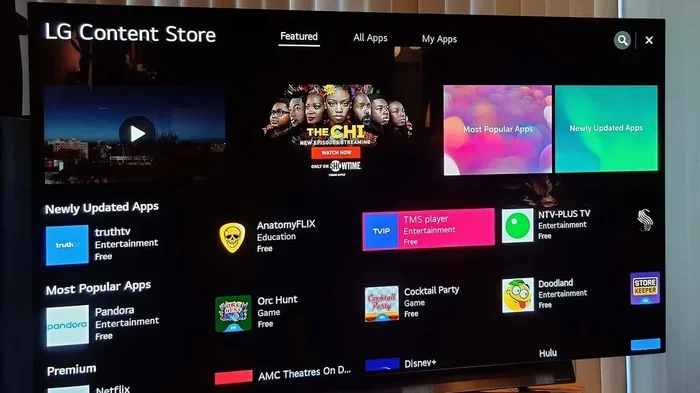
The most direct way to update apps is through the LG Content Store. This built in app store lets you check for updates on each app individually. Follow these steps carefully to update any app on your LG Smart TV.
Step by Step Guide
First, turn on your LG TV and press the Home button on your remote. This opens the LG webOS home screen. Navigate to the LG Content Store icon, which looks like a shopping bag, and press OK on your remote.
Once inside the store, look for the search bar at the top of the screen. Type the name of the app you want to update. Alternatively, you can scroll down to the My Apps section to see all installed apps on your TV.
Select the app you want to update. If an update is available, you will see an Update button instead of the normal Install or Open button. Press Update and wait for the download to finish. The time depends on your internet speed, but most updates take less than two minutes.
Updating Multiple Apps at Once
LG webOS does not have a single update all button for apps. You need to repeat the process for each app that needs updating. This can feel tedious if you have many apps, but it ensures each app gets the latest version. Focus on your most used apps first, like Netflix, YouTube, and Amazon Prime Video.
Quick Tips for Manual Updates
- Check for updates once a month to keep your apps fresh.
- Restart your TV after updating several apps for the best performance.
- Make sure your TV is connected to a stable Wi-Fi network before starting.
- If an update fails, clear the app cache and try again.
How to Enable Automatic App Updates on LG Smart TVs
If you do not want to check for updates every month, you can turn on automatic updates. This feature lets your LG TV download and install app updates in the background. You never have to think about it again.
Turning On Auto Updates
Press the Home button on your LG remote. Go to Settings, which looks like a gear icon, and select All Settings. Scroll down to General and choose About This TV. Look for an option called Auto Update or Software Update. Toggle it on to enable automatic updates for your apps.
Some LG models also let you choose between automatic and manual update modes. If your TV offers this choice, select Auto Download. Your TV will then update apps whenever new versions are available, as long as it is connected to the internet.
What Automatic Updates Mean for Your TV
Auto updates usually happen overnight or when your TV is idle. The TV will download the update and install it without interrupting your viewing. You may see a notification on screen when an update finishes. Some LG TVs restart automatically after a major update, so be prepared for a brief screen blackout.
One thing to keep in mind is that auto updates only work when your TV is connected to the internet. If your TV loses connection often, you may want to check for updates manually instead. You can also boost your wifi at home to ensure a stable connection for smooth updates.
Updating Your LG TV Through a Full System Update
A full system update on your LG TV does more than just refresh individual apps. It updates the entire operating system, which includes all pre installed apps and the app store itself. This is the most thorough way to keep your TV current.
How to Check for a System Update
Go to Settings on your LG TV and select All Settings. Scroll to General and choose About This TV. Tap on Check For Updates. Your TV will connect to LG servers and search for the latest firmware version.
If an update is available, you will see a download button. Click it and let the TV do its work. The download size varies but typically ranges from 100 MB to 1 GB. Once the download finishes, tap Install Now. Your TV will restart and apply the new system software.
When to Use a System Update
Use a system update when multiple apps are acting up or when you notice general performance issues. System updates also bring new features to your TV interface. For example, LG often adds new streaming apps or improves the home screen layout through system updates.
If you have trouble connecting to the internet during an update, you might need to troubleshoot your network first. You can control my TV without Wi-Fi using a wired Ethernet connection or mobile hotspot as a temporary fix.
Troubleshooting Common LG Smart TV App Update Problems
Even with a simple process, app updates on LG TVs sometimes fail. You might see an error message, a frozen download bar, or an app that simply will not open after updating. Here are the most common problems and how to fix them.
App Update Stuck or Frozen
If an app update stops downloading, your first step should be to restart your TV. Press and hold the power button on your remote until the TV turns off completely. Wait ten seconds and turn it back on. Try the update again. This simple fix resolves the majority of stuck update issues.
Error Messages During Update
Error codes on LG TVs usually point to a network problem. Check your Wi-Fi connection and make sure your internet speed is fast enough for downloads. If your router is far from your TV, the signal may be weak. Consider moving your router closer or using a plug in wifi extender to strengthen the signal in your living room.
App Will Not Open After Update
Sometimes an updated app crashes on launch. This happens when the new version has a bug or when your TV does not have enough storage space. Try deleting the app and reinstalling it from the LG Content Store. This gives you a clean installation with no corrupted files.
Not Enough Storage Space
LG Smart TVs have limited internal storage. If your TV is nearly full, app updates will fail. Go to Settings and check your storage usage. Delete apps you no longer use to free up space. You can also clear the cache of individual apps to reclaim a few gigabytes.
Old TV Models and App Compatibility
Not all apps support older LG TV models. If your TV is from 2015 or earlier, some newer apps may not install or update. Check the app requirements in the LG Content Store before downloading. You can also visit the developer website to confirm compatibility with your specific model.
Advanced Methods to Update LG Smart TV Apps
If the standard methods do not work or you want more control, there are advanced approaches you can try. These methods work well for power users or when your TV has persistent update problems.
Using a USB Drive to Update Apps
You can download app update files from LG’s website and install them via USB. Visit the LG support page on your computer, search for your TV model, and look for firmware or app update files. Download the file to a USB flash drive formatted as FAT32. Insert the USB drive into your TV and follow the on screen prompts to install the update.
Resetting Your LG TV to Fix Update Issues
A factory reset wipes all apps and settings and gives your TV a fresh start. Go to Settings, select All Settings, then General, and choose Reset to Initial Settings. This removes all installed apps, so you will need to reinstall them afterward. Only use this method as a last resort when nothing else works.
Before resetting, consider rebooting my smart TV first. A simple reboot clears temporary files and often fixes minor update glitches without erasing your data.
Using Third Party App Sources
Some users install apps from outside the official LG Content Store. While this is possible, it comes with risks. Third party apps may not receive updates automatically and could contain security vulnerabilities. Stick to the official store whenever possible to keep your TV safe and up to date.
Best Practices for Keeping Your LG Smart TV Apps Updated
Making app updates a habit saves you time and frustration in the long run. Here are some best practices that will keep your LG TV running smoothly all year long.
- Set a monthly reminder to check for app updates on your LG TV.
- Keep your TV connected to the internet whenever possible for auto updates.
- Restart your TV once a week to clear memory and apply pending updates.
- Delete unused apps regularly to free up storage space for new updates.
- Update your TV firmware at the same time as your apps for the best compatibility.
- Enable automatic updates if your TV model supports it.
- Check the LG Content Store after major TV restarts for any pending updates.
Following these simple habits means your apps will always run at their best. You will enjoy faster loading times, fewer crashes, and access to every new feature the developers offer.
Common Mistakes People Make When Updating LG TV Apps
Learning what not to do is just as important as learning the right steps. Here are common mistakes that cause problems with LG TV app updates.
- Ignoring system updates: App updates often depend on the latest firmware. Skipping system updates breaks app compatibility.
- Updating during peak hours: If your internet is slow in the evening, try updating during the day when bandwidth is better.
- Force closing apps during updates: Never press the power button or close an app while it is downloading. This corrupts the update file.
- Using public Wi-Fi: Public networks are unstable and often block large downloads. Use your home network for app updates.
- Not restarting after updates: A quick restart after updating helps the TV apply changes properly and clears any conflicts.
Avoiding these mistakes keeps your update process smooth and prevents the need for repeated attempts or factory resets.
Final Thoughts
Can you update LG Smart TV apps easily? Absolutely. You have multiple ways to keep every app on your television current and running smoothly. Whether you prefer manual updates through the LG Content Store, automatic background updates, or full system firmware refreshes, the choice is yours.
Remember that updating your apps is one of the simplest things you can do to improve your TV experience. It boosts security, adds new features, and keeps everything running fast. Make it part of your regular TV maintenance routine, just like cleaning the screen or adjusting the picture settings.
If you run into problems, the troubleshooting steps in this guide will help you solve most issues quickly. And when all else fails, a reboot or a factory reset almost always gets things working again. Your LG Smart TV is a powerful entertainment center, and keeping its apps updated ensures you get the most out of every streaming session.
Take a few minutes today to check your app versions. Your future self will thank you when Netflix loads instantly and every app works exactly the way it should. Happy watching.
Frequently Asked Questions
How do I update apps on my LG Smart TV?
Press the Home button on your LG remote, open the LG Content Store, find the app you want to update, and select Update. You can also go to Settings, then General, and check for system updates that refresh all apps at once.
Why won’t my LG TV apps update?
App update failures are usually caused by a weak internet connection, low storage space, or outdated TV firmware. Check your Wi-Fi signal, free up storage by deleting unused apps, and make sure your TV software is current before trying again.
Can I turn on automatic app updates on my LG TV?
Yes. Go to Settings, select All Settings, then General, and choose About This TV. Look for the Auto Update or Software Update option and toggle it on. Your TV will then download and install app updates automatically.
Do I need to restart my LG TV after updating apps?
It is a good idea to restart your TV after updating apps. A simple reboot helps the TV apply the changes properly and clears any temporary files that could cause conflicts with the updated apps.
Are app updates free on LG Smart TVs?
Yes, all app updates on LG Smart TVs are completely free. You do not need to pay anything extra to download the latest versions of your installed apps from the LG Content Store.
What should I do if an app crashes after updating?
Delete the app from your LG TV and reinstall it from the LG Content Store. This gives you a clean version of the app with no corrupted files. If the problem continues, try restarting your TV or checking for a newer firmware update.