How Do I Type The Euro Symbol In Microsoft Outlook
Typing the euro symbol in Microsoft Outlook is simpler than most people think. Whether you use Windows or Mac, there are multiple quick ways to insert the euro currency symbol into your emails. This guide covers keyboard shortcuts, copy-paste methods, symbol menus, and auto-correct tricks so you can type the euro sign effortlessly every time.
Key Takeaways
- Alt Code Method: The fastest way on Windows is using the Alt code combination to type the euro symbol instantly.
- Keyboard Shortcuts Work Everywhere: Both Windows and Mac users have dedicated shortcuts for inserting the euro sign in Outlook.
- Copy and Paste Saves Time: You can quickly copy the euro symbol from any source and paste it into your email.
- Auto-Correct Feature: Setting up a custom auto-correct entry means the symbol appears automatically as you type.
- Character Map and Symbol Menu: Built-in Windows and Mac tools make finding and inserting special characters easy.
- Email Signatures Made Easy: Adding the euro currency symbol to your Outlook signature is a quick setup process.
📑 Table of Contents
- How Do I Type The Euro Symbol In Microsoft Outlook
- Why Typing The Euro Symbol Matters In Outlook
- Method 1: Using Keyboard Shortcuts
- Method 2: Using The Symbol Menu In Outlook
- Method 3: Copy And Paste The Euro Symbol
- Method 4: Using Auto-Correct To Insert The Euro Symbol Automatically
- Method 5: Adding The Euro Symbol To Your Email Signature
- Comparison Table: Best Methods For Typing The Euro Symbol
- Common Mistakes When Typing The Euro Symbol
- Expert Insights: Making The Most Of Special Characters In Outlook
- Troubleshooting: What To Do When The Euro Symbol Does Not Appear
- Conclusion
How Do I Type The Euro Symbol In Microsoft Outlook
If you have ever stared at your Outlook email screen trying to figure out how to insert a euro currency symbol, you are not alone. Many people struggle with this simple but essential task. Whether you are writing invoices, pricing emails, or international correspondence, knowing how to type the euro sign quickly matters.
The good news is that Microsoft Outlook makes it surprisingly easy. There are several methods you can use, and once you learn them, you will never struggle again. This guide walks you through every practical way to insert the euro symbol into your Outlook emails, signatures, and calendar entries.
Let us dive right in and explore all the options available to you.
Why Typing The Euro Symbol Matters In Outlook
The euro currency symbol is used by over 340 million people across 20 European countries. If you work with international clients, sell products online, or handle pricing in your emails, you need this symbol regularly. Without it, your emails can look unprofessional or confusing.
Using the correct currency symbol also builds trust with your recipients. It shows attention to detail and professionalism. When you type the euro sign correctly, your message looks polished and ready for business.
Beyond professionalism, inserting the right special characters in Outlook keeps your communication clear. A missing symbol can change the meaning of a price or amount entirely. So learning this small skill pays off in big ways.
The Euro Symbol In International Business Emails
Many professionals send emails that include pricing, invoices, or budget figures daily. When those figures involve foreign currency, the euro symbol becomes essential. Imagine sending a quote to a client in Germany without the proper euro sign. It could lead to confusion or even lost business.
Outlook supports various international characters and symbols built into its platform. You just need to know where to find them and how to use them efficiently.
Method 1: Using Keyboard Shortcuts
Keyboard shortcuts are the fastest way to type the euro symbol in Microsoft Outlook. Once you memorize the right combination, you can insert the symbol in seconds without taking your hands off the keyboard.
Windows Keyboard Shortcut For The Euro Sign
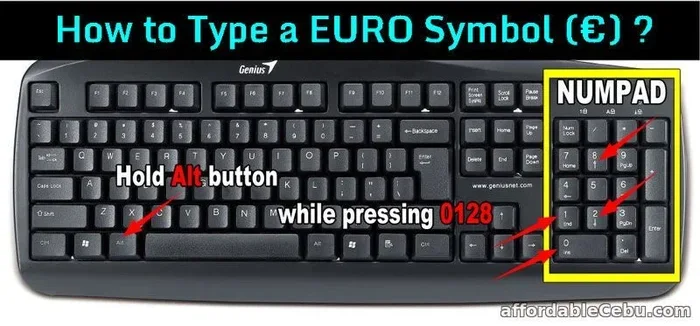
On Windows computers, the most popular method uses the Alt key and a numeric code. Here is how it works:
- Make sure your Num Lock is turned on.
- Hold down the Alt key on the left side of your keyboard.
- While holding Alt, type 0128 on your numpad.
- Release the Alt key, and the euro symbol appears.
This is the standard alt code for the euro sign. It works in most Windows applications, including Outlook. The only requirement is that you have a dedicated numeric keypad on the right side of your keyboard.
If your laptop does not have a separate numpad, you can try holding the Fn key along with Alt and typing the numbers. Some laptops map the numpad to the letter keys, so this trick can help.
Mac Keyboard Shortcut For The Euro Sign
Mac users have their own simple shortcut. Here is how to type the euro symbol on a Mac:
- Press and hold the Option key (also labeled Alt on some Mac keyboards).
- While holding Option, press the number 2.
- Release both keys, and the euro sign appears in your text.
This shortcut works across all Mac applications, including Outlook for Mac. It is quick, easy, and requires no extra setup.
Quick Tips For Keyboard Shortcuts
- Practice daily: The more you use the shortcut, the more natural it becomes.
- Use a physical keyboard: On-screen keyboards do not always support Alt codes.
- Check your keyboard layout: Some international keyboard layouts have the euro symbol mapped to a different key.
Method 2: Using The Symbol Menu In Outlook
If you prefer not to memorize shortcuts, the symbol insertion menu in Outlook is your best friend. This built-in tool lets you browse and insert any character, including the euro currency symbol.
How To Insert The Euro Symbol Using The Symbol Dialog
Follow these simple steps to find the euro symbol through Outlook’s menu:
- Open a new email message in Microsoft Outlook.
- Place your cursor where you want the symbol to appear.
- Go to the Insert tab on the ribbon at the top of the screen.
- Click on the Symbol button in the Symbols group.
- Select More Symbols from the dropdown menu.
- In the Symbol dialog box, find the euro sign and click Insert.
This method works well if you only need the symbol occasionally. It gives you access to hundreds of other special characters too, including currency symbols from around the world.
Adding The Euro Symbol To Your Quick Access Menu
Once you find the euro symbol in the Symbol dialog, you can add it to your quick access list for faster insertion next time. After clicking Symbol in step 5 above, look for the AutoCorrect options. You can set up a short text replacement so that typing a simple code automatically inserts the euro sign.
Method 3: Copy And Paste The Euro Symbol
The simplest method of all is to copy and paste the euro symbol. You can find it on any webpage, in a character map tool, or even in this article. Just highlight the symbol, copy it, and paste it into your Outlook email.
Here is the euro symbol for you to copy: €
This method is perfect for people who do not type the symbol often. However, if you use it daily, copying and pasting every time can slow you down. That is why the keyboard shortcut methods are better for regular use.
Where To Find The Euro Symbol For Copying
- Character Map on Windows: Search for Character Map in your Start menu, find the euro symbol, and copy it.
- Online symbol websites: Many websites display special characters ready for copying.
- Other documents: If you have the symbol in any document, you can copy it from there.
Method 4: Using Auto-Correct To Insert The Euro Symbol Automatically
Auto-correct is one of the most powerful features in Microsoft Outlook. You can set it up so that typing a simple word or code automatically replaces it with the euro currency symbol. This method saves tons of time if you use the symbol frequently.
Setting Up Auto-Correct For The Euro Symbol
Here is how to set up auto-correct in Outlook:
- Open Outlook and go to File, then Options.
- Click on Proofing in the left sidebar.
- Click the AutoCorrect Options button.
- In the Replace field, type a short code like euro or eur.
- In the With field, paste the euro symbol (€).
- Click Add, then OK to save your settings.
Now every time you type “euro” in an email, Outlook will automatically replace it with the euro symbol. This trick works wonders for people who write pricing information or international invoices regularly.
Customizing Auto-Correct For Other Symbols Too
The same method works for other special characters and currency symbols. You can set up auto-correct entries for the pound sign, yen symbol, or any other character you use often. This small setup investment pays off quickly.
Method 5: Adding The Euro Symbol To Your Email Signature
Many professionals include currency symbols in their email signatures, especially those in finance, sales, or international business. Adding the euro symbol to your Outlook signature is straightforward once you know how.
Steps To Add The Euro Symbol In Your Signature
- Go to File and then Options in Outlook.
- Click on Mail, then click the Signatures button.
- Select the signature you want to edit.
- Place your cursor where you want the symbol.
- Use any method above to insert the euro sign.
- Click OK to save your changes.
Once added, the euro symbol will appear automatically at the bottom of every email you send. This is a great way to maintain a professional look across all your Outlook email communications.
Comparison Table: Best Methods For Typing The Euro Symbol
| Method | Speed | Difficulty | Best For |
|---|---|---|---|
| Windows Alt Code (Alt+0128) | Very Fast | Easy | Windows users who type often |
| Mac Shortcut (Option+2) | Very Fast | Easy | Mac users |
| Symbol Menu Insert | Moderate | Very Easy | Occasional users |
| Copy and Paste | Slow | Very Easy | Rare use |
| Auto-Correct | Instant After Setup | Medium | Frequent daily users |
| Email Signature Setup | One-Time Setup | Easy | Professional signatures |
Common Mistakes When Typing The Euro Symbol
Even experienced Outlook users make mistakes when trying to insert the euro symbol. Here are the most common errors and how to avoid them.
Using The Wrong Alt Code
Some people try Alt+128 instead of Alt+0128. The leading zero matters on Windows. Always type the full four-digit code: 0128. Without the zero, you may get a different character or nothing at all.
Forgetting To Turn On Num Lock
If your Num Lock is off, the numeric keypad will not register numbers. This is the most common reason the alt code does not work. Check your Num Lock status before trying the shortcut.
Using A Laptop Without A Numpad
Many modern laptops do not have a separate numeric keypad. In this case, the standard Alt code method may not work. Try the On-Screen Keyboard or use the Symbol menu instead.
Confusing The Euro Symbol With The Letter C
Some fonts render the euro symbol differently. If it looks like a strange C or does not appear at all, check your font settings. Switching to a standard font like Arial or Calibri usually fixes the display issue.
Expert Insights: Making The Most Of Special Characters In Outlook
Professional communicators know that small details matter. The euro currency symbol is just one example of how special characters enhance your email quality. Beyond currency symbols, Outlook supports a wide range of international characters and foreign currency signs.
Experts recommend learning a few key shortcuts for the symbols you use most often. This tiny investment of time pays dividends every single day. If you work with international clients regularly, consider learning symbols for multiple currencies. The pound sign, yen symbol, and cent sign all follow similar patterns.
Another expert tip is to use Outlook’s auto-correct feature not just for symbols but also for frequently typed phrases. This feature can dramatically speed up your email writing and ensure consistency across all your messages.
Troubleshooting: What To Do When The Euro Symbol Does Not Appear
Sometimes the euro symbol simply will not show up in Outlook. Here are quick fixes for common issues.
- Check your keyboard language settings: Make sure your Windows or Mac is set to a language that supports the euro symbol.
- Restart Outlook: Sometimes a simple restart fixes display issues with special characters.
- Update your font: Some older fonts do not include the euro symbol. Switch to a modern font like Arial or Segoe UI.
- Check your Outlook version: Older versions of Microsoft Outlook may have limited symbol support. Consider updating to the latest version.
Most of the time, the issue is a simple settings problem that takes just a minute to fix. Do not give up if the symbol does not appear on your first try.
Conclusion
Learning how do I type the euro symbol in Microsoft Outlook is a small skill that makes a big difference in your daily communication. Whether you use keyboard shortcuts, the symbol menu, auto-correct, or copy-paste, you now have multiple reliable methods at your fingertips.
The euro sign is essential for anyone who communicates with international clients or handles pricing in emails. By mastering these techniques, you can type the euro currency symbol quickly and confidently every single time. Start with the keyboard shortcut method and build from there. Your emails will look more professional, and you will save valuable time.
Take a few minutes today to practice these methods. The effort you invest now will pay off every time you sit down to write an email in Microsoft Outlook. Happy typing!
Frequently Asked Questions
Can I Type The Euro Symbol In Outlook On A Chromebook?
Yes, you can. Chromebooks support the euro symbol through their on-screen keyboard or by using the Ctrl+Shift+U shortcut followed by the Unicode code for the euro sign. You can also copy and paste the symbol directly into your Outlook email on a Chromebook.
Does The Euro Symbol Shortcut Work In All Versions Of Microsoft Outlook?
The Alt code method works in most versions of Outlook on Windows, including Outlook 2016, 2019, and Microsoft 365. Mac users can use the Option+2 shortcut across all recent versions. If you use an older version, the Symbol menu method always works as a reliable backup.
What Is The Unicode For The Euro Symbol?
The Unicode for the euro symbol is U+20AC. You can use this code in various applications to insert the symbol. In Outlook, you can type the Unicode and then convert it using the Symbol dialog or by using the Alt code method instead.
Can I Use The Euro Symbol In Outlook Calendar Invitations?
Absolutely. The euro currency symbol works in all Outlook items, including calendar invites, meeting notes, and task descriptions. You can use any of the methods described above to insert the symbol wherever you need it in Outlook.
Why Does The Euro Symbol Sometimes Show Up As A Question Mark?
This usually happens when your email font does not support the euro symbol. Try switching to a standard font like Arial or Calibri. It can also occur if the recipient’s email client does not support the character encoding that includes the euro sign.
Is There A Way To Type Multiple Currency Symbols Quickly In Outlook?
Yes. You can set up multiple auto-correct entries for different currency symbols. For example, you could set “eur” to auto-replace with the euro sign, “gbp” for the pound sign, and “jpy” for the yen symbol. This trick makes handling foreign currency in your emails effortless.