How Do I Mirror My Iphone To My Projector For Netflix
Mirroring your iPhone to a projector for Netflix is easier than you think. You can use AirPlay wirelessly, connect with an HDMI adapter, or use a streaming device like Apple TV. This guide walks you through every method so you can enjoy Netflix on a big screen with minimal fuss.
There is nothing better than settling in for a Netflix marathon on a big screen. Whether you are camping with friends, hosting a movie night, or just want a larger viewing experience, mirroring your iPhone to your projector for Netflix is the way to go. The good news is that you do not need to be a tech expert to make it work.
In this guide, we will walk you through every method you can use. From wireless AirPlay connections to simple cable adapters, you will find the approach that fits your setup best. We will also cover common problems and how to fix them quickly.
By the end of this article, you will know exactly how to get your iPhone screen showing on your projector. You will be ready to stream your favorite shows and movies with confidence. Let us dive in and make it happen.
Key Takeaways
- AirPlay is the easiest wireless method if your projector supports it or you have an Apple TV connected.
- An HDMI adapter gives you a reliable wired connection with no lag or Wi-Fi dependency.
- Wireless streaming devices like Apple TV or Roku offer flexibility and better picture quality.
- Check projector compatibility first to avoid frustrating setup issues.
- Troubleshooting is simple for most common mirroring problems like black screens or audio delays.
- Wi-Fi strength matters for smooth wireless iPhone screen mirroring during Netflix playback.
📑 Table of Contents
- Why Mirror iPhone to Projector for Netflix?
- What You Need Before You Start
- Method 1: Using AirPlay Wirelessly
- Method 2: Using an HDMI Adapter Cable
- Method 3: Using a Wireless Streaming Device
- Troubleshooting Common Mirroring Issues
- Expert Tips for the Best Netflix Mirroring Experience
- Key Takeaways
- Conclusion
Why Mirror iPhone to Projector for Netflix?
Streaming Netflix on a small phone screen just does not feel right sometimes. You miss details in dark scenes, the text is hard to read, and sharing with others means everyone crowds around a tiny display. iPhone screen mirroring solves all of these problems at once.
When you cast your iPhone display to a projector, the entire screen appears on a much larger surface. Colors pop, details become visible, and everyone in the room gets a great view. It transforms any room into a personal theater.
Beyond just watching movies, mirroring is useful for presentations, game nights, and sharing photos. But for most people, the main draw is Netflix streaming on a big screen. It is simple, convenient, and requires no extra subscriptions or equipment beyond what you already own.
What Makes iPhone-to-Projector Mirroring Work
The core idea behind wireless projection is simple. Your iPhone sends its screen output to the projector through a wireless signal or a physical cable. The projector then displays that signal as a picture. Think of it like casting a spell — your phone sends the image, and the projector receives it.
For Netflix specifically, the app detects the larger display and adjusts the video quality automatically. This means you get the best possible picture your connection can support. If your Wi-Fi is strong, you will enjoy crisp HD or even 4K quality on the big screen.
What You Need Before You Start
Before you begin, it helps to know what equipment and settings you need. Projector compatibility is the first thing to check. Not all projectors support the same connection methods, so understanding your setup saves time and frustration.
Here is a quick checklist of what you will typically need:
- An iPhone running a recent version of iOS
- A projector with Wi-Fi capability or an available input port
- A stable Wi-Fi network for wireless methods
- An HDMI adapter or cable if you go the wired route
- A Netflix subscription or active free trial
- AirPlay-compatible devices like Apple TV for wireless streaming
Take a moment to check your projector model. Look at the back or bottom for input ports like HDMI, VGA, or USB. If your projector has Wi-Fi built in, you are in great shape for wireless iOS device projection. If not, do not worry — we have wired solutions that work with any projector.
Understanding Your Projector’s Inputs
Most modern projectors come with at least one HDMI port. This is the gold standard for video connections. Some older models may only have VGA or composite inputs, but adapters exist for those too.
If your projector is smart and runs apps directly, you might not need to mirror at all. You could download Netflix right on the projector. But mirroring your iPhone gives you more control and flexibility, especially if you want to use the Netflix app as it appears on your phone.
Method 1: Using AirPlay Wirelessly
AirPlay is Apple’s built-in wireless streaming technology. It is the most popular way to do iPhone screen mirroring because it requires no extra apps or cables. If your projector supports AirPlay, this is hands-down the easiest method.
Here is how to set it up step by step:
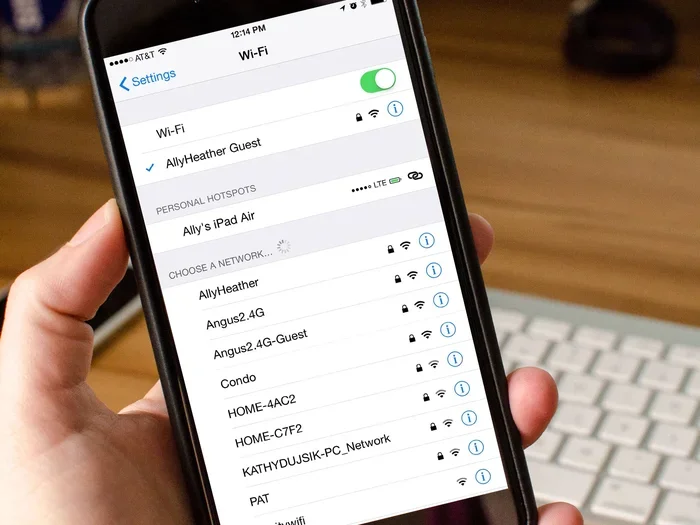
- Make sure your iPhone and projector are on the same Wi-Fi network.
- Open the Control Center by swiping down from the top-right corner of your screen.
- Tap the Screen Mirroring icon, which looks like two overlapping rectangles.
- Select your projector from the list of available devices.
- Wait a few seconds for the connection to establish.
- Open Netflix and start playing your movie or show.
That is it. Your iPhone screen now appears on the projector. You can control playback directly from your phone, adjust volume, and even use the touchscreen to navigate Netflix.
When AirPlay Does Not Work Directly
Not every projector has native AirPlay support. In that case, you can connect an Apple TV box to your projector via HDMI. Apple TV acts as an AirPlay receiver, bridging the gap between your iPhone and the projector. This setup also gives you access to the App Store on your TV screen.
Another option is to use a screen mirroring app from the App Store. Apps like Replica, AirScreen, or Reflector can turn any projector with an HDMI connection into an AirPlay receiver. These apps run on a connected laptop or streaming stick, making them very versatile.
Tips for the Best AirPlay Experience
Keep these tips in mind for smooth wireless streaming:
- Stay close to your Wi-Fi router for the strongest signal
- Reduce the number of devices connected to the same network
- Set your projector to the correct input source before mirroring
- Restart both devices if you experience any lag or delay
- Update your iPhone to the latest iOS version for the best compatibility
Method 2: Using an HDMI Adapter Cable
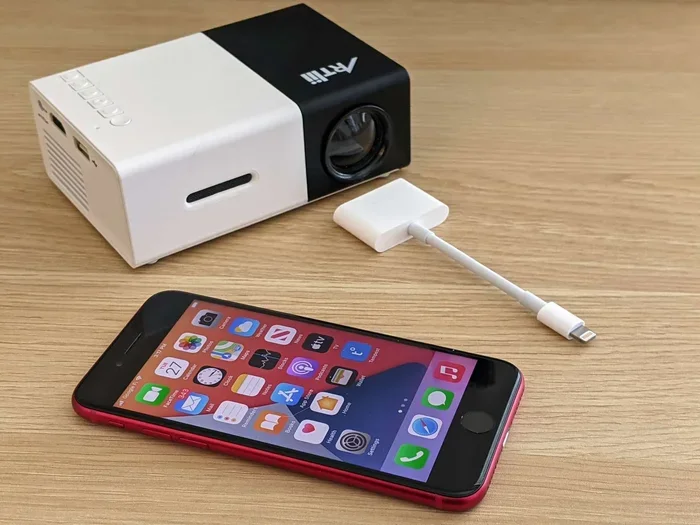
If you prefer a wired connection, an HDMI adapter is your best friend. This method gives you a stable, lag-free connection that works with virtually any projector that has an HDMI input. No Wi-Fi needed, no wireless delays — just a clean, reliable picture.
You will need a Lightning to HDMI adapter or a USB-C to HDMI adapter depending on your iPhone model. Newer iPhones use USB-C, while older models use the Lightning connector. These adapters are affordable and widely available online and in electronics stores.
Here is how to set up a wired connection:
- Plug the adapter into your iPhone’s charging port.
- Connect an HDMI cable from the adapter to the projector.
- Switch the projector to the correct HDMI input source.
- Your iPhone screen should now display on the projector automatically.
- Open Netflix and enjoy your movie on the big screen.
The wired method is excellent for situations where Wi-Fi is weak or unavailable. It is also ideal for presentations where you cannot afford any lag or buffering. Display duplication through a cable is rock solid and predictable.
Choosing the Right Adapter
Not all adapters are created equal. Apple’s official digital AV adapter tends to offer the best quality and reliability. Third-party adapters can work well too, but some may have audio or resolution issues. Look for adapters that support 1080p or 4K output for the best projector resolution results.
Keep your adapter and cables organized. A tangled mess behind your projector setup is frustrating and can cause connection problems. Use cable ties or a small organizer bag to keep everything neat.
Pros and Cons of Wired vs Wireless
Each method has its strengths. Here is a quick comparison to help you decide:
- Wired HDMI: More stable, no lag, works without Wi-Fi, but requires a physical cable
- Wireless AirPlay: More convenient, no cables needed, but depends on Wi-Fi quality
- Streaming device: Offers extra features like app support, but requires an additional purchase
Method 3: Using a Wireless Streaming Device
If you want the best of both worlds, consider using a wireless streaming device. Devices like Apple TV, Roku, or Chromecast connect to your projector and create a smart display experience. You get access to apps, streaming services, and screen mirroring all in one package.
Apple TV is the top choice for iPhone users because it integrates seamlessly with AirPlay and the Netflix app. Simply plug the Apple TV into your projector’s HDMI port, connect it to Wi-Fi, and you are ready to go.
Roku is another great option, especially if you want a budget-friendly streaming device. Roku supports screen mirroring from iPhones through its built-in feature. You just need to make sure your Roku and iPhone are on the same network.
Setting Up a Streaming Device with Your Projector
The setup process is straightforward for most streaming devices:
- Connect the streaming device to your projector using an HDMI cable.
- Power on the device and follow the on-screen setup instructions.
- Connect the device to your Wi-Fi network.
- On your iPhone, open the Control Center and tap Screen Mirroring.
- Select the streaming device from the list.
- Open Netflix and start watching.
This method gives you a lot of flexibility. You can switch between mirroring your iPhone screen and using the streaming device’s native apps. It is a great solution if you use your projector for more than just Netflix.
Which Streaming Device Should You Choose?
Here is a quick look at popular options:
- Apple TV: Best for iPhone users, seamless AirPlay integration, supports 4K
- Roku: Budget-friendly, easy setup, good screen mirroring support
- Chromecast: Works well with Android but has limited iPhone mirroring features
- Amazon Fire TV Stick: Affordable, supports screen mirroring through the Fire TV app
For the best experience mirroring Netflix from your iPhone, Apple TV remains the gold standard. Its integration with iOS is unmatched, and the streaming quality is consistently excellent.
Troubleshooting Common Mirroring Issues
Even with the best setup, you might run into occasional problems. iPhone screen mirroring issues are usually easy to fix. Here are the most common problems and their solutions.
Black Screen or No Signal
If you see a black screen on your projector, the first thing to check is the connection. For wired setups, unplug and replug the HDMI cable. For wireless, make sure both devices are on the same Wi-Fi network and restart AirPlay.
Also check that your projector is set to the correct input source. Sometimes the projector defaults to a different port after being turned off and on again. Switching the input manually usually fixes this instantly.
Audio Issues or No Sound
If the video plays but there is no sound, check your iPhone’s volume settings. Also make sure the projector’s volume is turned up and not muted. In some cases, you may need to go to Settings, then Sounds, and adjust the output device to the projector or streaming device.
Another common cause is that the Netflix app has its own audio settings. Try pausing and resuming playback, or restart the app entirely to reset the audio output.
Lag or Delay During Playback
Lag is the most frustrating issue with wireless mirroring. It usually happens when the Wi-Fi signal is weak or too many devices are using the same network. Try moving closer to your router or reducing the number of connected devices.
For a more reliable experience, switch to a wired HDMI connection. A cable eliminates all wireless variables and gives you a smooth, delay-free viewing experience every time. This is especially important for action movies or sports where every frame counts.
Netflix Not Playing in Full Screen
Sometimes Netflix plays in a small window instead of filling the entire projector screen. This usually happens when the app does not recognize the external display correctly. Try locking your iPhone screen and then unlocking it again. This refreshes the display connection and often fixes the issue.
If the problem persists, disconnect and reconnect the mirroring session. Open Control Center, tap Screen Mirroring, choose your projector, and then reopen Netflix. This simple reset often does the trick.
Expert Tips for the Best Netflix Mirroring Experience
Want to take your setup to the next level? Here are some pro tips from people who do this regularly:
- Use a Wi-Fi extender if your projector is far from the router
- Download Netflix content offline on your iPhone to avoid buffering during streaming
- Turn off notifications on your iPhone so pop-ups do not interrupt your movie
- Keep your iPhone charged or plugged in during long viewing sessions
- Adjust projector brightness based on your room lighting for the best picture quality
- Use a high-quality HDMI cable for the clearest picture and most reliable connection
These small adjustments make a big difference. A Wi-Fi extender, for example, can eliminate the lag that ruins a great movie night. And turning off notifications keeps your viewing experience uninterrupted and immersive.
Also consider the room setup. Dark rooms make projector images look much better. If possible, close curtains or blinds and dim the lights before you start streaming. Your Netflix viewing experience will feel completely different on a big screen in a darkened room compared to a bright, sunny space.
Key Takeaways
- AirPlay is the easiest wireless method if your projector supports it or you have an Apple TV connected.
- An HDMI adapter gives you a reliable wired connection with no lag or Wi-Fi dependency.
- Wireless streaming devices like Apple TV or Roku offer flexibility and better picture quality.
- Check projector compatibility first to avoid frustrating setup issues.
- Troubleshooting is simple for most common mirroring problems like black screens or audio delays.
- Wi-Fi strength matters for smooth wireless iPhone screen mirroring during Netflix playback.
Conclusion
Mirroring your iPhone to your projector for Netflix is a simple process that anyone can do. Whether you choose the wireless convenience of AirPlay, the reliability of an HDMI adapter, or the versatility of a streaming device, the result is the same — a fantastic movie-watching experience on a big screen.
Start with the method that best fits your equipment and situation. If your projector supports AirPlay, try the wireless route first. If you need a guaranteed stable connection, go with the HDMI adapter. And if you want the most features and flexibility, invest in a streaming device like Apple TV.
Remember that troubleshooting is straightforward for most issues. A quick restart, a cable check, or a Wi-Fi reset usually solves the problem within minutes. Do not let technical hurdles stop you from enjoying your favorite Netflix content on the big screen.
Now that you know how to mirror your iPhone to a projector, it is time to set up your next movie night. Grab some popcorn, dim the lights, and hit play. Your living room just became a private theater, and all it took was a few simple steps.
Enjoy the show, and happy streaming!
Frequently Asked Questions
Can I mirror my iPhone to any projector?
Most modern projectors support at least one mirroring method. If your projector has Wi-Fi or an HDMI port, you can mirror your iPhone. For projectors without these features, you may need an additional device like Apple TV or a streaming stick to bridge the connection.
Do I need an Apple TV to mirror my iPhone?
No, Apple TV is not required if your projector supports AirPlay natively. However, Apple TV makes the process much smoother and gives you access to more features. You can also use a third-party screen mirroring app or a simple HDMI adapter as alternatives.
Why does my Netflix look blurry when mirrored to the projector?
Blurry output is usually caused by a weak Wi-Fi signal or an incompatible resolution setting. Try moving closer to your router, switching to a wired HDMI connection, or adjusting the projector resolution to match your iPhone’s display settings for a clearer picture.
Can I use Bluetooth to mirror my iPhone to a projector?
Bluetooth is not typically used for screen mirroring. It is designed for audio streaming and low-data connections. For video mirroring, you need Wi-Fi, an HDMI cable, or a compatible wireless streaming device that supports video transmission.
Is there a lag when mirroring iPhone to projector wirelessly?
Some lag is normal with wireless mirroring, especially if your Wi-Fi signal is weak. Using a wired HDMI connection eliminates lag entirely. For the best wireless experience, stay close to your router and minimize the number of devices on the same network.
Can I mirror my iPhone to a projector without Wi-Fi?
Yes, you can use a wired HDMI adapter to mirror without Wi-Fi. Simply connect your iPhone to the projector using a Lightning or USB-C to HDMI cable. This method works independently of any wireless network and provides a stable, lag-free connection.