How Do I Connect My Android Phone To My Tv With These Steps
This guide shows you exactly how to connect your Android phone to your TV using simple methods like HDMI adapters, wireless screen mirroring, and Chromecast. You’ll learn step-by-step instructions for both wired and wireless setups. Whether you want to stream movies or share photos, these techniques work on any TV.
Streaming videos, photos, and games on a bigger screen is a game-changer. Your Android phone holds all that content, but getting it onto your TV used to be tricky. Today, multiple options make the process simple and fast. You can go wireless or wired depending on your gear. Let’s dive into the easiest ways to get your phone’s display on your TV.
The goal is simple: connect Android phone to TV and enjoy media on a larger display. Whether you own a Smart TV or a basic set, the steps below cover every scenario. I’ll walk you through cables, adapters, and wireless methods. Each approach has its own strengths, so you can pick what fits your needs.
Key Takeaways
- Multiple connection options exist: You can go wired with an HDMI adapter or go wireless with Miracast and Chromecast.
- Wireless screen mirroring is the easiest: Most modern Smart TVs support Miracast, so you just need a few taps.
- Chromecast offers the smoothest experience: It lets you cast media from apps without mirroring the whole screen.
- A USB-C to HDMI cable works directly: Many newer Android phones support display output through a single cable.
- Check your TV’s inputs first: Knowing what ports your TV has saves time and avoids buying the wrong adapter.
- Troubleshooting is simple: Most connection issues fix quickly with a cable swap or a setting toggle.
📑 Table of Contents
The Easiest Ways to Connect Android Phone to TV
Before you grab any gear, it helps to understand the main options. You can use a physical cable, a wireless display protocol, or a dedicated streaming device. Each method has its own setup time and quality level. Let’s break them down so you can choose the best path.
Wired vs. Wireless: Which Is Better?
A wired connection gives you a stable, lag-free experience. It’s perfect for gaming or presenting slides. A wireless connection offers freedom of movement and fewer cables. Most people prefer wireless for casual movie nights. The table below compares the two approaches.
| Feature | Wired (HDMI) | Wireless (Miracast/Chromecast) |
|---|---|---|
| Setup Speed | Fast, plug and play | Fast, but requires Wi-Fi |
| Video Quality | Full HD or 4K, no compression | Good, but may compress slightly |
| Lag | None | Slight delay possible |
| Cables Needed | Yes, HDMI adapter | None |
| Best For | Gaming, presentations | Streaming movies, photos |
Quick tip: If you plan to game or present, go wired. If you just want to watch Netflix on the big screen, wireless is the way to go.
Quick Tips for a Smooth Setup
- Check your TV’s inputs: Look for HDMI ports or a Miracast label in the menu.
- Update your phone: Install the latest Android version for best compatibility.
- Use the same Wi-Fi network: Wireless casting works best when both devices share a network.
- Keep your phone charged: Screen mirroring drains battery fast, so plug in your device.
How to Use an HDMI Cable and Adapter
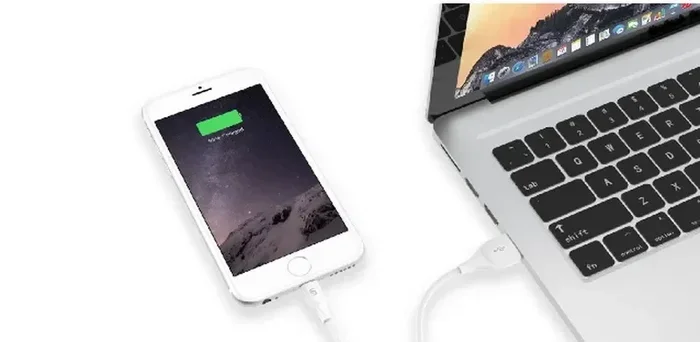
Using an HDMI adapter is the most reliable way to connect Android phone to TV. It works with almost any TV that has an HDMI port. You just need the right cable or adapter for your phone’s charging port. This method delivers crisp video and audio without any lag.
What You Need
- USB-C to HDMI adapter (for newer phones) or Micro-USB to HDMI adapter (for older models).
- An HDMI cable (often included with the adapter).
- A TV with an HDMI input.
Most Android phones made after 2018 use USB-C. Check your phone’s manual if you’re unsure. You can buy these adapters online or at any electronics store for under $20.
Step-by-Step Connection
- Plug the USB-C or Micro-USB end of the adapter into your phone.
- Connect the HDMI cable to the adapter and then to your TV’s HDMI port.
- Switch your TV to the correct HDMI input using the remote.
- Your phone screen should now appear on the TV automatically.
If nothing shows up, try a different HDMI port on your TV. Some TVs require you to enable HDMI-CEC in the settings. This feature lets devices communicate over HDMI.
Common Mistakes to Avoid
- Using the wrong adapter: A Micro-USB adapter won’t work with a USB-C phone.
- Forgetting to switch TV inputs: The TV stays on its current source until you change it.
- Using a low-quality cable: Cheap cables can cause flickering or no signal.
Expert insight: A high-quality HDMI adapter ensures you get the best resolution. Look for adapters that support 4K output if your phone and TV both handle it.
Wireless Screen Mirroring with Miracast
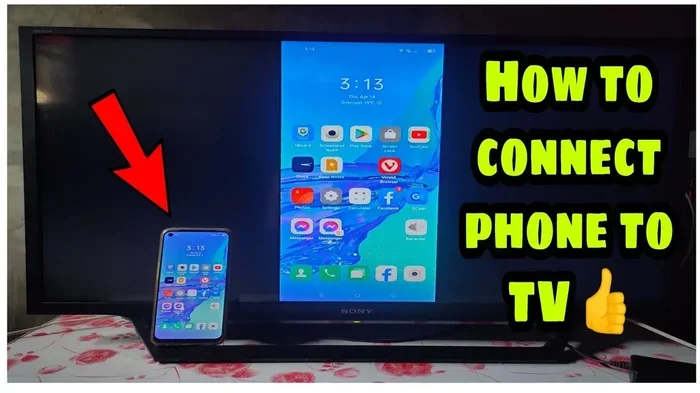
Miracast is a wireless display standard built into many Android phones and Smart TVs. It lets you mirror your entire phone screen to your TV without any cables. This is one of the simplest ways to connect Android phone to TV wirelessly. You just need a TV or dongle that supports Miracast.
Enable Miracast on Your TV
Most Smart TVs made after 2015 include Miracast. Look for it in your TV’s settings menu under “Screen Mirroring,” “Wireless Display,” or “Miracast.” If your TV doesn’t have it, you can buy a Miracast dongle that plugs into an HDMI port. These dongles cost around $30 and work with any TV.
How to Mirror Your Screen
- Open your phone’s Settings app.
- Tap “Connected Devices” or “Cast.”
- Select “Screen Mirroring” or “Wireless Display.”
- Choose your TV from the list of available devices.
- Your phone screen will now appear on the TV.
You can now open any app, photo, or video and it will show on the big screen. The TV acts as an extension of your phone. You can even use your phone as a remote control.
Fixing Lag and Delay
Wireless mirroring can sometimes lag, especially if your Wi-Fi signal is weak. Move closer to your router or reduce the number of devices using the network. A 5 GHz Wi-Fi band works much better than 2.4 GHz for screen mirroring. If lag persists, a wired HDMI connection is the fix.
Quick tip: Turn off Bluetooth while mirroring. It can sometimes interfere with the wireless display signal.
Using Chromecast or Google Cast Apps
Chromecast is Google’s popular streaming device that plugs into your TV’s HDMI port. It lets you cast media from apps like YouTube, Netflix, and Spotify directly to your TV. Unlike Miracast, Chromecast doesn’t mirror your whole screen. Instead, it streams the content directly, which gives smoother performance and better quality. This is the best method for media streaming from your phone.
Setting Up Chromecast
You’ll need a Chromecast device, a TV with an HDMI port, and a Wi-Fi network. Plug the Chromecast into the HDMI port and connect the USB power cable. Download the Google Home app on your phone. Follow the on-screen prompts to connect the Chromecast to your Wi-Fi. Once set up, your phone and Chromecast must be on the same network.
Casting from Any App
- Open a supported app like YouTube or Netflix.
- Tap the Cast icon (a rectangle with Wi-Fi waves in the corner).
- Select your Chromecast device.
- The video will start playing on your TV.
You can control playback from your phone, including pausing, rewinding, and adjusting volume. Your phone can even be used for other things while casting. This is a huge advantage over full screen mirroring.
Expert Insight: Why Chromecast Stands Out
Chromecast uses a dedicated casting protocol that offloads video decoding to the TV. This means your phone isn’t working overtime to push a mirrored video stream. The result is smoother playback and less battery drain. If you watch a lot of streaming content, a Chromecast device is the best investment for connecting Android phone to TV wirelessly.
Many modern Smart TVs have built-in Chromecast support. Look for the “Cast” button in your TV’s quick settings. You don’t need a separate Chromecast dongle if your TV already has it.
Connecting via USB-C to HDMI Direct
Some Android phones support USB-C to HDMI output natively. This means you can plug a single cable from your phone to your TV and get a display without any adapter. It’s the cleanest wired solution for mobile to TV connections. Not all phones support this feature, so check your model first.
Check Your Phone’s Port
Look for “DisplayPort Alt Mode” or “MHL” (Mobile High-Definition Link) in your phone’s specifications. Most flagship phones from Samsung, Google Pixel, and OnePlus support USB-C video output. Budget phones may not include this feature. You can also check your phone’s manual or the manufacturer’s website.
Direct Connection Steps
- Get a USB-C to HDMI cable (not an adapter, but a single cable).
- Plug the USB-C end into your phone.
- Plug the HDMI end into your TV.
- Switch your TV to the HDMI input.
- Your phone’s screen should appear on the TV instantly.
This method is super fast and requires no setup. You just plug and play. It’s perfect for sharing presentations or watching videos with friends. A USB-C to HDMI cable is also more reliable than an adapter because there’s one less connection point.
Quick tip: Keep the cable short (under 6 feet) to avoid signal loss. A high-quality cable ensures you get the best resolution without flickering.
Troubleshooting Common Connection Issues
Even with the right gear, you might run into hiccups. Most problems are easy to fix. Here are the common issues and their solutions when you try to connect Android phone to TV.
TV Doesn’t Show Signal
If your TV shows “No Signal,” first check the HDMI cable connections. Unplug and replug both ends. Try a different HDMI port on your TV. If you’re using an adapter, make sure it’s firmly seated. For wireless methods, ensure both devices are on the same Wi-Fi network. Restarting both your phone and TV can also clear temporary glitches.
Audio Issues and No Sound
Sometimes the video shows but there’s no audio. On Android, go to Settings > Sound and look for “Default Output” or “Cast Audio.” Make sure it’s set to your TV. With an HDMI adapter, you may need to enable “HDMI Audio” in your phone’s developer options. If you’re using Chromecast, check that the TV’s volume isn’t muted.
When to Try a Different Cable
A faulty cable is the most common culprit. If you’ve tried everything and still can’t connect Android phone to TV, swap the cable or adapter. Borrow a known-working cable from a friend. A cheap or damaged cable often causes this problem. Investing in a quality phone to TV cable saves a lot of frustration.
Expert insight: Keep a spare HDMI adapter and cable at home. It’s a small investment that prevents a lot of hassle when guests want to share their screen.
Conclusion
You now have every method to connect your Android phone to your TV. Whether you choose a wired HDMI setup, wireless Miracast, or a Chromecast device, the process is simple. Start with the method that matches your TV and your needs. A wired connection gives you reliability, while wireless offers convenience. Both deliver a great big-screen experience. Try the steps today and enjoy your favorite content on the largest screen in your home.
Remember, the goal is to make streaming easy. Pick the method that works for you, follow the steps, and you’ll be casting in minutes. Happy viewing!
Frequently Asked Questions
Can I connect any Android phone to any TV?
Most Android phones can connect to any TV with an HDMI port or wireless support. Older TVs may need a streaming dongle like Chromecast. Check your TV’s inputs and your phone’s output options.
Do I need Wi-Fi for screen mirroring?
Yes, wireless screen mirroring requires both your phone and TV to be on the same Wi-Fi network. A wired HDMI connection does not need Wi-Fi at all.
Why is my screen mirroring lagging?
Lag usually happens on weak Wi-Fi signals or crowded networks. Switch to a 5 GHz band, move closer to your router, or use a wired connection for a lag-free experience.
Can I charge my phone while mirroring?
Yes, screen mirroring drains battery quickly. Plug your phone into a charger while mirroring to keep it powered. Use a long enough cable so you can place the charger nearby.
Is Chromecast better than Miracast?
Chromecast is often better for streaming media because it offloads video decoding to the TV. Miracast mirrors your whole screen, which can be laggy. Use Chromecast for smooth video playback.
What if my TV has no HDMI port?
You can use a composite AV adapter (red, white, yellow cables) that connects to your TV’s older inputs. Wireless options like Chromecast or Miracast also work without HDMI if your TV has an HDMI port or a compatible dongle.