How Do I Change My Default Bluetooth Settings On My Iphone
Changing your default Bluetooth settings on your iPhone is easier than you think. You can manage which devices connect first, prioritize audio output, and troubleshoot common connection issues. This guide walks you through every step to take control of your iPhone Bluetooth settings and get the most from your wireless devices.
Your iPhone connects to Bluetooth devices almost effortlessly. But sometimes, you want more control. Maybe your phone keeps pairing with the wrong speaker. Or perhaps you want your AirPods to connect before your car stereo. The good news is that you can change your default Bluetooth settings on your iPhone with just a few simple steps.
Whether you are new to the iPhone or have used one for years, understanding your Bluetooth options makes a big difference. This guide covers everything you need to know. We will walk through each method, share practical tips, and help you troubleshoot common problems. By the end, you will feel confident managing all your wireless connections.
Let us start with the basics. Your iPhone uses Bluetooth to connect to headphones, speakers, keyboards, and more. The device remembers each one you pair with it. But it does not always connect to them in the order you prefer. Changing this behavior is simple once you know where to look.
Key Takeaways
- Easy Access: You can change your default Bluetooth settings directly from the iPhone Settings app in just a few taps.
- Device Priority: iOS lets you manage which Bluetooth devices connect first by forgetting and re-pairing them in your preferred order.
- Audio Routing: You can control where Bluetooth audio plays, whether it is your headphones, speaker, or car system.
- Quick Disconnect: Turning off Bluetooth or using Control Center gives you fast control over your connections.
- Troubleshooting: Simple resets and updates can fix most Bluetooth connection problems on your iPhone.
- Battery Impact: Managing your Bluetooth devices wisely can help preserve your iPhone battery life.
📑 Table of Contents
- Understanding Your iPhone Bluetooth Settings
- How Do I Change My Default Bluetooth On My Iphone
- Managing Multiple Bluetooth Devices
- Troubleshooting Common Bluetooth Problems
- Tips for Better Bluetooth Performance on iPhone
- How to Set Different Bluetooth Defaults for Different Situations
- Bluetooth Privacy and Security on iPhone
- Frequently Asked Questions
- Conclusion
Understanding Your iPhone Bluetooth Settings
Before you change anything, it helps to understand how your iPhone handles Bluetooth connections. iOS manages Bluetooth devices in a specific way. Each paired device has a place in your settings list. The order and status of these devices affect how your phone connects automatically.
When you open your Bluetooth settings on iPhone, you see a list of nearby devices and previously paired ones. The ones you have used recently appear at the top. Your phone also remembers which device you used last for audio output. This memory is what we call the “default” connection.
How Bluetooth Pairing Works on iPhone
Pairing a Bluetooth device means your iPhone trusts it enough to connect automatically in the future. Once paired, the device stays in your memory until you remove it. Here is how the process works:
- Your iPhone scans for nearby Bluetooth signals.
- You select a device from the list.
- Both devices exchange pairing codes.
- The connection is saved for future use.
After pairing, your iPhone will auto-connect to that device when it is in range. This is convenient but sometimes confusing. You might find your phone connecting to a device you do not want to use right now.
Why Default Bluetooth Settings Matter
Your default Bluetooth settings control which device your iPhone connects to first. They also determine where audio plays. For example, if you have both AirPods and a Bluetooth speaker nearby, your phone picks one as the default audio output. Changing this can improve your listening experience significantly.
Many people do not realize they can change these settings. They just deal with annoying connection habits. But with a little knowledge, you can make your iPhone work exactly how you want it to.
How Do I Change My Default Bluetooth On My Iphone
The process to change your default Bluetooth connection is straightforward. There are a few different methods depending on what you want to achieve. Let us go through each one step by step.
Method 1: Forget and Re-Pair Devices in Order
This is the most effective way to change which device connects first. By forgetting a device and then re-pairing it, you reset its priority. Here is what to do:
- Open the Settings app on your iPhone.
- Tap Bluetooth to open your Bluetooth settings.
- Find the device you want to change the priority for.
- Tap the info icon (the small “i” in a circle) next to the device.
- Select Forget This Device and confirm.
- Turn Bluetooth off and then back on.
- Put your desired device in pairing mode.
- Select it from the list to re-pair.
When you re-pair devices in a specific order, your iPhone tends to remember the most recent connection as the default. This method works well for changing which speaker, headphones, or keyboard connects first.
Pro Tip: Re-pair your most-used device last. This tells your iPhone that this is the device you want to connect to by default.
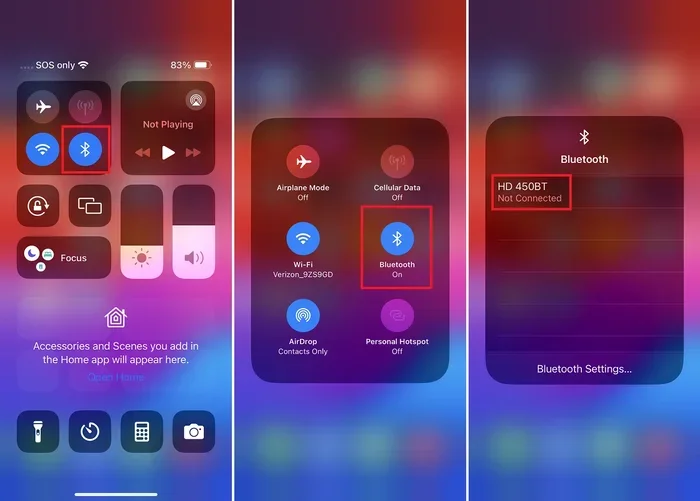
Method 2: Use Control Center for Quick Changes
Control Center gives you fast access to Bluetooth without diving deep into Settings. This method is great for quick switches throughout your day. Here is how to use it:
- Swipe down from the top-right corner of your screen (on iPhone X and newer).
- Or swipe up from the bottom of your screen (on iPhone 8 and older).
- Press and hold the Bluetooth icon.
- A menu will show your recently connected devices.
- Tap the device you want to connect to.
This method does not permanently change your default settings. But it is perfect for quick switches when you are on the go. You can go from your AirPods to your car stereo in seconds.
Method 3: Adjust Audio Output for Specific Apps
Did you know you can change where audio plays for individual apps? This is a powerful feature many iPhone users overlook. Here is how to do it:
- Start playing audio in an app like Spotify or YouTube.
- Swipe down from the top-right corner to open Control Center.
- Tap the audio output icon (the triangle with lines above it).
- Select the Bluetooth device you want to use.
This method lets you use different Bluetooth devices for different apps. For example, you might listen to music through your AirPods while taking calls through your car speaker. It gives you flexible control over your Bluetooth audio routing on iPhone.
Managing Multiple Bluetooth Devices
Most iPhone users have more than one Bluetooth device. You might have headphones for the gym, a speaker for home, and a car system for commuting. Managing all of these connections can feel overwhelming. But it does not have to be.
Setting Device Priority
Your iPhone does not have a formal “priority list” for Bluetooth devices. Instead, it uses a system based on recent usage and connection history. The device you connected to most recently usually becomes the default. This means your habits shape your Bluetooth behavior.
If you want to change which device connects by default, you need to influence this recent usage pattern. The forget-and-re-pair method we discussed earlier is the best way to do this. You can also manually disconnect devices you do not want to use as your default.
Using Bluetooth Accessories with iPhone
Apple designed the iPhone to work seamlessly with a wide range of Bluetooth accessories. From AirPods to third-party keyboards, the compatibility is excellent. Here are some common Bluetooth accessories and how they interact with your default settings:
- AirPods and AirPods Pro: These connect automatically when you open the case near your iPhone. They often become the default audio output without you doing anything.
- Bluetooth Speakers: These are great for parties or home use. You can set them as your default audio output for media playback.
- Car Bluetooth Systems: Your car stereo can connect automatically when you get in. Many people want this as their default for calls and navigation.
- Keyboards and Trackpads: These work well with iPhones for typing and navigation. They connect separately from audio devices.
- Fitness Trackers and Watches: Apple Watch and other fitness devices use Bluetooth for health data syncing.
Understanding how each accessory works with your iPhone helps you manage your connections better. You can set different defaults for different situations.
Troubleshooting Common Bluetooth Problems
Even with the best setup, Bluetooth problems can happen. Your phone might not connect, audio might cut out, or devices might not appear in the list. Most of these issues have simple fixes.
iPhone Bluetooth Not Connecting
If your iPhone refuses to connect to a Bluetooth device, do not panic. Try these steps first:
- Turn Bluetooth off and back on from Control Center.
- Make sure the other device is charged and in pairing mode.
- Move closer to the device. Bluetooth range is about 30 feet.
- Restart your iPhone.
- If the problem persists, go to Settings, tap Bluetooth, tap the info icon, and select Forget This Device. Then re-pair it.
These steps resolve the majority of Bluetooth connection issues. If they do not work, there might be a deeper problem we will address below.
Resetting Bluetooth Settings on iPhone
Sometimes a full reset of your Bluetooth settings is necessary. This clears all paired devices and network settings. Here is how to do it:
- Open the Settings app.
- Go to General.
- Tap Transfer or Reset iPhone.
- Select Reset.
- Choose Reset Network Settings.
- Enter your passcode if prompted.
This will remove all saved Wi-Fi passwords and Bluetooth pairings. You will need to reconnect your devices afterward. But it often fixes stubborn Bluetooth problems that nothing else can solve.
Bluetooth Audio Cutting Out
Intermittent audio is one of the most common Bluetooth complaints. If your audio keeps cutting out, check these things:
- Make sure your iPhone and the Bluetooth device are close together.
- Remove any physical obstacles between the devices.
- Check if other wireless devices are causing interference. Microwaves and baby monitors can sometimes interfere.
- Update your iPhone to the latest iOS version.
- Check for firmware updates on your Bluetooth device.
Most audio cutting-out issues come from distance or interference. Moving closer to the device usually fixes the problem immediately.
When to Update Your iPhone Software
Apple regularly releases iOS updates that fix Bluetooth bugs. Keeping your iPhone updated is one of the best ways to prevent connection problems. Here is how to check for updates:
- Open Settings.
- Tap General.
- Tap Software Update.
- If an update is available, tap Download and Install.
Updating your iPhone takes just a few minutes. But it can save you hours of frustration with Bluetooth issues. Always keep your device current.
Tips for Better Bluetooth Performance on iPhone
You do not need to be a tech expert to get the most from your iPhone Bluetooth. A few simple habits can make a huge difference in performance and battery life.
Keep Your Devices Charged
Low battery on either your iPhone or your Bluetooth device can cause connection problems. A device with less than 20% charge might disconnect frequently or refuse to pair. Make it a habit to charge your Bluetooth devices regularly.
Minimize Interference
Bluetooth uses the 2.4 GHz wireless frequency. Many other devices share this frequency, including Wi-Fi routers and microwaves. To reduce interference:
- Keep your iPhone away from thick walls and metal objects.
- Avoid using your phone near a running microwave.
- Turn off Bluetooth devices you are not currently using.
Manage Connected Devices Regularly
Over time, your iPhone can accumulate a long list of paired Bluetooth devices. Old devices you no longer use take up space and can occasionally cause confusion. Make it a habit to review your paired devices once a month:
- Open Settings and go to Bluetooth.
- Review the list of paired devices.
- Forget any devices you no longer use.
- This keeps your Bluetooth list clean and your connections reliable.
Use Bluetooth Low Energy When Possible
Many modern Bluetooth devices use Bluetooth Low Energy (BLE) technology. This uses less power and connects more efficiently. Most newer accessories support BLE. When shopping for new Bluetooth devices, look for BLE compatibility to get better battery life on your iPhone.
How to Set Different Bluetooth Defaults for Different Situations
One of the most useful things you can do is set different Bluetooth defaults for different situations. You might want your car stereo as the default when driving, but your AirPods when you are at the gym. Here is how to manage this:
Create a Routine for Your Day
Think about when and where you use each Bluetooth device. Then create a mental routine for switching between them:
- Morning commute: Connect to your car Bluetooth system.
- At the gym: Switch to your wireless headphones.
- At home: Connect to your Bluetooth speaker for music.
- At work: Use your Bluetooth keyboard and headphones.
Switching manually might seem tedious at first. But after a few days, it becomes second nature. You will also save battery life by only connecting to devices you actually need.
Use Siri to Switch Bluetooth Devices
Siri can help you switch Bluetooth devices without touching your phone. Just say something like:
- “Hey Siri, connect to my car Bluetooth.”
- “Hey Siri, play music on my living room speaker.”
- “Hey Siri, disconnect my headphones.”
Siri makes switching between devices quick and hands-free. This is especially useful when you are driving, cooking, or exercising.
Bluetooth Privacy and Security on iPhone
Your Bluetooth connections can affect your privacy. Understanding how to manage these settings keeps your data safe and your connections secure.
What Others Can See Through Bluetooth
When your Bluetooth is on, your iPhone broadcasts a signal. Nearby devices can detect this signal. Apple has built privacy protections into iOS, but it is still smart to turn off Bluetooth when you are not using it. This is especially true in crowded public places.
Managing App Access to Bluetooth
Some apps request access to Bluetooth to connect to accessories or track location. You can control which apps have this access:
- Open Settings.
- Go to Privacy & Security.
- Tap Bluetooth.
- Review which apps have access and turn off any you do not trust.
This simple step protects your privacy without affecting your Bluetooth device connections. It is a good habit to check these settings periodically.
Frequently Asked Questions
How do I change my default Bluetooth device on my iPhone?
The easiest way is to forget the current default device and re-pair your preferred device last. Your iPhone will remember the most recently connected device as the new default. You can also use Control Center to manually switch connections whenever you need to.
Why does my iPhone keep connecting to the wrong Bluetooth device?
This usually happens because your iPhone remembers your last connection. If you used a particular device recently, it will try to connect to it first. To fix this, go to your Bluetooth settings, forget the unwanted device, and re-pair your preferred device last.
Can I have two Bluetooth audio devices connected at the same time on my iPhone?
Yes, you can connect two Bluetooth audio devices simultaneously. However, audio typically plays through only one device at a time. You can switch the audio output using Control Center while media is playing. Some apps also let you choose the output device directly.
Does turning off Bluetooth save battery on my iPhone?
Yes, turning off Bluetooth when you are not using it can save battery life. Bluetooth uses power even when not actively connected to a device. However, the battery savings are modest. You do not need to turn it off constantly, but it helps during long periods of non-use.
How do I remove a Bluetooth device from my iPhone?
Open Settings, tap Bluetooth, find the device, tap the info icon next to it, and select Forget This Device. This removes the device from your paired list and stops automatic connections. You can re-pair it later if you need it again.
What should I do if my iPhone Bluetooth is not working at all?
Start by turning Bluetooth off and back on. If that does not work, restart your iPhone. Still not working? Try resetting your network settings under General, Transfer or Reset iPhone, Reset, and then Reset Network Settings. If the problem persists, contact Apple Support for further assistance.
Conclusion
Changing your default Bluetooth settings on your iPhone is a simple process that can greatly improve your daily experience. You now know how to manage device priority, switch connections quickly, and troubleshoot common problems. These skills give you control over every wireless connection your iPhone makes.
Remember that your iPhone connects to devices based on recent usage. By forgetting and re-pairing devices in the right order, you can set any device as your default. Use Control Center for quick switches, and Siri for hands-free changes. Keep your devices updated and clean up old pairings regularly for the best performance.
Take a few minutes today to review your Bluetooth settings. Forget devices you no longer use. Re-pair your favorites in the right order. You will be surprised how much smoother your wireless experience becomes. Your iPhone is a powerful tool, and mastering its Bluetooth settings is one of the best ways to unlock its full potential.
Now that you know exactly how to change your default Bluetooth on your iPhone, you can enjoy seamless connections every day. Your devices will work the way you want them to. And that is exactly how technology should be.