Can I Move My Att Router To Another Room And Keep Good Speed
Yes, you can move your AT&T router to another room and still keep good speed. The key is understanding how your AT&T gateway works and following a few simple placement rules. This guide walks you through every step, from planning the new location to testing your speed afterward. You will learn what affects Wi-Fi signal strength, how to avoid common pitfalls, and when an upgrade might be the better choice.
So you want to know if you can move your AT&T router to another room. Maybe the current spot is inconvenient, or the signal is weak in your bedroom. Whatever the reason, relocating your AT&T router is something many people consider at some point. The good news is that it is usually possible. But whether you keep good speed depends on a few important factors.
In this guide, we will cover everything you need to know about moving your AT&T router to a different room. You will learn how your gateway works, what affects your wireless coverage, and exactly how to relocate without losing performance. We will also share practical tips and common mistakes to avoid. By the end, you will feel confident making the move yourself.
Key Takeaways
- Router placement matters a lot: Walls, floors, and distance all weaken your Wi-Fi signal.
- You can relocate your AT&T router: Just make sure you have a coaxial or Ethernet connection ready at the new spot.
- Speed loss is not guaranteed: With the right setup, you can maintain strong broadband performance in any room.
- AT&T Smart Home Manager helps: Use this app to test signal strength and find the best location.
- Consider a mesh network: If moving the router does not solve coverage issues, a mesh system can extend your wireless coverage.
- Avoid common mistakes: Do not hide your router inside a cabinet or place it near thick walls and metal objects.
- Test before and after: Always run an internet speed test to confirm your new setup delivers the speeds you pay for.
📑 Table of Contents
- Why Router Placement Matters for Your AT&T Internet
- Can You Actually Move Your AT&T Router to Another Room?
- Step-by-Step Guide to Moving Your AT&T Router
- Will Moving Your Router Affect Your Internet Speed?
- Comparison: Moving vs. Keeping Your Router in Place
- Common Mistakes People Make When Moving Their AT&T Router
- When to Consider Upgrading Your AT&T Equipment
- Conclusion
Why Router Placement Matters for Your AT&T Internet
Your AT&T router sends out a Wi-Fi signal that reaches your devices. The strength of that signal depends heavily on where the router sits. Think of it like a flashlight. If you point it at a wall or put it behind a door, the light does not reach far. The same idea applies to your wireless coverage.
Several things can weaken your Wi-Fi signal strength:
- Walls and floors: Thick concrete or brick walls block signals more than drywall.
- Distance: The farther you are from the router, the weaker the connection becomes.
- Interference: Microwaves, baby monitors, and other electronics can cause signal interference.
- Metal objects: Filing cabinets, mirrors, and metal appliances reflect and absorb Wi-Fi signals.
- Water: Fish tanks and even large plants can dampen your signal.
When you plan to move your AT&T router, understanding these factors helps you pick a better spot. A well-placed router can deliver faster network speed to every corner of your home. A poorly placed one can create dead zones even if you pay for fast broadband.
How AT&T Gateway Placement Affects Speed
AT&T gateways are modem-router combos. They connect to your AT&T Internet service and broadcast Wi-Fi throughout your home. The gateway has a limited range. If you place it in a basement far from your living room, the signal has to travel through multiple floors. Each floor it passes through loses some strength.
This is why many people notice slow internet speed in certain rooms. It is not always an AT&T service issue. Often, it is simply a matter of where the router sits. Moving it closer to the center of your home usually improves things right away.
Can You Actually Move Your AT&T Router to Another Room?
The short answer is yes. You can move your AT&T router to another room. But the process depends on your setup and the type of AT&T Internet you have. Let us look at what happens when you relocate and what you need to prepare.
Understanding Your AT&T Gateway Setup
Before you unplug anything, it helps to understand your equipment. AT&T provides a gateway device that combines a modem and a router. This single box handles both your wired connection and your Wi-Fi network. Some gateways also include a phone line connection if you have AT&T phone service.
Here are the key parts of your AT&T gateway setup:
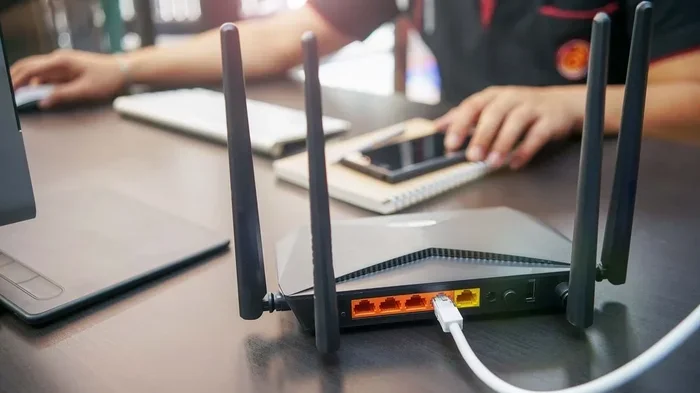
- WAN port: This connects to the AT&T fiber or DSL line entering your home.
- LAN ports: These allow you to plug in devices using an Ethernet cable.
- Wi-Fi antennas: These broadcast the wireless signal throughout your home.
- Power adapter: This keeps the gateway running.
When you relocate your AT&T router, you need to make sure all these connections remain intact. The gateway must stay connected to your broadband source. If your fiber or DSL line enters the house in one specific spot, moving the router too far from that point could create problems.
What Happens When You Relocate Your Router
Moving your router changes the distance and obstacles between the device and your electronics. In some cases, this improves speed. In others, it might reduce it slightly. Here is what typically happens:
- Closer to your main devices: If you move the router nearer to your TV, laptop, or gaming setup, you may see better speed and lower latency.
- Farther from the broadband source: If you move it away from where the AT&T line enters, you might need a longer Ethernet or coaxial cable.
- Better central placement: A more central location often improves overall wireless coverage for the whole house.
- More obstacles: If the new spot is behind a wall or in a closet, your signal may suffer.
The key is finding a sweet spot. You want the router close enough to the broadband source and far enough from obstructions to deliver strong Wi-Fi performance.
Step-by-Step Guide to Moving Your AT&T Router
Ready to make the move? Follow these steps to relocate your AT&T gateway safely and keep your speed intact.
Step 1: Note Your Current Speed
Before you touch anything, run an internet speed test. Use a site like Speedtest.net or the AT&T Smart Home Manager app. Write down your current download and upload speeds. This gives you a baseline to compare against after the move.
Step 2: Choose the New Location
Pick a spot that is central and elevated. A shelf or a table works well. Avoid placing the router on the floor, inside cabinets, or behind large furniture. The goal is to minimize obstacles between the router and your devices.
Step 3: Check the Connections
Look at where your AT&T fiber or DSL line enters the house. If the new room is close to that entry point, you can simply unplug and replug the gateway. If it is farther away, you may need a longer Ethernet or coaxial cable to reach the broadband source.
Step 4: Unplug and Move
Turn off the gateway. Unplug the coaxial or phone cable from the back. Disconnect the power adapter. Carry the gateway to the new room carefully. Plug it back in and reconnect all cables firmly.
Step 5: Power On and Wait
Turn the gateway back on. Wait about two to three minutes for it to fully boot up. You will see the lights stabilize. Do not try to connect to Wi-Fi until the lights show a solid connection.
Step 6: Test Your Speed Again
Now run another speed test from the same room where you tested before. Compare the results with your baseline numbers. If the speeds are similar or better, your move was successful. If they are much lower, check your placement and connections.
Will Moving Your Router Affect Your Internet Speed?
This is the question most people care about. The honest answer is: it depends. Moving your AT&T router does not automatically mean you will lose speed. In fact, it can often improve things. But a bad new location can cause problems.
Here are the factors that determine whether your speed stays good after a move:
- Distance from the broadband source: Longer cable runs can cause minor signal loss, especially with coaxial connections.
- Number of walls between the router and your devices: Each wall absorbs some of the Wi-Fi signal.
- Interference from other electronics: Placing the router near a microwave or cordless phone can reduce speed.
- Router antenna position: If your gateway has external antennas, point them straight up for the best coverage.
- Your internet plan speed: If you have a fast AT&T fiber plan, small signal losses matter less than on slower plans.
In most cases, a well-planned router relocation keeps your speed within 5 to 10 percent of where it was before. That is a small trade-off for better convenience and coverage where you actually need it.
Quick Tips to Maintain Speed After Moving
- Place the router in an open area with plenty of airflow.
- Keep it away from microwaves, cordless phones, and baby monitors.
- Elevate the router on a shelf rather than placing it flat on a desk.
- Use the AT&T Smart Home Manager app to check signal strength in different rooms.
- Restart the gateway after moving to refresh the connection.
Comparison: Moving vs. Keeping Your Router in Place
Not sure if moving your router is worth it? Here is a quick comparison to help you decide.
| Factor | Keep Router in Place | Move Router to Another Room |
|---|---|---|
| Convenience | No effort needed | Requires unplugging and replugging |
| Signal in central rooms | Usually strong | Can be stronger if moved centrally |
| Signal in far rooms | May be weak | Can improve if new spot is more central |
| Setup complexity | None | Low to moderate |
| Speed impact | Stable | Usually stable or slightly better |
| Cost | Free | Free (unless you need extra cables) |
As you can see, moving your AT&T router is a low-risk, low-cost solution. It costs nothing and takes only a few minutes. Even if the results are not perfect, you lose nothing by trying.
Common Mistakes People Make When Moving Their AT&T Router
Avoid these mistakes to make sure your router relocation goes smoothly:
- Hiding the router in a closet: Closed doors and walls block Wi-Fi signals. Keep the router out in the open.
- Placing it near the microwave: Microwaves operate on the same frequency as many Wi-Fi networks. This causes interference and slows your connection.
- Using a damaged cable: If you need a longer Ethernet or coaxial cable, make sure it is not bent, pinched, or old. A bad cable can reduce your broadband speed significantly.
- Forgetting to restart the gateway: After moving, the gateway needs a fresh start. Always power cycle it.
- Ignoring the AT&T app: The AT&T Smart Home Manager app gives you real-time signal data. Do not skip this tool.
- Moving the router too far from the source: If your AT&T line enters the house in the basement, do not move the gateway to the third floor without proper cabling.
Expert Insight: What AT&T Technicians Recommend
AT&T technicians often advise customers to place the gateway in a central, open area on the main floor of the home. This gives the best wireless coverage for most floor plans. If your home is large or has multiple floors, a single gateway may not be enough no matter where you place it. In that case, an AT&T mesh extender or a third-party mesh system can help fill in the gaps.
When to Consider Upgrading Your AT&T Equipment
Sometimes moving the router is not enough. If your home is large or has thick walls, you might need better equipment. Here are signs that an upgrade could help:
- You still have weak Wi-Fi in certain rooms even after moving the gateway.
- Your internet plan is 500 Mbps or faster, and your older gateway cannot keep up.
- You have many smart home devices competing for bandwidth.
- You experience frequent Wi-Fi drops or buffering during video calls.
AT&T offers mesh Wi-Fi systems through their AT&T Smart Home services. These systems use multiple nodes to spread strong Wi-Fi throughout your home. They are a great option if simple router relocation does not solve your coverage issues.
Another option is to put your AT&T gateway in bridge mode and connect your own high-performance router. This gives you more control over network settings and often delivers better speed and range. Just make sure your new router supports your internet plan’s speed tier.
Key Takeaways for Your AT&T Router Move
- Always test your speed before and after moving.
- Choose a central, elevated, and open location for the best results.
- Keep cables in good condition and use the right length.
- Restart the gateway after relocating it.
- Use the AT&T Smart Home Manager app to monitor signal strength.
- Consider a mesh system if your home has persistent dead zones.
Conclusion
Can I move my AT&T router to another room? Absolutely. Moving your AT&T router is a simple and effective way to improve your Wi-Fi coverage and overall internet experience. With the right preparation and placement, you can keep good speed and even boost performance in rooms where the signal was previously weak.
Remember to test your speed before and after the move, avoid common placement mistakes, and use the AT&T Smart Home Manager app to guide your decisions. If moving the router alone does not solve your coverage problems, consider upgrading to a mesh system or a better router.
The most important thing is to take action. Do not settle for slow Wi-Fi in rooms you use every day. A small change in router placement can make a big difference. Try it today and see the improvement for yourself.
Frequently Asked Questions
Does moving my AT&T router to another room require a technician?
No, you can move your AT&T router yourself in most cases. Simply unplug the cables, move the gateway, and replug everything at the new location. If your AT&T broadband line enters the house in a difficult spot, you may need a longer Ethernet or coaxial cable, but that is an easy DIY fix.
Will I lose internet speed if I move my AT&T router farther from the modem source?
You might see a slight speed reduction if the new location requires longer cable runs. However, the difference is usually small, especially if you use quality Ethernet or coaxial cables. Most users do not notice any meaningful speed loss when moving their AT&T router a moderate distance from the source.
Can I use a Wi-Fi extender instead of moving my AT&T router?
Yes, a Wi-Fi extender or repeater can boost your signal in rooms where it is weak. However, extenders often reduce speed slightly because they rebroadcast the signal. Moving your router to a better central location usually provides a stronger and faster connection than using an extender.
How long does it take for AT&T Wi-Fi to reconnect after moving the router?
After you plug your AT&T gateway back in, it typically takes two to five minutes to fully reconnect. The lights on the device will stabilize when the connection is ready. You can speed up the process by restarting your devices and running a fresh internet speed test once the gateway is online.
Is it better to use an Ethernet cable when moving my AT&T router?
If possible, yes. An Ethernet connection from the AT&T gateway to your devices provides the most stable and fastest connection. Wi-Fi is convenient, but a wired connection eliminates signal interference and delivers consistent network speed, especially for gaming and streaming.
What should I do if my speed drops after moving the AT&T router?
First, check that all cables are firmly connected. Then, restart the gateway and test your speed again. If the speed is still low, try moving the router to a more central and open location. If problems persist, use the AT&T Smart Home Manager app to diagnose the issue or contact AT&T support for help.